Work IQ Dev (WIQD) Tools provides commands to build, validate, deploy, and share extensions for Microsoft 365 Copilot.
In this article lets use WIQD to build a simple Meeting Follow-up plugin for Microsoft Copilot Cowork using WIQD.
What is Work IQ Dev Tools?
- Work IQ Dev Tools, or WIQD, provides a command-line tool named
wiqd. - The npm package
@microsoft/wiqdprovides that command. - WIQD supports declarative-agent projects and plugin packages containing supported agents, skills, or connectors.
Note: WIQD is in preview, and its plugin commands are alpha. The installer warns that it is experimental and not production-ready.
Read the WIQD overview and plugin concepts for more information.
Now we know what WIQD provides. Lets look at the plugin we will build.
Why Build a Meeting Follow-up Plugin?
Meeting notes often contain decisions, tasks, dates, and suggestions mixed together. Our plugin gives Cowork reusable instructions for organizing them.
We will paste meeting notes into Cowork and request:
- Confirmed decisions.
- Action items with owners and deadlines.
- Important dates.
- Open questions and missing details.
- A draft follow-up message.
This example uses a skill only. We will not connect to a mailbox, retrieve meeting transcripts, or send messages.
Before creating the plugin, lets check the tools and account access we need.
Prerequisites
I am using Windows machines for this example
- PowerShell 7 or later.
- Node.js 24.15.0 or later, as required by the WIQD package used here.
- Visual Studio Code for editing the project.
- A work account with access to Microsoft Copilot Cowork.
- Permission to register and use custom apps in your Microsoft 365 organization.
Note: Cowork access and your organization’s app policies still apply. Installing WIQD does not grant those permissions.
Lets prepare install WIQD.
Install WIQD and Sign In
- Open the Windows PowerShell console
- Run the following command.
iex "& { $(irm 'https://aka.ms/wiqd/install.ps1') } -SkipPlugin -SkipVSCode"
This downloads and runs Microsoft’s installer.
-SkipPluginskips the optional coding-assistant integration.-SkipVSCodeskips the optional WIQD editor extension.

- Choose option ‘a’ and press enter

- WIQD installed successfully.
Now that we have WIQD installed, let first sign-in.
Sign In and Check the Setup
- Sign in with the work account you use for Cowork.
wiqd auth login --interactive

- Run the environment check.
wiqd doctor

The screenshot shows All checks passed.
Now WIQD is installed and signed in. Lets create the plugin project.
Create the Plugin and Add a Skill
- Create an empty working folder and open it in Visual Studio Code.
- The example uses this folder:
D:\tempicons\WIQD\Project
- From that folder’s terminal, create the project.
wiqd plugin create --name meeting-followup-helper
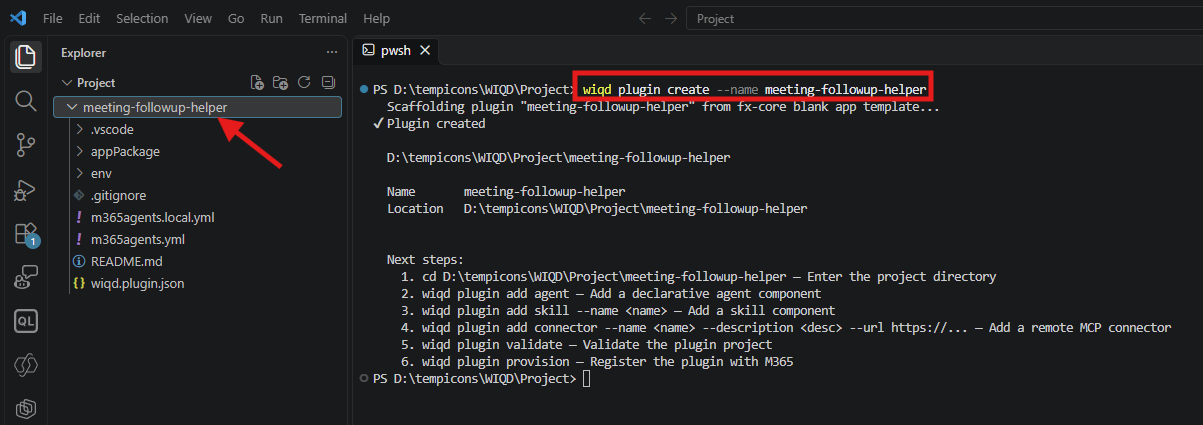
The generated project contains
appPackagefor the manifest, icons, and plugin content, plusenvfor environment settings. Them365agents*.ymlfiles define deployment steps.
- The project does not yet contain our meeting follow-up instructions. Lets add a skill to tell Cowork when to use those instructions and how to organize the notes.
- Move the terminal into the generated project folder.
- Add the Meeting Follow-up skill using following WIQD command:
wiqd plugin add skill --name "Meeting Follow-up"

- The command creates the skill folder and registers it in the plugin manifest. Open the generated skill file.

- The SKILL.md file starts with a name and description between
---markers. This opening block is called frontmatter.
Important: The skill name must match its folder name. Here, both use
meeting-follow-up.
The Cowork plugin guide explains the skill format and naming rules.
The starter file is ready. Lets replace its placeholder text with our meeting follow-up instructions.
Write the Skill Instructions
- Replace the contents of the skill file with our custom instructions.

- Save the updated SKILL.md file
Now we have the instructions. We need to update the plugin metadata, like, name and descriptions
Update the Display Name and Descriptions
Open the manifest.json file, which describes the app’s identity and displayed information.
- Update the app version from
1.0.0to1.0.1. - Replace the existing name and description blocks and save the file.
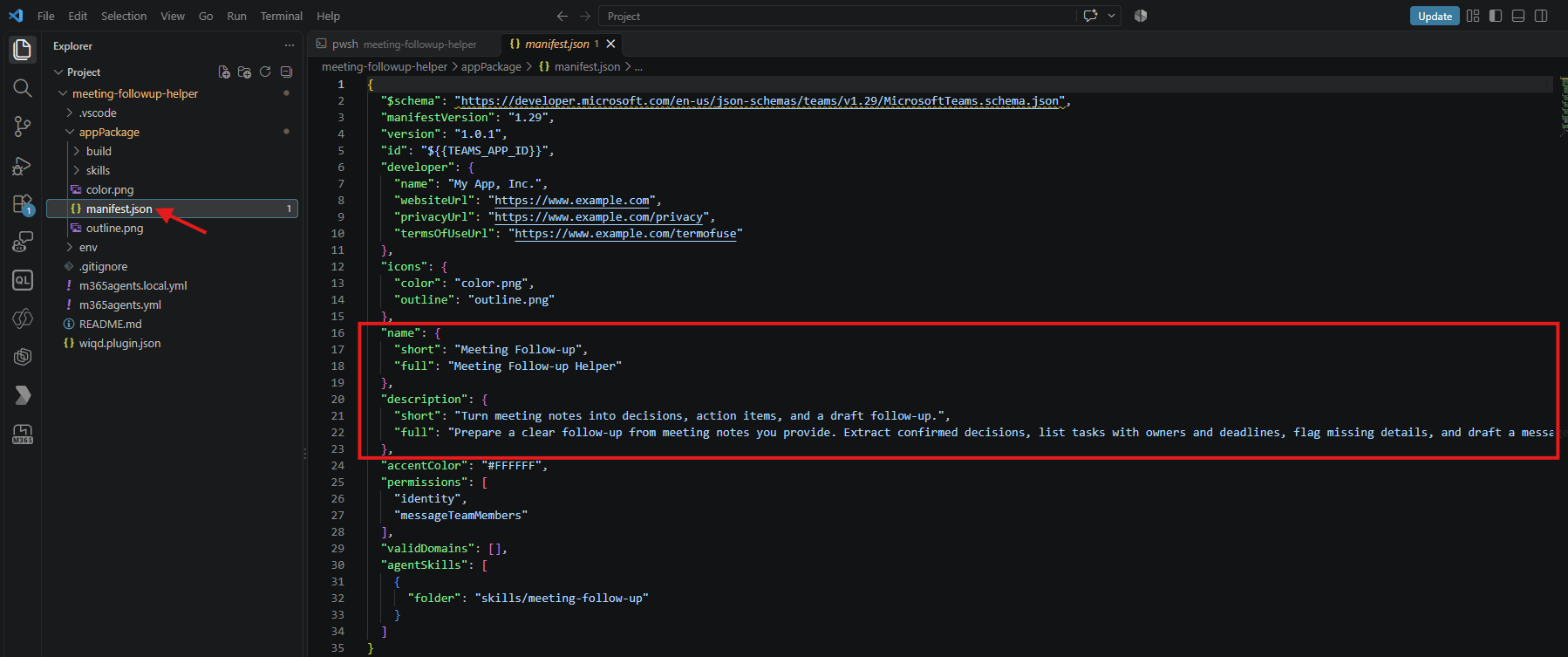
Now, lets check the project and register it in Microsoft 365.
Validate, Provision, and Package the Plugin
- Run the validation command ensure our Plugin project is valid.
wiqd plugin validate
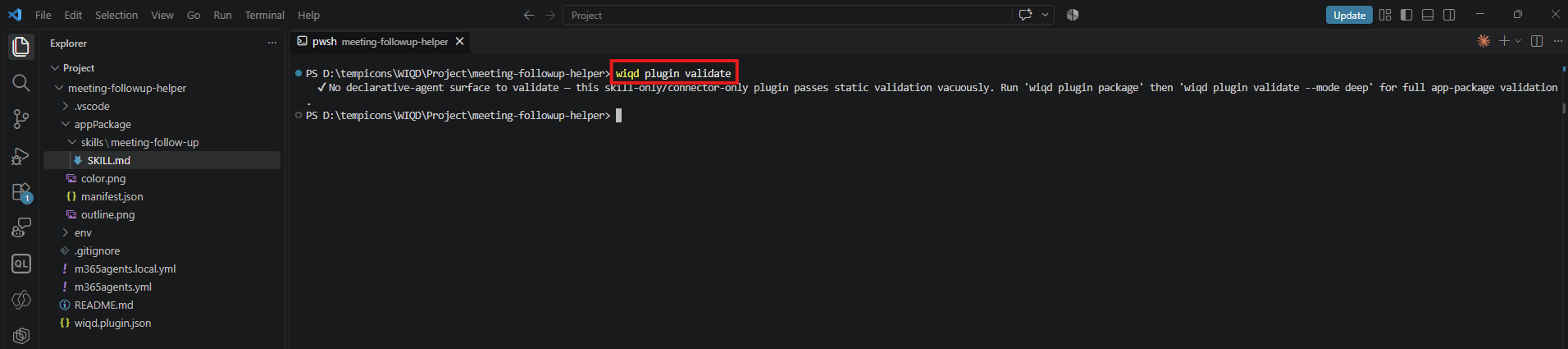
- Our validation passed. Next, register the plugin in your Microsoft 365 environment.
wiqd plugin provision --env local

- Provisioning builds and validates the package, then deploys it to Microsoft 365 by creating or updating its app registration.
Note:
localis an environment label. This command contacts Microsoft 365; it does not keep the plugin only on your computer.
- Optionally, build the ZIP package.
- This separate packaging step is optional for our personal test because provisioning has already deployed the plugin. It generates a ZIP that an administrator can upload through the Microsoft 365 admin center for distribution within your organization.
wiqd plugin package --env local

- The generated .zip is available under appPackage/build folder.
Its time to check and enable the plugin in Cowork
Enable the Plugin in Copilot Cowork
- Open Microsoft Copilot Cowork using the same work account.
- Select Customize.
- Find Meeting Follow-up.

- Open the plugin card.
- Confirm the description, version, and meeting-follow-up skill.
- Turn on the switch.

Now the plugin is enabled. Lets confirm that Cowork uses the skill.
Test the Meeting Follow-up Skill
- In the Cowork, select New task.
- Provide the prompt:

- Submit the prompt.
- Look for Reviewed custom skill Meeting Follow-up in the activity.
- Check the response against the notes.

- Test confirms that Cowork reviewed the custom skill. The visible extraction matches the main rules in this example.
We have created, registered, and tried the plugin. Here is what we covered.
Summary
- Checked PowerShell and Node.js.
- Installed WIQD and signed in to Microsoft 365.
- Created a skills-only plugin and added the meeting follow-up instructions.
- Provisioned the plugin, built its package, and updated its display information.
- Enabled it in Cowork and confirmed that Cowork reviewed the skill.
We used the wiqd plugin commands for this package. WIQD also provides wiqd agent commands for declarative-agent projects.
Official docs: WIQD installation, WIQD command reference, and Build plugins for Copilot Cowork.
🙂

Leave a Reply