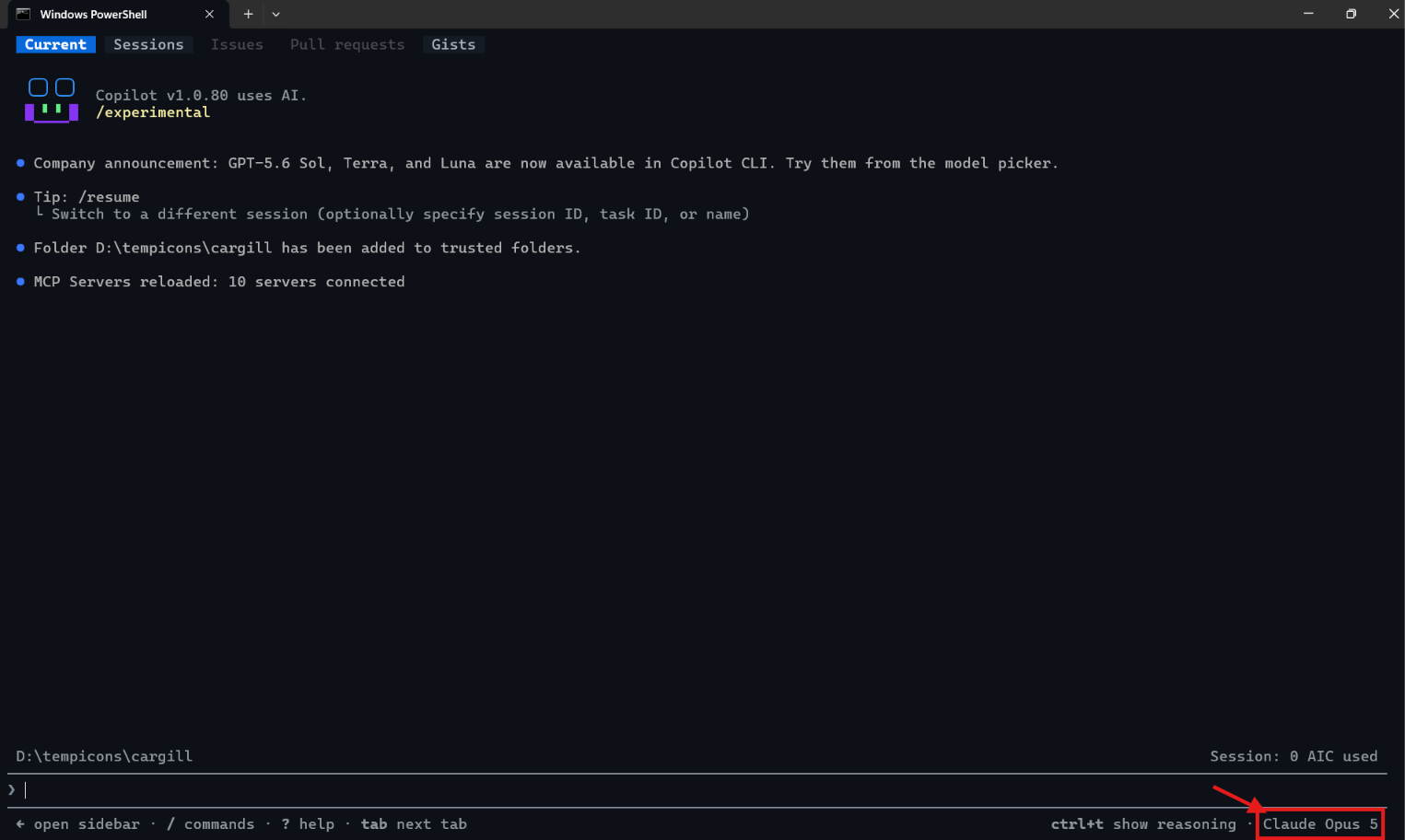
Lets say you started a new GitHub Copilot CLI session and noticed it is not using the model you want.
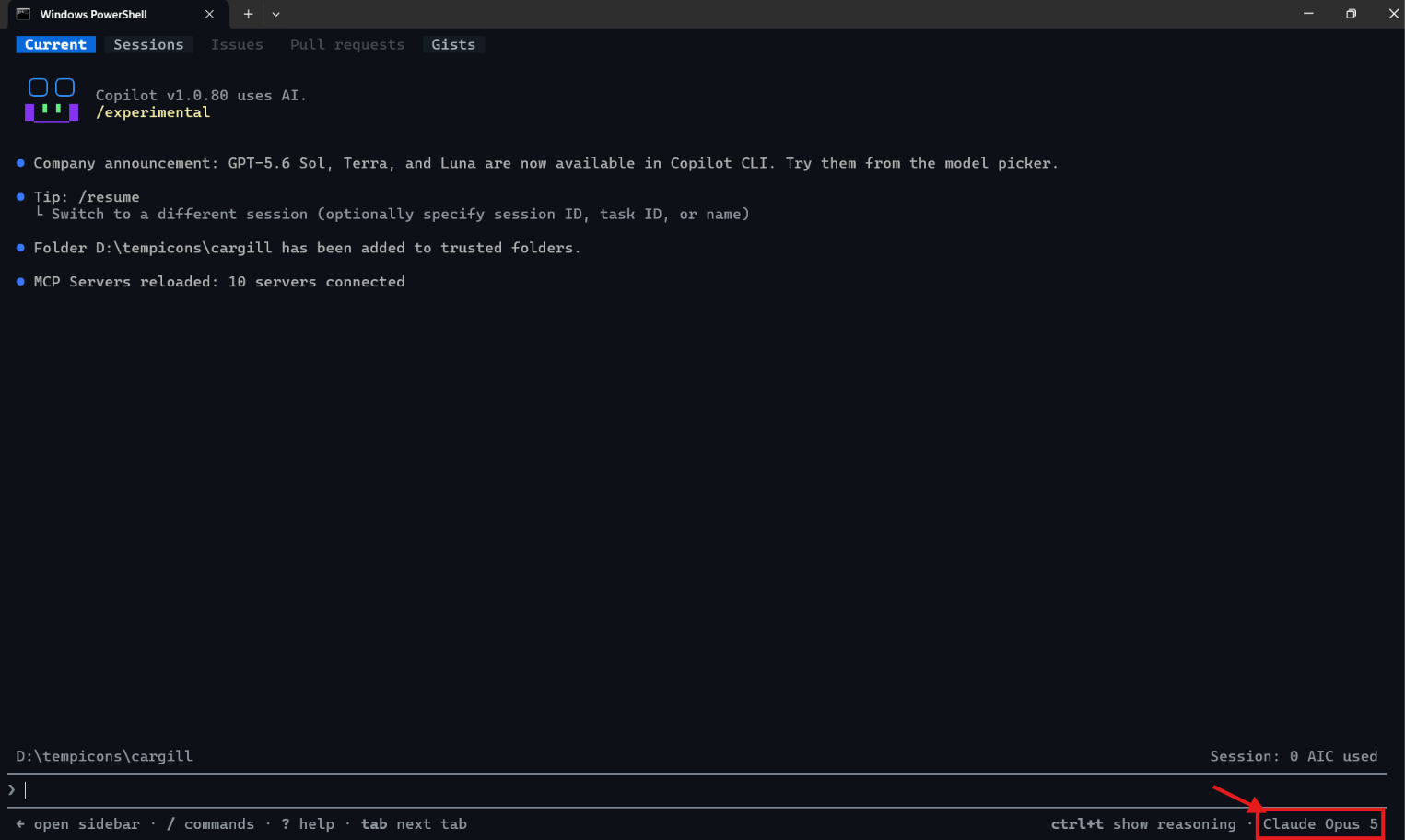
You have two options:
- Use
/modelto change the model for the current session. - Use
/config modelto set the default model for future sessions.
Lets look at both options.
Change the Model for the Current Session
- Use
/modelwhen you want to switch models without changing your saved default.

- The model picker displays the available models and their context sizes. It also shows the reasoning effort and AI credit cost.
- Select a model and press Enter. The selected model applies only to the current session.
Now lets set a model as the default for all future sessions.
Set the Model for Future Sessions
- Type
/config modelin the Copilot CLI prompt and press Enter.
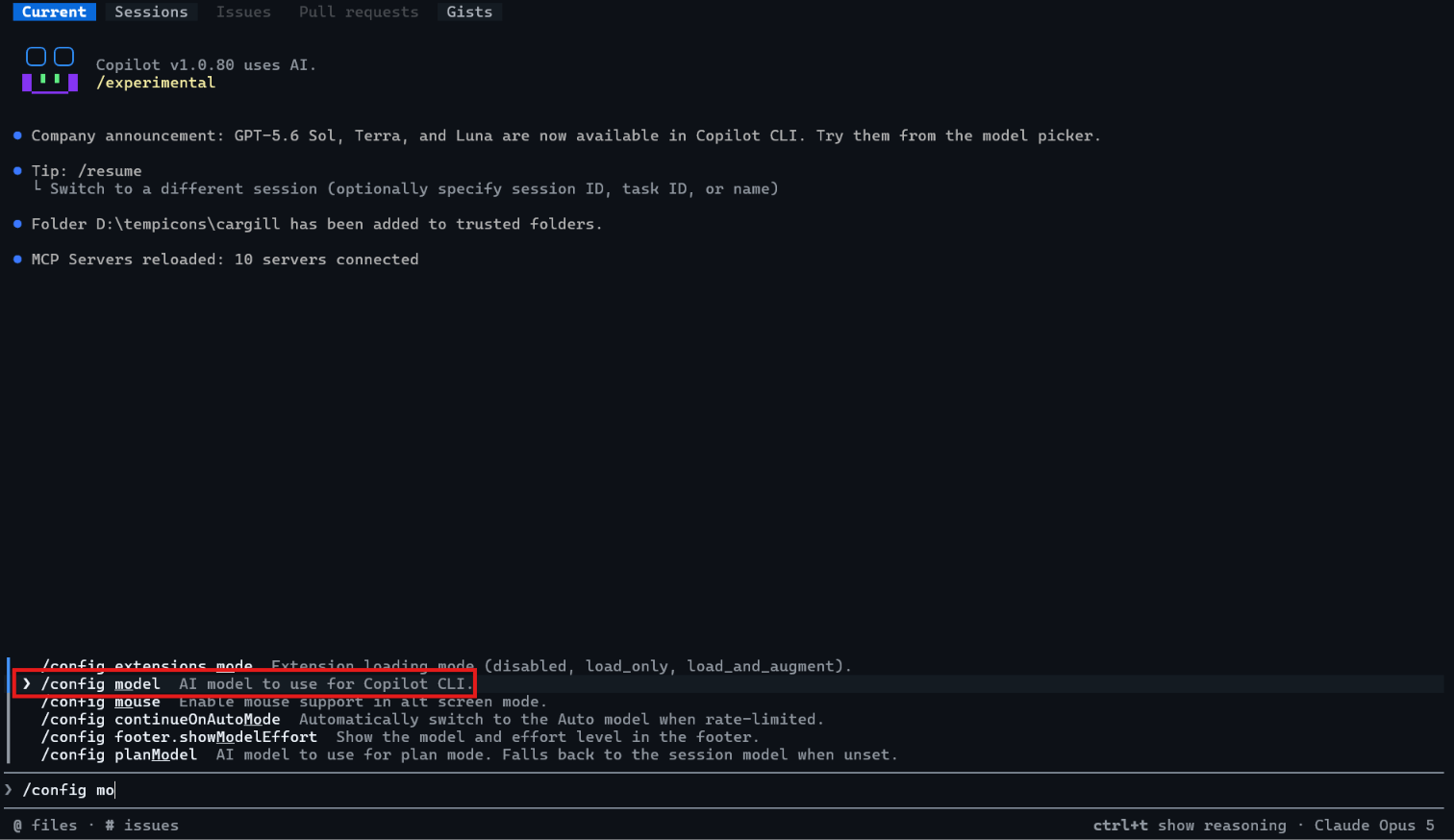
/configis an alias for/settings. The CLI saves this change in your personal settings.- Use the arrow keys to highlight the model you want as the default.
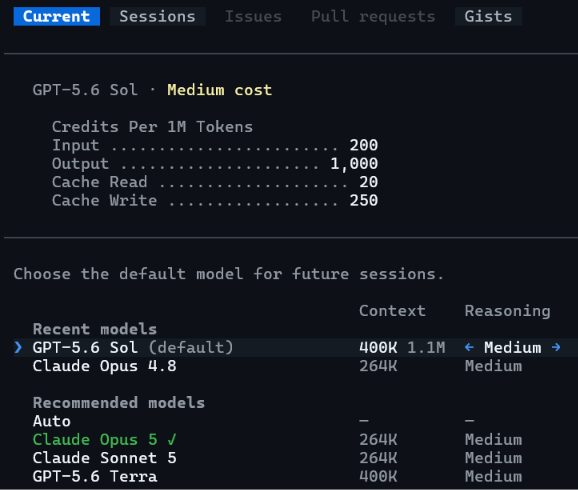
- You can also change the reasoning effort when the selected model supports it. Press Enter to apply the selection.
- Copilot CLI confirms the old model and the new user default in the timeline.
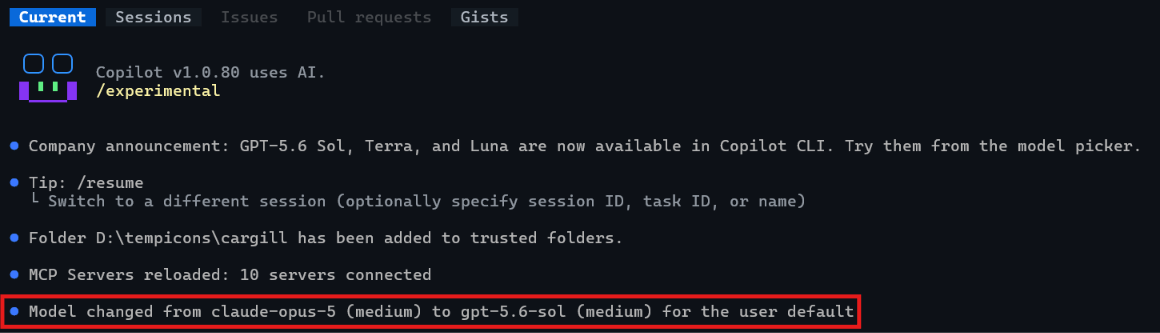
Now lets confirm that the saved model is used in a future session.
Start a New Session
- Exit the current session. Run
copilotagain to start a new GitHub Copilot CLI session. - The selected model gets loaded for the new session and future sessions.

Summary
- Use
/modelwhen you need a different model for the current session. This choice does not replace your saved default. - Use
/config modelwhen you want future sessions to start with your preferred model.
For the complete command list, see the GitHub Copilot CLI command reference. The /settings documentation explains how /config settings are stored and reused. 🙂
Leave a Reply