Do you know that you can convert a Power Apps vibe app into a Code App and continue development with full control over the source code?
Once converted, we can edit the project locally, use source control, and publish future changes with the Power Apps CLI.
What Happens During Conversion?
- Power Apps vibe downloads the generated React project as a ZIP file.
pa app initcreates a new Power Apps Code App identity.pa app runopens the project through the Power Apps local host.pa app pushpublishes the compiled project into Power Platform.
Important: The converted Code App is separate from the original vibe app. Later Code App changes do not update the vibe plan or app.
Now we know what the conversion creates. Lets prepare the tools required for the downloaded project.
Prerequisites
Make sure you have the following ready.
- A Power Apps vibe app that you can edit.
- A Power Platform environment with Code Apps enabled.
- Node.js
- Visual Studio Code or another code editor.
- The
pacommand from the@microsoft/power-apps-clinpm package. - The environment ID of the target Power Platform environment.
Install the Power Apps CLI if the pa command is not available.
npm install --global @microsoft/power-apps-cli
With the tools ready, lets create and publish a vibe app before downloading its source.
Create the Power Apps Vibe App
- Open vibe.powerapps.com.
- Select the required Power Platform environment.
- Enter a prompt describing the app.
- Review the generated plan and let Power Apps build the project.
- Publish the project
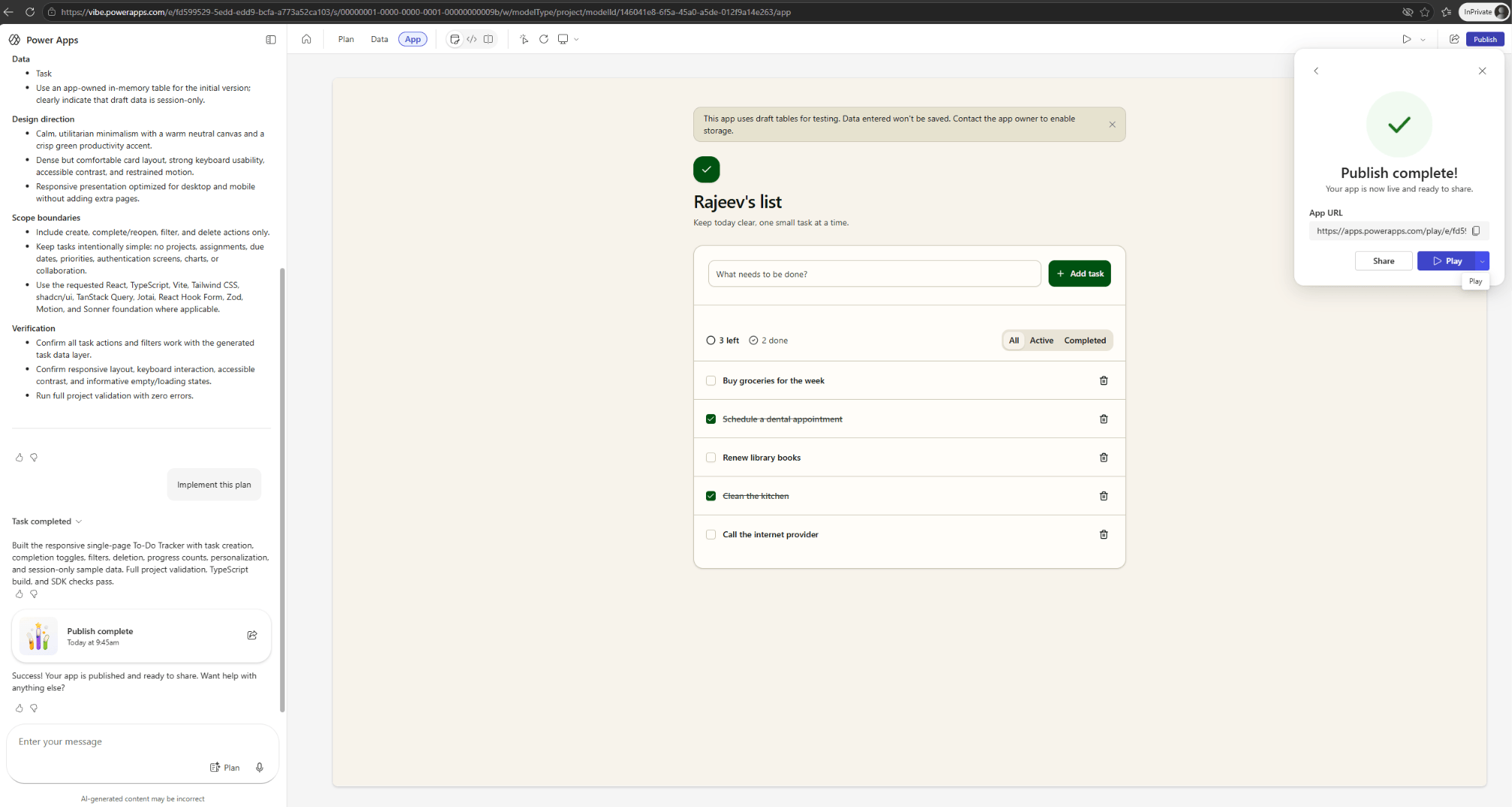
The vibe app is now available. Next, we will download the generated project.
Download the Vibe App Source
- Open Apps in Power Apps vibe.
- Select the App and from the menu choose Download.

- The browser downloads a ZIP file containing the generated project.
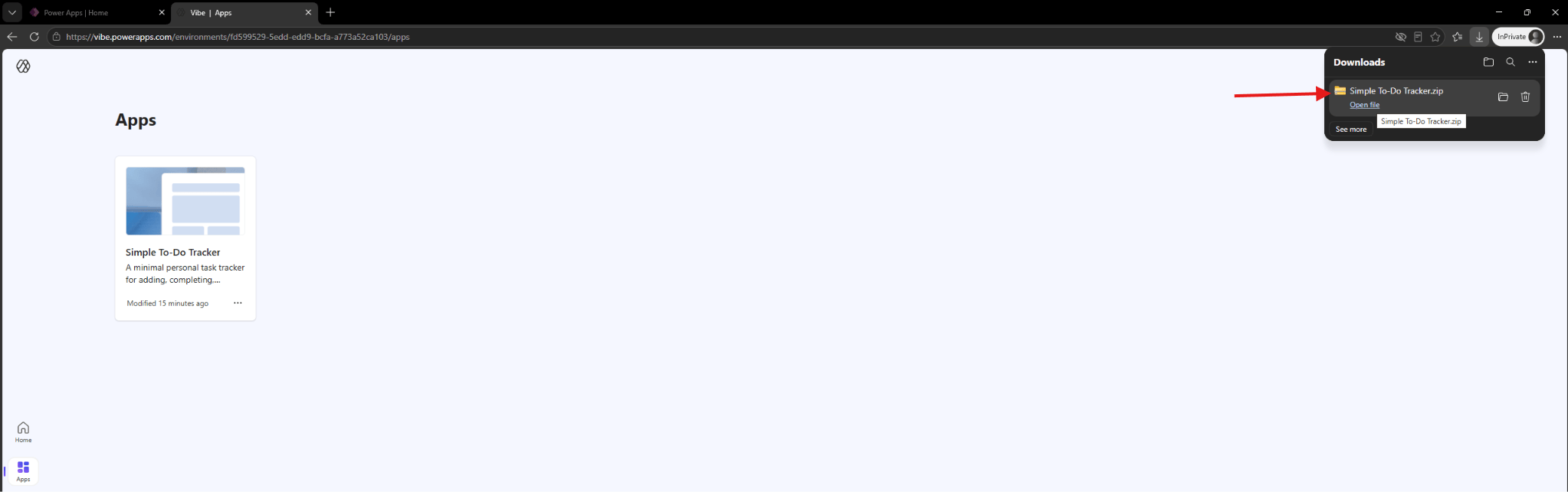
We now have the source project. Lets extract it and open the correct app folder.
Prepare the Downloaded Project
- Extract the downloaded ZIP file.
- Open the extracted
projectfolder. - The extracted package contains
apps,data-model, and supporting project folders.
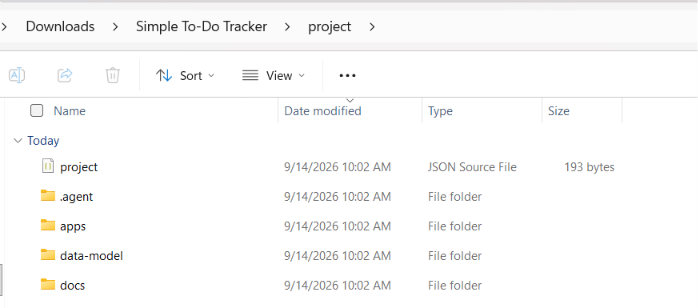
- Open
appsand locate the generated app folder. Then open that individual app folder in Visual Studio Code. - For this example, the correct folder is:
project\apps\todo-tracker
- The individual app folder contains the React project and its original
power.config.jsonfile. Open that configuration file.

- If
connectionReferencesordatabaseReferencescontains values, save those sections temporarily. Also save any properties that follow those sections. - Delete the existing
power.config.jsonafter saving the required values. Thepa app initcommand will create a new file.
The downloaded project is ready for initialization. Next, we will install its required packages.
Install the Project Packages
- Open a PowerShell terminal in the individual app folder. Run the command documented by Microsoft:
npm install --save-dev "oxlint-tsgolint@^7.0.2001" --allow-remote=all

The project packages are installed. Lets create the new Code App identity.
Initialize the Power Apps Code App
- Run the following command from the same app folder:
pa app init
- Provide the target environment ID and a display name when prompted.

- After both prompts are completed, the command creates a new
power.config.jsonfile.

- The new file contains the Code App identity, environment ID, build path, and local app URL.
- Restore the saved
connectionReferencesanddatabaseReferencesvalues when the vibe app uses connected data.
The Code App is now initialized. Before running it, we need one additional tool used by the tested vibe export.
Install Bun for the Downloaded Project
- Power Apps Code Apps do not always require Bun. The standard Microsoft Vite template runs with Node.js and npm.
- However,
pa app runattempted to use thebuncommand for this downloaded vibe project. The project also includedbun.lockand Bun-based validation commands. - Install Bun from its npm package:
npm install --global bun
Bun is now available and the local ports match. Lets run the converted app.
Run the Code App Locally
- Run the local host:
pa app run

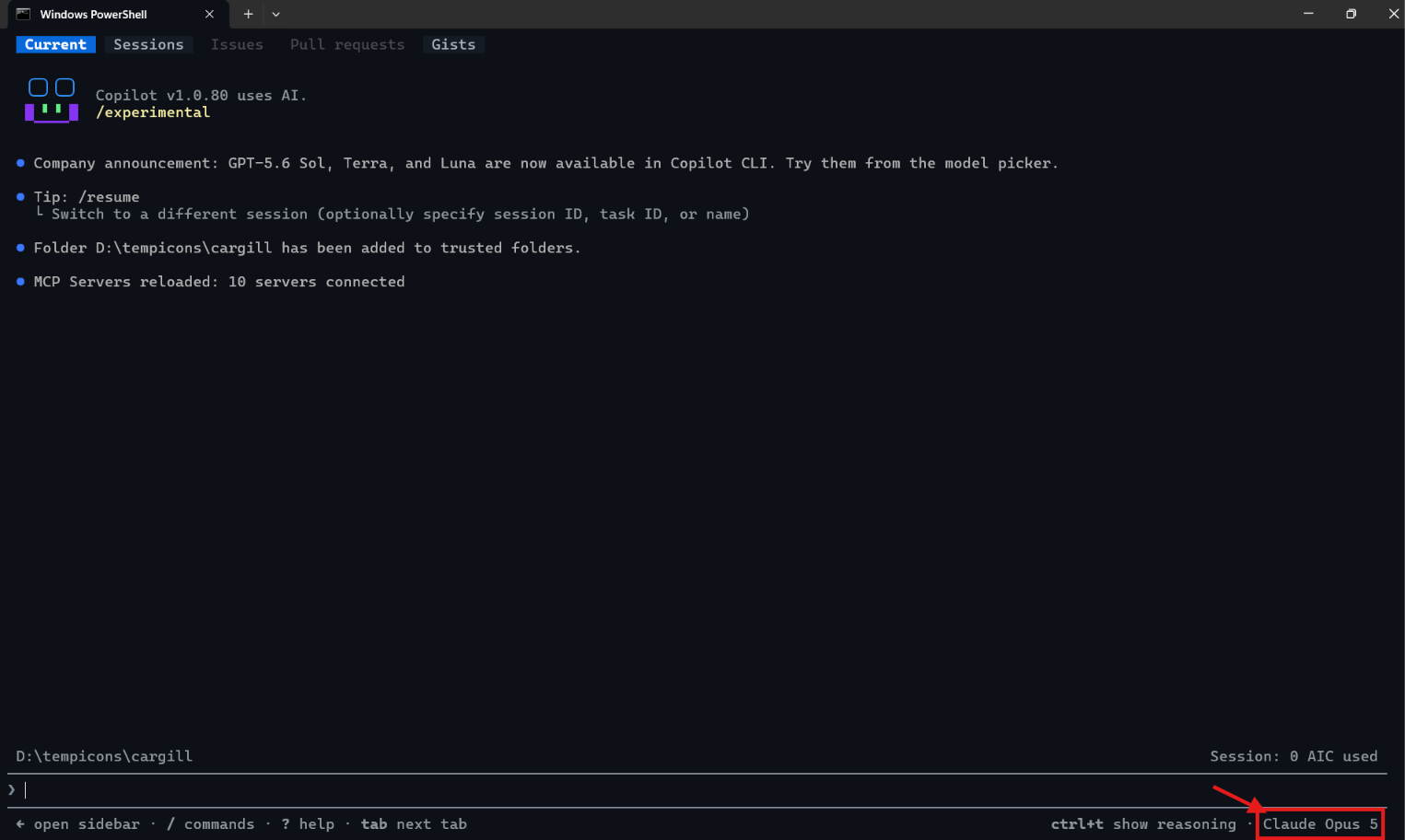
- Notice in the above screenshot, that the first run stopped because the
buncommand was unavailable.
The app is now running from the local project. Next, we will build and publish it.
Build and Publish the Code App
- Build the project:
npm run build
- After the build succeeds, publish the compiled app:
pa app push

The app is now running from the local project. Next, we will build and publish it.
Build and Publish the Code App
- Build the project:
npm run build
- After the build succeeds, publish the compiled app:
pa app push- Open the returned URL to verify the published Code App.
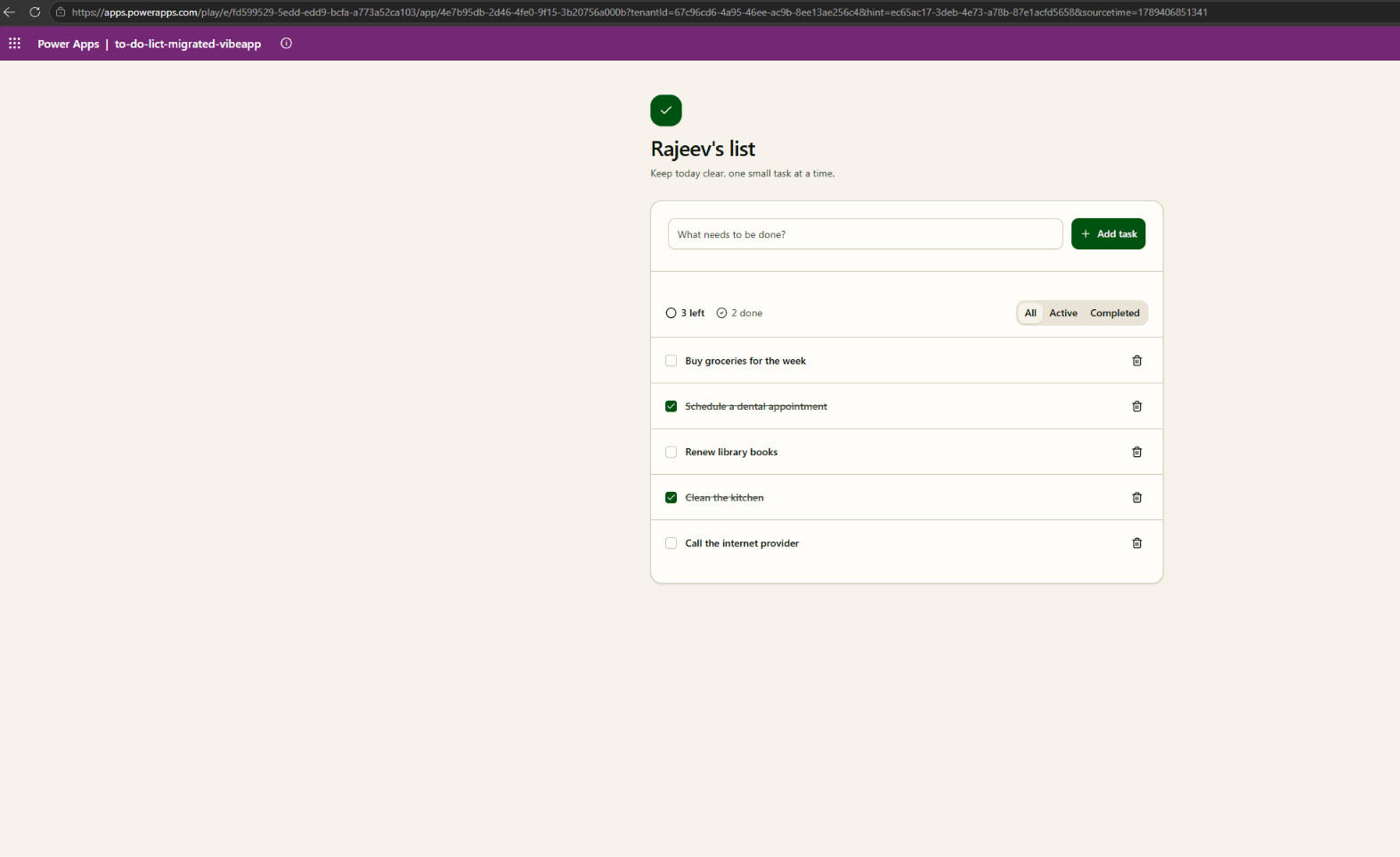
The vibe-generated React project is now running as a separate Power Apps Code App.
Summary
We downloaded a Power Apps vibe project, initialized it with pa app init, and published it with pa app push.
- Use Download in the current vibe interface.
- Run commands from the individual folder under
project\apps. - Preserve connection and database references before replacing
power.config.json. - Install Bun when
pa app runreports that thebuncommand is unavailable. - Run
npm run buildbeforepa app push.
Refer to Microsoft’s Convert a vibe app to a Code App documentation for the supported conversion flow.
For related reading, see my posts about building a Power Apps vibe app and building Code Apps with the pa CLI. 🙂

Leave a Reply