Copilot Credits measure usage for Copilot Studio and other eligible Microsoft AI services. Organizations can pay for this usage through prepaid capacity or usage-based billing.
After a prepaid capacity is purchased, an administrator can allocate the Copilot Credits to Power Platform environments. Administrators can also set monthly consumption limits for individual agents.
This post covers the available procurement options, environment-level capacity allocation, the Draw from the available capacity in my tenant setting, and agent-level monthly limits.
Lets first start with understanding different options to buy Copilot Credits
Ways to Procure Copilot Credits
Microsoft provides the following purchasing options:
- Copilot Studio pay-as-you-go: Connect an Azure subscription through a billing plan. The organization pays for the Copilot Credits consumed each month.
- Copilot Credit Pre-Purchase Plan: Purchase Copilot Credit commit units through Azure reservations for a one-year term.
- Microsoft Agent Prepurchase Plan: Purchase Agent commit units for eligible usage across Copilot Studio and other supported Microsoft services.
- Microsoft Copilot Studio capacity packs: Purchase prepaid tenant capacity through the Microsoft 365 admin center. Each pack provides 25,000 Copilot Credits per month.
Unused monthly capacity from a Copilot Studio capacity pack does not carry over to the next month.
A capacity pack adds prepaid Copilot Credits to the tenant pool. A Power Platform administrator can distribute this capacity among environments.
Required Administrator Role
To allocate Copilot Credits, the user must have one of the following roles:
- Power Platform Administrator
- Global Administrator
The Power Platform Administrator role provides the required Power Platform access without broader Microsoft 365 administration permissions.
Permissions to purchase capacity are separate. Buying capacity packs requires a Global Administrator or Billing Administrator role. Azure prepurchase plans require an Azure Owner or Reservation Purchaser role.
Now that we understand the basics and required permissions, lets learn how an administrator can allocate credits to an environment.
Allocate Copilot Credits to an Environment
- Sign in to the Power Platform admin center.
- Select Licensing.
- Under Products, select Copilot Studio.
- On the Summary tab, select Manage Copilot Credits.
- Select the environment that requires capacity.
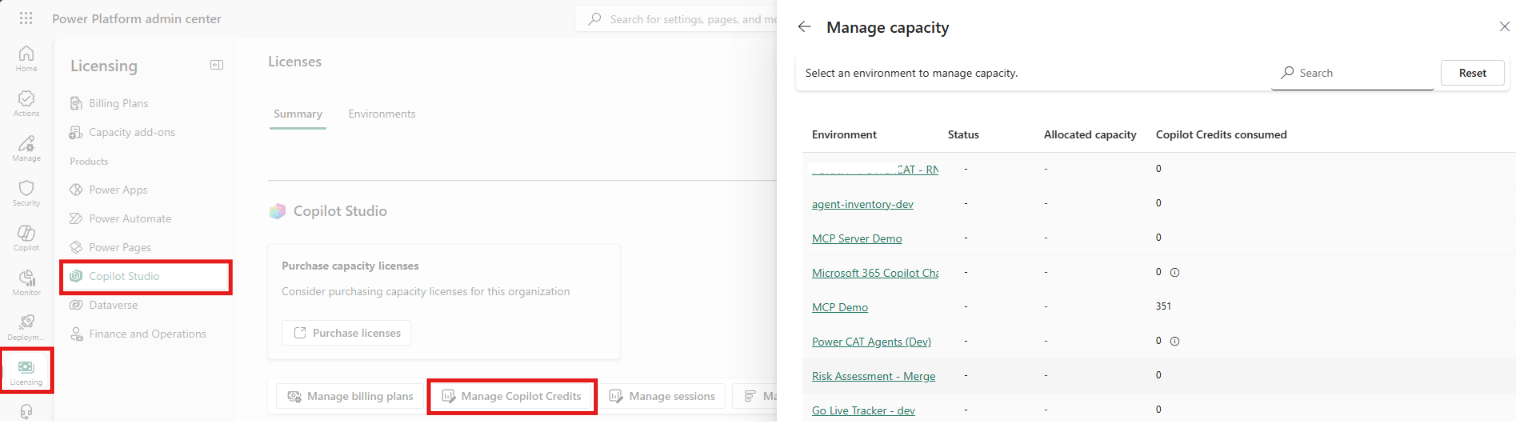
- The allocation pane shows the consumed, allocated, and available tenant capacity.
- Enter the number of Copilot Credits to allocate.
- Configure the required options under Capacity overages.
- Select Save.
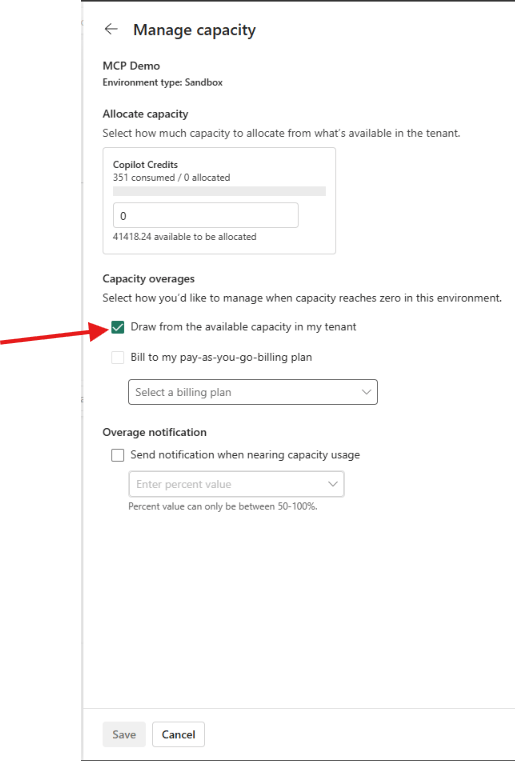
Draw from the Available Capacity in My Tenant
- This setting controls whether an environment can use unallocated prepaid capacity from the tenant pool.
- Selected: The environment uses its allocated capacity first. It can then use available, unallocated tenant capacity.
- Cleared: The environment is limited to its allocation and cannot use the unallocated tenant capacity.
- Review this setting carefully. An environment allocation is not a fixed prepaid limit when tenant draw is selected.
- After the allocated credits are consumed, workloads in the environment continue using the unallocated tenant pool. This can result in unplanned consumption and leave less capacity available to other environments.
- For eligible Copilot Studio environments, this setting is selected by default when no allocation configuration exists. Clear it when the environment must remain within its allocated prepaid capacity.
Example : Consider a tenant with one capacity pack containing 25,000 monthly credits:
- Production receives an allocation of 15,000 credits.
- The remaining 10,000 credits stay unallocated in the tenant pool.
- Production consumes its allocated 15,000 credits first.
- If tenant draw is selected, Production can use the remaining 10,000 credits.
- If tenant draw is cleared, Production cannot use the remaining 10,000 credits.
The setting uses only capacity that remains unallocated at the tenant level. It does not use capacity allocated to another environment.
Important: Clearing tenant draw limits prepaid consumption to the environment allocation. A linked pay-as-you-go billing plan can still continue billing usage after prepaid capacity is exhausted.
An Environment Group rule can also control tenant capacity draw. When the rule is published, the environment-level setting becomes read-only.
An environment allocation controls the capacity available to all eligible workloads in that environment. Agent-level limits provide more specific control for individual agents.
Set a Monthly Limit for an Agent
- In Licensing > Copilot Studio, open the Summary tab.
- Select Manage Agents.

- The Agents page shows billed usage, configured limits, status, and the environment for each agent.
- Find the agent.
- Select the ellipsis menu.
- Select Set Limit.

- Enter the monthly Copilot Credit limit.
- Configure the notification threshold.
- Enable Stop usage to turn off the agent when it reaches the limit.
- Select Save.

An agent limit does not reserve a separate pool of credits. The agent continues to consume capacity from its environment until it reaches the configured limit.
With both controls configured, administrators can manage shared environment capacity and individual agent consumption.
Summary
Copilot Studio supports prepaid and usage-based options for Copilot Credits. Administrators allocate prepaid capacity to environments and configure overage behavior.
Agent-level monthly limits provide more specific consumption control. Enable Stop usage when the agent must be turned off after reaching its limit.
For more details, refer to:
- Copilot Credits licensing guidance
- Manage Copilot Credits and capacity for Copilot Studio
- Manage costs for agents powered by the GitHub Copilot harness
- Copilot Credit Pre-Purchase Plan
- Microsoft Agent Prepurchase Plan
For related agent concepts, refer to my earlier post on understanding the GitHub Copilot harness. 🙂

Leave a Reply