Workflows are the automation experience powered by the GitHub Copilot harness in Copilot Studio.
If you are new to this, refer my earlier post Copilot Studio Harnesses – Understanding the GitHub Copilot Harness to understand harnesses and Workflows.
A Workflow is a solution aware cloud flow. It shows up under Cloud flows in the Dataverse solution, with Type set to Cloud Flow.

For a regular cloud flow, we add co-owners from Details > Edit > Owner in Power Automate. That path does not work for a Workflow.
Selecting Edit or Details opens the Workflow in the Copilot Studio workflow designer. This designer has no option to set co-owners.
In this article, lets add a co-owner to a Workflow from the Power Platform Admin Center instead. Before that, lets see why a co-owner is needed.
Why add a co-owner
A Workflow runs on connections, and every connection belongs to the user who created it. If one person owns the Workflow, everything depends on that account. When that person leaves the organization, the Workflow becomes an orphaned flow and its connections stop working.
A co-owner has the same rights as the creator, and can step in to:
- View and edit the Workflow definition, including triggers and actions.
- Update connections and connection references.
- Turn the Workflow on and off.
- Add other co-owners.
Note: An admin role by itself does not grant edit rights. A Power Platform admin can view, share, disable and delete a flow. To edit it, they add themselves as a co-owner using the steps below.
Lets add the co-owner now.
Set co-owner from PPAC:
- Sign in to Power Platform Admin Center.
- Select Manage > Environments in the left navigation.
- Open the target environment and select Resources > Flows.
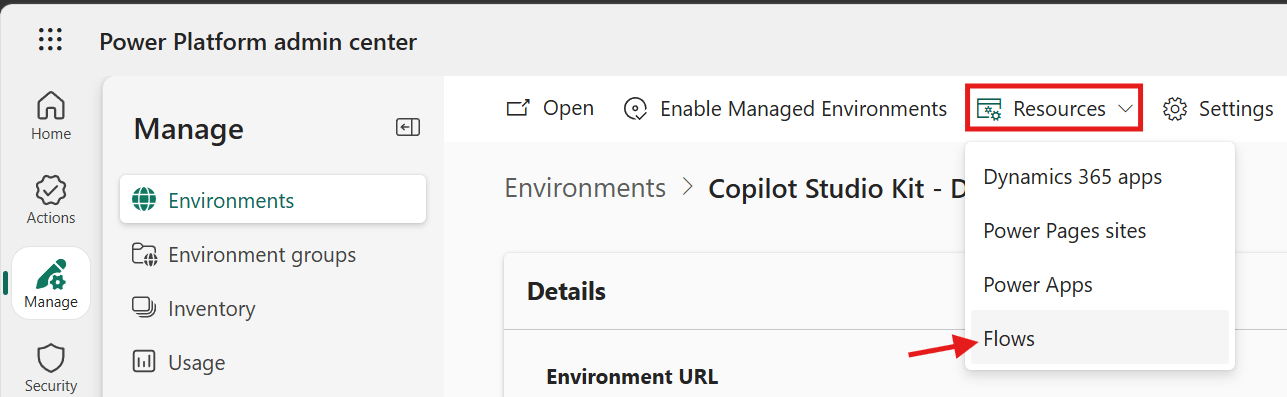
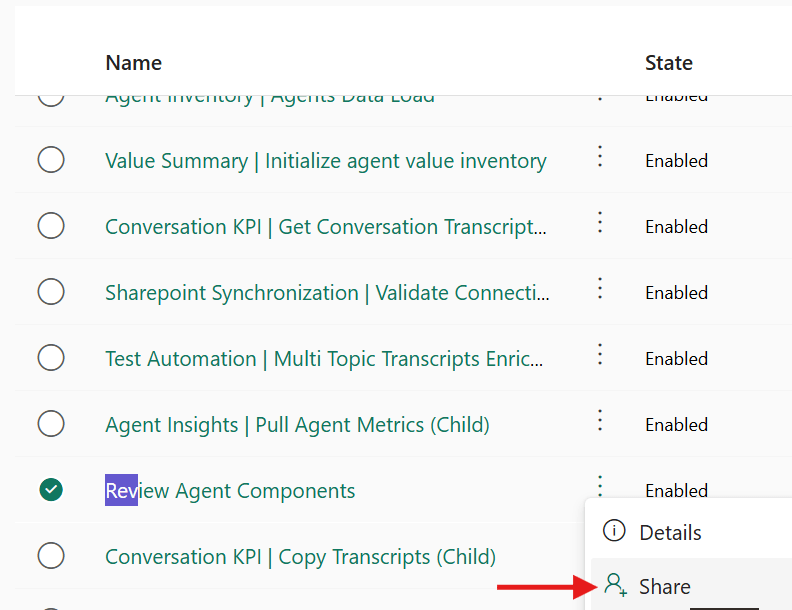
- The list shows every flow in the environment. Locate your Workflow in the list.
- Click on Share
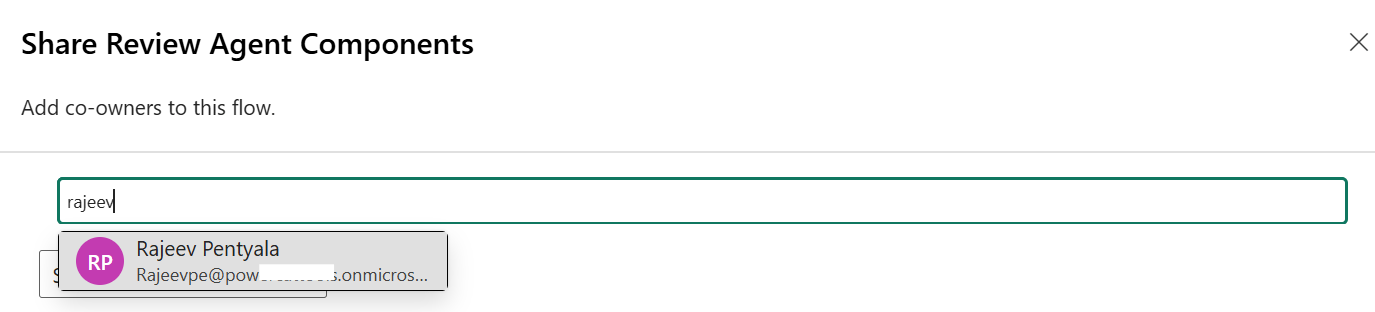
- Type a name or email. Pick the account from the results.
- Click Save.
- Your Workflow has a new co-owner now
🙂

Leave a Reply