Did you know you can bring your own LLM into VS Code Chat? With the Bring Your Own Key (BYOK) feature, you are no longer limited to the default models in the Chat view – you can plug in providers like OpenRouter, Ollama, Anthropic, Google, and more using just an API key.
In this post, I will walk through the setup using OpenRouter as the provider, since it gives you access to hundreds of models (including several free ones).
Note: BYOK with built-in providers (like OpenRouter, Ollama, Anthropic) is a VS Code feature and does not require a GitHub Copilot subscription. You can use it even without signing into GitHub.
Prerequisites
- VS Code. A GitHub Copilot subscription is not required for BYOK with built-in providers like OpenRouter.
- An OpenRouter API key – if you don’t have one yet, follow my earlier post: OpenRouter: Pick a Free AI Model and Build a React Chat App.
Note: Keep the OpenRouter API key handy – you’ll paste it into VS Code in one of the steps below.
With the prerequisites in place, let’s proceed with the setup inside VS Code.
Setup Steps:
- Open VS Code
- Press
Ctrl + Shift + Pto launch the Command Palette, type Chat: Manage Language Models. and press Enter.

- VS Code lists the supported providers (OpenRouter, Ollama, Google, OpenAI, Anthropic, and more).
- In the Language Models editor, click the Add Models button at the top. Pick OpenRouter from the list.

- When prompted, paste the API key you generated from your OpenRouter account and press Enter. VS Code stores the key securely and uses it to authenticate every chat request going to OpenRouter.
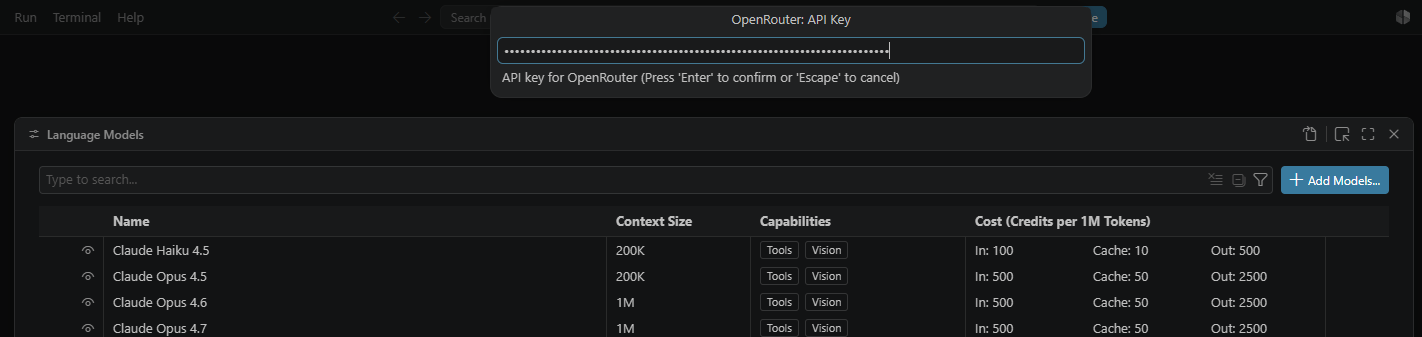
- VS Code pulls the full catalog of available models into the Language Models editor.

- The list is long, so narrow it down. Hover over a model row and click the eye icon that appears on the right to toggle visibility. Hide everything you don’t plan to use so the picker stays clean.

Now that OpenRouter is wired up and the models are selected, let’s switch over to the Chat view and try it out.
Test the OpenRouter Model in Chat
- Open the Chat view in VS Code
- At the bottom of the chat input, click the model picker. In the dropdown, scroll to the OpenRouter group and click one of the models you made visible in the previous step.
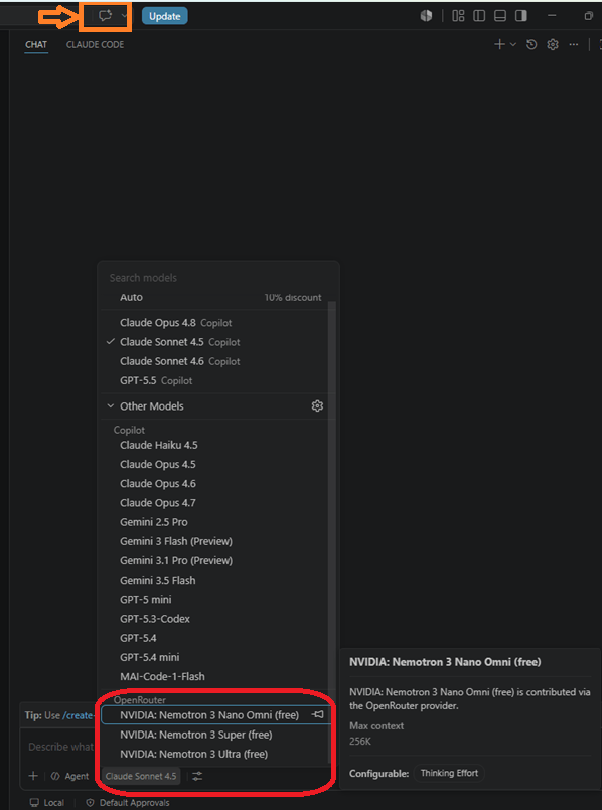
- Type a test prompt in the chat input and press Enter. The response is generated by OpenRouter using your API key – confirming the BYOK connection is working end-to-end.
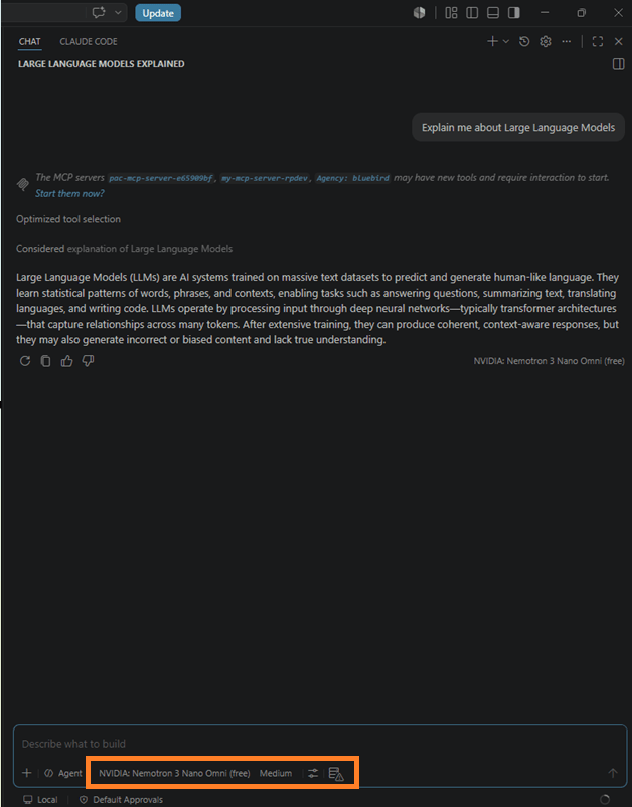
That’s it. VS Code Chat is now talking to OpenRouter using your key, and you can swap models on the fly. The same flow works for other providers like Ollama (for local models), Google, Anthropic, and any OpenAI-compatible endpoint.
For the official announcement and the full list of supported providers, check the VS Code blog post – Expanding Model Choice in VS Code with Bring Your Own Key – and the Language Models documentation.
🙂
Leave a Reply