In my previous post, Getting Started: Build Your First Power Apps Code App, I walked through the manual steps to scaffold and publish a Code App.
With the new Power Platform Skills plugin for GitHub Copilot CLI (also works with Claude Code), all of those steps are handled for you through a skills.
In this post, I will use the skills to scaffold, build, and deploy a Power Apps Code App that performs CRUD on the Dataverse contact table — driven entirely by natural-language prompts.
What is the Power Platform Skills plugin?
- A Copilot plugin that adds a set of Code Apps skills (slash commands) to scaffold and extend Power Apps Code Apps.
- Works with both GitHub Copilot CLI and Claude Code.
- Generates a React + Vite project, wires up Power Platform connectors, and handles the build and deploy commands for you.
- Currently in Preview.
Prerequisites
Before getting started, make sure the following are in place:
- Node.js v22+ installed (
node --version) - GitHub Copilot CLI installed and signed in (the same plugin also works with Claude Code)
- A Power Platform environment with maker permissions where you can deploy a Code App
- A preferred solution set in the target environment
- Authenticate
pacto the target environment usingpac auth create— this profile is what the skills use to locate and deploy the Code App.
The first thing I did was set the preferred solution in the target environment so the code app generated via skill will be part of the preferred solution.

Install the Power Platform Skills Plugin
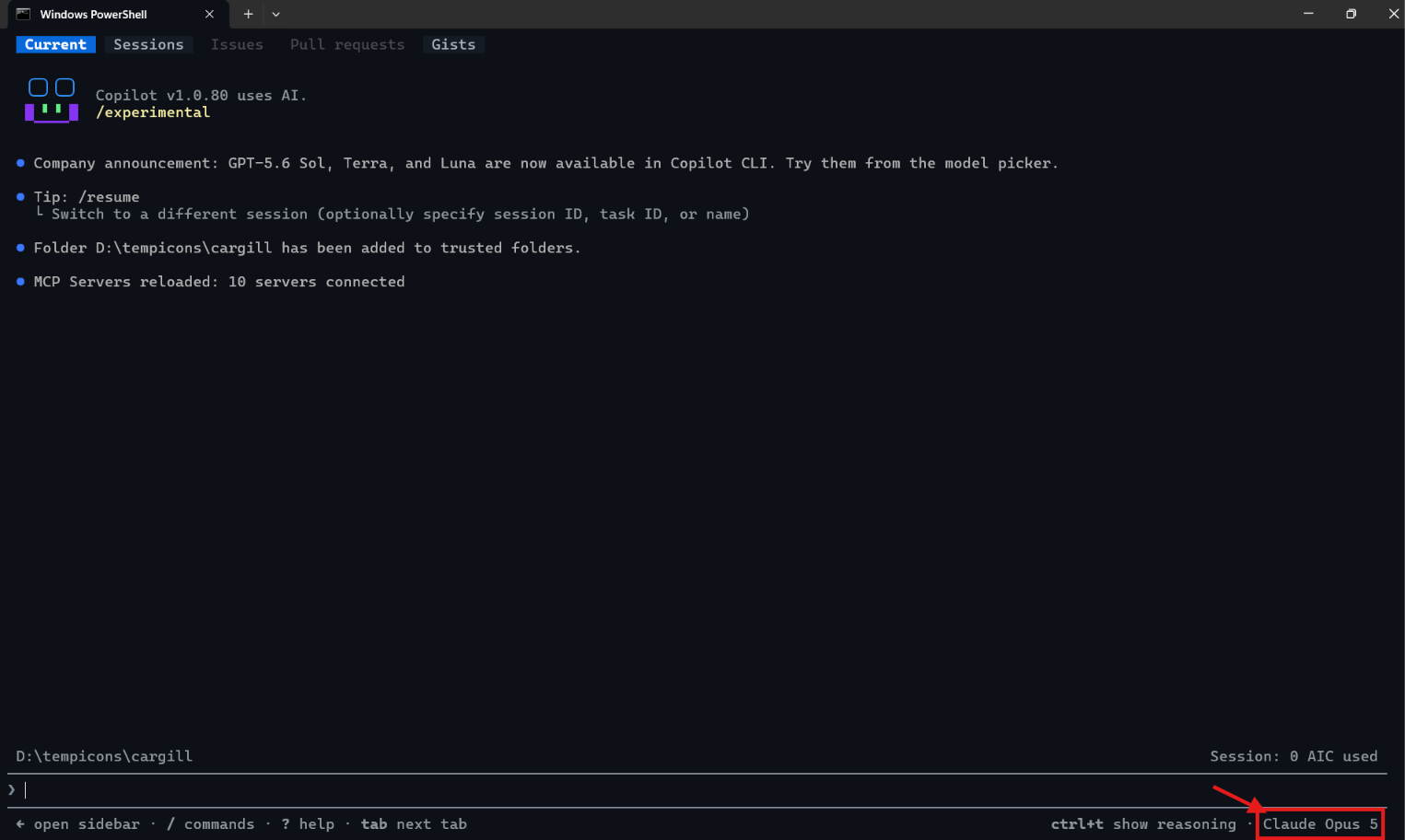
With prerequisites done, let’s install the plugin into GitHub Copilot CLI. Open Copilot CLI in any folder and add the marketplace, then install the code-apps plugin by executing following commands.
- Add the marketplace:
/plugin marketplace add microsoft/power-platform-skills

- Install the plugin:
/plugin install code-apps-preview@power-platform-skills
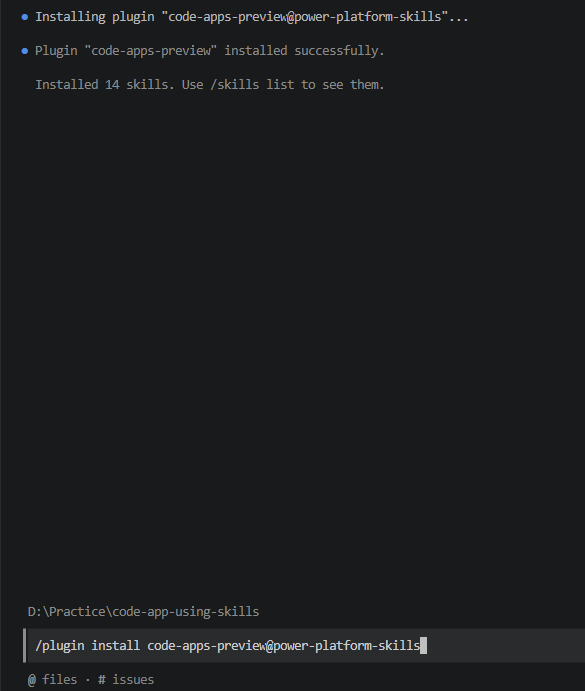
Important: After the plugin is installed, restart your Copilot CLI session (exit and relaunch). The new slash commands are registered only when the session starts up.
Create the Code App Project
Now that the plugin is installed and the session has been restarted, let’s start the guided experience. Run /create-code-app and the agent walks through prerequisites, requirements, and scaffolding.
- Run the slash command in GitHub Copilot CLI:
/create-code-app
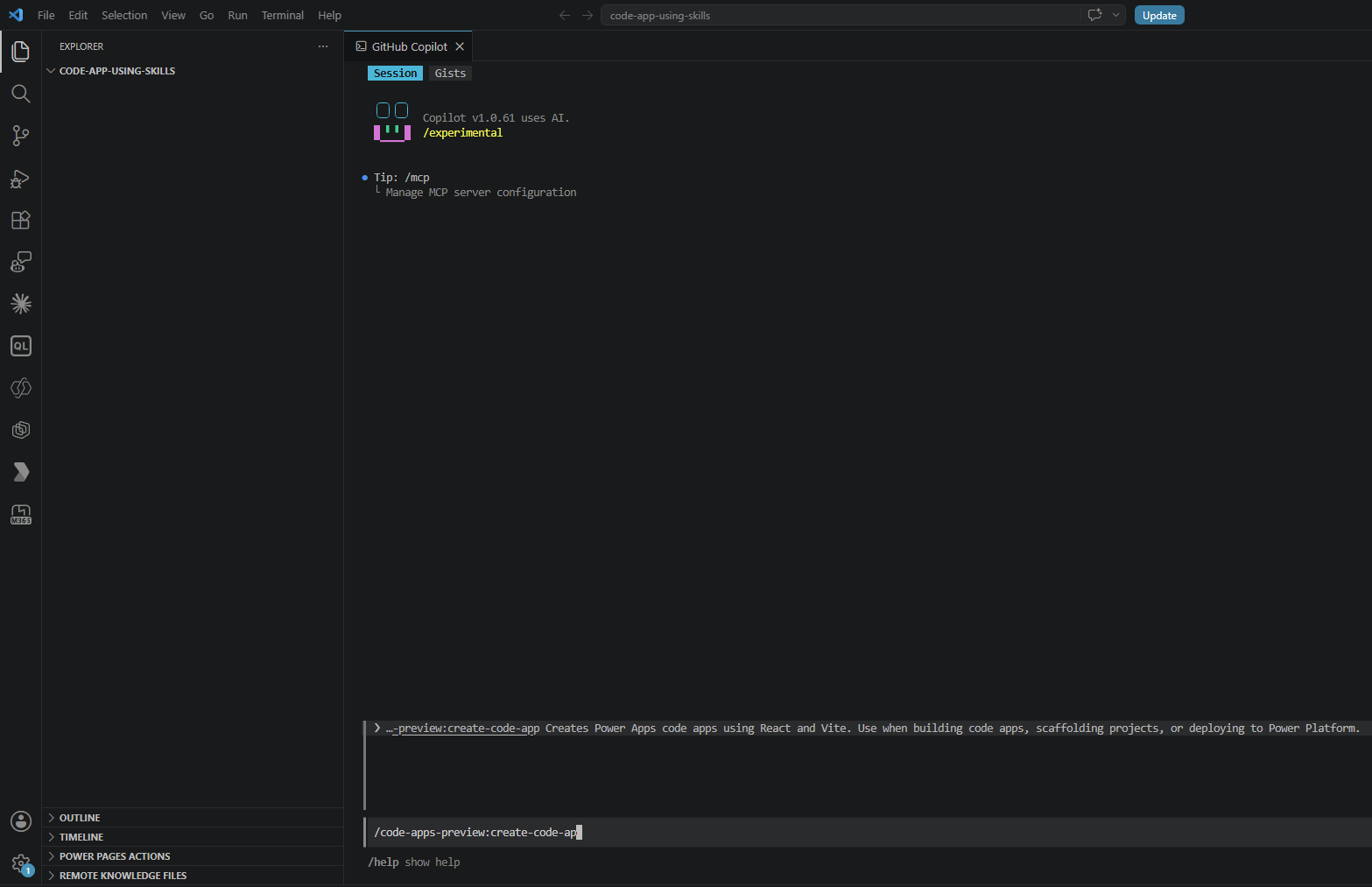
- The agent first asks an open-ended question — describe what you want to build in your own words.
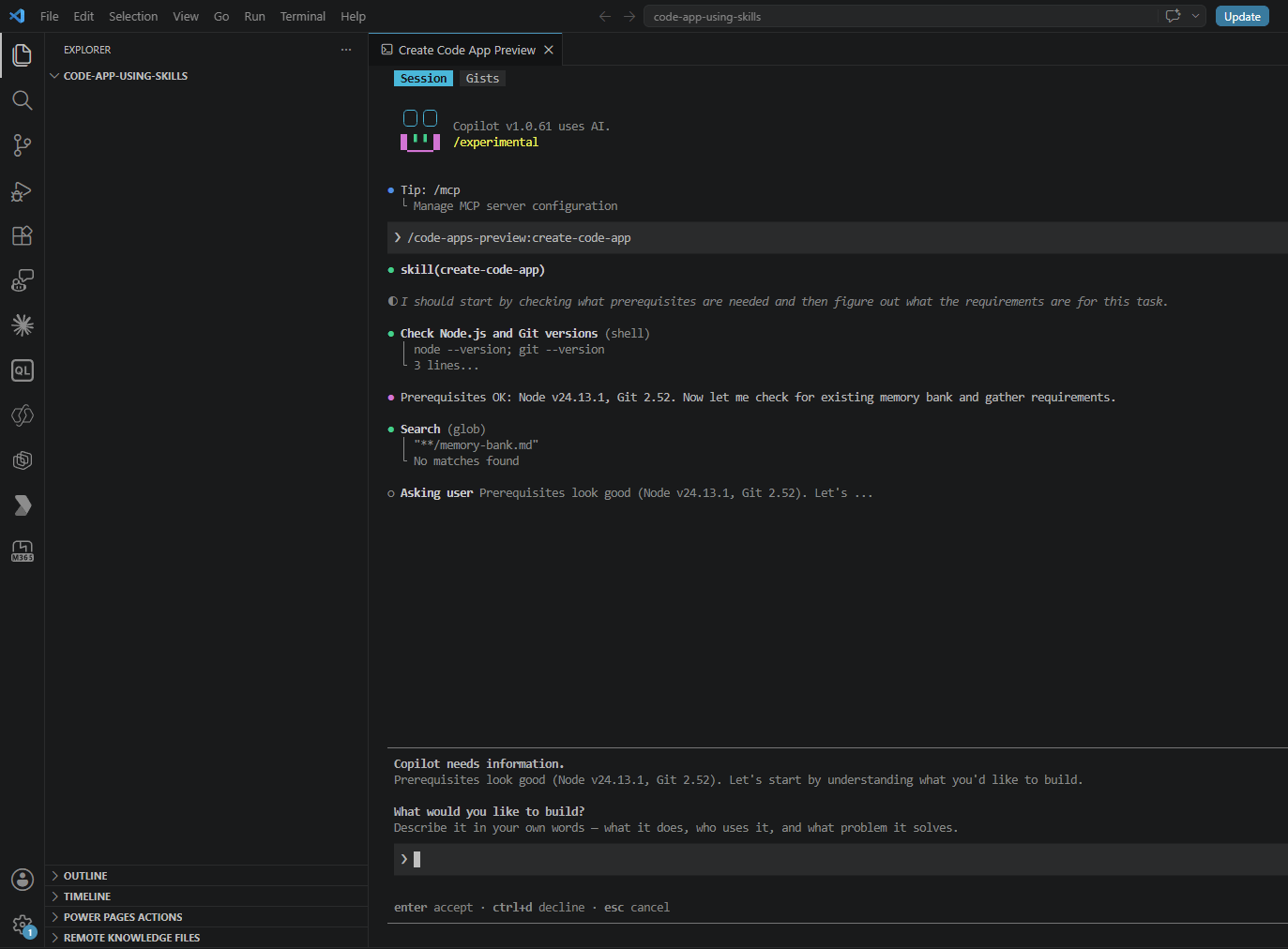
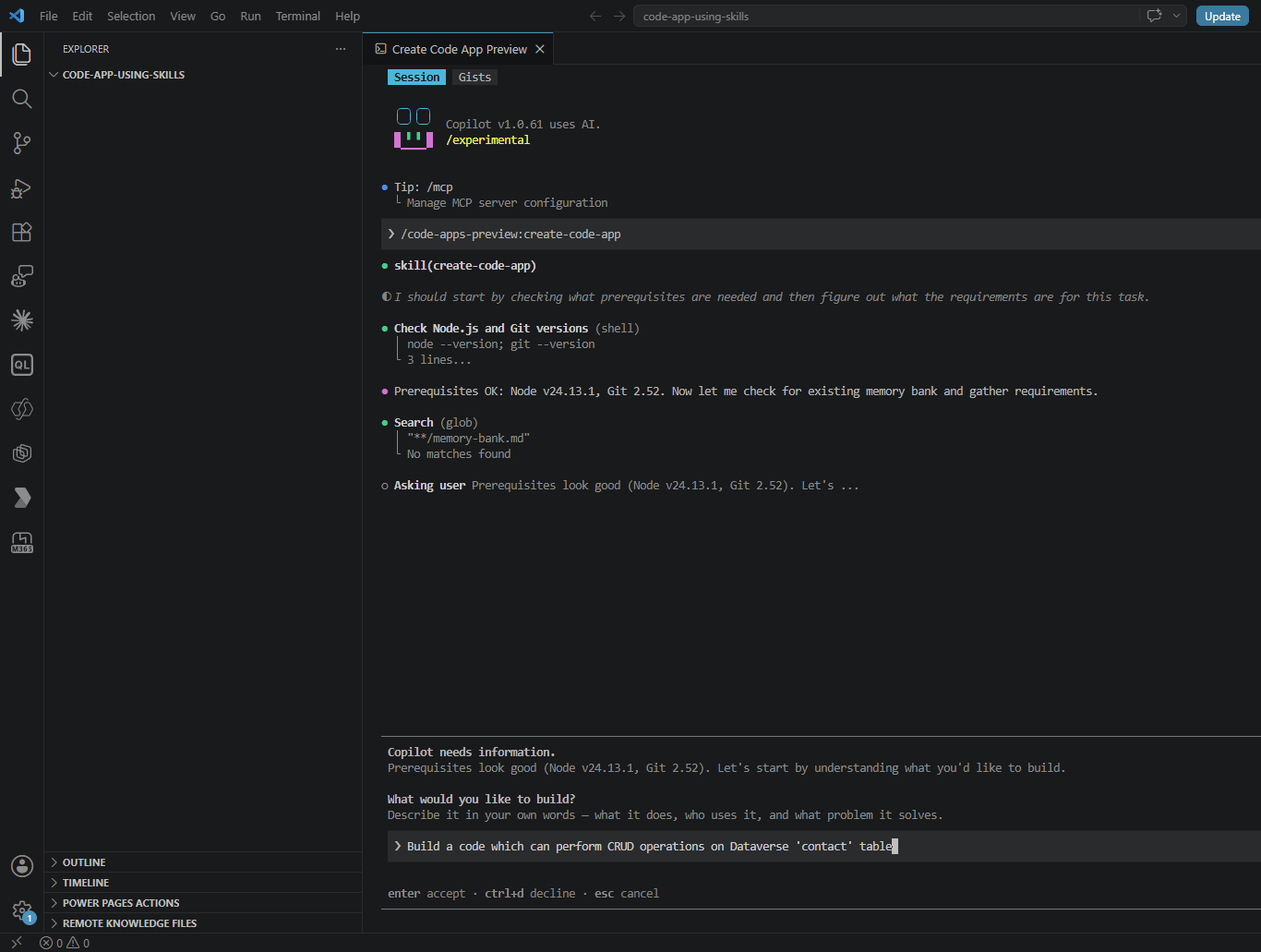
- I described it as a build an code app to perform CRUD operations on the Dataverse
contacttable.
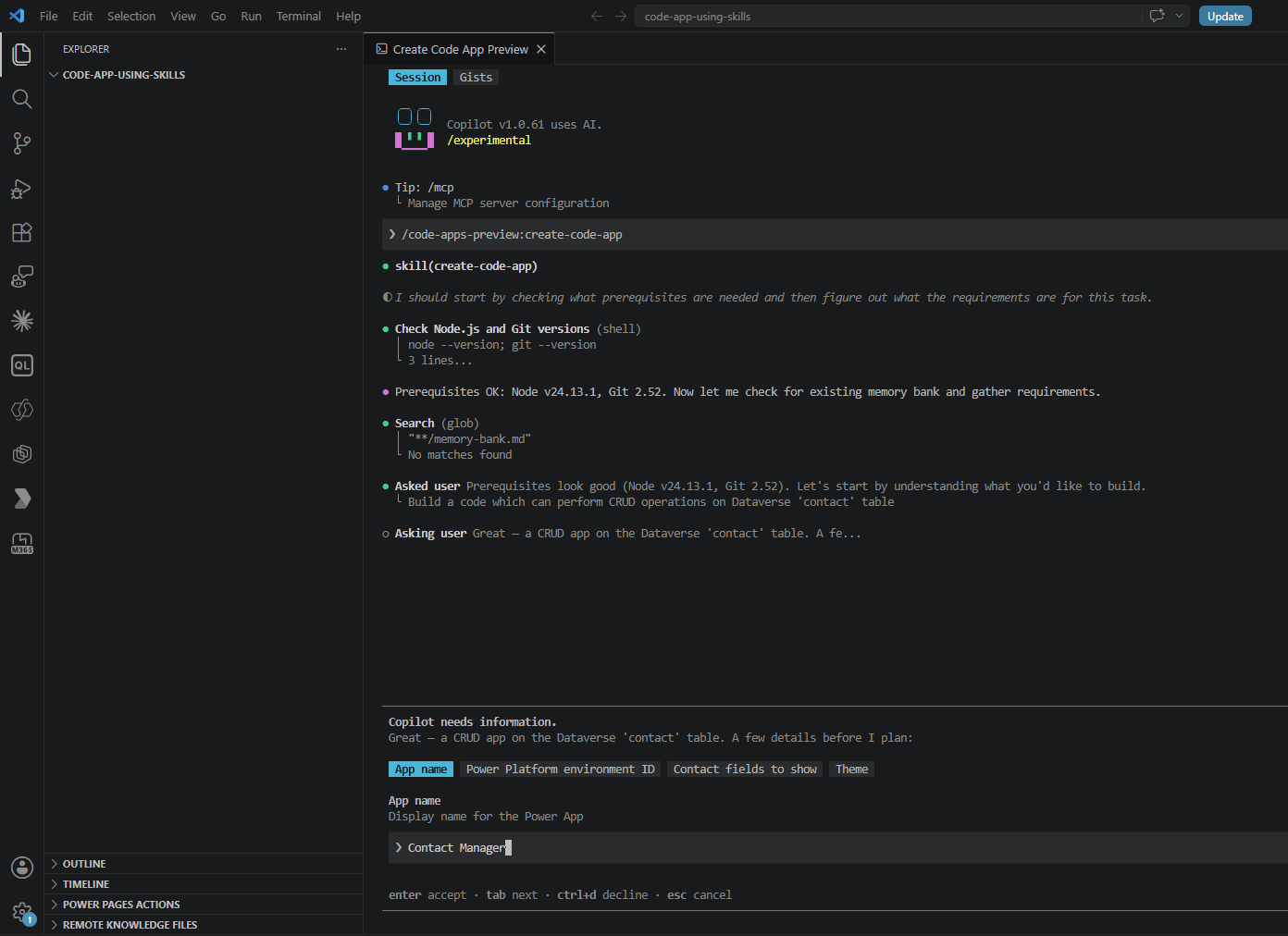
- Next it asks for the App Name. I used
Contact Manager.
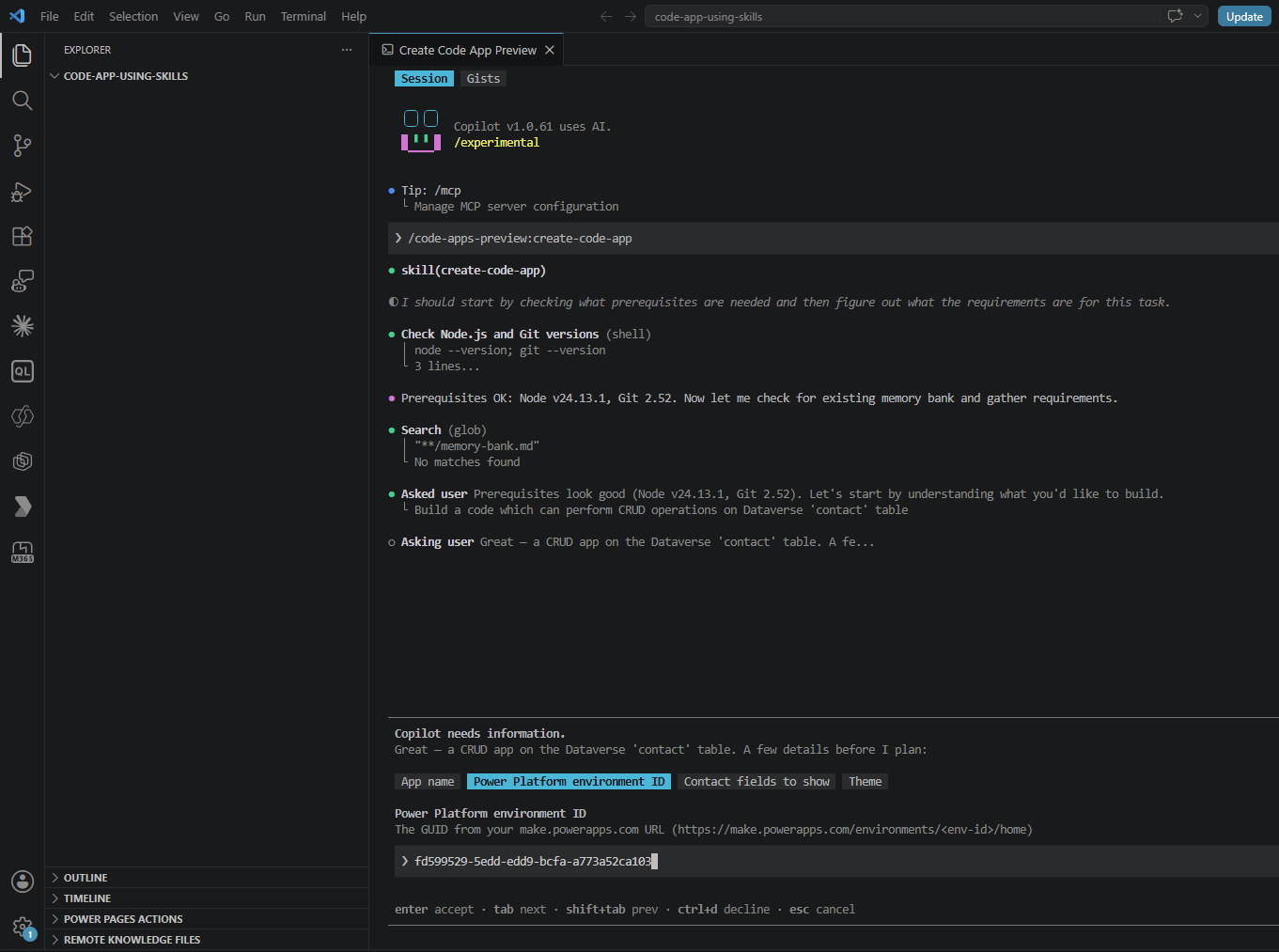
- Then the Environment ID
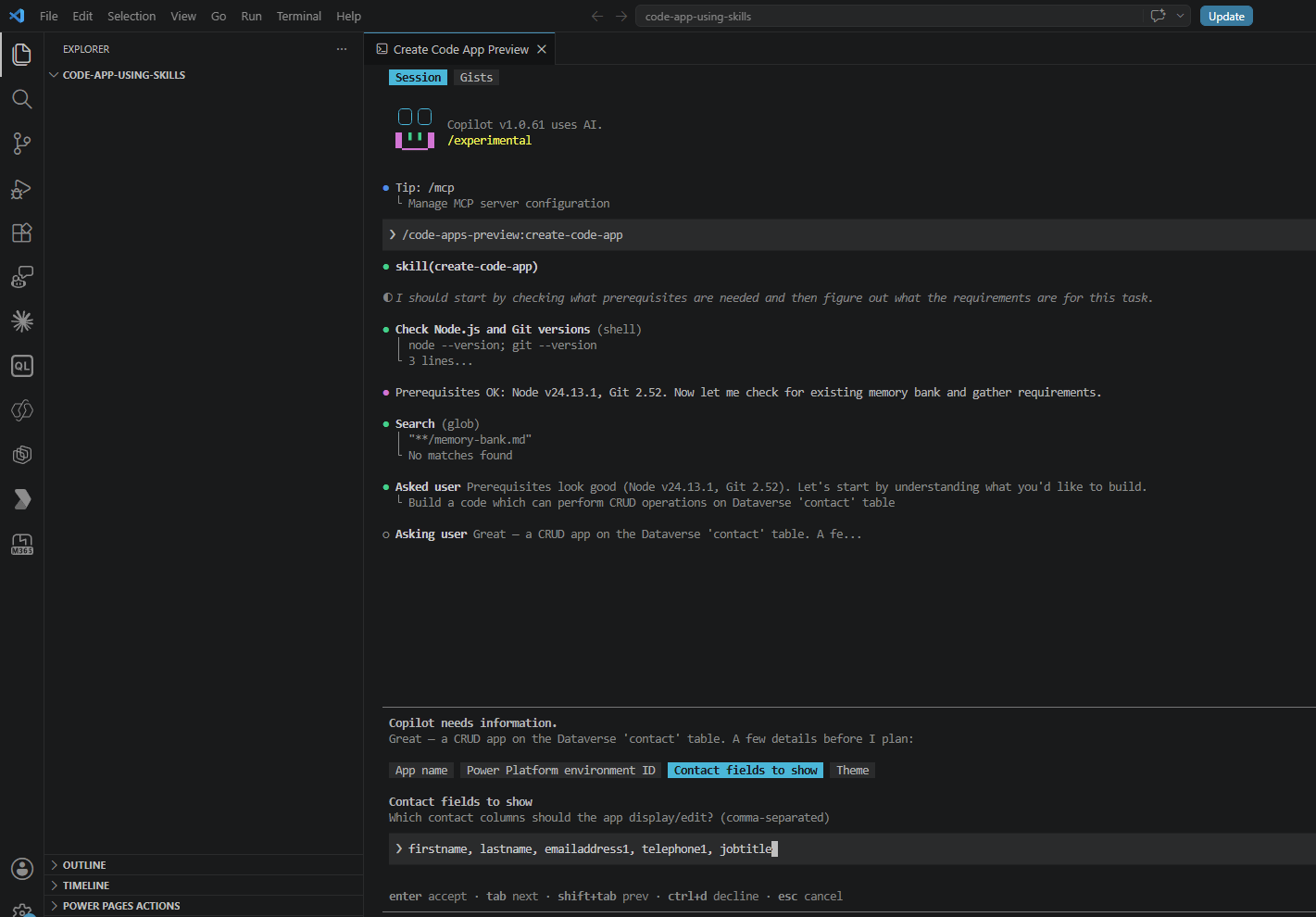
- The agent then asks which fields from the
contacttable to display and edit. I chose prepopulated fieldsfirstname,lastname,emailaddress1,telephone1,jobtitle.
- Finally it asks for the theme preference (light or dark).
- With the answers gathered, the agent initializes the Code App and completes scaffolding.

- Next the agent invokes the
/add-dataverseskill to add thecontacttable as a data source to the code app.

- Next the agent builds the React components using Fluent UI. The agent installs
@fluentui/react-componentsand@fluentui/react-icons, then generates the CRUD experience.

- The App is ready. As the final stage the agent asks for explicit consent before pushing to the environment.
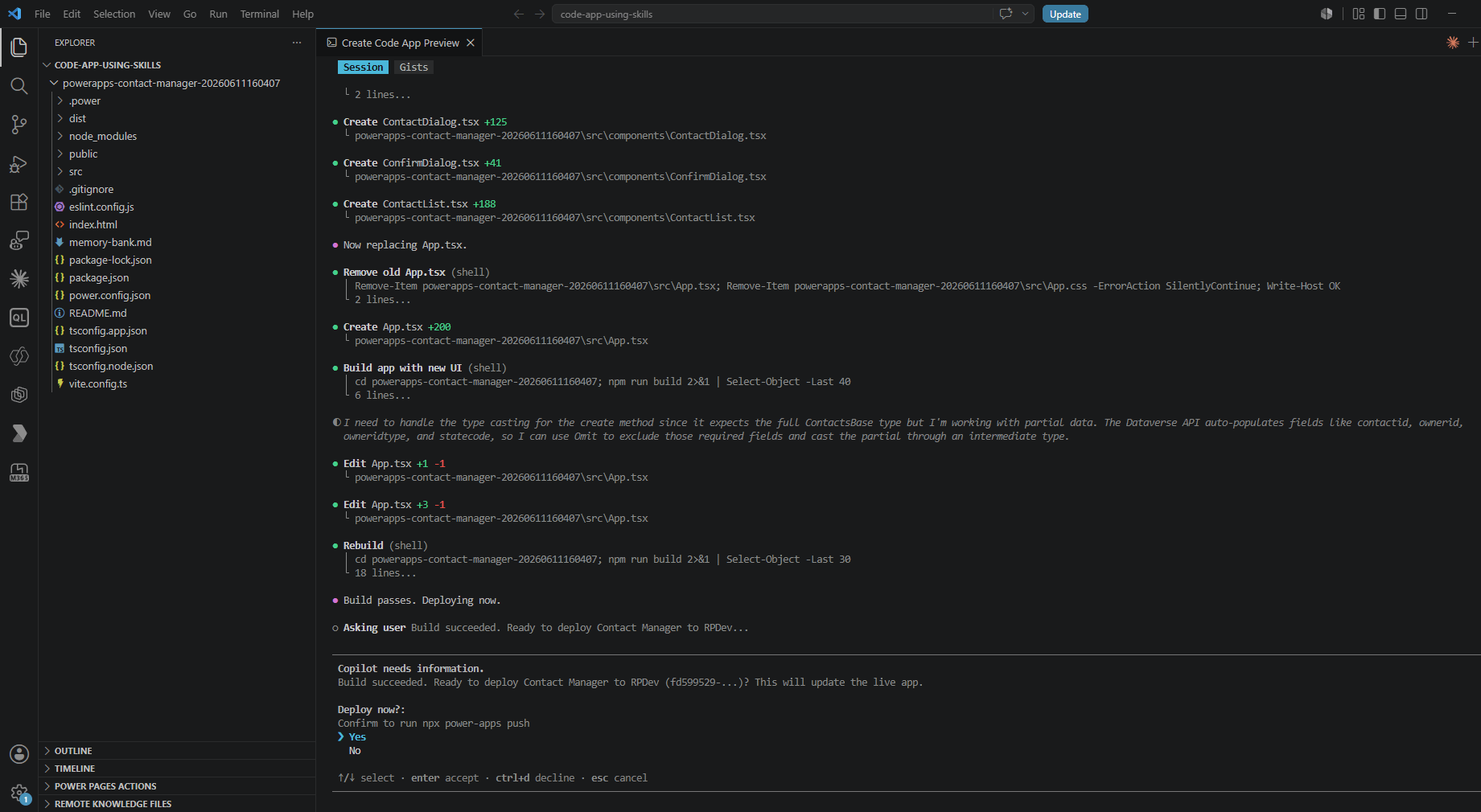
- After approval it runs:
npm run build npx power-apps push
- On success the CLI prints the live app URL

Verify the App in Power Platform
- Now let’s make sure the app is actually there. Open
make.powerapps.comand navigate to Apps in the target environment — the new Code App shows up in the list.

 Click Play to launch the app. The Fluent UI grid loads contacts from Dataverse, and the toolbar lets you add, edit, search, and delete records — with toast notifications for every action.

For the official documentation and the latest commands, see the GitHub repo: microsoft/power-platform-skills — code-apps plugin.
🙂



Leave a Reply