If you have connected to Dataverse from an Azure Function, you most likely used Server-to-Server (S2S) authentication. We create an Entra ‘App Registration’, generate a client secret, and add the app as an ‘Application User’ in Dataverse.
In this article, lets see how ‘Managed Identity’ replaces the ‘App Registration’ and the client secret. We will build a simple Azure Function that reads Dataverse ‘Account’ records using the Function App’s own identity.
What is Managed Identity?
- A Managed Identity is an identity in Microsoft Entra ID that Azure creates for an Azure resource, such as a Function App.
- Azure manages the credentials of this identity. There is no client secret or certificate for us to store or rotate.
- A ‘System assigned’ identity is tied to one resource. It is deleted when the resource is deleted.
- The code running inside the resource (Example, Function App) can request a token for the identity, without passing any ID or secret.
Why Managed Identity?
- With an ‘App Registration’, we have to store the client secret somewhere and renew it before it expires. With ‘Managed Identity’, there is no secret at all.
- The Dataverse side does not change. We still add the identity as an ‘Application User’ and assign a security role.
Prerequisites
- An Azure subscription with permission to create a Function App.
- A Power Platform environment with Dataverse, and admin access to the Power Platform admin center.
- Visual Studio Code with the .NET 8 SDK.
- Azure Functions Core Tools (the
funccommand) and the Azure CLI (theazcommand).
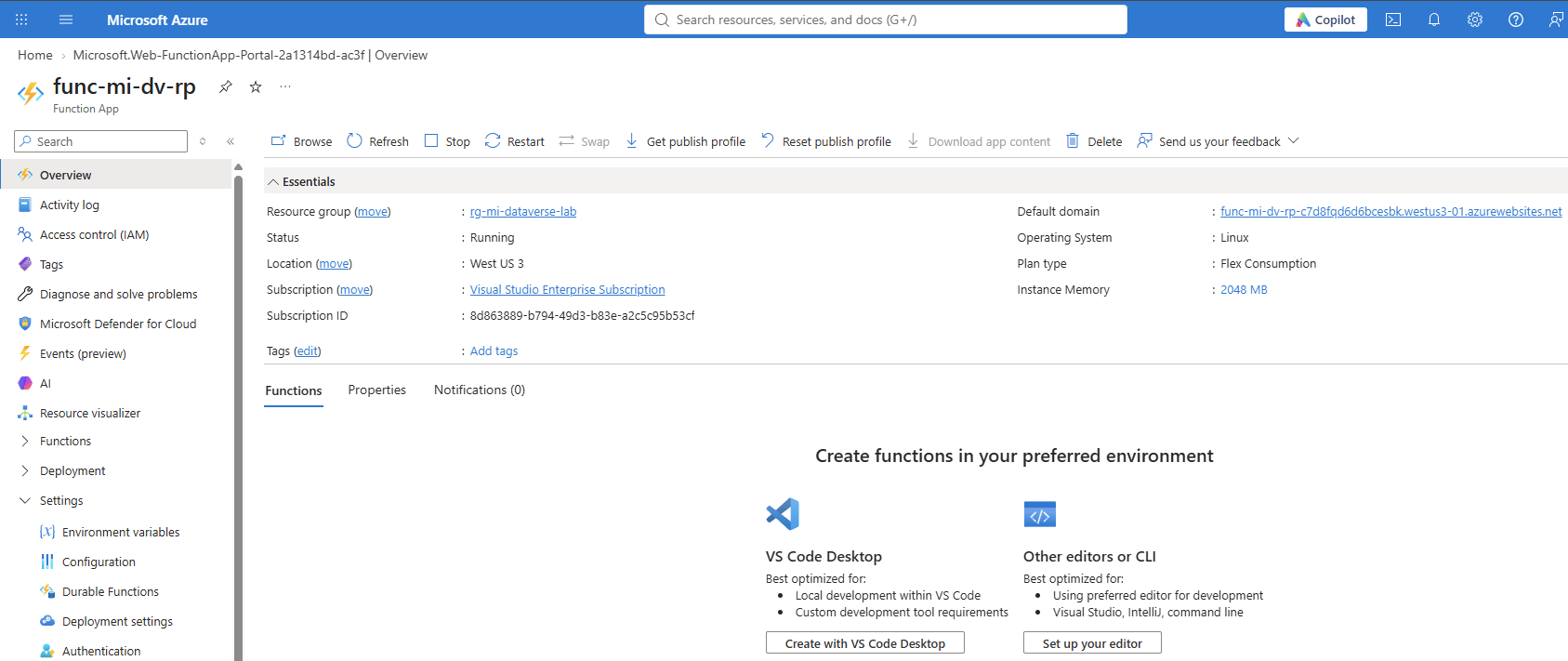
Create the Azure Function App and enable Managed Identity
- Create a Function App from the Azure portal using the ‘Flex Consumption’ plan and ‘.NET 8 Isolated’ runtime.
- In this example, the Function App name is ‘func-mi-dv-rp’.
- Open the Function App and go to ‘Settings > Identity’.
- Under the ‘System assigned’ tab, set ‘Status’ to ‘On’ and click ‘Save’.
- Copy the ‘Object (principal) ID’. We will use it to find the identity in Entra ID.
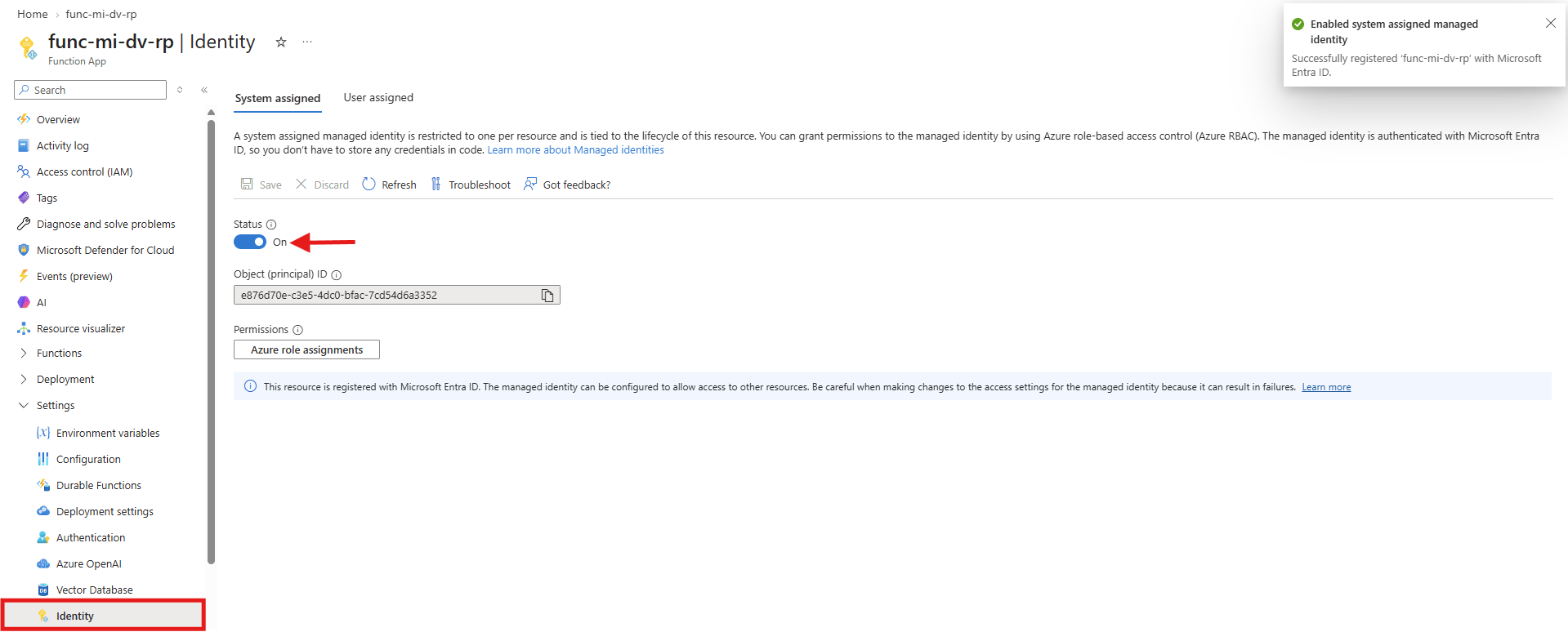
Important: Do not turn the identity ‘Off’ and ‘On’ again. Azure deletes the old identity and creates a new one with a different ID. The Dataverse ‘Application User’ will then stop working.
Now we have the Managed Identity enabled. Dataverse needs the ‘Application ID’ of this identity, not the ‘Object ID’. Lets capture it from Entra ID.
Capture the Application ID of the Managed Identity
- Open Microsoft Entra admin center and go to ‘Enterprise applications’.
- Change the ‘Application type’ filter to ‘Managed Identities’.
- Search with the Function App name and copy the ‘Application ID’.

Tip: You can also get the ‘Application ID’ using Azure CLI:
az ad sp show --id <Object ID> --query appId -o tsv
Before moving to Dataverse, lets add the Dataverse environment URL to the Function App. The code reads the URL from this setting.
Add the Dataverse URL as an environment variable
- In the Function App, go to ‘Settings > Environment variables’.
- Under ‘App settings’, click ‘+ Add’ and add the below setting.
| Setting | Value |
|---|---|
| Name | DATAVERSE_URL |
| Value | Your environment URL (for example, https://yourorg.crm.dynamics.com) |
- Click ‘Apply’ and then ‘Confirm’.
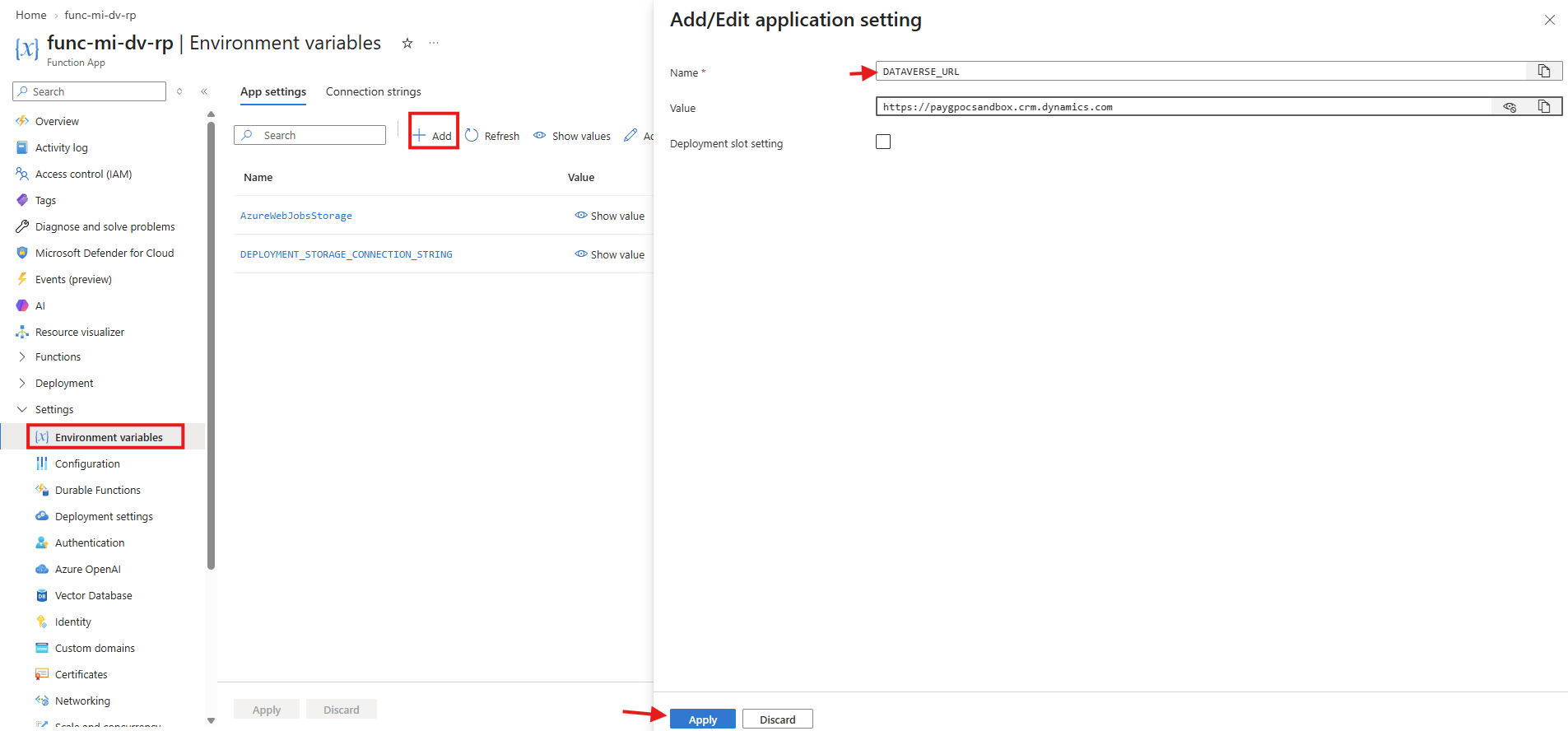
Now we have the Azure side configured. Next we will add the Managed Identity as an ‘Application User’ in Dataverse.
Add the Managed Identity as an Application User in Dataverse
- Open Power Platform admin center and select your environment.
- Go to ‘Settings > Users + permissions > Application users’.
- Click ‘+ New app user’ and then ‘+ Add an app’.
- Search with the ‘Application ID’ copied from Entra ID and select the Function App.
- Select the ‘Business unit’ and the ‘Security roles’. Click ‘Create’.
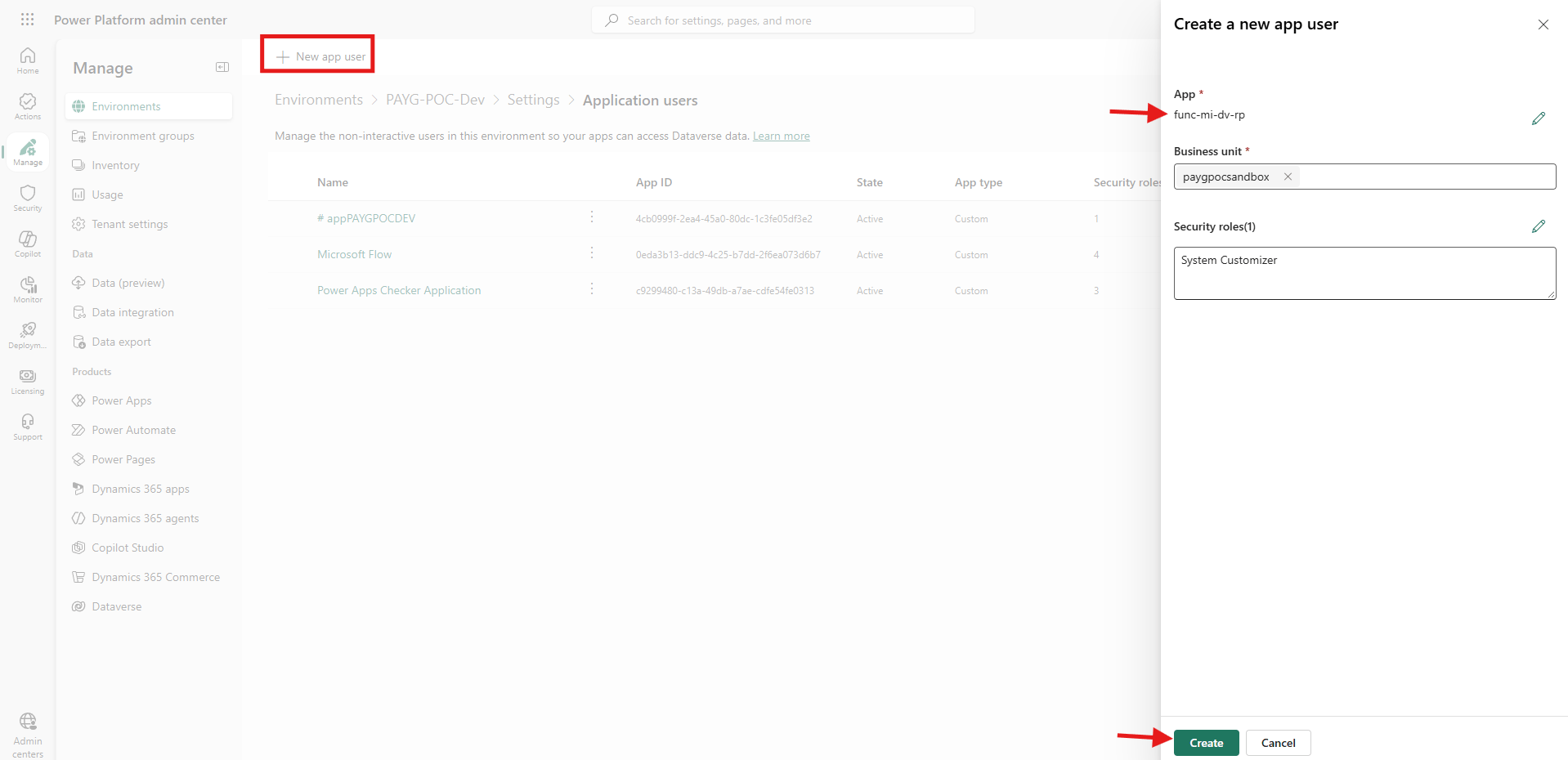
- The Function App is now listed as an ‘Application User’ with its ‘App ID’.

Now we have the identity setup completed on both Azure and Dataverse. Lets look at the Function App code.
Understand the Function App code
The Function App is a C# ‘.NET 8 Isolated’ project with one HTTP triggered function named ‘GetAccounts’. The code has two parts.
Authentication (Program.cs)
- The code registers a ‘ManagedIdentityCredential’ with ‘SystemAssigned’ identity. This is the identity we enabled in the portal.
- When the code runs on a local machine, it uses ‘DefaultAzureCredential’, which signs in with your own account.
- The credential is registered once and shared. It caches the token and requests a new one before it expires.
- The ‘HttpClient’ reads the ‘DATAVERSE_URL’ setting and points to the Dataverse Web API.
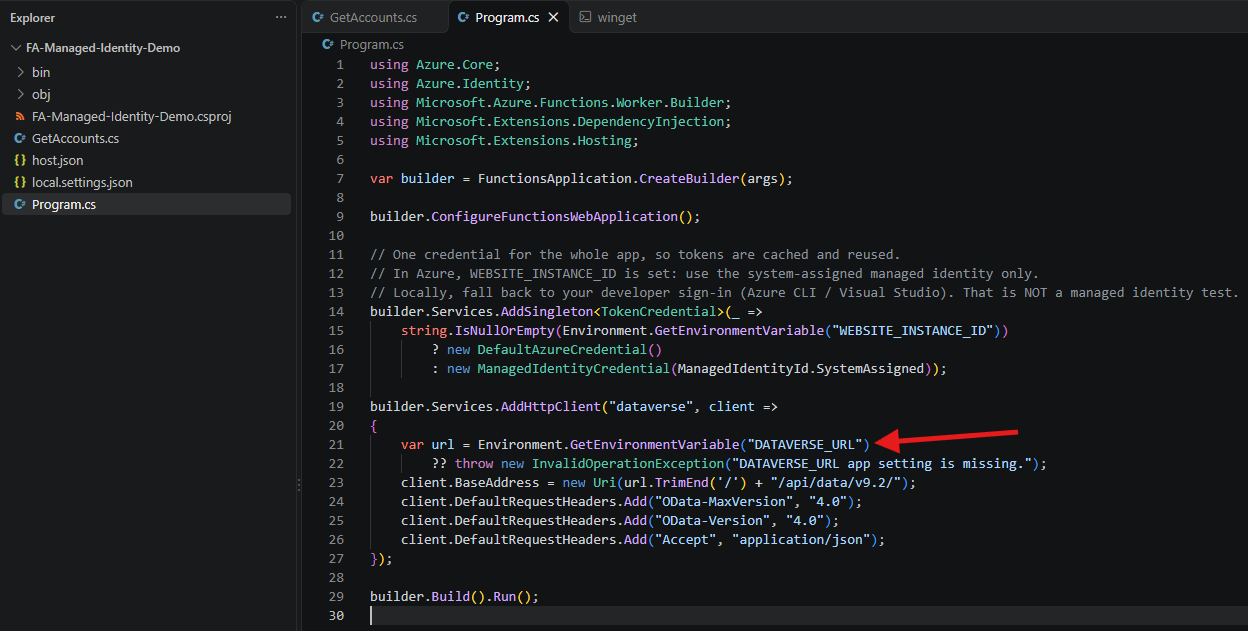
Note: The code does not pass any client ID, tenant ID or secret. Compare this with S2S authentication, where we use ‘ClientSecretCredential’ with all three values.
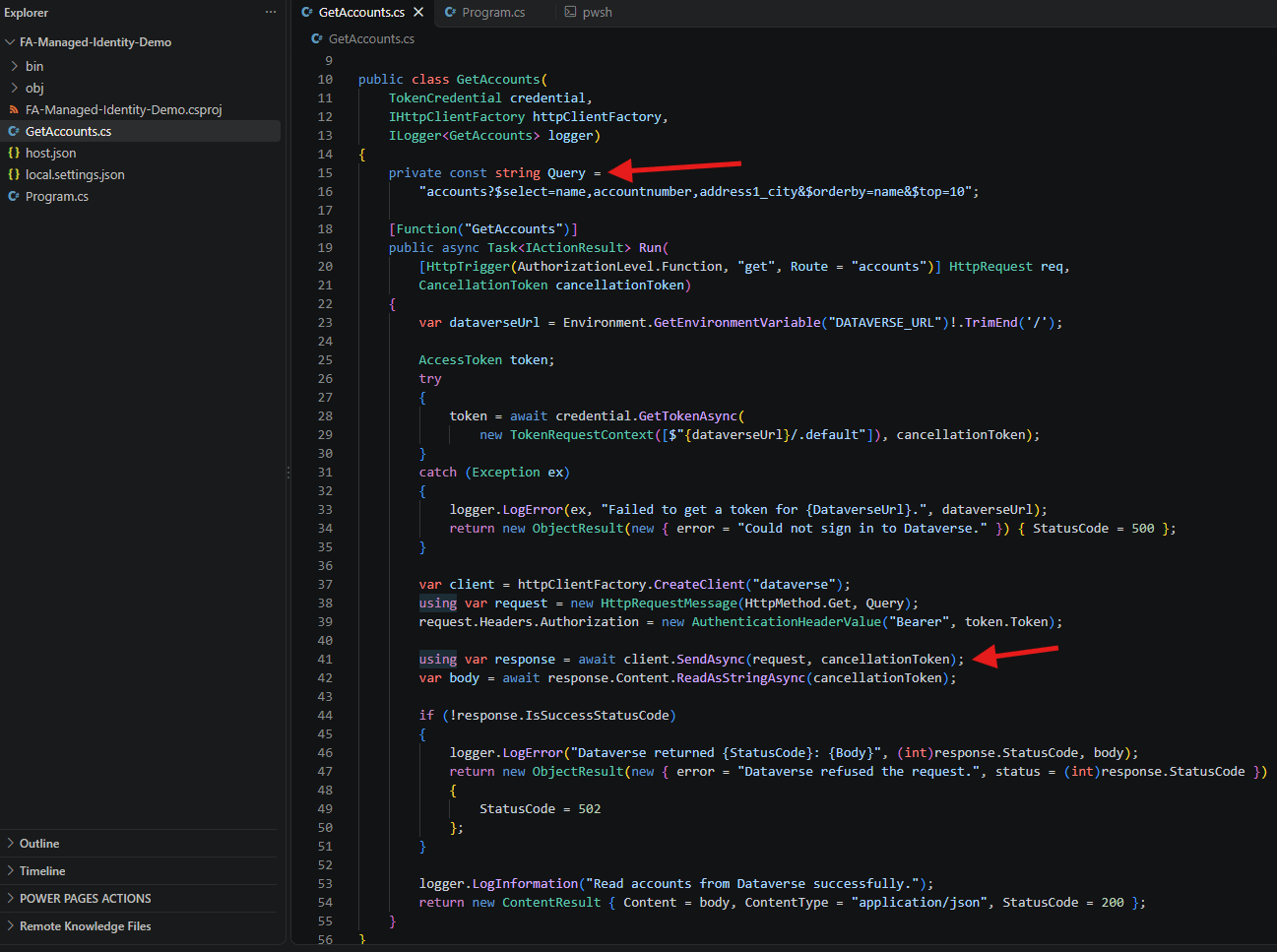
Retrieve Accounts (GetAccounts.cs)
- The function requests a token for the scope ‘{DATAVERSE_URL}/.default’.
- It adds the token as a ‘Bearer’ header and calls the Web API.
- The query reads ‘name’, ‘accountnumber’ and ‘address1_city’ of the top 10 Accounts, sorted by name.
- If the call fails, the function logs the details and returns a short error message.
How does Dataverse know which app is calling?
- Azure gives the Function App a private token endpoint. Only code running inside the Function App can call it.
- Entra ID issues a token which contains the ‘Application ID’ of the Managed Identity.
- Dataverse reads the ‘Application ID’ from the token and finds the matching ‘Application User’.
- Dataverse then applies the security roles of that ‘Application User’.
Now we have the code ready. Lets publish it to the Function App.
Publish the Function App
- Open a terminal in the project folder and sign in with
az login. - Run the below command to publish the code.
func azure functionapp publish func-mi-dv-rp

- Once the publish completes, the output lists the ‘GetAccounts’ function with its ‘Invoke url’.

Tip: If the
funccommand is not recognized, install Core Tools usingwinget install Microsoft.Azure.FunctionsCoreToolsand open a new terminal.
Now we have the function published. Lets test it from the Azure portal.
Test the Function
- Connect to Azure Portal.
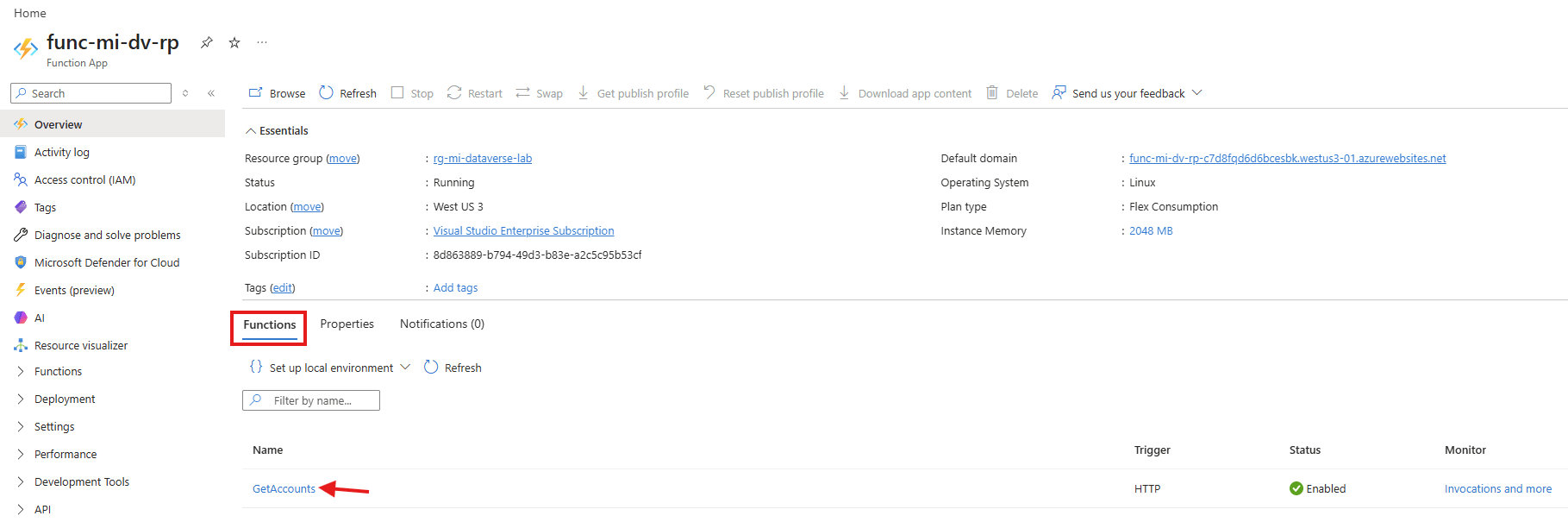
- Open the Function App and click on the ‘GetAccounts’ function.
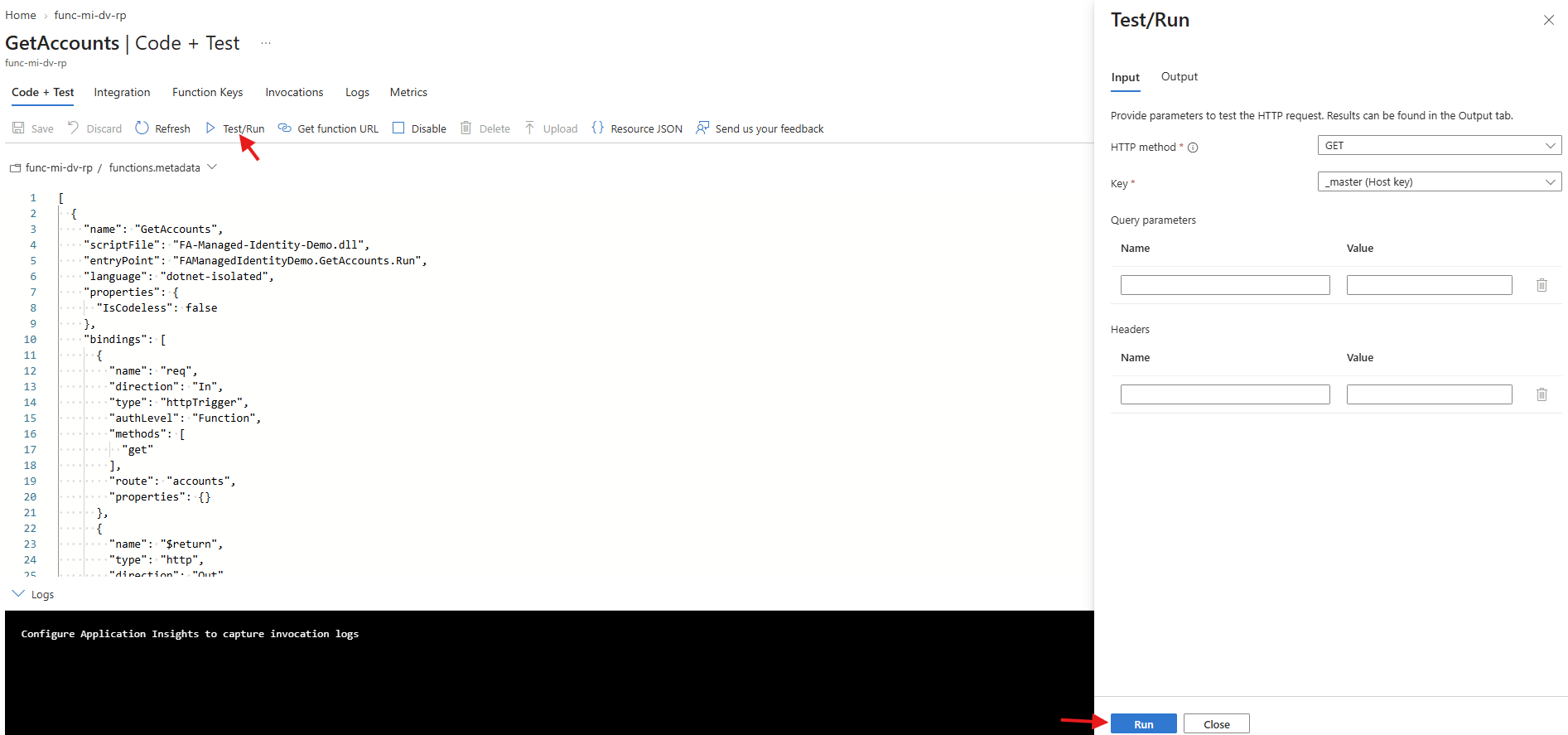
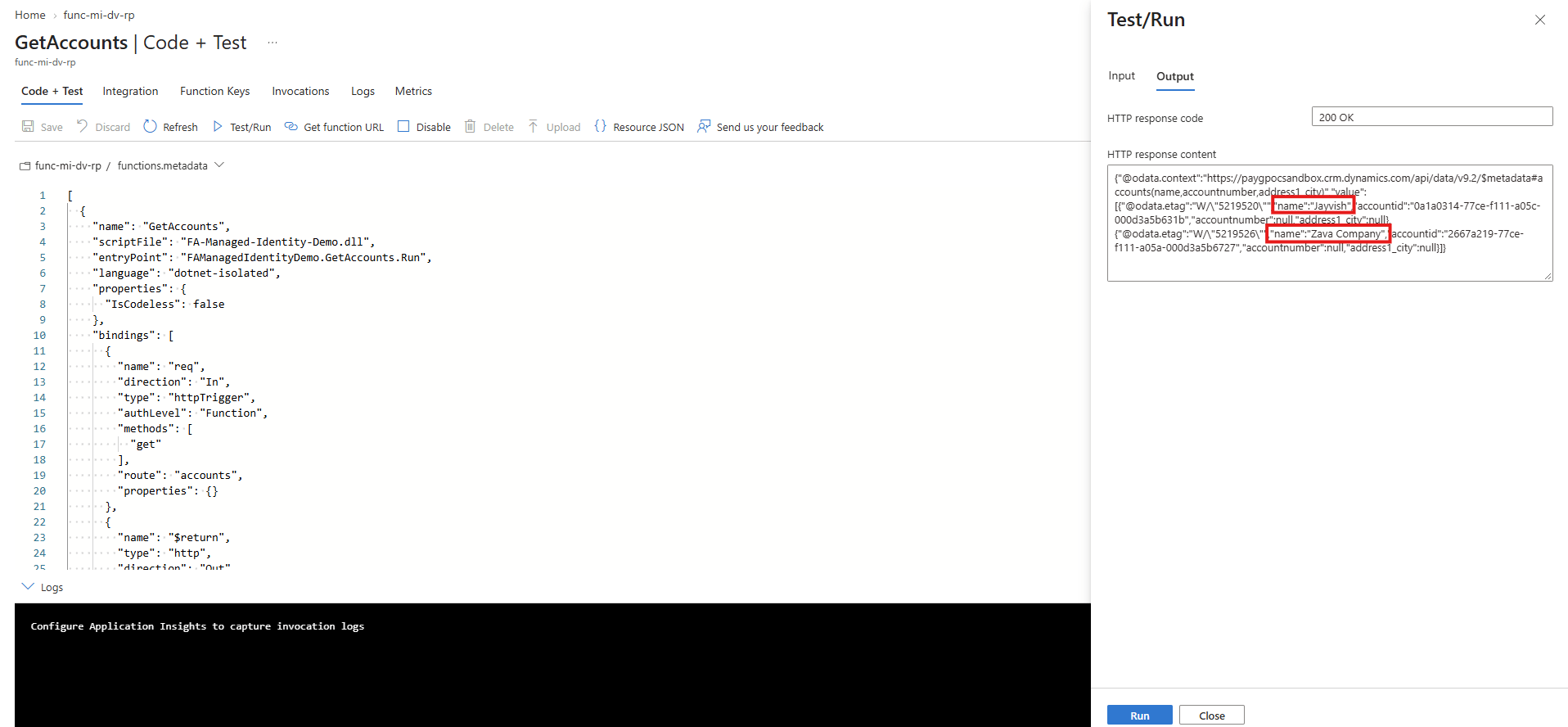
- Click ‘Test/Run’, set ‘HTTP method’ to ‘GET’ and click ‘Run’.
- The ‘Output’ tab shows ‘200 OK’ and the Accounts from Dataverse.
Summary
- ‘Managed Identity’ replaces the ‘App Registration’ and the client secret. There is nothing to store or rotate.
- The Dataverse ‘Application User’ and security role are still needed.
- The code only asks for a token. Entra ID adds the ‘Application ID’ to the token, and Dataverse maps it to the ‘Application User’.
Refer the below articles for more details:
- Managed identities for App Service and Azure Functions
- Manage application users in the Power Platform admin center
- Use single-tenant server-to-server authentication
🙂

Leave a Reply