Model Context Protocol (MCP) lets AI agents call your own tools. In an earlier post we built our first MCP server in C# and tested it inside VS Code.
In this post we build a small MCP server in C#, host it on Azure App Service and connect to GitHub Copilot CLI. The focus will be hosting an MCP server on Azure as a Web App, and connecting to it from GitHub Copilot CLI.
Why host an MCP server?
A local server is great for testing on your own machine. To let your agent reach it from anywhere, you need it hosted somewhere public. Azure App Service runs a web app with very little setup, and an MCP server is just a web app.
Prerequisites
Make sure you have the following ready.
- The .NET 10 SDK installed.
- GitHub Copilot CLI installed and logged in.
- An Azure subscription.
- A text editor. Visual Studio Code works well.
Lets start by creating the project.
Create the C# MCP Server Project
We scaffold an empty web app and add one NuGet package that turns it into an MCP server.
- Open a terminal and run the following.
dotnet new web -n ProductsMcpServercd ProductsMcpServerdotnet add package ModelContextProtocol.AspNetCore
- The
ModelContextProtocol.AspNetCorepackage wires MCP into an ASP.NET Core app. It is a stable release, so no preview flag is needed.
Note: The full C# project is on GitHub. Clone it :
https://github.com/RajeevPentyala/ProductsMCPServer.
- The project exposes a small Products catalog with five tools: list, get, create, update, and delete.
- The data lives in memory not on a database.
Now we have the project. Lets build it and run it.
Build and Run Locally
- From the project folder, run the app.
dotnet run
- The terminal shows the local URL, for example
http://localhost:5065. The MCP endpoint is at/mcp.

We have the server running. This is an optional step, if you want to test your locally hosted MCP Server. Lets connect GitHub Copilot CLI to it.
Add the Local Server to GitHub Copilot CLI
Copilot CLI can connect to any MCP server. We add ours with a short form.
- Start a new GitHub Copilot CLI session
- Run
/mcp add. - Fill the form with these values.
| Field | Value |
|---|---|
| Server Name | products-local |
| Server Type | HTTP |
| URL | http://localhost:5065/mcp |
| Tools | * |
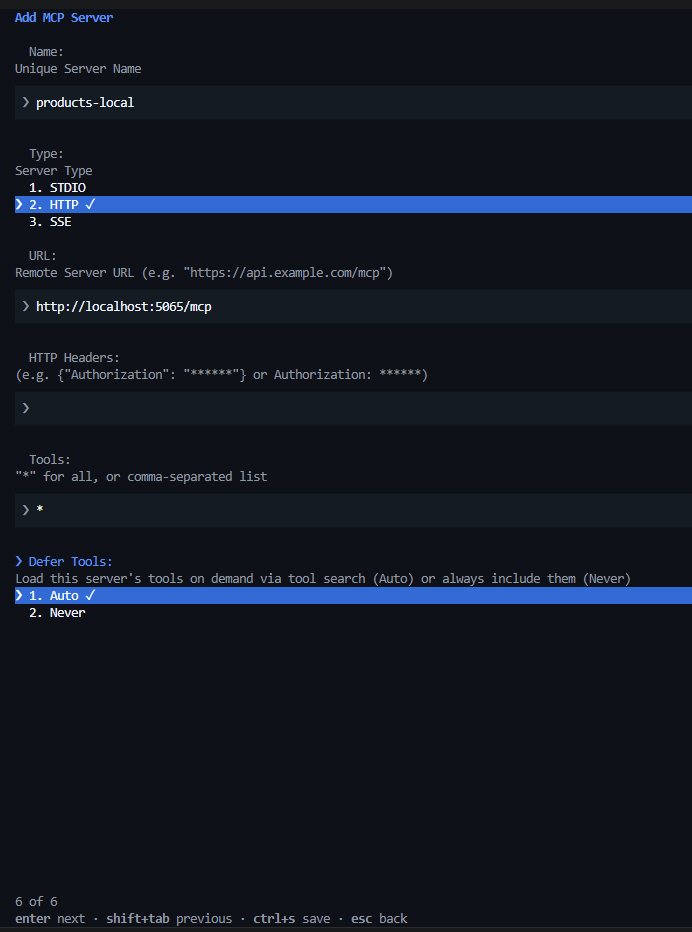
- Save.
Now lets test a tool.
- Ask Copilot CLI:
Using products-local, list all products. - It calls the
list_productstool and shows the three seeded products.

The local loop works. Now lets move the same server to Azure.
Create the Azure Web App
We create an App Service web app from the Azure portal.
- In the portal, search for
Web Appand selectCreate.
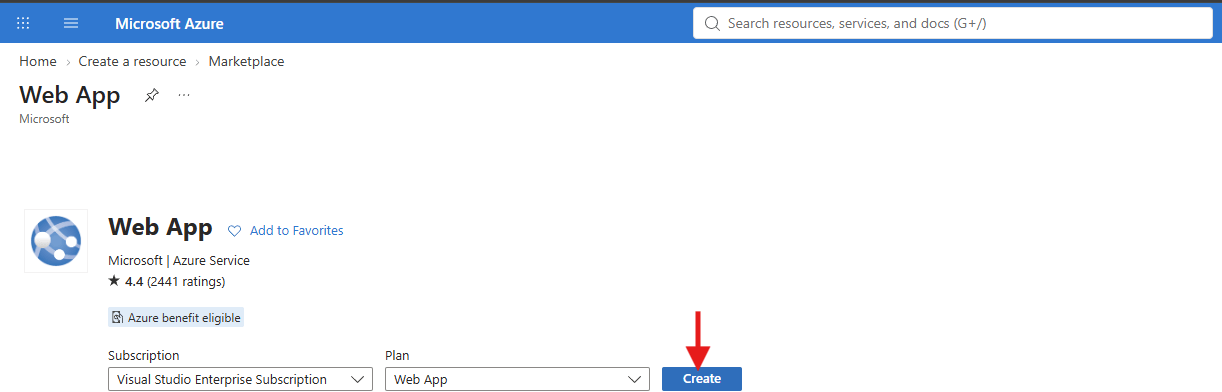
- Use these settings on the Basics tab.
| Setting | Value |
|---|---|
| Publish | Code |
| Runtime stack | .NET 10 (LTS) |
| Operating System | Windows |
| Name | A unique name, for example mcp-products-rajeev |
| Region | A region where you have App Service quota |

- Select
Review + create, thenCreate. - Wait for the deployment to finish.
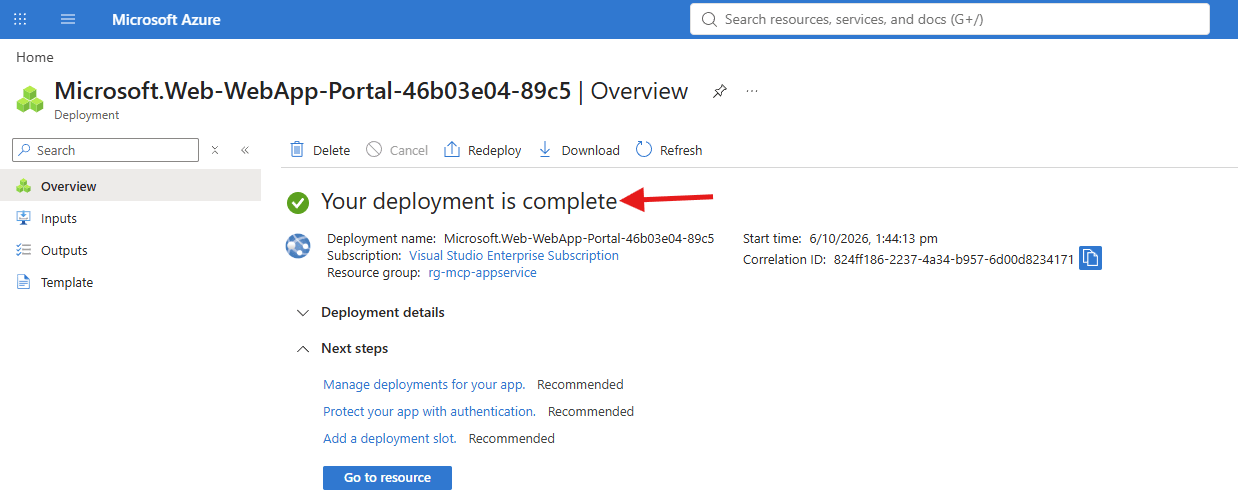
If
Createfails with a quota error like “Total VMs: 0”, the chosen region has no App Service quota on your subscription. Pick a different region and try again.
- Open the web app and note its default domain on the Overview page. This is your public URL.

The web app is ready but empty. Lets publish our code and upload it.
Publish and Deploy the Code
We build a release, zip it, and upload the zip through Kudu. Kudu is the deployment site that comes with every App Service.
- From the project folder, publish a release build.
- Zip the published files. Zip the contents of the folder, not the folder itself.
dotnet publish -c Release -o publishCompress-Archive -Path publish\* -DestinationPath publish.zip -Force

- Now that we have .zip ready, lets upload to Azure Wbe App.
- In the web app, open
Development ToolsthenAdvanced Tools, and selectGo. This opens Kudu in a new tab, signed in with your portal account.

- In Kudu, open
ToolsthenZip Push Deploy.

- Drag
publish.ziponto the drop area. Kudu unpacks it into the web app.

Now lets confirm the server is live.
Verify the Server is Running
- On the Overview page, select the default domain link to open the app in a browser.

- The root page shows the running message. The MCP endpoint is at
/mcpon the same URL.

The server runs in Azure. Lets point GitHub Copilot CLI at the cloud URL.
Add the Azure Endpoint to GitHub Copilot CLI
We repeat the earlier steps to add ‘MCP Server’ pointing to the Azure URL.
- In GitHub Copilot CLI, new session, run
/mcp add. - Fill the form with these values.
| Field | Value |
|---|---|
| Server Name | products-azure |
| Server Type | HTTP |
| URL | https://<your-app-name>.azurewebsites.net/mcp |
| Tools | * |
- Press
Ctrl+Sto save.
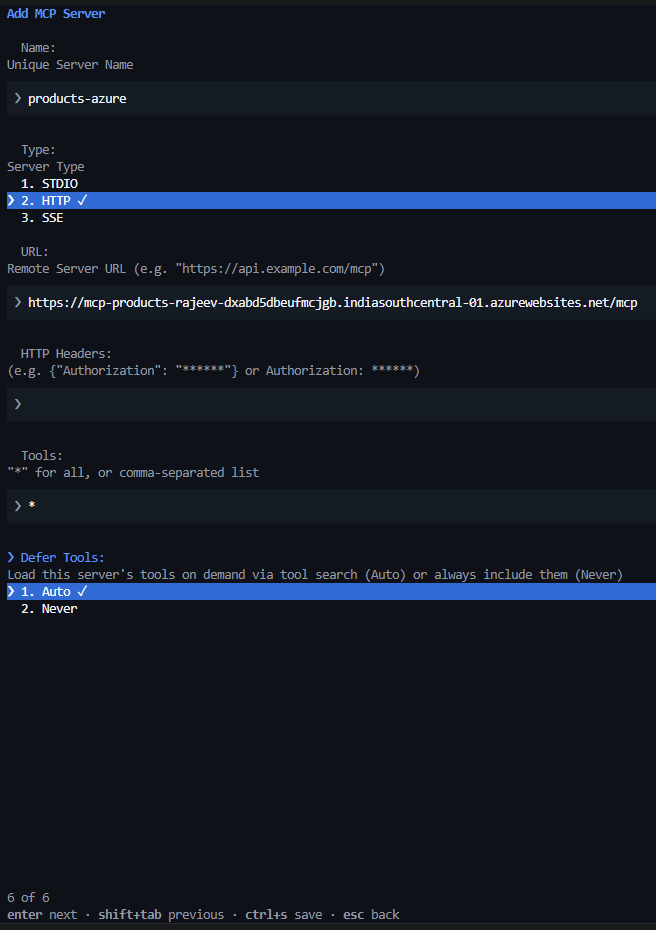
- Ask Copilot CLI:
Using products-azure, list all products. - It returns the same products, now served from Azure.
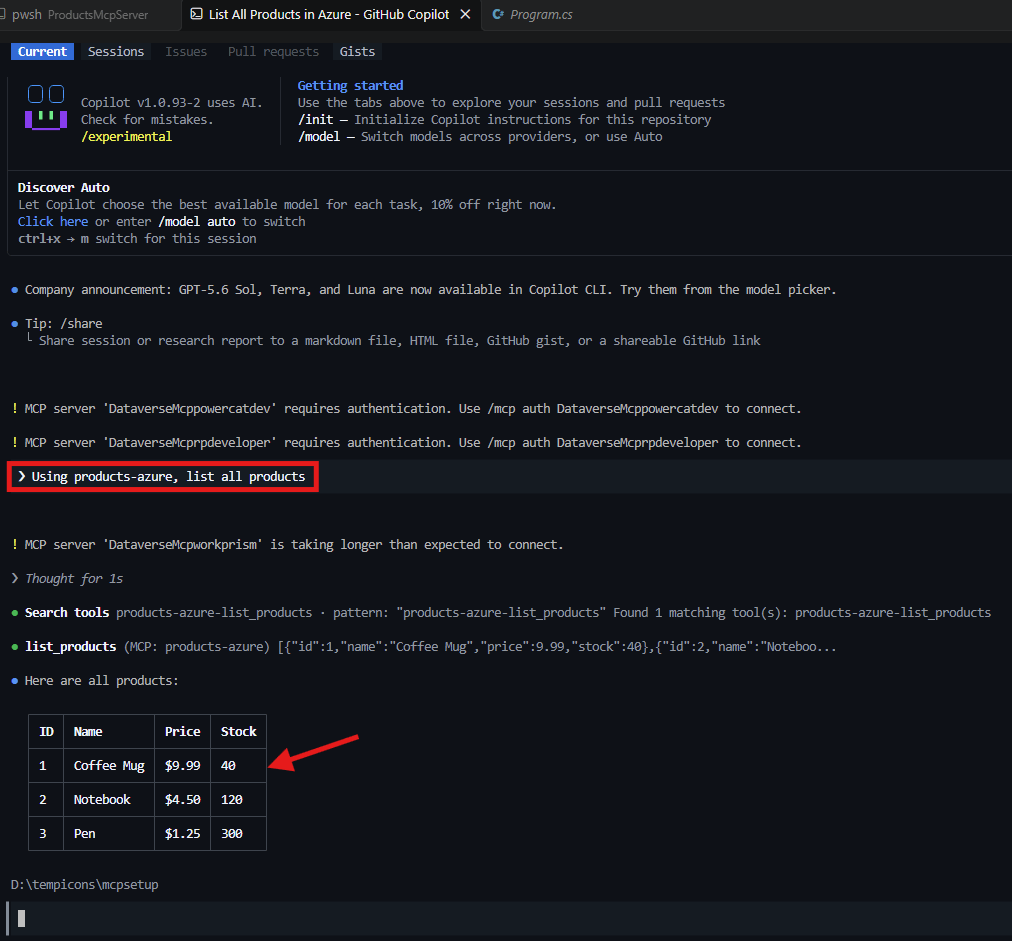
That is the full round trip. The same C# server now answers your agent from the cloud.
What is Next
- Right now the Azure endpoint is open. Anyone with the URL can call it.
- In the next post we add Microsoft Entra ID sign-in, so only a signed-in user gets through.
- That covers App Service Authentication, protected resource metadata, and the Entra app registrations.
Summary
We built a C# MCP server, tested it locally with GitHub Copilot CLI, and hosted it on Azure App Service. Then we connected GitHub Copilot CLI to the cloud endpoint and called the same tools over the internet.
- Full project:
https://github.com/RajeevPentyala/ProductsMCPServer - MCP C# docs: Build a Model Context Protocol server in C#
- App Service docs: Deploy a .NET app to Azure App Service
Authentication is next. 🙂
Leave a Reply