Did you know that you can save a prompt in Microsoft Copilot and reuse it anytime? You can also schedule the same prompt to run on its own.
This post covers both features. It shows how to save a prompt, reuse, and schedule it to run on a set frequency.
The walkthrough uses one simple prompt:
Review my emails and Teams messages from the last 24 hours. Summarize the key updates in 3-5 bullet points, then list any action items assigned to me with their due dates. Flag anything urgent that needs a reply today.
Lets proceed with learning how to save prompt.
Save a Prompt
- Type your prompt in Copilot and run it.
- Once the reply appears, hover over your prompt to reveal its toolbar.
- Click the bookmark icon.

The walkthrough uses one simple prompt worth reusing:
Review my emails and Teams messages from the last 24 hours. Summarize the key updates in 3-5 bullet points, then list any action items assigned to me with their due dates. Flag anything urgent that needs a reply today.
The following section saves this prompt.
Save a Prompt
- Type your prompt in Copilot and run it.
- Once the reply appears, hover over your prompt to reveal its toolbar.
- Click the bookmark icon.

- Give the prompt a short Title. The title has a 35 character limit.
- Click Save.

Note: Saved prompts are private to you. Only you can see the prompts under the Your saved prompts tab.
The prompt is now saved. Lets see how to reuse a prompt.
Reuse a Saved Prompt
- Start a new chat.
- Below the message box, select the More prompts ( … ) button.

- Select Your saved prompts tab.
- You will see your saved prompt listed here.

- Select the prompt.
- Copilot pastes the full text into the message box, ready to send.

We covered the saving and reusing prompt. Lets learn how to schedule the same prompt to run on its own.
Schedule a Prompt
- Once you run the prompt.
- Hover over the prompt and select the clock icon. The tooltip reads Schedule this.
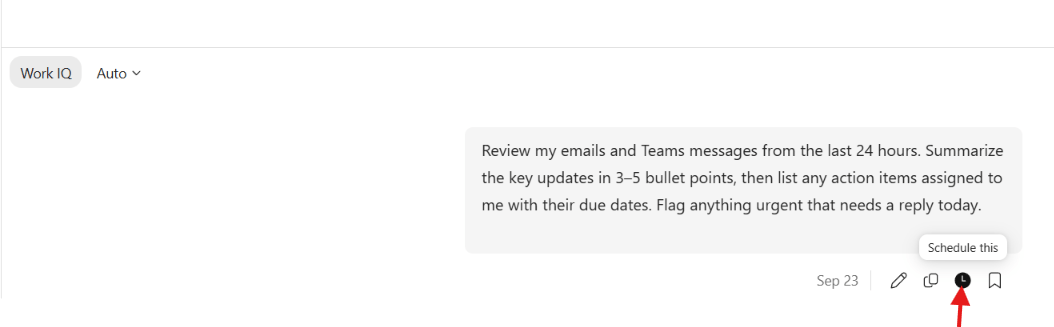
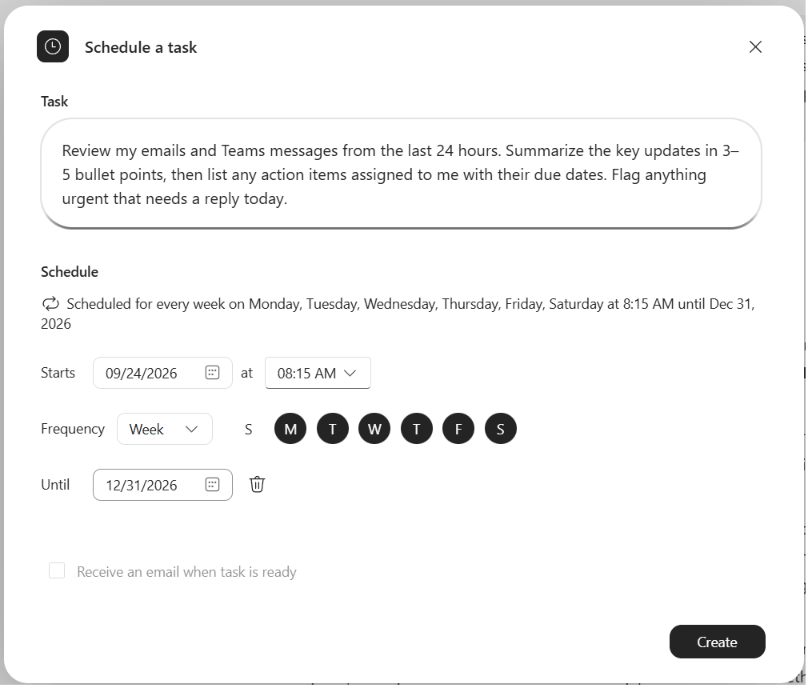
- The Schedule a task dialog opens with your prompt.
- Set the schedule using these fields.
| Setting | Value |
|---|---|
| Starts | The first run date and time, for example 09/24/2026 at 08:15 AM |
| Frequency | Week, with the day circles you want (M, T, W, T, F, S) |
| Until | The end date, for example 12/31/2026 |
| Receive an email when task is ready | Optional email alert when the run finishes |
- Click Create.
Important: Save Prompt and Schedule Prompt are separate features. A saved prompt runs when you choose. A scheduled prompt runs on its own at the time you set.
Summary
Use Save Prompt for prompts you run manually, and Schedule Prompt for prompts you want to run on a set frequency.
For more details, see the official docs on saving your favorite prompts and the Copilot Prompt Gallery.
🙂
![[Step by Step] Using Custom Connectors in Copilot Studio](https://rajeevpentyala.com/wp-content/uploads/2024/10/record-ezgif.com-video-to-gif-converter-7.gif)
Leave a Reply