Copilot Studio lets makers publish their agents to many channels like Teams, Facebook, WhatsApp and more. As an admin, you may want to allow only a few sanctioned channels.
In this article, lets configure the Agent access channels (preview) rule on an Environment Group and see how it disables the blocked channels inside Copilot Studio.
Prerequisites
Before we start, make sure the following are in place.
- The target environment must be a Managed Environment. Environment Groups is a Managed Environments capability.
- You need Power Platform admin or Global admin rights to configure Environment Groups and rules.
- A Copilot Studio agent in that environment to verify the restriction. Sample agent in this post is
Safe Travels.
Note: If you are new to Managed Environments and Environment Groups, I have covered the basics in an earlier post. Refer Managed Environments and Environment Groups before continuing.
Lets first create an Environment Group and add our managed environment to it.
Create the Environment Group
- Sign in to Power Platform Admin Center.
- Select Manage > Environment groups in the left navigation.
- Click + New group.
- In the Create a group pane, provide a Name and Description. I named mine
Greenwith descriptionLess restrictive Environment Group. - Click Create.
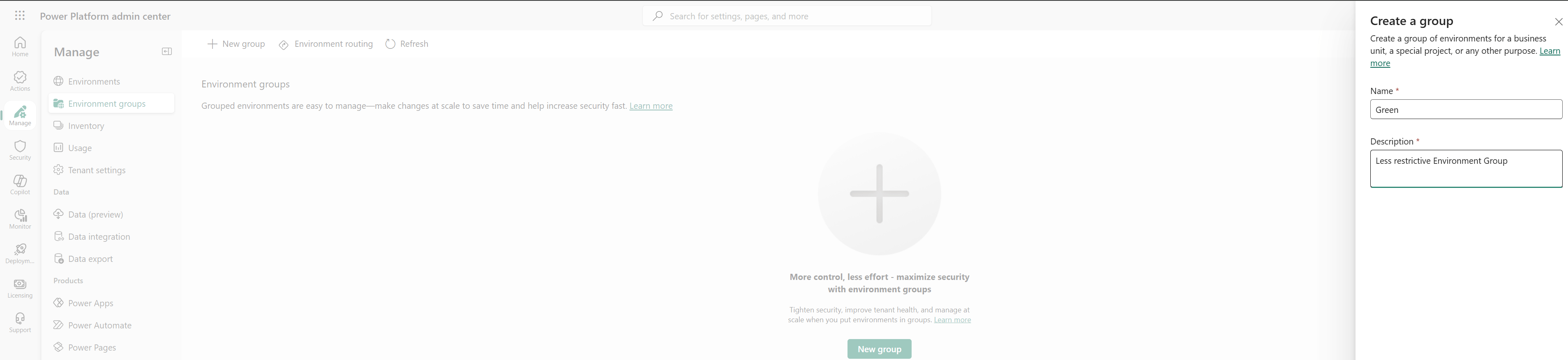
Now we have an empty group. Lets add our managed environment to it.
Add a Managed Environment to the Group
- Open the newly created
Greengroup. - On the Environments tab, click Add environments.
- In the Add environments to this group pane, pick the environment. Only environments with Managed = Yes can be governed by group rules.
- I selected
Rajeev's Environmentwhich is a Developer environment with Managed set toYes. - Click Continue to add it.
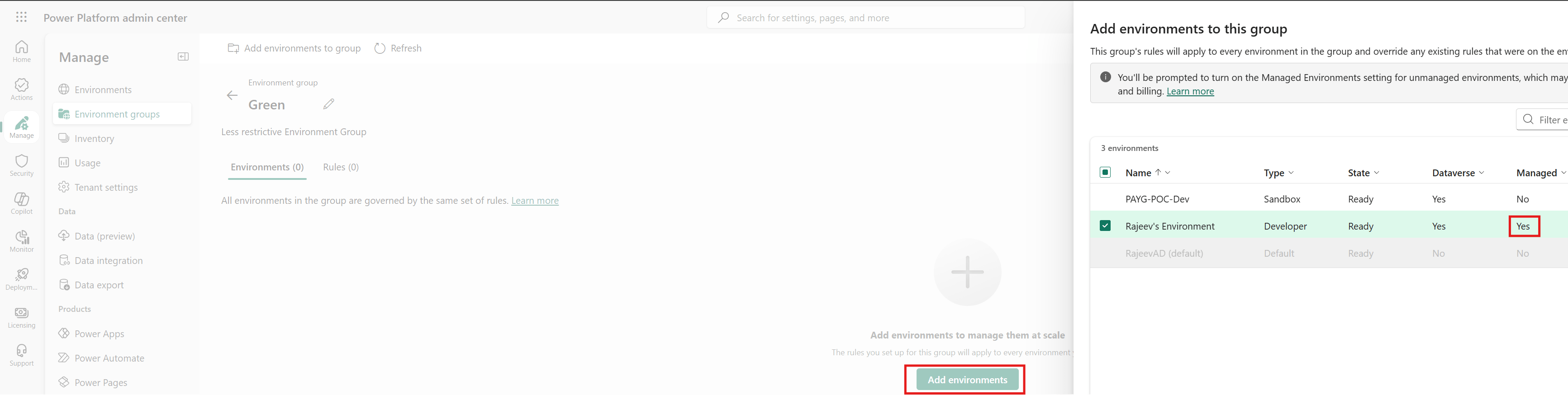
The environment is now part of the group. Next lets add the rule that controls channels.
Add the Agent access channels rule
- Switch to the Rules tab on the group. It shows
Rules (0). - Click + Add rules.
- In the Add rules to this group pane, use the search box or scroll to find Agent access channels (preview).
- Click and open the rule.

Select the channels to allow
Clicking the rule opens the Agent access channels (preview) pane. It lists every channel Copilot Studio can publish to. Ticked channels are allowed. Unticked channels are blocked for every environment in this group.
For my demo I kept the following allowed.
- Teams + Microsoft 365 Copilot
- Direct Line channels
- Dynamics 365 for Customer Service
- SharePoint
- Microsoft Teams Phone
And I unticked the following to block them.

Apply the changes
Ticking the rule alone does not enforce it. We must publish it to the group.
- Click Apply changes on the top toolbar. A tooltip labels it as Publish rules.

The rule is now enforced across every environment in the Green group. Lets verify this from the maker side.
Verify inside Copilot Studio
- Open Copilot Studio and switch to the target environment. Mine is
Rajeev's Environment. - Create or open an existing agent. I opened
Safe Travels. - Go to the Channels page from the top navigation.
Observe the following on the Channels page.
- A warning appears under Draft agent status: Some channel settings aren’t available due to your organization’s data loss prevention policies. Contact your admin with questions.
- The Facebook and WhatsApp tiles are greyed out and cannot be configured.
- All other channels like Web app, Slack, Telegram, Twilio, Line, GroupMe, Direct Line Speech and Email remain available.

The rule blocks both new publishes and access to already published agents on the blocked channels. Makers cannot bypass it through APIs or code.
Summary
Restricting Copilot Studio agent channels is a two step exercise for admins.
- Add the target managed environment to an Environment Group.
- Add the Agent access channels (preview) rule to the group and select only the channels you want to allow.
Once applied, the maker experience inside Copilot Studio reflects the policy right away. Blocked channels are greyed out and a data policy warning appears on the agent.
For the official reference, see Configure channel publishing and connected agent access (preview) and Rules for environment groups.
🙂
Leave a Reply