You published a Copilot Studio agent, and your team started using it. But when you check the ‘ConversationTranscript’ table in Dataverse, it’s empty. Several settings and conditions can cause this.
This article lists each cause and where to check it.
What is a conversation transcript?
- A transcript is a saved record of a conversation between a user and an agent.
- Copilot Studio saves each transcript as a row in the ‘ConversationTranscript’ Dataverse table.
- Each row contains the conversation in JSON format, the agent ID and the conversation start time.
- Reports, Power BI dashboards and custom analytics can be configured to read from this table.
Prerequisites
- A published Copilot Studio agent.
- The ‘Environment administrator’ role to check environment settings.
- The ‘System administrator’ role to check environment group rules.
Check the environment type
Copilot Studio doesn’t save transcripts to Dataverse in the following environment types.
- Developer environments. Transcripts aren’t stored for agents deployed in Developer Environments.
- Dataverse for Teams environments. Makers with a Microsoft Teams plan build agents in this environment type. When they first open Copilot Studio, they might be prompted to select a team. Copilot Studio then creates a Dataverse for Teams environment for that team.
Note: No setting turns on transcripts in these environment types. To save transcripts, move the agent to a Production or Sandbox environment.
If the environment type supports transcripts, check whether an admin turned off transcript saving for the environment.
Check the environment transcript setting
An environment admin can turn off transcript saving for an entire environment.
- Open the Power Platform admin center.
- Select ‘Manage’ > ‘Environments’, and then select your environment.
- Select ‘Settings’, expand ‘Product’, and then select ‘Features’.
- Scroll to the ‘Copilot Studio agents’ section.
- Confirm that ‘Allow conversation transcripts and their associated metadata to be saved in Dataverse (required for enhanced reporting)’ is selected.
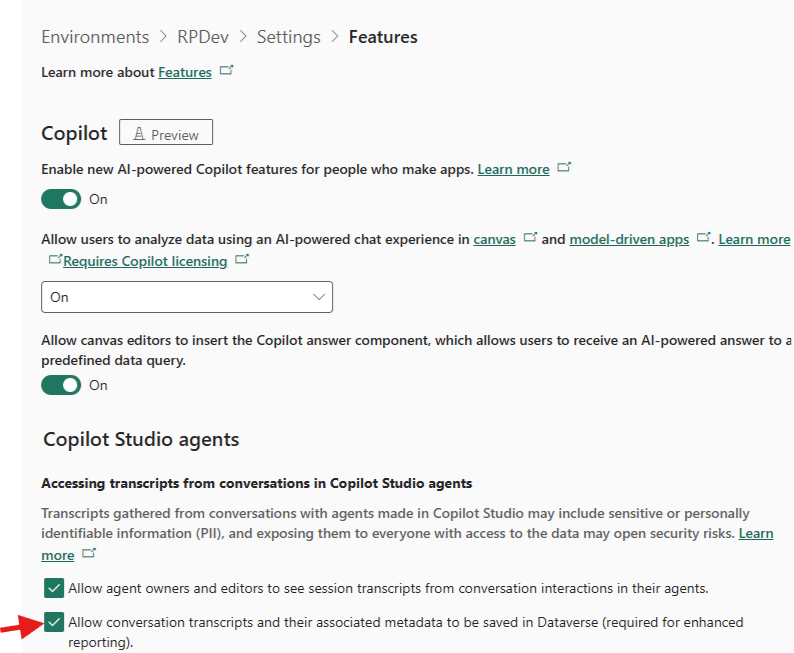
When this setting is turned off, transcripts for future conversations aren’t saved in Dataverse.
Note: The ‘Allow agent owners and editors to see session transcripts…’ setting controls only viewing and downloading in Copilot Studio. It doesn’t affect whether transcripts are saved.
Note: After you turn off saving, transcripts can continue to save to Dataverse for up to 24 hours.
If the environment setting is turned on and the table is still empty, check whether the environment belongs to an environment group.
Check the environment group rule
A tenant admin can apply transcript settings to multiple environments through an environment group. The group rule overrides the environment setting. Environment admins can’t change a setting that a group rule controls.
- In the Power Platform admin center, select ‘Manage’ > ‘Environment groups’.
- Open the group that contains your environment, and then select the ‘Rules’ tab.
- Open the ‘Accessing transcripts from conversations in Copilot Studio agents’ rule.
- Confirm that ‘Allow conversation transcripts and their associated metadata to be saved in Dataverse (required for enhanced reporting)’ is selected.

If the settings allow saving, check when the conversation took place. Copilot Studio doesn’t save a transcript as soon as a conversation ends.
Wait for the conversation to be saved
Copilot Studio saves a conversation to Dataverse after a period of inactivity.
- A conversation is saved after 30 minutes of inactivity.
- For agents on the Telephony channel, conversations time out three minutes after an ‘End Conversation’ event.
- If a conversation resumes after 30 minutes of inactivity, the new activities are saved to a new row.
A conversation that ended less than 30 minutes ago doesn’t have a row yet. Wait at least 30 minutes, and then check the table again.
Older conversations might no longer be in the table because a retention job deletes them.
Check the retention job
Dataverse doesn’t keep transcripts indefinitely. By default, a bulk delete job named ‘Bulk Delete Conversation Transcript Records Older Than 1 Month’ deletes transcripts older than 30 days.
To view the job:
- In Power Apps, select ‘Settings’ > ‘Advanced settings’.
- Select ‘Settings’ > ‘Data Management’ > ‘Bulk Record Deletion’.
- In the ‘View’ list, select ‘Recurring Bulk Deletion System Jobs’.
To keep transcripts longer, cancel this job and create a new one with a longer retention period. For steps, see Change the default retention period.
The previous checks confirm whether rows exist. The last cause applies when rows exist but you can’t see them.
Check your security role
Viewing transcripts in Power Apps requires the ‘Bot Transcript Viewer’ security role.
- By default, only admins have this role.
- The ‘Environment Maker’ role doesn’t include transcript access.
- The role grants access to transcripts of agents you created or agents shared with you.
- An admin can assign this role while sharing the agent.
Without this role, the ‘ConversationTranscript’ table appears empty, even when rows exist.
Note: Clearing ‘Allow agent owners and editors to see session transcripts from conversation interactions in their agents’ hides transcripts only in Copilot Studio. Transcripts are still saved in Dataverse. Users with the ‘Bot Transcript Viewer’ role can still view them in Power Apps.
Summary
When a published Copilot Studio agent has no transcript rows, check the following in order.
- The environment isn’t a Developer or Dataverse for Teams environment.
- Transcript saving is turned on for the environment.
- No environment group rule turns off transcript saving.
- At least 30 minutes have passed since the conversation ended.
- The retention job hasn’t deleted the rows.
- You have the ‘Bot Transcript Viewer’ role.
For more information, see Control how transcripts are retained and accessed, Understand downloaded conversation transcripts from Power Apps and Share agents with other users.
🙂

Leave a Reply