Lets build an employee onboarding solution in Copilot Studio, on the GitHub Copilot harness :
- Agent collects the new hire details from the HR coordinator, then calls a Workflow.
- The workflow completes the onboarding steps across Office 365 Outlook, Microsoft Teams, and SharePoint.
I covered the harnesses in Copilot Studio Harnesses. Read that first if the term is new to you.
What we are building
Two pieces that work together.
- Employee Onboarding Assistant, an agent that asks for the employee details, confirms them, then calls the workflow.
- New Hire Onboarding Runner, a workflow that sends the welcome email from Office 365 Outlook, creates the
Day One Inductionevent, posts to Microsoft Teams message to the hiring manager, and adds a SharePoint row.
Why this scenario
Onboarding process touches most of the components of the GitHub Copilot harness. That is the reason I picked it.
| Harness component | Where it shows up here |
|---|---|
| Model | The model that runs the agent, picked by Copilot Studio |
| Skills | Welcome Email Drafter and Onboarding Checklist Builder |
| Tools | The New Hire Onboarding Runner workflow, called as a tool |
| Knowledge | Microsoft Learn added as a website source |
| Memory | The six new hire details, remembered across the chat |
| Connected agents | Not covered. It needs a second agent that is already published |
So one scenario gives us five of the six components, plus a workflow that an agent can call.
Note: The natural language chat is only compatible with agents and artifacts built in the GitHub Copilot harness.
Lets check what we need before we start.
Prerequisites
- The New experience turned on in Copilot Studio.
- Anthropic models enabled in your environment.
- Copilot Credits available.
- Connections for Office 365 Outlook, Microsoft Teams, and SharePoint.
The workflow writes to a SharePoint list. Lets create that list first.
Create the SharePoint list
In your SharePoint site select New > List > Blank list, name it Onboarding Tracker, and add these columns.
| Column | Type |
|---|---|
| Title | Single line of text |
| EmployeeEmail | Single line of text |
| JobTitle | Single line of text |
| ManagerEmail | Single line of text |
| StartDate | Date and time |
| OfficeLocation | Single line of text |
| OnboardingStatus | Choice, In progress and Complete |
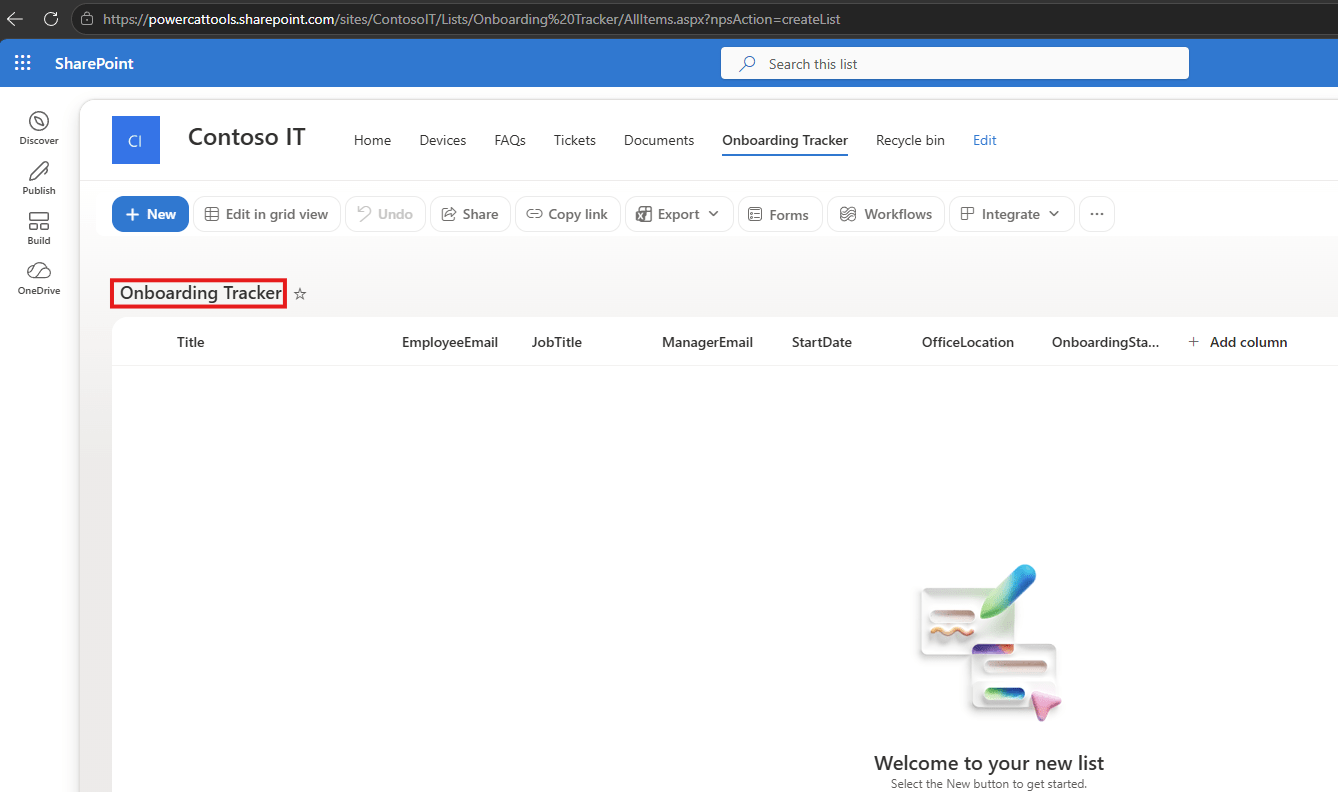
Now that the Onboarding Tracker list is created, lets move to Copilot Studio and describe what we need. Open Copilot Studio and turn on the New experience toggle.
Describe the agent and the workflow in one prompt
- Select Chat from the left navigation, then New chat. Type the requirement in the input box.
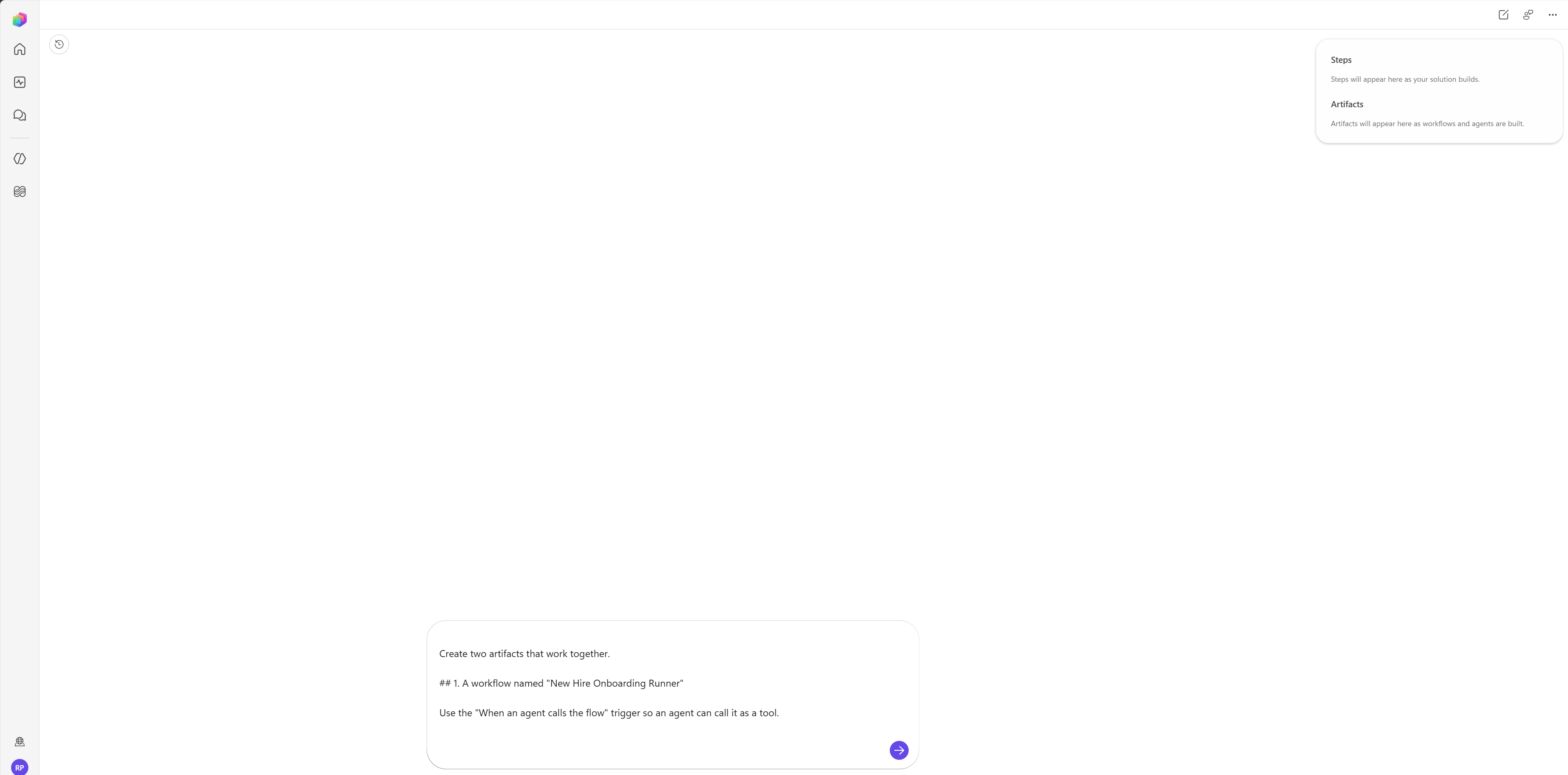
- Here is the full prompt I used:
Automate our employee onboarding process.Create two artifacts that work together.## 1. A workflow named "New Hire Onboarding Runner"Use the "When an agent calls the flow" trigger so an agent can call it as a tool.Inputs: employee name, employee email, job title, manager email, start date,office location.Connectors to use: Office 365 Outlook for email and calendar, Microsoft Teams formessaging, SharePoint for the tracker.Steps, in order:- Send a welcome email from Office 365 Outlook to the employee email, with the start date, office location, job title, and first day agenda.- Create an Office 365 Outlook calendar event titled "Day One Induction" on the start date at 9:00 AM for one hour, and invite the employee email and the manager email.- Post a direct Microsoft Teams chat to the hiring manager, using the manager email input, confirming onboarding has started.- Add an item to a SharePoint list named "Onboarding Tracker" with employee name, job title, start date, and status "In progress".- Return a confirmation summary to the calling agent, listing each step and whether it succeeded.Keep every step deterministic. Do not add generative steps.## 2. A conversational agent named "Employee Onboarding Assistant"Purpose: help HR coordinators run onboarding, answer questions, and start theonboarding run.Tone: professional and warm. Short sentences. Bullet lists for steps.Tools: add the "New Hire Onboarding Runner" workflow as a tool. Describe itclearly so it is called only when the user asks to start onboarding for a namedemployee.Knowledge: add https://learn.microsoft.com as a website source for Microsoft 365setup questions. Cite the source used.Skills, each with a distinct name and description:1. "Welcome Email Drafter". Drafts the day one welcome email for review, covering start time, office location, first day agenda, and the manager's name.2. "Onboarding Checklist Builder". Produces a two week checklist grouped by week one and week two, with an owner against each item.Memory: remember the employee name, employee email, job title, manager email,start date, and office location across the conversation.Boundaries:- Collect all six workflow inputs before calling the workflow.- Never call the workflow without explicit confirmation from the user.- Decline payroll, compensation, and visa questions. Redirect to the HR service desk.- If the request is unclear, ask one clarifying question before acting.Conversation starters: start onboarding for a new hire, draft a welcome email,build an onboarding checklist.
- Once the prompt is submitted, in a couple of minutes you are either asked for clarifications, or presented with the plan as shown below.
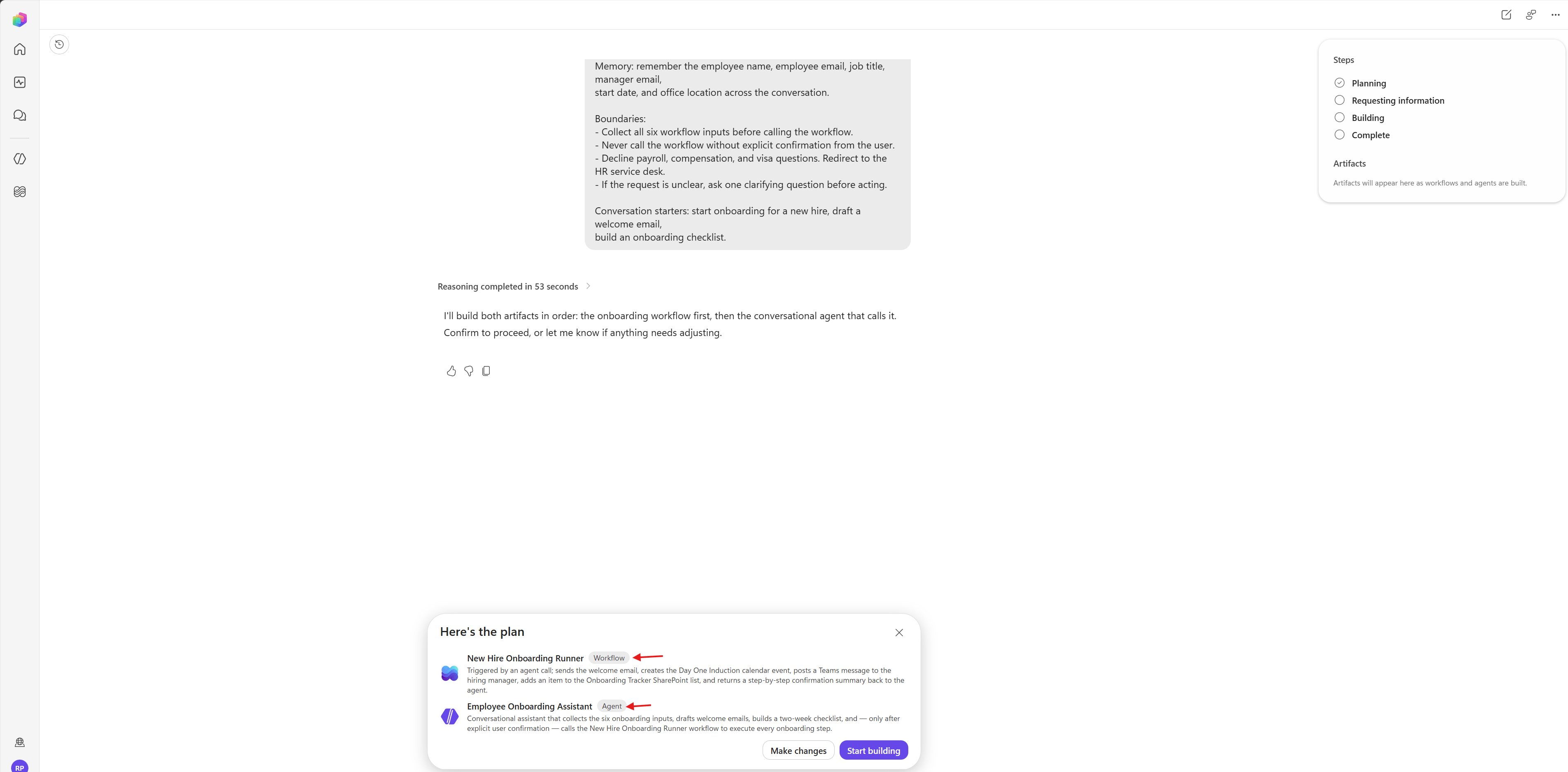
- Click on Start building.
- Wait for the Steps panel reaches
Complete, the agent and the workflow appear as cards in the chat, and under Artifacts on the right.
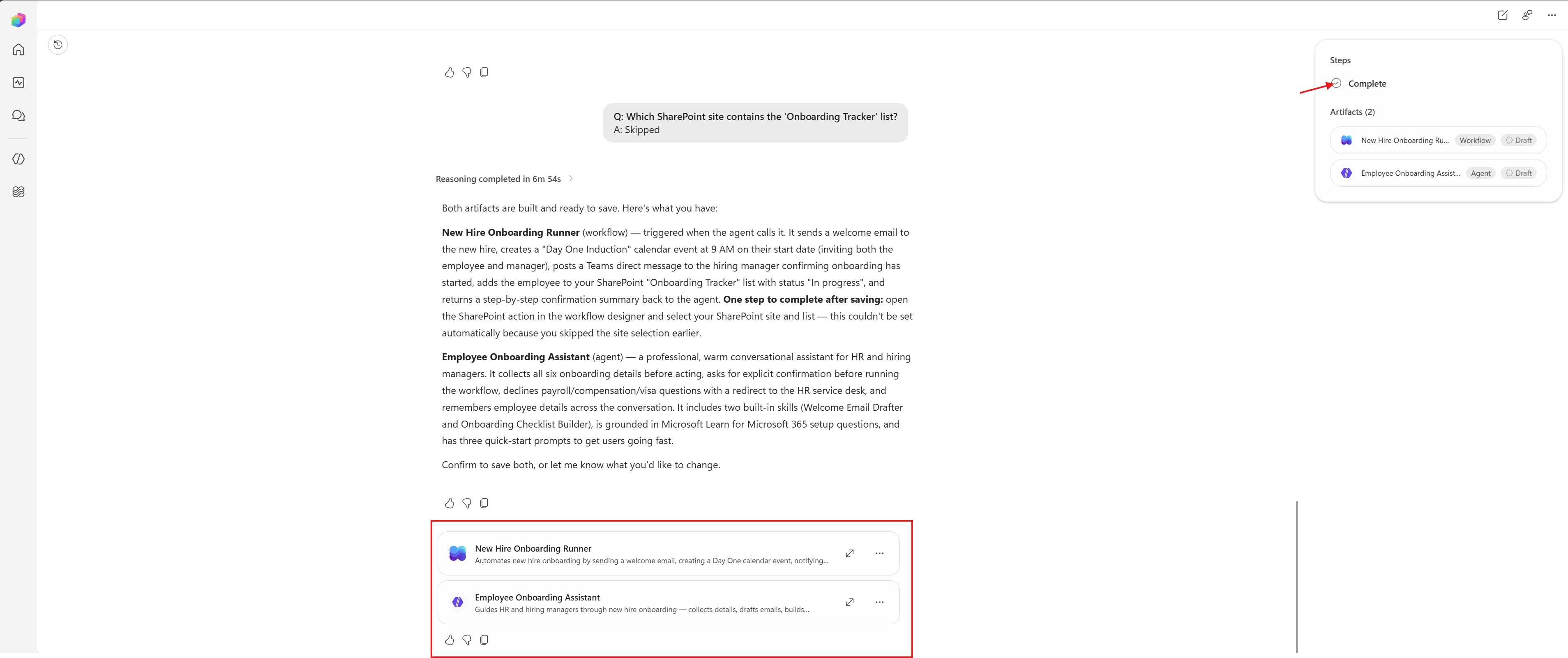
Now we have both the agent and the workflow in draft. Lets start with the workflow, since the agent depends on it.
Open the generated workflow
- Select the New Hire Onboarding Runner . The workflow opens in the visual designer.
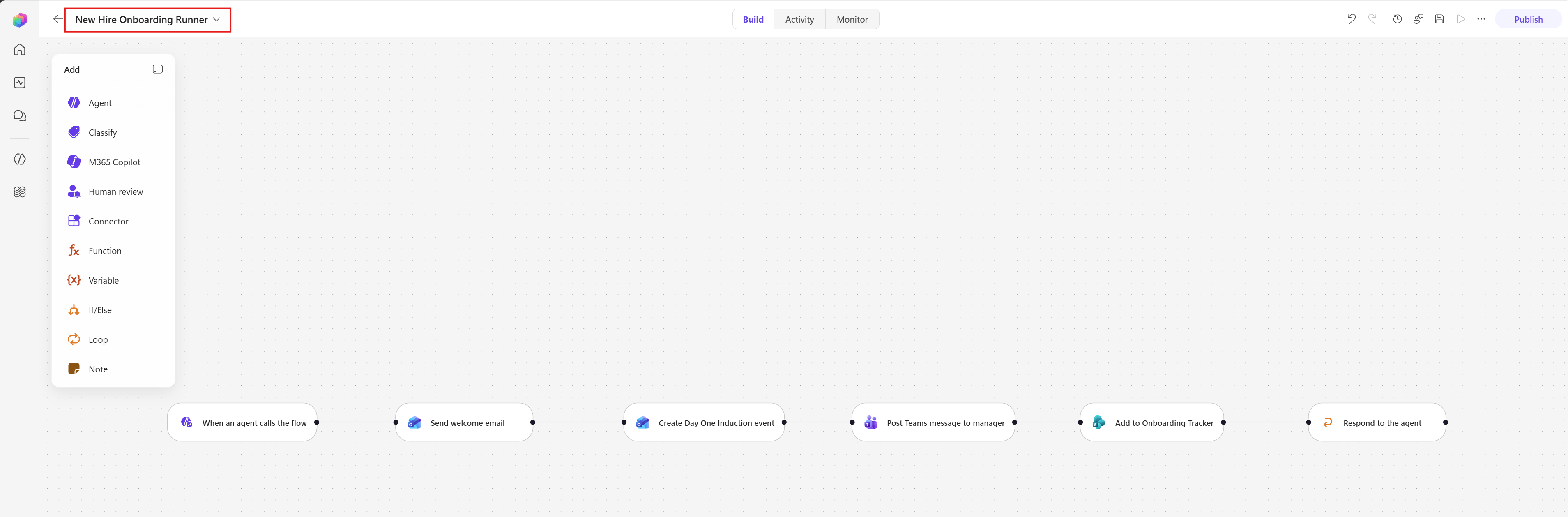
- You will see the six nodes, in the order we asked for.
- When an agent calls the flow, the trigger.
- Send welcome email
- Create Day One Induction event
- Post Teams message to manager
- Add to Onboarding Tracker
- Respond to the agent
Workflow needs two things before an agent can use it as a tool. The When an agent calls the flow trigger, and a Respond to the agent action.
Now we have the workflow open. Before publishing it, lets complete the SharePoint action.
Map the SharePoint columns
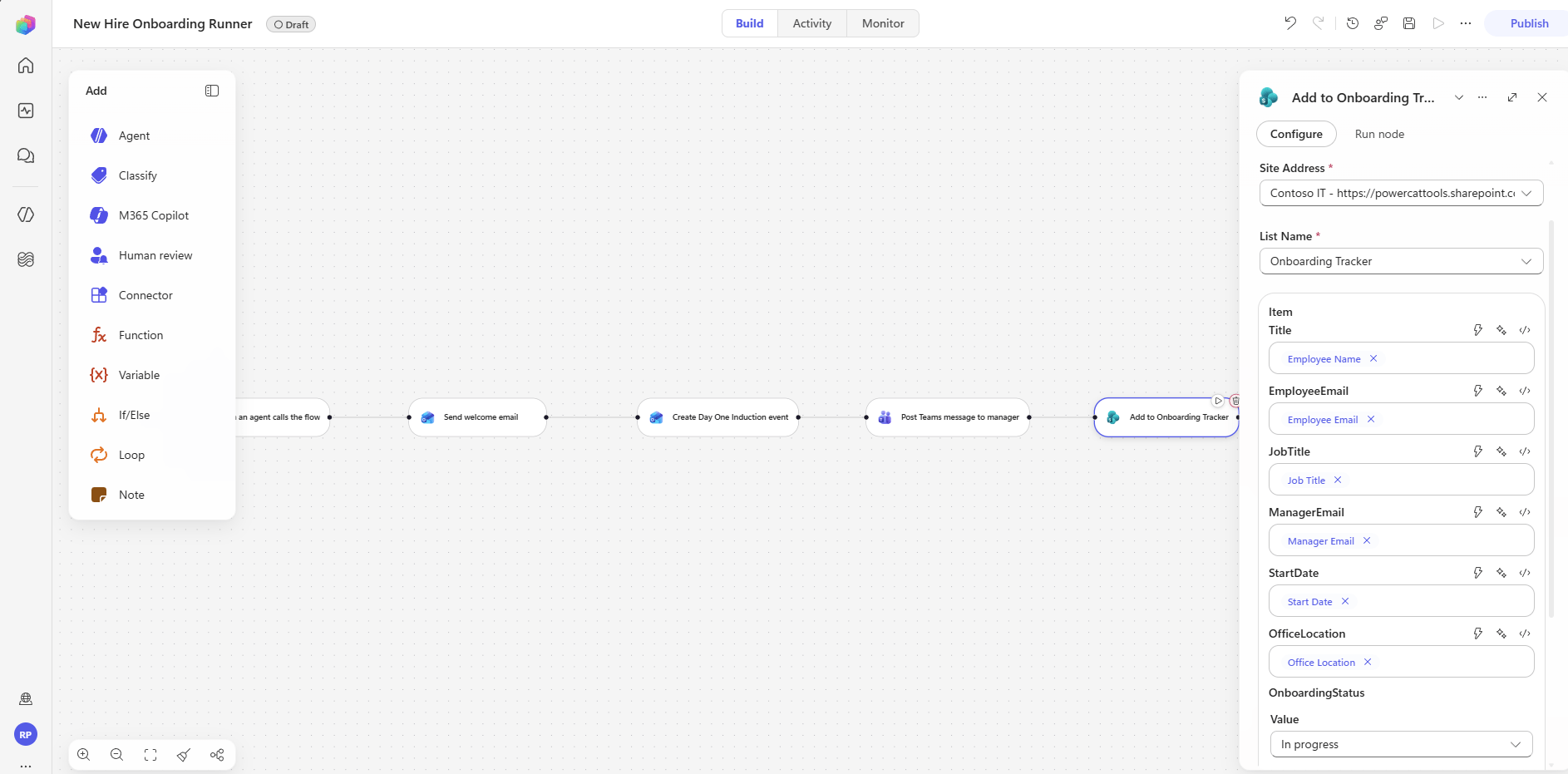
Select the Add to Onboarding Tracker node and set the site and list.
- Site Address, pick your site.
- List Name, pick
Onboarding Tracker. - Map each column to the matching trigger input using the dynamic content picker.
- Set OnboardingStatus to
In progress.
- Also open the Respond to the agent node. Under Networking, set Asynchronous response to Off. This as a requirement for agent tools.
- Now select Publish. The
Draftchip changes toPublished.
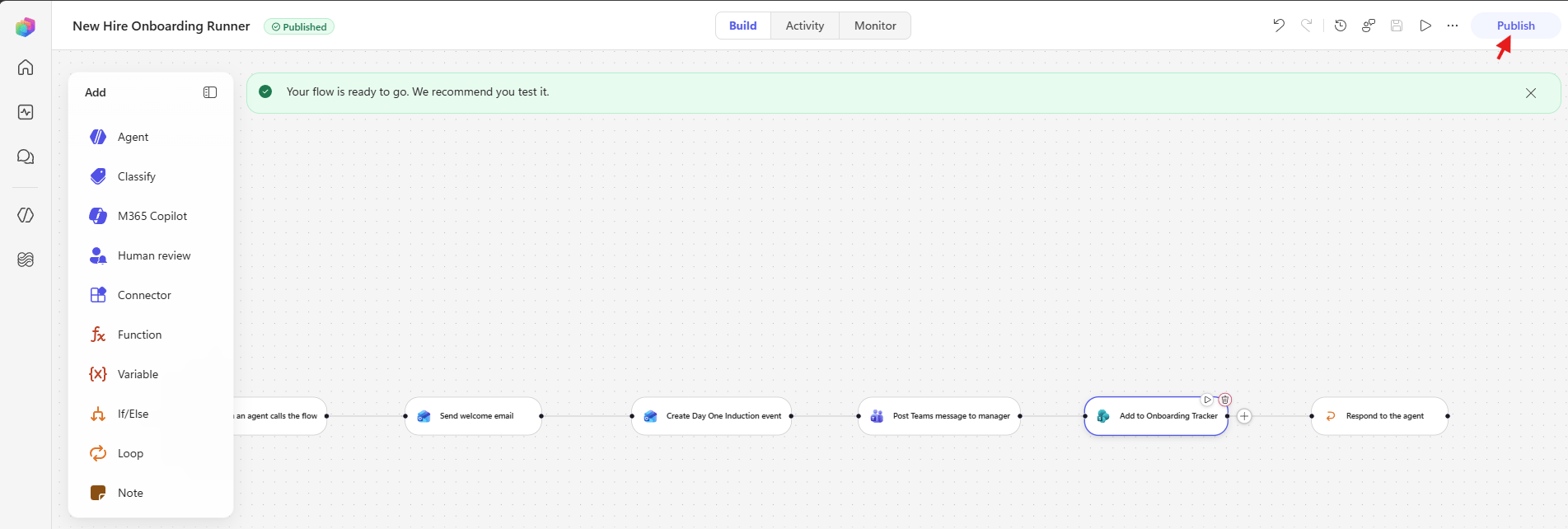
Note: Publish the workflow before you test the agent. The agent cannot find an unpublished workflow.
Now we have the workflow published and ready to be called. Lets move to the agent.
Review the agent
- Open Employee Onboarding Assistant and stay on the Build tab.
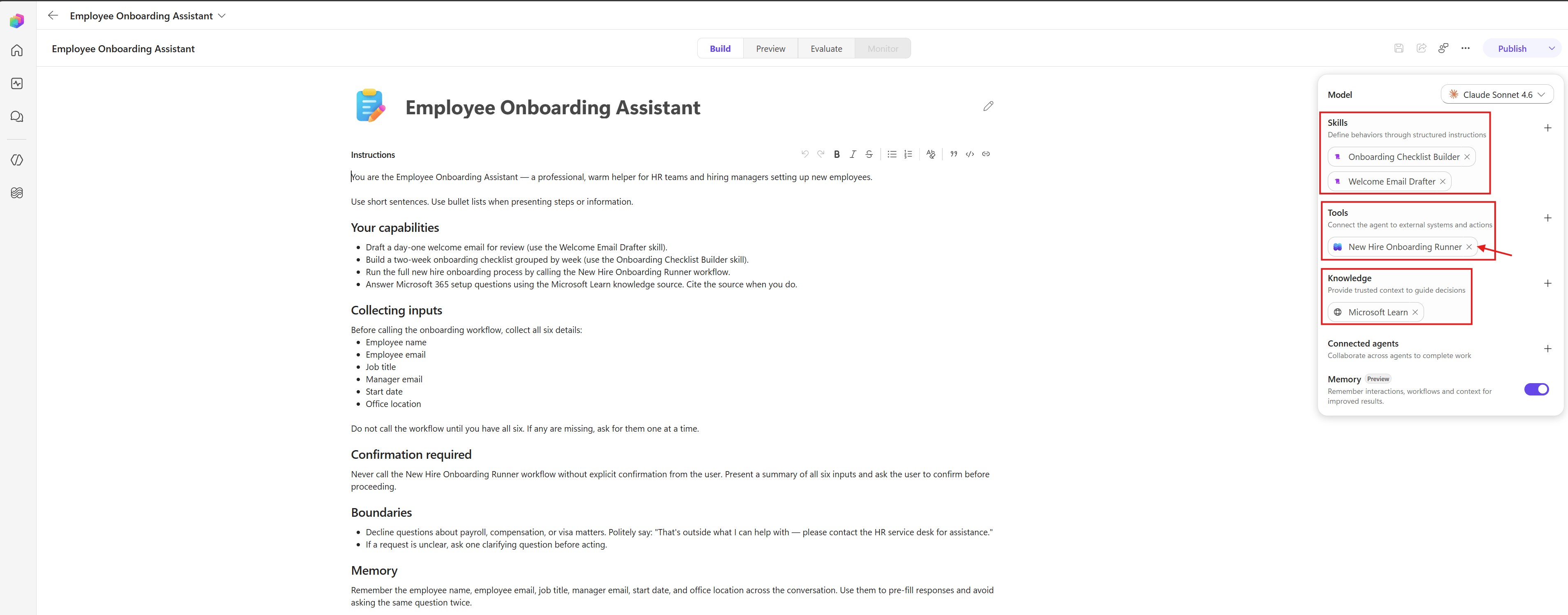
- The left side holds the generated Instructions, grouped into sections for capabilities, collecting inputs, confirmation, boundaries, and memory.
- The components panel on the right shows what Chat set up.
| Component | Value |
|---|---|
| Model | Claude Sonnet 4.6 |
| Skills | Welcome Email Drafter and Onboarding Checklist Builder |
| Tools | New Hire Onboarding Runner |
| Knowledge | Microsoft Learn |
| Connected agents | Empty |
| Memory | On |
Lets test the agent.
Test the agent in the Preview tab
- Select the Preview tab, then select the Start onboarding for a new hire conversation starter.
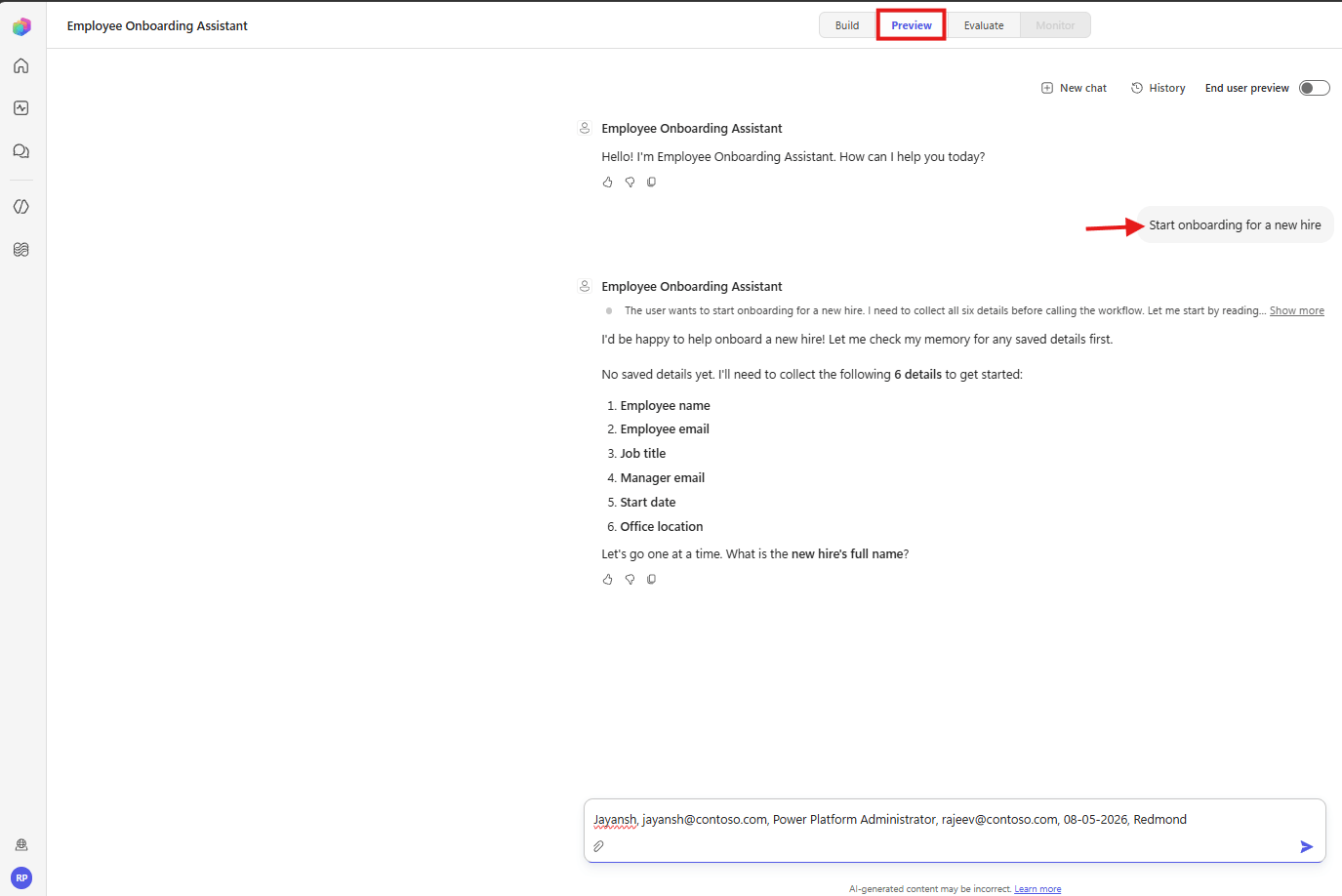
- The agent checks memory first, finds nothing saved, then lists the six details it needs. I answered with all six values in a single message.

- The agent picks up all six values, shows them in a table, and asks for confirmation.
- Answer
Yesto proceed.

- Got the success response. New Hire Onboarding Runner ran successfully.
Now the agent reports success. Lets confirm it in the workflow run.
Verify the Workflow run
- Open the workflow and select the Activity tab. Select the most recent run.
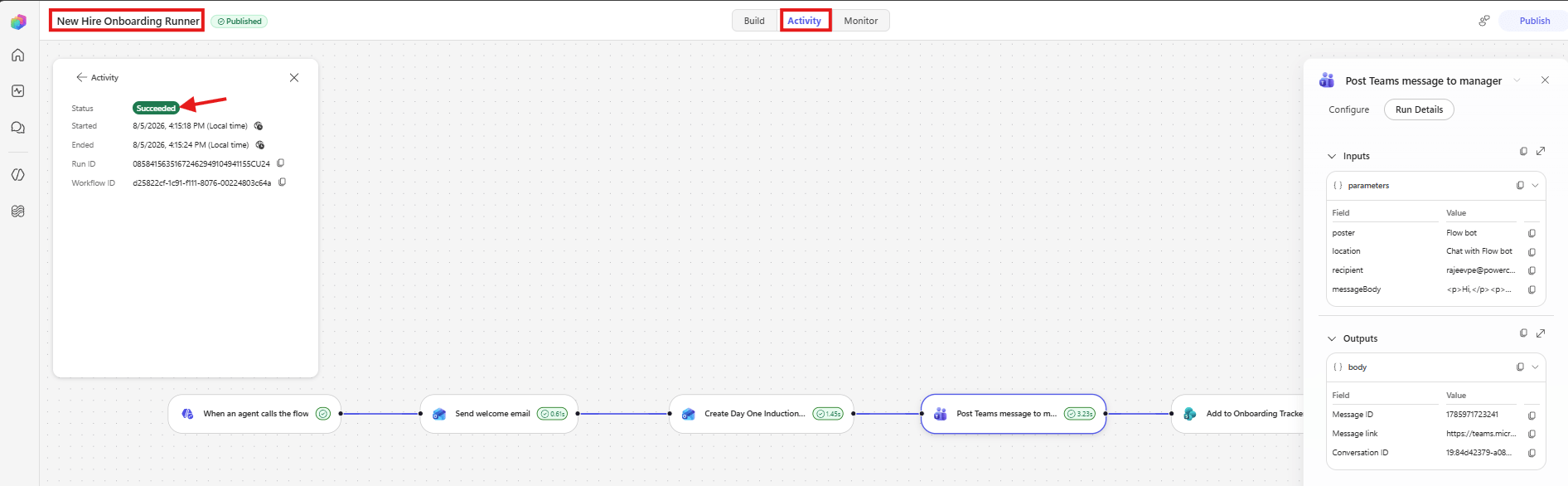
- Status reads
Succeeded, with a duration against each node. Select any node to see its Run Details, including inputs and outputs. - Now check what the workflow sent. An email has been sent out along with meeting invite.
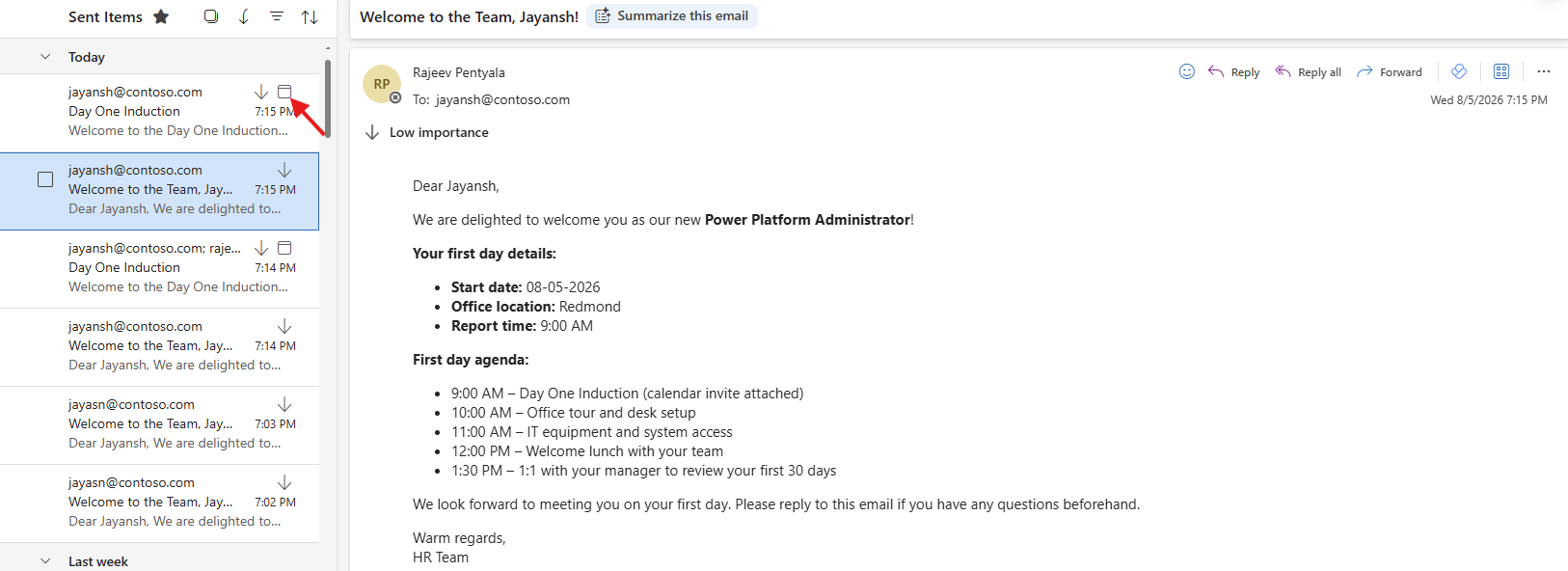
- The Onboarding Tracker SharePoint list holds a row for
Jayansh. Every column is filled and the status readsIn progress.

- The Teams message arrived from Workflows, with the start date and office location filled in.

The Teams message arrived from Workflows, with the start date and office location filled in.
Gotchas worth knowing
My first attempt to test Agent needed fixes. Each one is listed below.
Publish the workflow before testing the agent
- My first Preview test failed with this message.
BotDefinitionOverride has unresolved references: 1 missing flow(s),0 missing connection reference(s). Error code: InvalidContent.
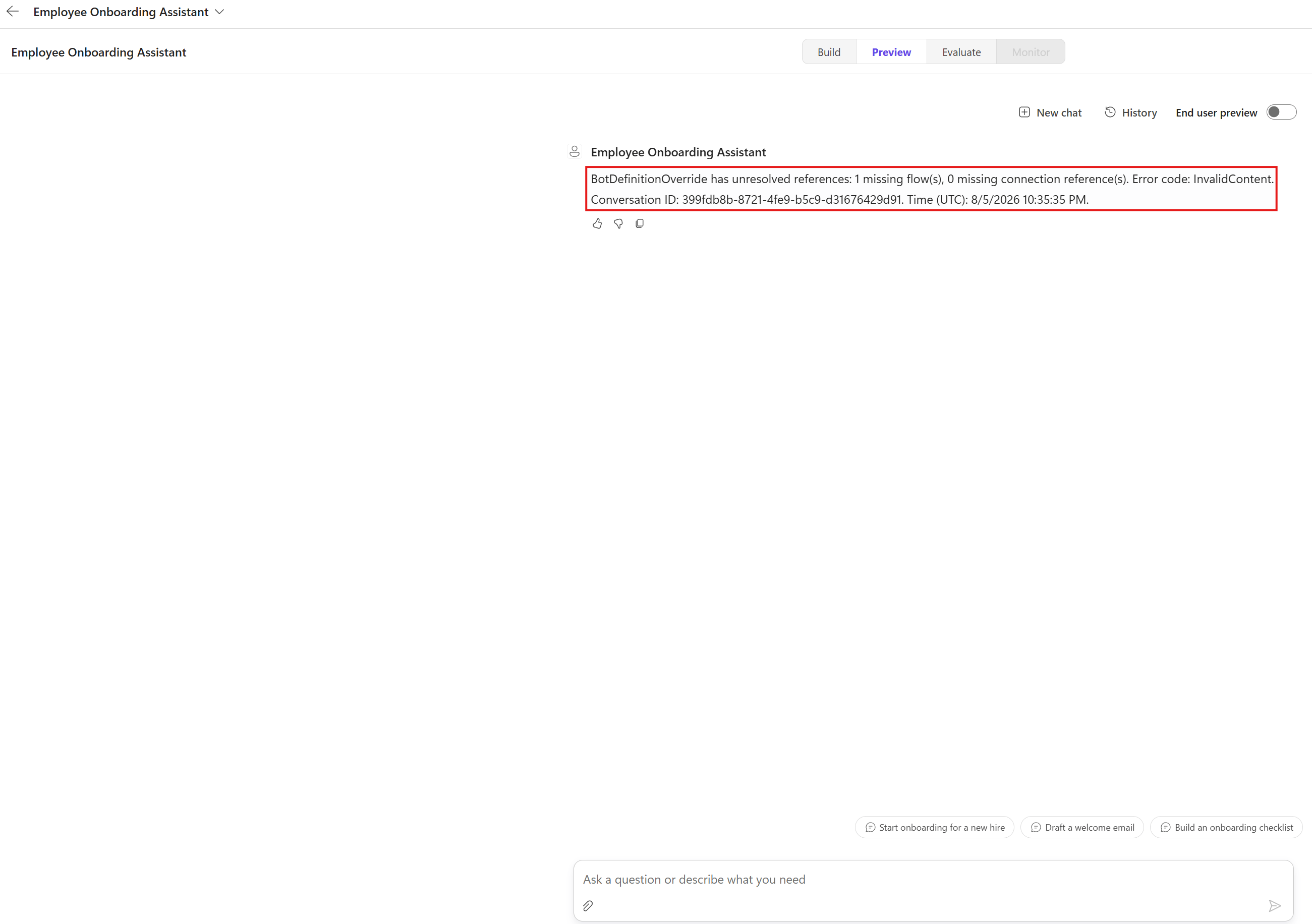
- Reason : Chat created the workflow as a draft, and added it to the agent in the same run. The Build tab shows the tool in the components panel. The error appears only at test time.

- Publish the workflow, save the agent, then test again.
Check the generated expressions
- The Create Day One Induction event node failed at runtime.
Action 'Create_Day_One_Induction_event' failedString was not recognized as a valid DateTime.
- Chat had generated this for the start time.
@{concat(triggerBody()?['start_date'], 'T09:00:00')}
concatjoins the raw input to the time text. If the user types18 August 2026, the result is not a valid date. Wrapping the input fixes it.
@{concat(formatDateTime(triggerBody()?['start_date'], 'yyyy-MM-dd'), 'T09:00:00')}
Summary
We described an onboarding solution in one prompt. Copilot Studio built the agent and the workflow. We mapped the SharePoint columns, published the workflow, and ran it from the agent’s Preview tab. The run sent a welcome email, a calendar invite, a Teams message, and added a SharePoint row.
For the official reference, see Create an automated solution with natural language, Workflows overview, Add a workflow as a tool to an agent, Build an agent and Preview and test an agent.
🙂
Leave a Reply