PowerApp is a service from Microsoft Business Application Platform (BAP) for creating business applications that can run in a browser or on a phone or tablet, and no coding experience is required.
Its a 3 step approach to create an App
- Connect to a Data Source; It can be your Dynamics 365, Azure SQL/SQL On premise, API, etc…
- Build the UI forms and add business logic using Workflows (i.e., Microsoft Flow, Azure Functions etc..)
- Publish the App

In this article, I am going to walk you through the steps to subscribe to Microsoft PowerApps and getting started with your first App.
Steps to connect to PowerApp Studio:
- Connect to PowerApps portal
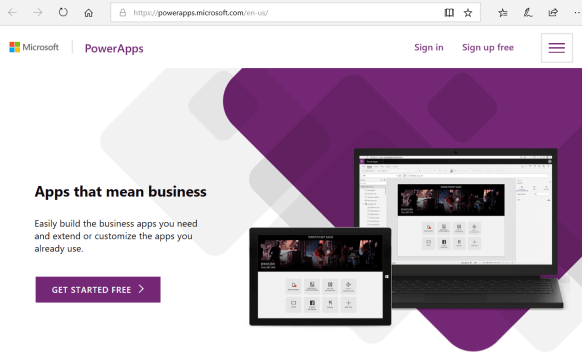
- Click ‘Sign up free’ if you don’t have account already
- Note: You can sign in with your 30 days trail account, if you already have one.
- Click ‘Sign In’ if you have an account
- Once you login to the Portal

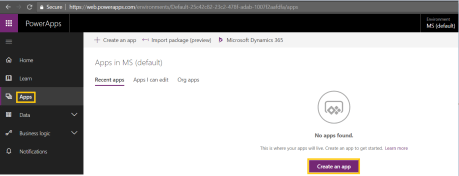
- Select ‘Apps’ from the Menu
- Choose ‘Design Mode’
- Canvas : This mode allows to create the app by dragging and dropping elements onto a canvas, just as you would design a slide in PowerPoint. This mode is apt if your requirement is to build a custom forms with rich UI.
- Model-driven: Model-driven app design is a component-focused approach to app development. Example of this mode is creating ‘Apps’ in D365.
- Click on ‘Create an App’ button
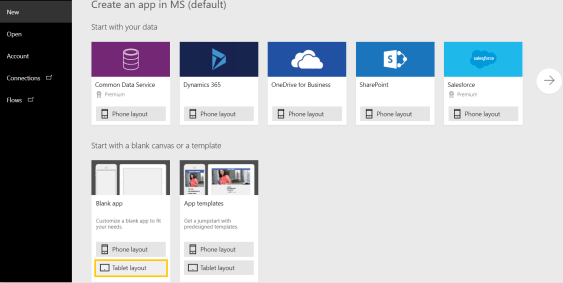
- Pick your App style
- If you are beginner, go with Canvas ‘Tablet Layout’
PowerApp IDE’s:
There are 2 ways to build the Apps
- PowerApp Studio – Web : In this option, you can build and Publish the App from the browser.
- PowerApp Studio – Desktop App: You can also download the PowerApp desktop application from Here
In the next article, lets see how to create a simple Calculator App.
🙂



 Rajeev Pentyala – Technical Blog on Power Platform, Azure and AI
Leave a reply to [Step by Step] Embed “Azure Blob” connector Canvas App in Model Driven App | Rajeev Pentyala – Dynamics 365 Blog Cancel reply