There was a question posted in my blog on how to get the configured Portal’s URL as someone else configured the portal.
Below are the steps to get your Portal URL.
From your Dynamics 365 Instance:
- Connect to your Dynamics 365 instance
- Navigate to Portals -> Website Bindings
- Open the record and read the URL from “Site Name” field

From your Dynamics 365 Admin Center:
- Connect to your “Dynamics 365 Admin Center” (i.e., Login to Portal.office.com)
- Select your “Dynamics 365” instance
- Click on “Applications” tab
- Select “Portal Add-on” and click “MANAGE” button
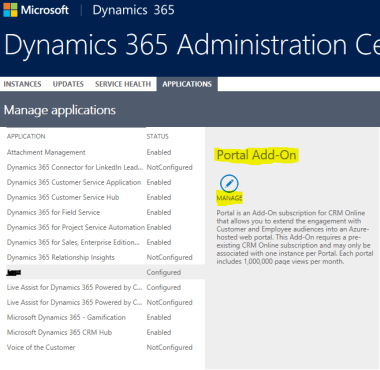
- You would be redirected to “Portal” configuration page
- Copy the URL

Note: You can access your Portal configurations page, only if your Admin granted access to your login Account. If you don’t have permission, you would end up getting below error message:
You don’t have permission to perform this action. Contact your global administrator to get owner permission for Application ID
🙂


![[Step by Step] Configure and run 'Pipelines in Power Platform'](https://rajeevpentyala.com/wp-content/uploads/2024/08/image.png)
 Rajeev Pentyala – Technical Blog on Power Platform, Azure and AI
Leave a reply to Fonsell Cancel reply