Recently I was exploring options to move attachments from CRM (i.e., Notes and Email) to Azure Blob storage and came across “Attachment Management” tool from Microsoft Labs.
This tool can be installed as a solution to your Dynamics 365 instance. Detailed steps and usage guide are available here.
In this article I am going to detail the imperative Azure and Dynamics 365 settings which would avoid the connectivity issues you may encounter during my usage.
Pre-requisites to use this solution:
- Dynamics 365 instance (You can subscribe for 30 days trail)
- Enable the “Attachment Management” solution from App Source.
- Microsoft Azure Account (You can subscribe for trail)
- Note: You can use the same Dynamics Office 365 account to register for Azure trail account.
Setting up Azure Storage Account:
Make sure your Azure Storage Account settings matches with below
- Azure “Storage Account” ‘KIND’ must be “BlobStorage”.
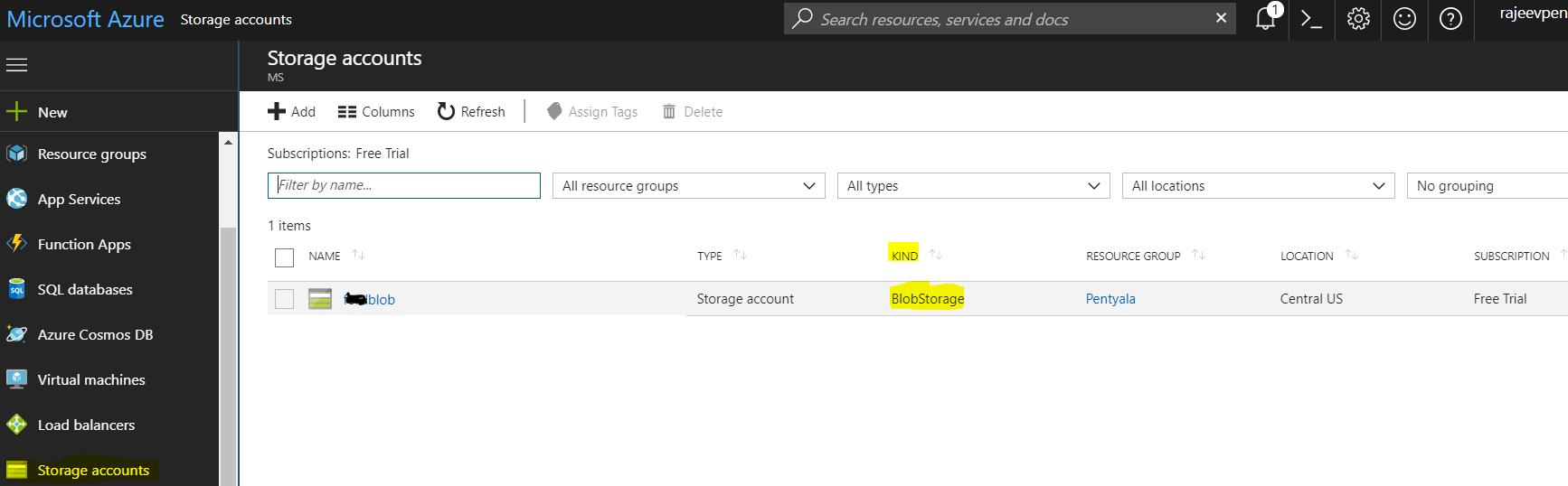
- “Storage Account” Containers ‘Public Access Level’ must be “Blob”.

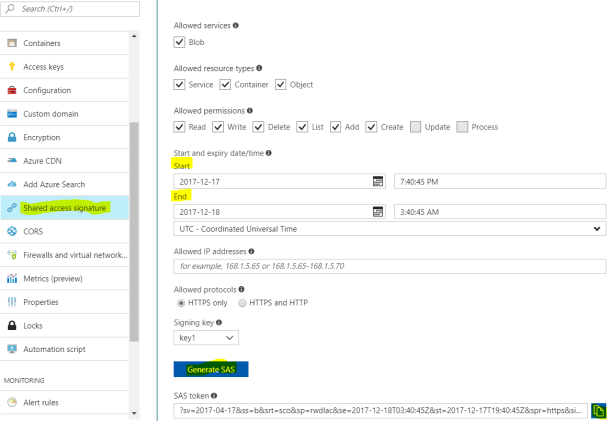
- “Shared Access Signature” (SAS token)
- Set the “Start” to Previous Day as the Azure time zone depends the data Center you choose. (For example, your IST date may be 1 day ahead of your ‘Data Center’ date which may make your ‘SAS token’ invalid)
- Set the “End” to at least a week ahead of today.
Settings in Dynamics 365:
- With the “Attachment Management” solution you will get 3 entities and a ‘Site Map Area’ (i.e., Azure Attachment Storage)
- Make sure you configure settings only from ‘Azure Attachment Storage’ site map link and not from ‘Advanced Find’

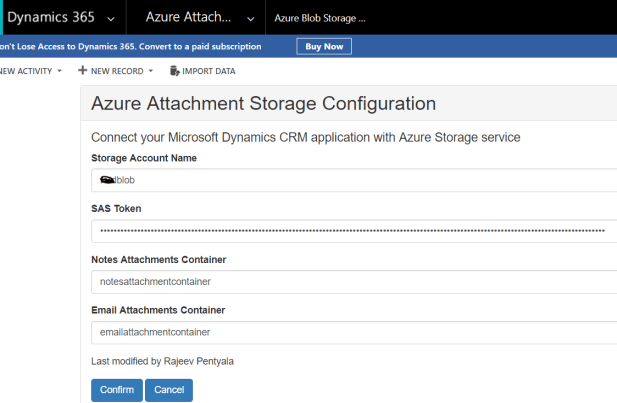
- In “Azure Blob Storage Setup” page, make sure the ‘Storage Account Name’, ‘Container names’ and ‘SAS token’ matches with Azure settings
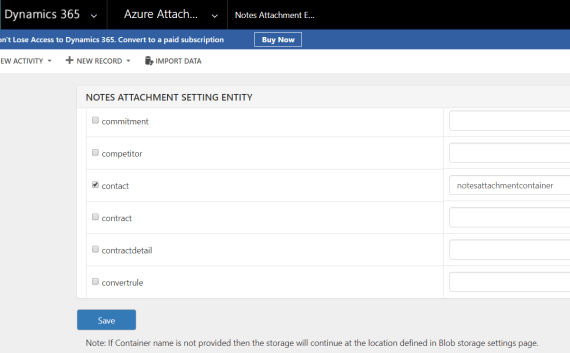
- In “NOTES ATTACHMENT SETTING ENTITY” page, pick your entities and provide correct “Container” name or leave that blank.
- Note: If you have Dynamics Portal solution installed, uncheck the ‘Web Files’ entity, if its selected.
Troubleshooting steps:
- After you configure all the settings try adding a Note with attachment to the entity you configured.
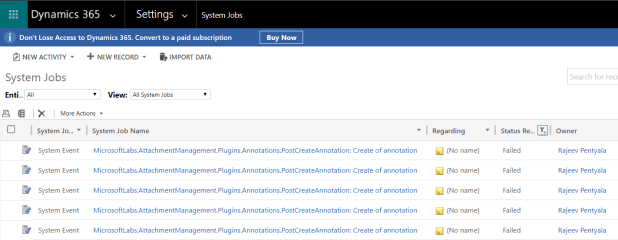
- If you don’t see your attachments move to Azure Container, go to ‘System Settings’ and look for “MicrosoftLabs.AttachmentManagement…..” job for exception.
🙂

![[Step by Step] Restore a Database from Azure Blob to Azure SQL Server | Rajeev Pentyala - Dynamics 365 Blog Avatar](https://rajeevpentyala.com/wp-content/uploads/2018/08/cropped-rajeev_pentyala.jpg?w=40)


![[Step by Step] Beginner : Create a PCF control and add it to a custom page](https://rajeevpentyala.com/wp-content/uploads/2024/12/image-49.png)
 Rajeev Pentyala – Technical Blog on Power Platform, Azure and AI
Leave a comment