
In this article, I am going to provide ‘Step-by-Step’ details on how to:
- Add ‘Power BI’ subscription to your existing Office 365
- Connect to your ‘Dynamics CRM Organization’ from BI
- Render Power BI reports in CRM Dashboard.
What’s Power BI and How is it different from SSRS?
- Power BI offers basic data wrangling capabilities like Excel’s Power Query.
- It also lets you create interactive visualizations, reports and dashboards with a few clicks and handle files that are too large for Excel.
- On the other hand, SSRS is meant for “static” reports. Something that will be shown always as defined and printable.
Steps to add ‘Power BI’ subscription:
- As a pre-requisite, create your 30 days Dynamics 365 free trail.
- Login to ‘Portal.office.com’ and open ‘Admin’ dashboard
- Go to ‘Billing -> Purchase services -> Power BI (free) -> Buy now
- Note: This requires you to provide credit card details and INR 2 will be charged after successful purchase.
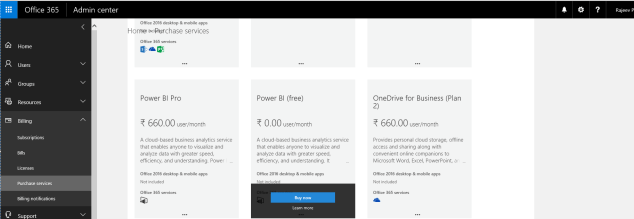
- After successful purchase, open ‘PowerBI.com’ on another tab of the browser and click ‘Sign In’

- Click ‘Start’
Connect to Dynamics CRM organization from Power BI:
- To connect to CRM Organization from ‘Power BI’, you need to install one of the ‘Content Packs’
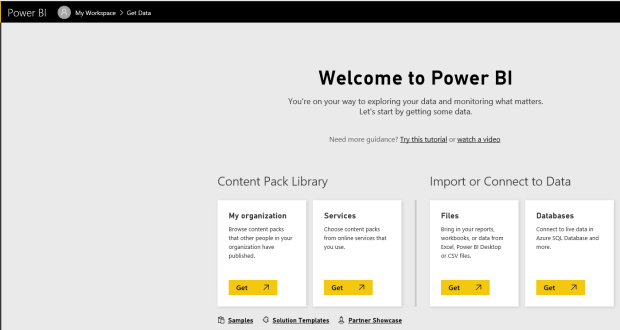
- Click on ‘Get’ button from ‘My organization’ section
- From the available list, choose any of the Dynamics CRM related Apps (I chosen ‘MS Dynamics Online Sales Manager’ for this demo, from the ‘Apps’ tab)
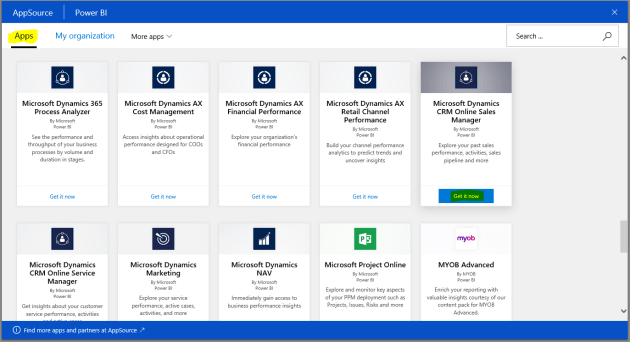
- Click on ‘Get it now’ and you will be asked to provide CRM credentials.
- Provide ‘CRM Organization URL’ details and ‘Last Month Of the Fiscal’

- Choose ‘Authentication Method’ as ‘OAuth2’
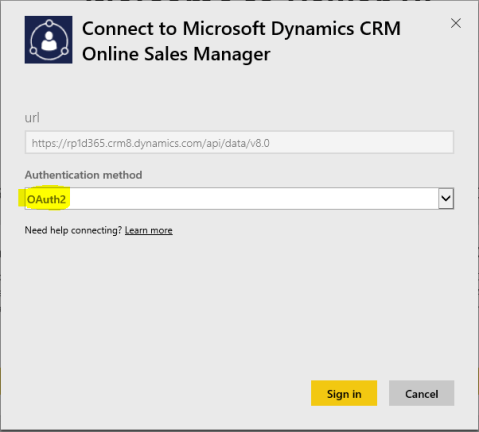
- Post successful login, you would see ‘Importing Data’ message
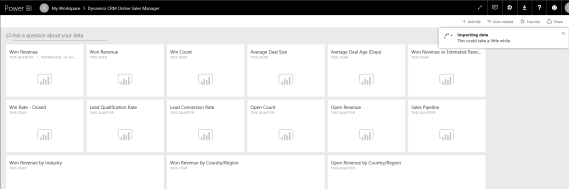
- Give it few seconds and you would see beautifully rendered reports

Display ‘Power BI’ reports in CRM Dashboard:
In previous versions of CRM, only option to bring ‘Power BI’ reports are by placing an IFrame in Dashboard and set the PowerBI URL. Its easily configurable now.
- Connect to your Dynamics CRM Organization
- Go to ‘Settings -> Administration -> System Settings -> Reporting -> ‘Allow Power BI….’=Yes

- Create a new Dashboard
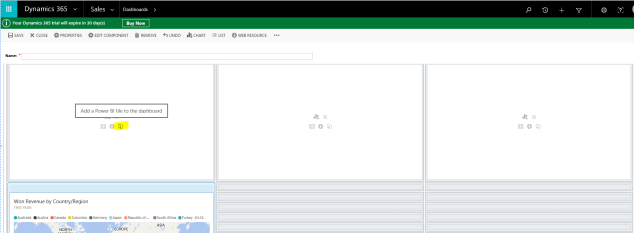
- Select the placeholder and from the Report add options, click ‘Power BI Tile’
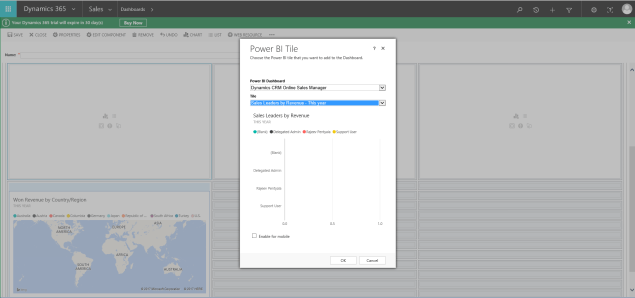
- Pick one of the available ‘Power BI Reports’
- Save the Dashboard
- Go to ‘Sales -> Dashboard’ and pick the created ‘Dashboard’
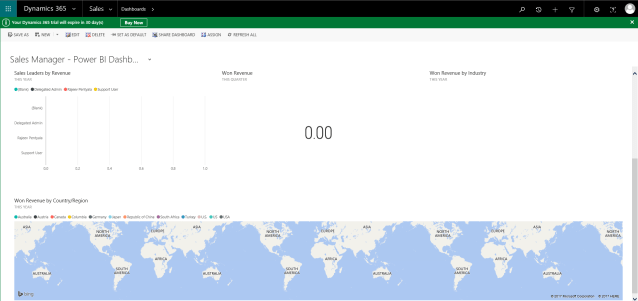
🙂


![[Step by Step] Beginner : Create a PCF control and add it to a custom page](https://rajeevpentyala.com/wp-content/uploads/2024/12/image-49.png)
 Rajeev Pentyala – Technical Blog on Power Platform, Azure and AI
Leave a comment