In this article, let’s learn how to use the Remote Session feature in GitHub Copilot CLI to monitor and steer your terminal session from GitHub.com or GitHub Mobile.
What is a Remote Session?
- Remote Session is a feature in GitHub Copilot CLI that allows you to access a running CLI session from another device.
- Once enabled, you can view session output, respond to permission requests, and continue working — all from your browser or phone.
- The CLI session continues to run on your local machine. The remote interface is just a way to interact with it.
- This feature is currently in public preview.
Why Remote Session?
Let me explain with a simple use case.
Without Remote Session:
- Alex is a developer who started a complex code refactoring task in Copilot CLI on his workstation. The task takes time and Copilot keeps asking for permissions. Alex has to stay at his desk and keep watching the terminal.
- If Alex walks away for a meeting, the task stalls because no one is there to approve the permission requests.
With Remote Session:
- Alex enables remote access by typing
/remotein the CLI. He gets a link to his session on GitHub.com. - He walks to his meeting, opens the link on his phone using GitHub Mobile, and approves permission requests right from there. The task continues without interruption.
In short — Remote Session lets you monitor, respond, and steer your Copilot CLI session from anywhere.
Prerequisites
Before you start, make sure the following are in place:
- GitHub Copilot CLI installed and authenticated. See Installing GitHub Copilot CLI.
- An active Copilot subscription (Individual, Business, or Enterprise).
- The working directory must contain a Git repository hosted on GitHub.com. Remote session won’t work outside a GitHub repo.
Enable Remote Access
There are couple of ways to enable remote access:
Option A: Using the /remote Slash Command
If you are already in an interactive session, simply type:
/remote
Option B: Using the --remote Command-Line Option
Start your CLI session with the --remote flag:
copilot --remote

The CLI connects to GitHub.com and displays:
- A URL to access the session from a browser.
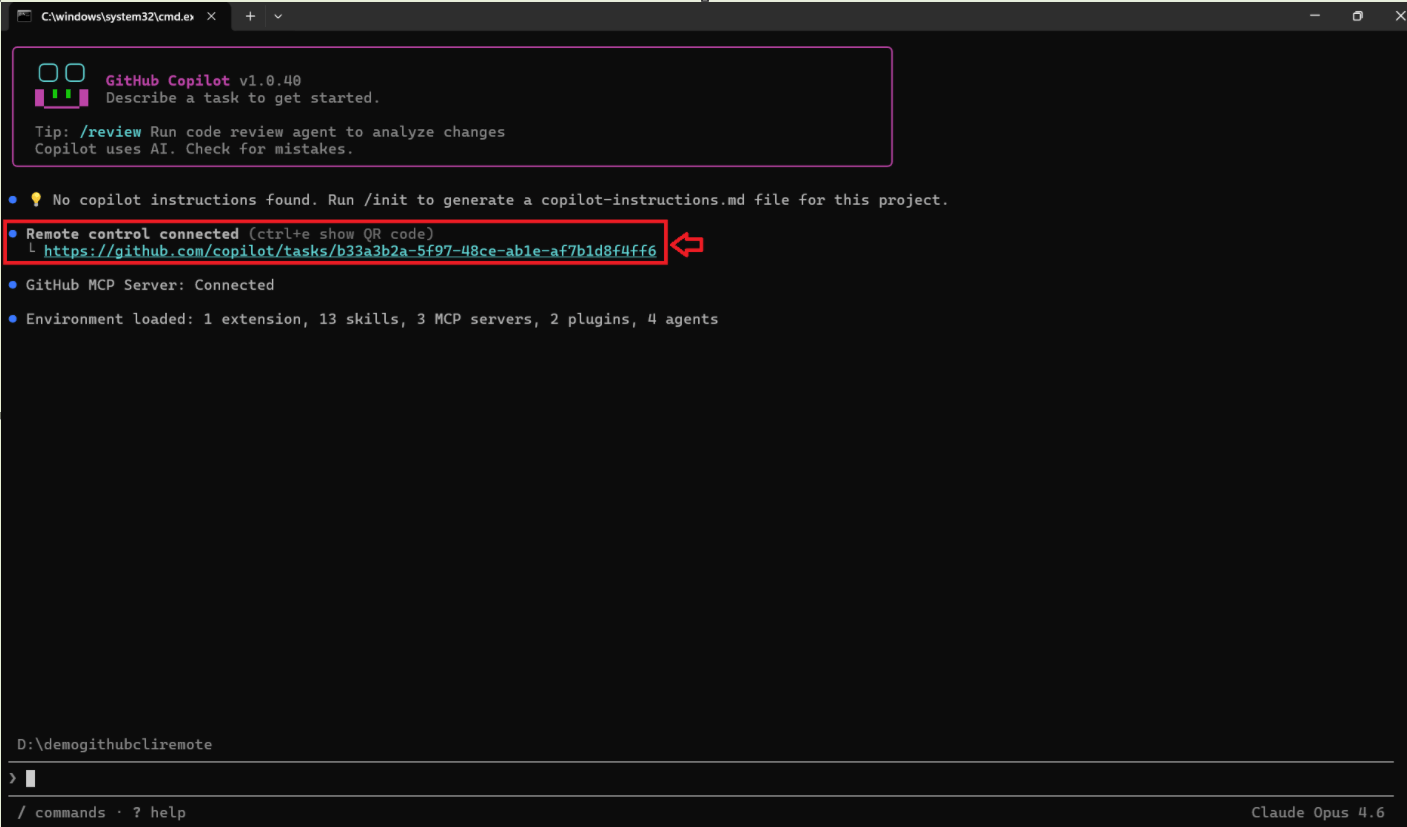
- To access the Session from GitHub.com online, click on the generated link (Refer above screenshot)
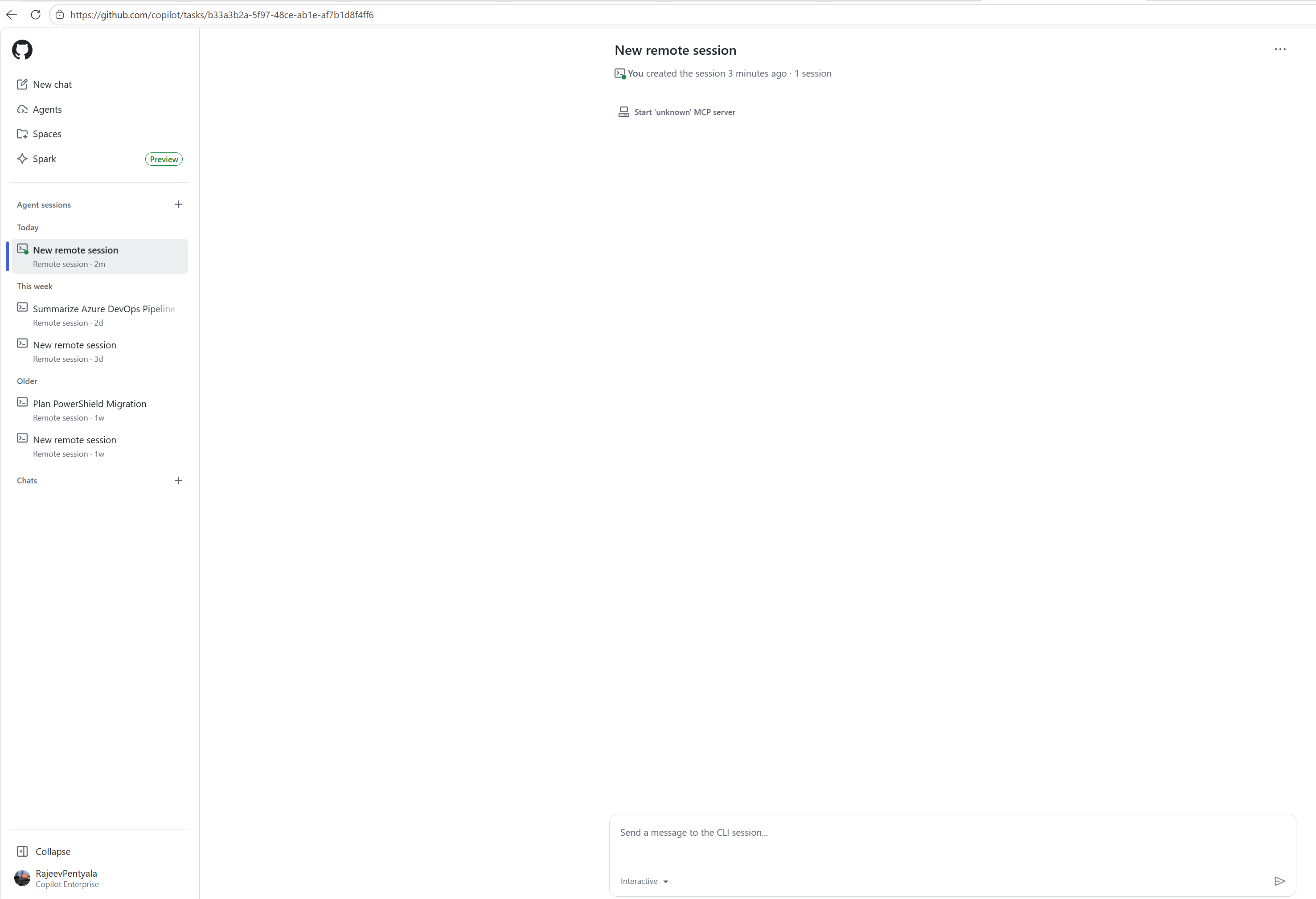
- You can see the session details syncing in real time.

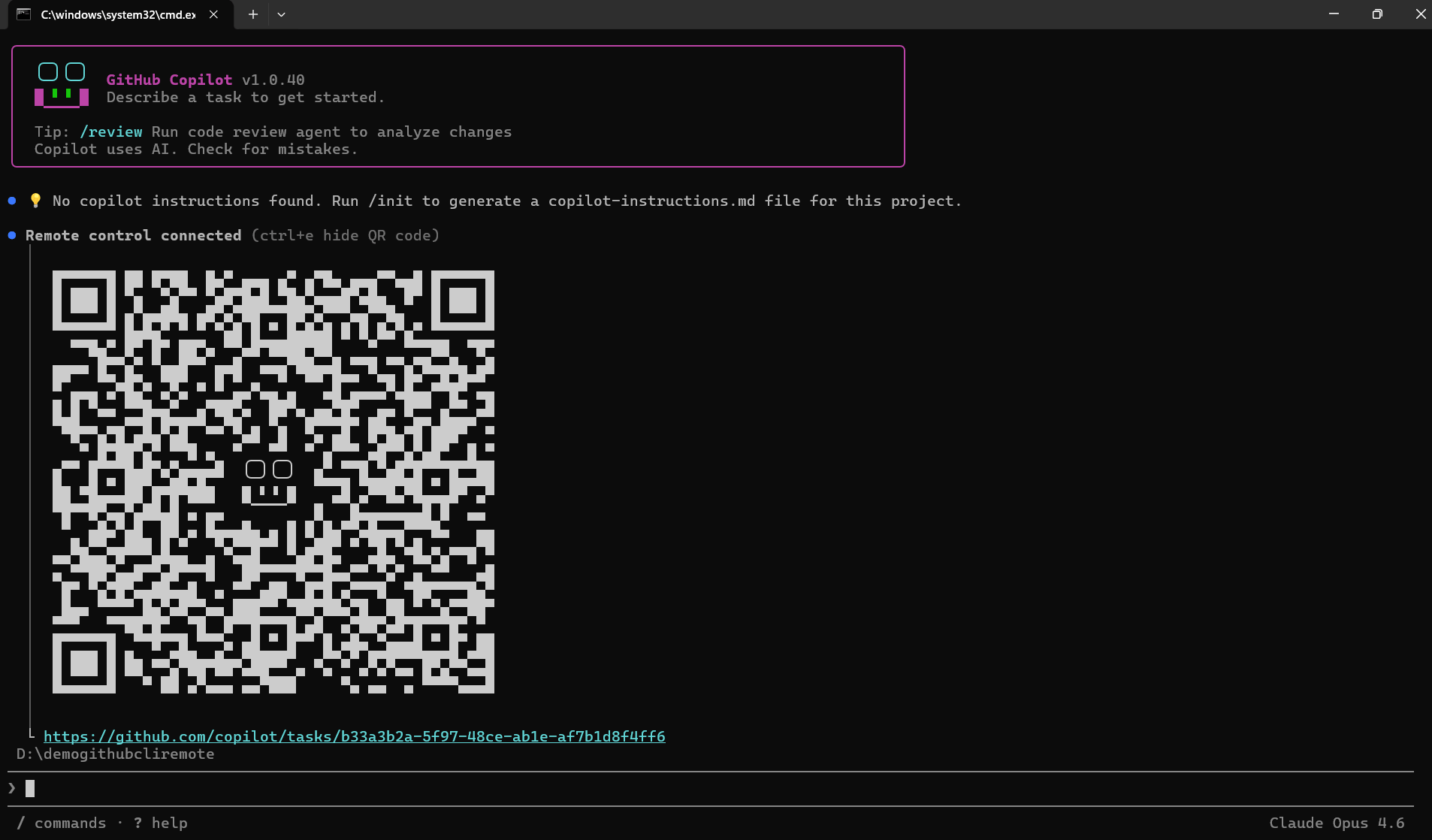
- You can also get a QR code (press
Ctrl+Eto toggle) to quickly open the session on your phone.
Keep Your Machine Awake:
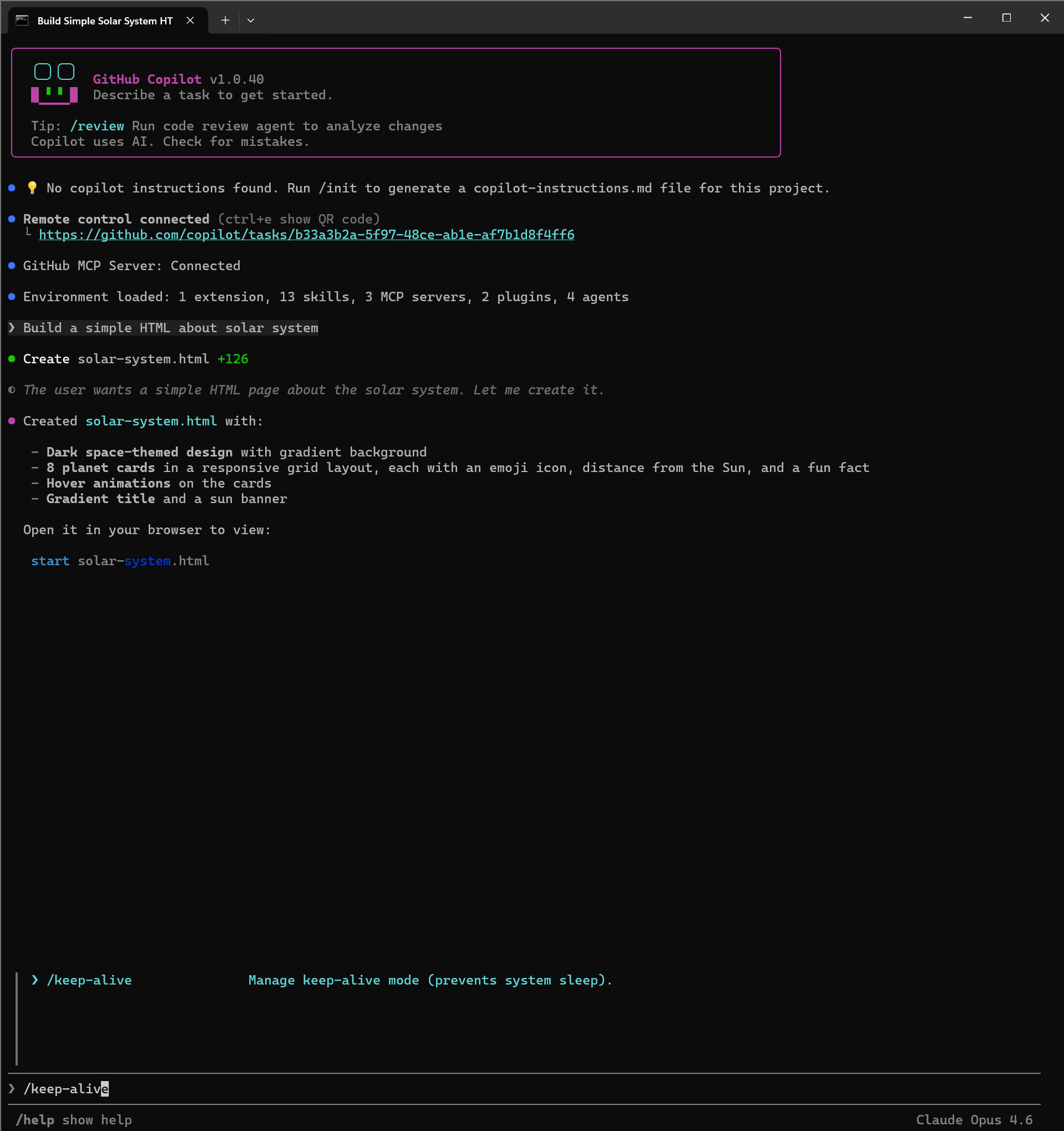
If you plan to work remotely for a while, use the /keep-alive command to prevent your machine from going to sleep.
| Command | Description |
|---|---|
/keep-alive on | Prevents sleep while the CLI session is active |
/keep-alive off | Allows the machine to sleep as normal |
/keep-alive busy | Prevents sleep only while Copilot is working on a task |
/keep-alive 30m | Prevents sleep for 30 minutes |
/keep-alive 8h | Prevents sleep for 8 hours |
Tip: Use
/keep-alive busyif you only want to prevent sleep while Copilot is actively working. Once the agent finishes, the machine can sleep as normal.
Summary
That’s it! You now know how to enable and use Remote Session in GitHub Copilot CLI.
Here’s a quick recap:
- Use
/remoteor start withcopilot --remoteto enable remote access. - Access the session from GitHub.com or GitHub Mobile.
- You can approve permissions, submit prompts, switch modes, and cancel tasks — all remotely.
- Use
/keep-aliveto prevent your machine from sleeping while you’re away. - The session runs locally; the remote interface is just a window into it.
For more details, refer to the official documentation.
🙂
Leave a Reply