Before we begin, let’s first understand two important terms:
- AI Hallucinations
- Grounding
What Are AI Hallucinations?
Sometimes, AI models give answers that sound confident but are completely wrong. This is called an AI hallucination.
It happens because the AI is generating responses based on patterns in language, not on facts. When it doesn’t have real data, it might guess or invent things.
What Is Grounding in AI?
Grounding means the AI checks your real data before answering—so it can give you responses based on facts, not guesses.
Example : Microsoft 365 Copilot uses Microsoft Graph to access your emails, calendar, files, and chats securely. This helps it give answers that are relevant and accurate to your work.
Now that you understand these two key concepts, let’s get started.
In this blog post, we’ll focus specifically on Microsoft 365 Copilot and Microsoft 365 Copilot Chat, understand how they differ, and explore what you need to get started.
Understanding Microsoft 365 Copilot Chat:
- I have my free Power Platform Developer Plan account.
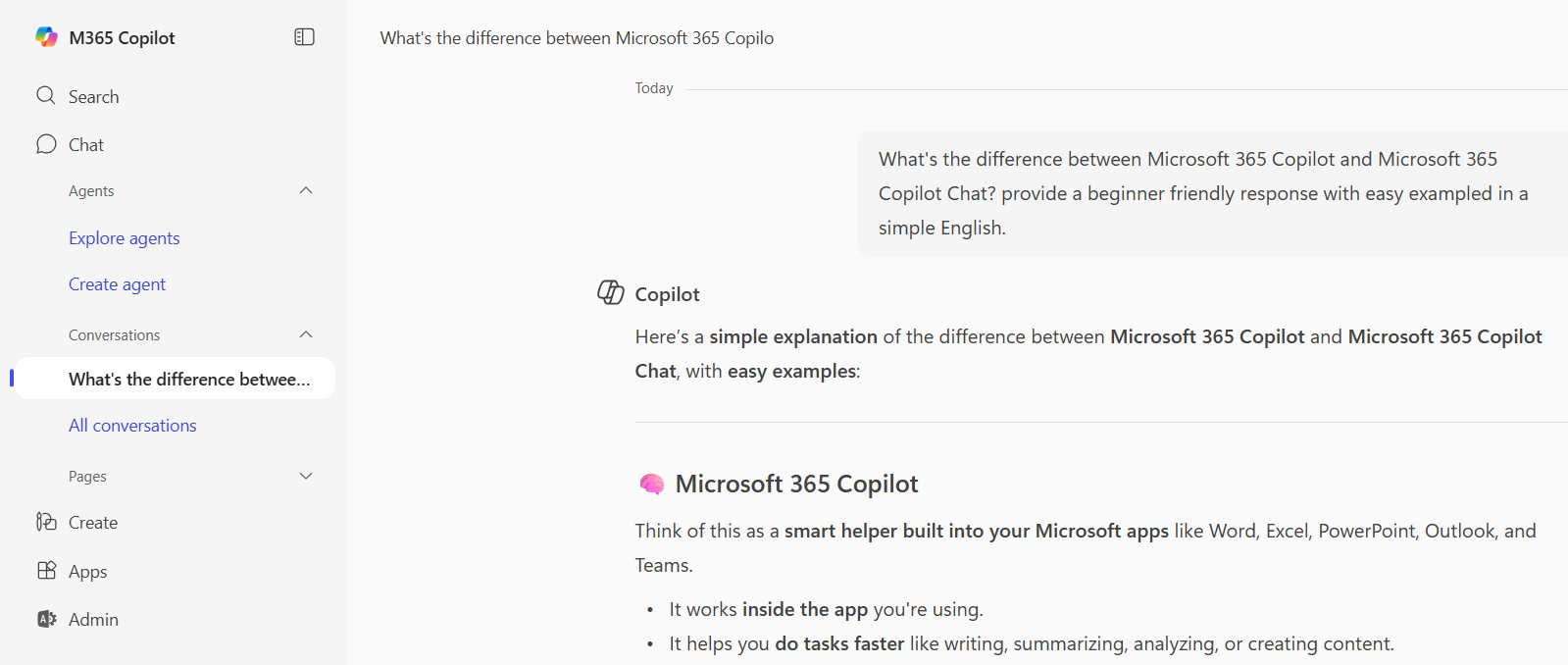
- When I open my browser and visit office.com/chat, I get the following M365 Copilot screen.

- I can prompt it with something like:
What's the difference between Microsoft 365 Copilot and Microsoft 365 Copilot Chat? provide a beginner friendly response with easy exampled in a simple English.

- I get a helpful response because the prompt is answered using web search results.
- Now, let’s try another example—this time, a prompt related to emails:
Can you pull and show all my unread emails sorted by date from last 10 days?. Give a 2-3 line summary of each email.

- If you notice, the response is following and this happens because Copilot Chat is not grounded in your organizational data.
- I can’t access your email directly for privacy and security reasons. However, I can guide you through how to do this using your email provider (like Gmail or Outlook).
- In summary,
- Microsoft 365 Copilot Chat is a Web Grounded.
- Free with any Microsoft 365 subscription for users with an Entra (work/school) account – no extra license needed
- It uses Bing to provide up-to-date responses from the internet.
- It can’t access your company’s data (emails, files, Teams chat)
Understanding Microsoft 365 Copilot:
- Now let’s switch to a scenario where I use my company enterprise account, which includes a Copilot license
- Open the browser and browse office.com/chat
- This time, I see two tabs at the top: Work and Web

- The Web tab is the same Microsoft 365 Copilot Chat experience we explored earlier.
- The Work tab activates Microsoft 365 Copilot, which is grounded in your organizational data via Microsoft Graph.
- Switch to the Work tab and enter the following prompt:
Can you pull and show all my unread emails sorted by date from last 10 days?. Give a 2-3 line summary of each email.

- This time, I get a full response—with summaries of my actual emails—because Copilot has access to my Outlook inbox through secure Graph API integration.

- In summary, Microsoft 365 Copilot,
- Deeply integrated into Microsoft 365 apps—Word, Excel, PowerPoint, Outlook, Teams—using the Microsoft Graph API.
- This experience requires a Copilot add-on license on top of an eligible Microsoft 365 plan (such as E3 or E5).
I hope this article helped you understand the basics of Microsoft 365 Copilot Chat and Microsoft 365 Copilot, along with how they differ in terms of data access, licensing, and usage.
In my next article I will explain Declarative Agents.
🙂



 Rajeev Pentyala – Technical Blog on Power Platform, Azure and AI
Leave a reply to Step-by-Step: Creating a Declarative Agent in M365 Copilot – Rajeev Pentyala – Technical Blog on .NET, Power Platform, Azure, AI Cancel reply