In my previous article Power Platform Data Export: Track Power Apps Usage with Azure Data Lake, I explained how to use the Data Export feature with Azure Data Lake to capture Power Platform inventory and usage data.
In this article, I’ll walk you through configuring the Data Export with Azure Application Insights. You’ll learn how to:
- Create an Application Insights resource
- Configure Data Export in the Power Platform Admin Center
- Monitor and analyze logs in Application Insights
Let’s get started with configuring Azure Application Insights.
Create ‘Application Insights’ resource in Azure:
Prerequisites:
- For the Application Insights environment, you must have contributor, writer, or admin rights.
- The Application Insights environment must be unique for an environment or tenant.
- Application Insights out-of-the-box reports won’t function correctly if a single Application Insights environment contains data from multiple environments.
Configuration Steps:
- Navigate to the Azure Portal
- In the search bar at the top, type “Application Insights” and select it.
- Click + Create to begin setting up a new Application Insights resource and provide following details

- Click on Create to complete.

- Once the resource has been successfully created, you’ll be able to access it from the Application Insights dashboard.
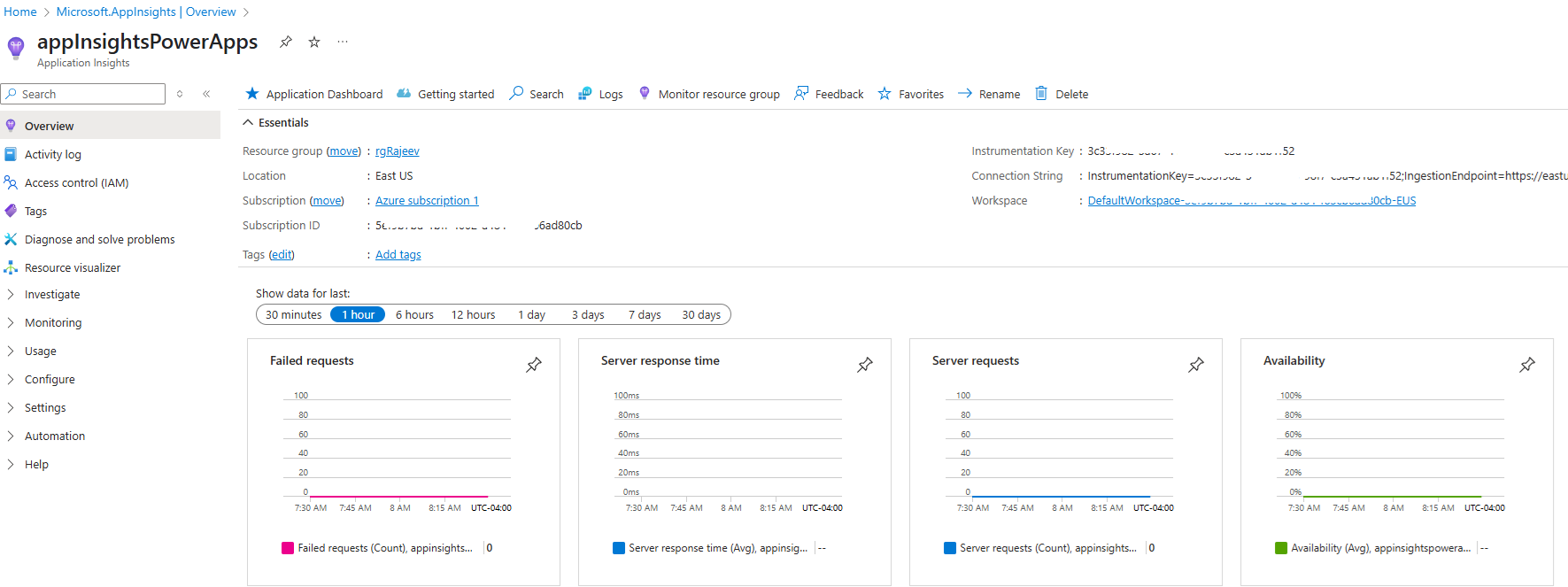
The Application Insights resource is ready, let’s move to the Power Platform side to configure the Data Export feature.
Enable Managed Environment:
To use Application Insights with Power Platform, the target environment must be a Managed Environment.
Follow these steps to enable it:
- Navigate to the Power Platform Admin Center
- Click Environments, and then select the environment you want to configure for Application Insights.
- Select the Environment and click on Enable Managed Environments
- Click Enable

Once the environment is set as Managed, you can proceed to configure Data Export to send telemetry to Azure Application Insights.
Configure ‘Data Export’:
- Navigate to Power Platform Admin Center
- Go to Manage > Data export > App Insights
- Click on + New data export

- Since I am focusing on Cloud Flows, I’ve chosen following options. Click Next

- Select the Environment and click Next

- On the Enter Application Insights details screen, select the Application Insights instance you created in Azure.
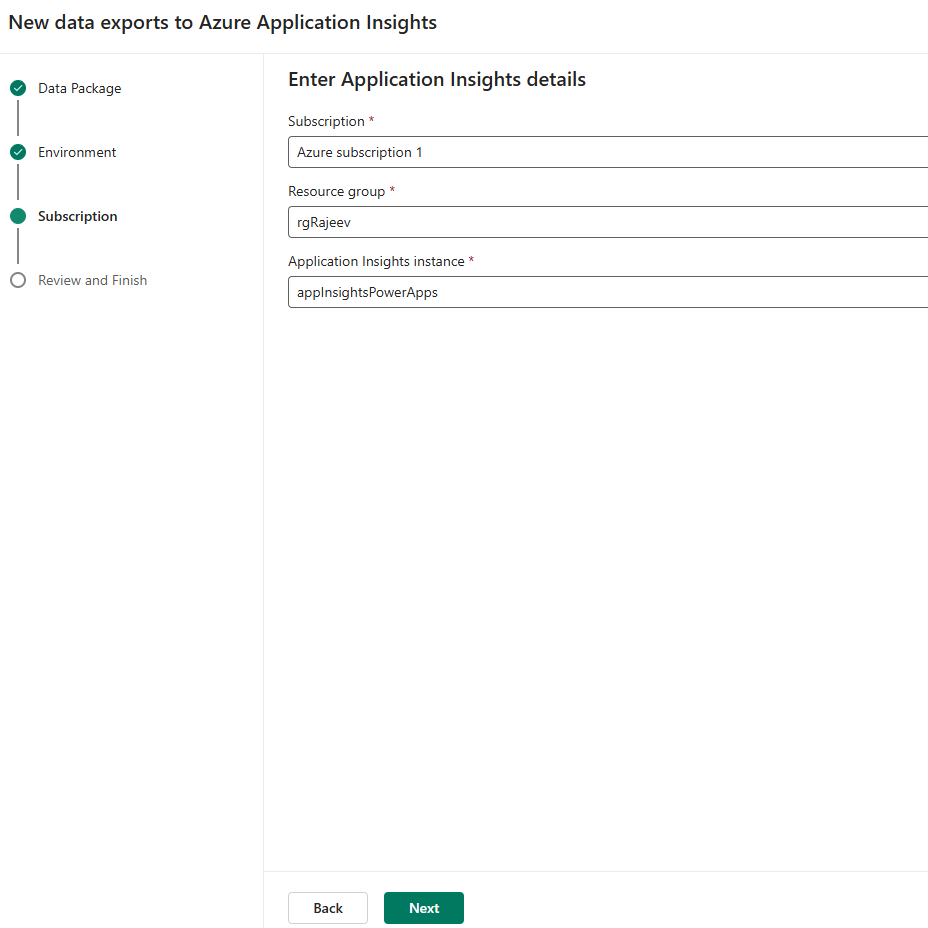
- Click Next, then click Create to finalize the configuration.

- You will see the status as Connected

At this point, both Azure Application Insights and Power Platform Data Export are successfully configured.
Telemetry data usually starts flowing within an hour. After waiting for the initial sync to complete, follow the steps below to access and analyze logs.
Accessing the logs in Application Insights:
- Navigate to Azure Portal > Application Insights
- Go to the Application Insights instance which we have created.
- On the Overview you will see the graphs rendered.

- To get the detailed Logs, go to Monitoring > Logs and run a query.

- I triggered the requests query and got the flow details.

For a deeper understanding of how to use the monitoring capabilities, refer to the official Microsoft documentation on Monitoring with Application Insights.
Hope you understand how to configure Power Platform Data Export with Azure Application Insights to monitor Cloud Flow telemetry effectively
🙂



 Rajeev Pentyala – Technical Blog on Power Platform, Azure and AI
Leave a reply to Power Platform Data Export: Track Power Apps Usage with Azure Data Lake and Power BI | Rajeev Pentyala – Microsoft Power Platform Cancel reply