- The Power Pages extension for Microsoft Edge DevTools is a developer tool designed to enhance the development and troubleshooting experience working on Power Pages sites.
- The developer tool extension is currently only available for Microsoft Edge.
To work with the DevTools extension, follow these steps:
Install the browser extension:
- Go to Microsoft Power Pages extension for Microsoft Edge.
- Select Get.
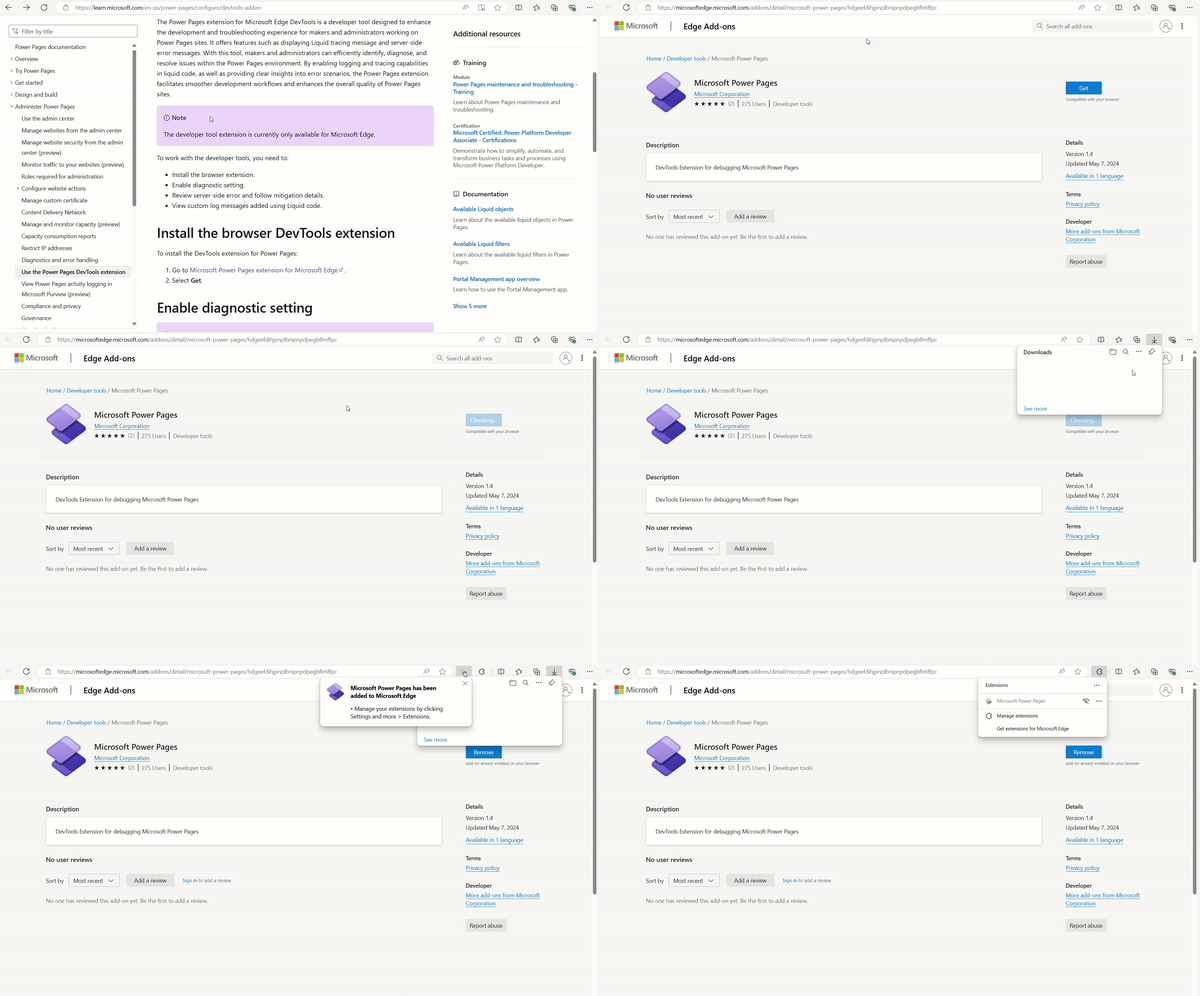
Once the extension is installed in the browser, we need to add a Site Setting to enable diagnostics.
Enable diagnostic setting:
To enable the diagnostic setting for a public website:
- Open the Power Pages Management App.
- Add or update the Site Setting with the name UserTrace/Debug.
- Set the value to true.

After adding the site settings, we can now use the Power Pages DevTools extension.
Using the DevTools extension:
- Like how we use console.log to capture logs, Developers can now add log statements in their Liquid code.
- The following syntax can be used in Liquid code to log custom messages:
{% log message:'Custom message' level:'Warning' %}- Following is the example to use log message.
- Copy the sample code from here and place it in your Home page.
{% log message: 'Log from Home page' %}

      {% fetchxml query %}
      <fetch version="1.0" mapping="logical" >
      <entity name="contact">
      <attribute name="fullname"/>
      <attribute name="emailaddress1"/>
      </entity>
      </fetch>
      {% endfetchxml %}

      {% assign contacts = query.results.entities %}

      {% for contact in contacts %}
      <div> Contact name: {{contact.fullname}} </div><br/>
      {% capture msgg %}
      Contact email is {{contact.emailaddress1}} for name {{contact.fullname}}
      {% endcapture %}
      {% log message: msgg %}
      {% endfor %}
- Sync the changes and you will see the list of Contact records on the Home page.

Now that we have the code in place, lets use the Power Pages DevTools extension.
- Open the Microsoft Edge web browser.
- Navigate to your Power Pages website.
- Open the browser DevTools (Press F12).
- Select the Power Pages tab.
- Refresh the Home page.
- Extension displays a list of all server-side error messages along with probable resolutions.
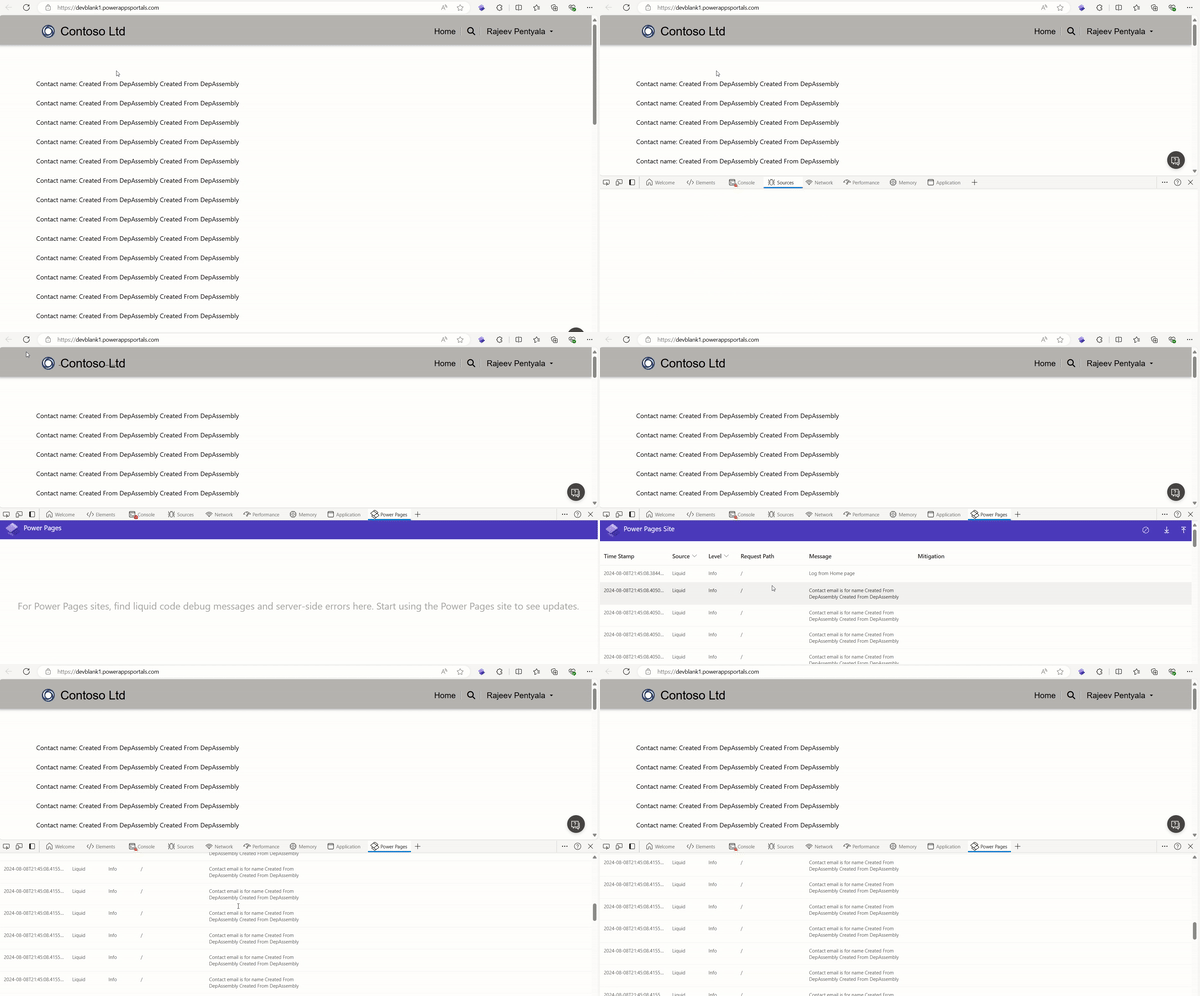
This way developers and administrators can efficiently identify, diagnose, and resolve issues within the Power Pages environment.
🙂


 Rajeev Pentyala – Technical Blog on Power Platform, Azure and AI
Leave a comment