In this article, let’s learn how to insert a new option for a global or local option set using the InsertOptionValue unbound action in Power Automate.
Create new option in global choices field:
- I have a global option set (i.e., Choice) field by name ‘Location’

- To add the new option ‘Delhi’ to the option set, use the following properties. Set the label in the following JSON format. Here :
- Label : Optionset label text.
- LanguageCode : 1033 is language code for English.
{
  "LocalizedLabels": [
    {
      "Label": "Delhi",
      "LanguageCode": 1033
    }
  ]
}
- After saving, test the flow. This should create a new option named ‘Delhi’ in the global option set.
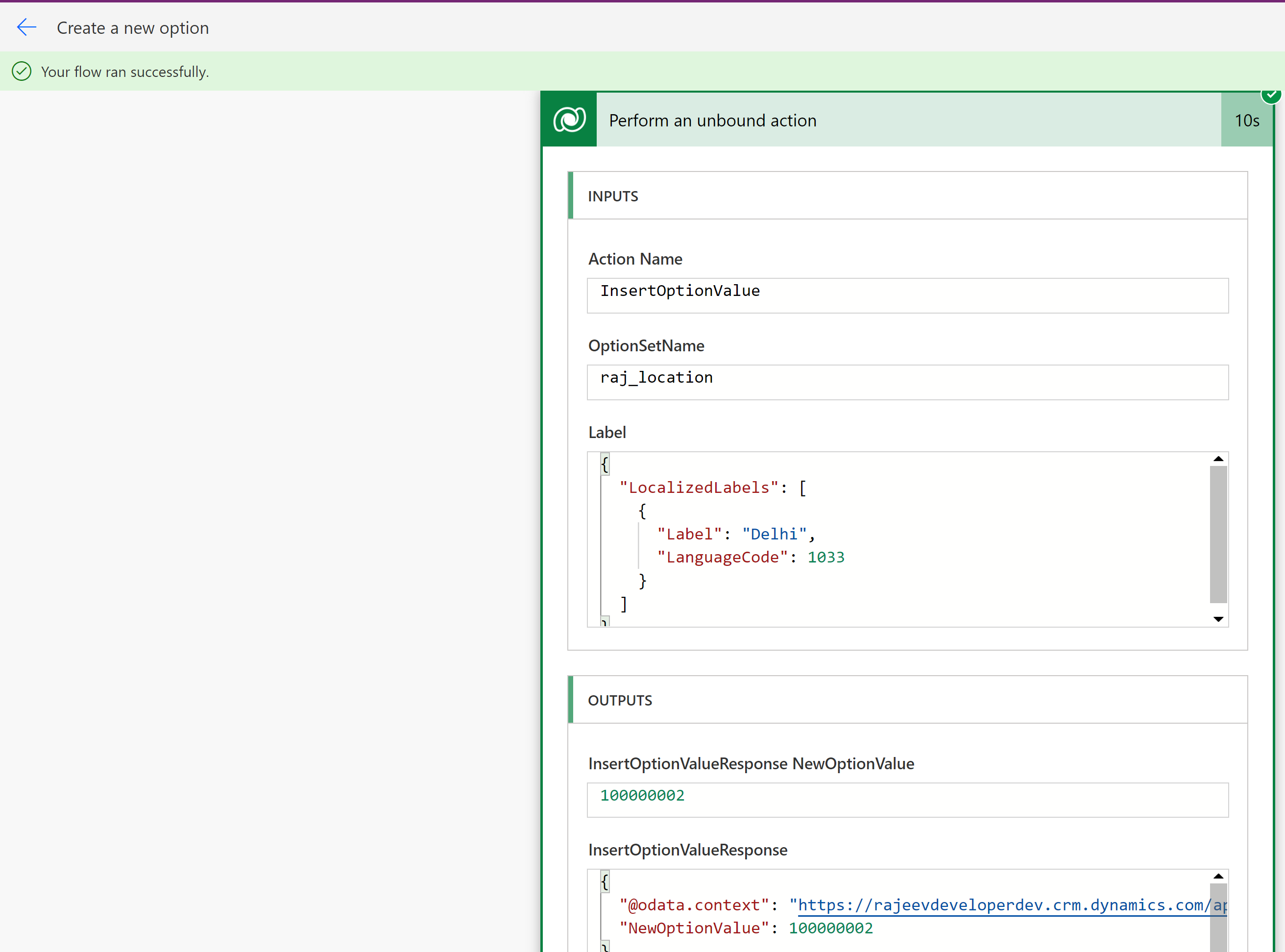
Now lets see how to create new option in local choice field.
Create new choice in local choice field:
- I’ve a local option set by name ‘Favorite Sports’ in my table ‘Employee’.

- To insert new option ‘Football’ in the ‘Favorite Sports’ local option set, use following properties. Set the Label in the following json format.

- After saving and testing the flow, a new option named ‘Football’ will be created in the local option set.

That’s it! I hope you’ve learned how to create options in both global and local option sets using Power Automate.
🙂



 Rajeev Pentyala – Technical Blog on Power Platform, Azure and AI
Leave a reply to scentedinstantly5581071f0e Cancel reply