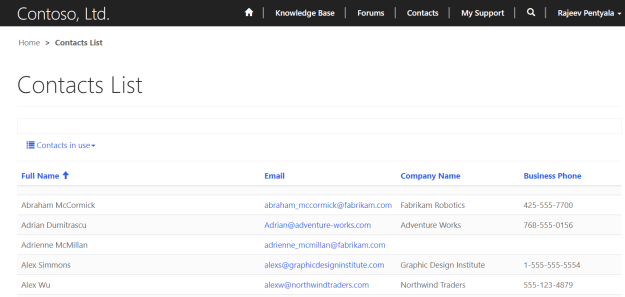
Other day I faced a strange issue in my Portals, where my Entity list NOT rendering on the Web Page. The story goes as below.
- I have an Entity List ‘Contact’ with 2 views configured.

- Created a ‘Web Page’ and set the ‘Entity List’ to ‘Contacts’ and ‘Published State’ set to ‘Published’

- Go to Portal and refresh the Web Page but there is no trace of ‘Entity List’

- Initially I suspected Cache Issue, hence I reopened and cleared the Cache but still no luck.

Fix:
- Portal’s ‘Content Editor’ came to my rescue.
- On the Portal, navigate to the ‘Web Form’ and click on ‘Edit’ from ‘Content Editor’ menu.

- In the ‘Edit Contact List’ screen, set the ‘Entity List’ to the ‘Contacts’ entity list and Save.

- That’s solved the issue and I could see the ‘Contacts’ entity list rendered on the ‘Web Page’
Note:
- I don’t have reason or explanation what caused this behavior. Alternately you can try Restart the portal if you have O365 ‘Admin Center’ access.
🙂


![[Step by Step] Beginner : Create a PCF control and add it to a custom page](https://rajeevpentyala.com/wp-content/uploads/2024/12/image-49.png)
 Rajeev Pentyala – Technical Blog on Power Platform, Azure and AI
Leave a comment