Dynamics Portal’s Entity List has an option to pin the records on a Map based on the Address of those records.
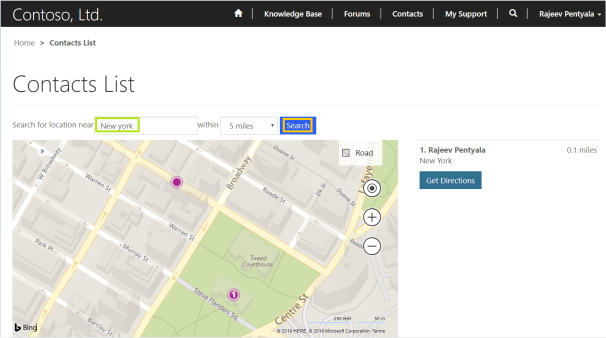
How does ‘Map View’ looks on Portal:
- With ‘Map View’ enabled, you will get a Map (bing/google) and matching records will be pinned on the map (i.e., Refer 1 pinned on the Map below).
How to set up ‘Map View’:
- On the ‘Entity List’ form, check the ‘Map Enabled’ checkbox.
- In ‘Entity Field Mappings’, map the address fields from ‘Contact’ entity (As my entity list mapped to Contact).

- Under ‘Settings’ section, provide below details
- Map Type : Bing/Google (I chose ‘Bing’ for this article)
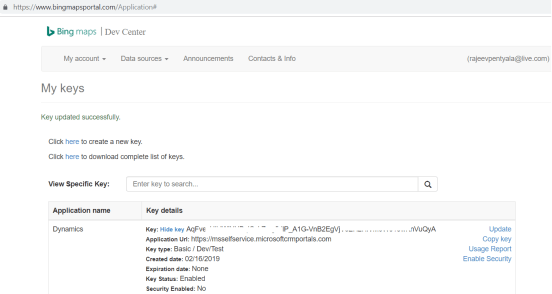
- Credentials : Bing API credentials (You need to login here with your Live/Outlook account and generate the Key)
- Default Center Latitude : This is important. Geo coordinates where you want your map start from (I took ‘New Jersey’ coordinates as Default)
- Default Center Longitude : This is important. Geo coordinates where you want your map start from (I took ‘New Jersey’ coordinates as Default)
- Save
- On Portal, you will notice a Map loaded with ‘Default Center Latitude’ and ‘Default Center Longitude’ (i.e., ‘New Jersey’ in this example).

- In the ‘Address’ search box, provide ‘New York’ and click ‘Search’.

- As I configured Contact ‘Rajeev Pentyala’ with ‘New York’ coordinates (Refer screen below), Contact showed up in above screen.

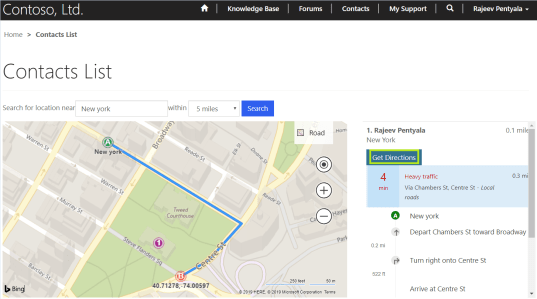
- You can click on ‘Get Directions’ to get directions between Searched city (i.e., ‘New York’) and Default coordinates (i.e., New Jersey).
🙂


![[Step by Step] Beginner : Create a PCF control and add it to a custom page](https://rajeevpentyala.com/wp-content/uploads/2024/12/image-49.png)
 Rajeev Pentyala – Technical Blog on Power Platform, Azure and AI
Leave a reply to Rajeev Pentyala Cancel reply