In this article, lets see how to connect and test Dynamics 365 Web API requests using Postman tool, step by step along with troubleshooting steps.
Note: Refer article for steps to connect to Dataverse Web API from Postman tool.
Those who are not familiar with Postman tool, it is a request composer tool, which allows you to authenticate to your Dynamics 365 instance, compose Web API requests, send them, and view response. Link to download
Prerequisites:
- Download Postman tool
- Dynamics 365 online instance. (Subscribe to 30 days trial, if you have not one)
- Azure Active Directory Portal (You need to login with your Office 365 Credentials)
Register App in Azure Active Directory:
As a first step, you need to register an App in Azure Active Directory (i.e., oAuth) by following below steps
- Connect to the Azure Active Directory (AD) Portal with your Office 365 credentials.
- Register a new Dynamics 365 App by following steps mentioned here
- Once you are done with App registration, copy ‘Application ID’ and ‘Home page’ values, which you need to use next steps.

Setup your Postman tool:
Create ‘Environment’
- Create a new Postman ‘Environment’ with below variables. This is one time activity for a single D365 instance.
- url : Your Dynamics 365 URL
- clientid : ‘Application ID’ from Azure AD, generated in above section.
- version : Dynamics version
- webapiurl : Set this to {{url}}/api/data/v{{version}}/
- callback : ‘Home page’ value from Azure AD, generated in above section.
- authurl : Set this to https://login.microsoftonline.com/common/oauth2/authorize?resource={{url}}
- I created a new ‘Environment’ with name ‘DynamicsCRM’ and it looks as below

Generate oAuth Access Token:
Post ‘Environment’ creation, we need to generate oAuth Access Token. This is one time activity for a single D365 instance.
- Make sure you select ‘Environment’ created in previous section. In my case its ‘DynamicsCRM’.
- Under ‘Authorization’ tab, set ‘Type’ to ‘oAuth 2.0’ and click on ‘Get New Access Token’.

- In the ‘GET NEW ACCESS TOKEN SCREEN’ make sure you set values as below.
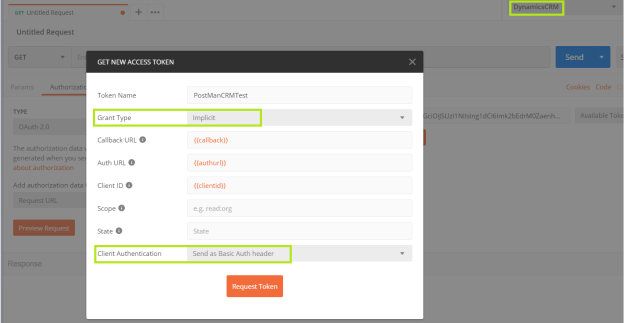
- Click ‘Request Token’ and system will prompt you for credentials, pass your O365 credentials.

- When you click ‘Next’, you may encounter “response_type ‘token’ is not enabled for the application” exception.
- To fix this, make sure in your Azure AD Application’s manifest “oauth2AllowImplicitFlow” property is set to ‘true’

- You may also encounter “The reply url specified in the request does not match the reply urls configured for the application“.
- To fix this, make sure you set the Postman’s ‘Environment’ -> ‘callback’ variable set correctly.
- Click ‘Continue’ to complete the ‘Access Token’ generation process.
- On successful ‘Access Token’ generation, you would get the screen as below.

- Click ‘Use Token’.
That’s it! we are done with settings and its time to test the Dynamics API’s with Postman
Test by executing ‘WhoAmI’ request:
- Make sure you select the right ‘Environment’ and generated your ‘Access Token’.
- Select ‘GET’ operation and set the URL as {{webapiurl}}WhoAmI
- Click ‘Send’
- You should get “200 OK” response up on success.
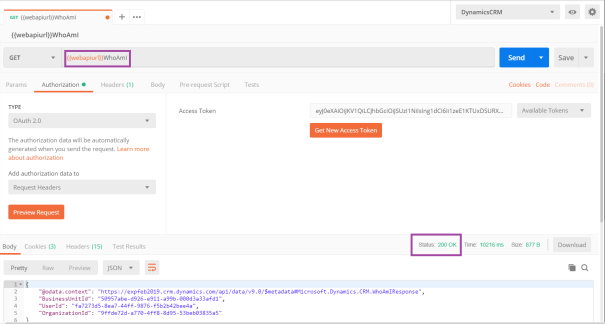
- You may get “401 Unauthorized” response.

- To fix this, make sure you set “Add authorization data to” to “Request Headers”.

🙂



 Rajeev Pentyala – Technical Blog on Power Platform, Azure and AI
Leave a reply to D 365 Development – Different ways to connect/authenticate Dynamics 365 | Rajeev Pentyala – Dynamics 365 Blog Cancel reply