If you are new to PowerApps, please go through my previous blog
In this post, I am going to walk you through building an App using Excel as ‘Data Source’.
I am going to build an App by
- Prepare an Excel file with data formatted as ‘Table’
- Place it in ‘One Drive For Business’.
Pre-requisites:
- You must have a PowerApps account. Refer blog for details.
- An Excel sheet with data formatted as ‘Table’.
- ‘One Drive For Business’ account
- This comes free with Dynamics 365 30 days trail.
Steps to configure Excel:
- Create an Excel file with some data. I prepared ‘Customer’ records with 4 columns.
- You should format this data as ‘Table’ as the PowerApp, only consider Tables, which you will notice in next sections.

- Provide name to the Table; We will use this Table name in ‘Power App’. I named my table as ‘Customers‘.

- Save the Excel
Steps to upload Excel to OneDrive:
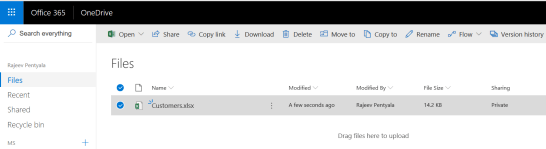
- Login to http://portal.office.com

- Connect to ‘OneDrive’ and upload the Excel File
Steps to create App:
- Login to PowerApps Portal
- Create a New App with ‘OneDrive for Business’ template, as I uploaded the Excel to OneDrive.
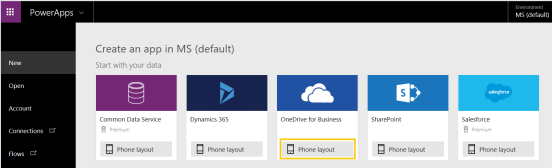
- Note: Its not necessary that you should pick ‘OneDrive for Business’ template, you can even create a ‘Blank app’ and create ‘OneDrive’ connection.
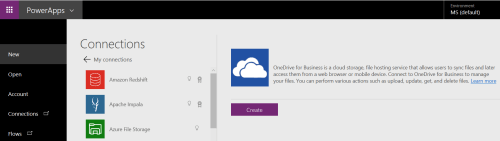
- Click ‘Create’ to establish App’s connection with ‘OneDrive For Business’.
- Choose the Excel file
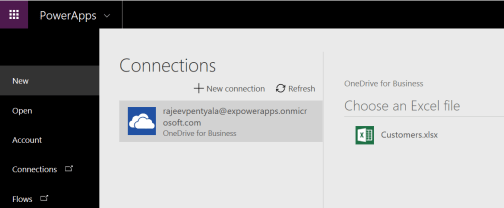
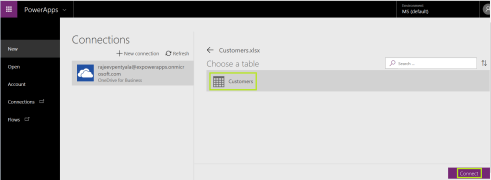
- Select the ‘Table’ and click ‘Connect’; This table ‘Customers‘ is nothing but the table name we given in ‘Excel sheet’.
- Now you would experience the power of ‘Power Apps’ as it instantly come up with UI using the excel data. App auto create 3 screens for Browse Screen,Details Screen and Edit Screen.

- You can reorder the columns by selecting ‘Data’ or you can change the ‘Sort Column’ if you want.
- Finally, press F5 to run the App.

Refer my previous blog to build a simple calculator App.
🙂



 Rajeev Pentyala – Technical Blog on Power Platform, Azure and AI
Leave a comment