- “Task Flow” is a new feature available with CRM 2016 online update and is currently on preview mode.
- Task flows are targeted for phones or tablets.
- You can configure set of steps, where user perform day to day and package that as a ‘Task Flow’.
- “Task Flows” are somewhat similar to Dialog, which helps User with guided navigation of common tasks, but for Phone and Tablets.
In this article I am going to create a simple ‘Task Flow’ to capture Contact’s address along with a ‘Business Rule’.
Enable the preview feature:
- Task flows are a preview feature in CRM Online 2016 Update. So we need to first enable the feature.
- Go to Settings -> Administration -> System Settings -> Preview
- Agree the License terms and select the preview feature.

- After enabling ‘Task Flow’ feature, you will get a new ‘Business Process Type’, if you choose ‘Business Process Flow’.

Create Task Flow
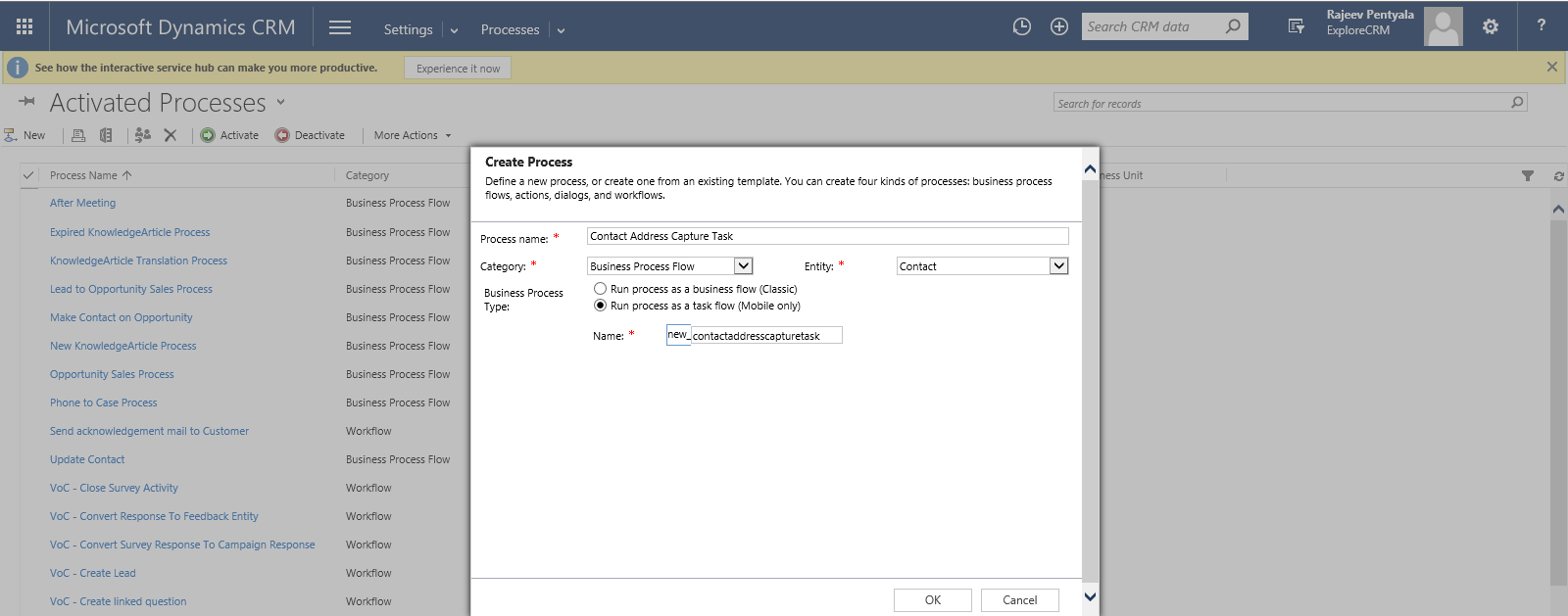
- Go to Settings -> Processes -> New -> ‘Business Process Flow’
- Select “Business Process Type”, “Run process as a task flow (Mobile only)”
- I selected entity as “Contact”
- I named my Task Flow as “Contact Address Capture Task”
Configure your ‘Task Flow’
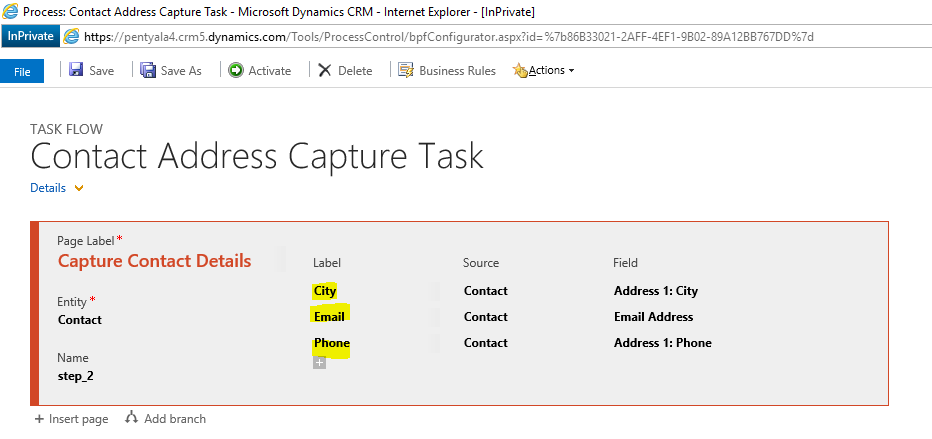
- As I want to capture my Contact’s Address details, I configured my ‘Task Flow’ with below fields.
Configure ‘Business Rule’
- I want ‘Phone number’ mandatory, if my Contact does not specify ‘City’.
- So I configured the Business Rule as below

Save and Activate.
Check the ‘Task Flow’ on Mobile client
- Open the ‘Dynamics CRM Application’ on Mobile
- You find an Icon on left corner, which shows all the available ‘Task Flows’
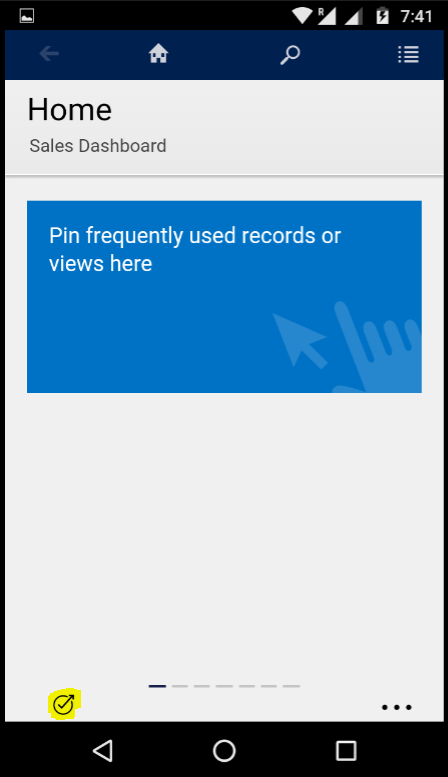
- Click on the Icon and choose the “Contact Address Capture Task”.

- Since “Task Flow” was configured on ‘Contact’ entity, I got ‘Contact’ search screen.
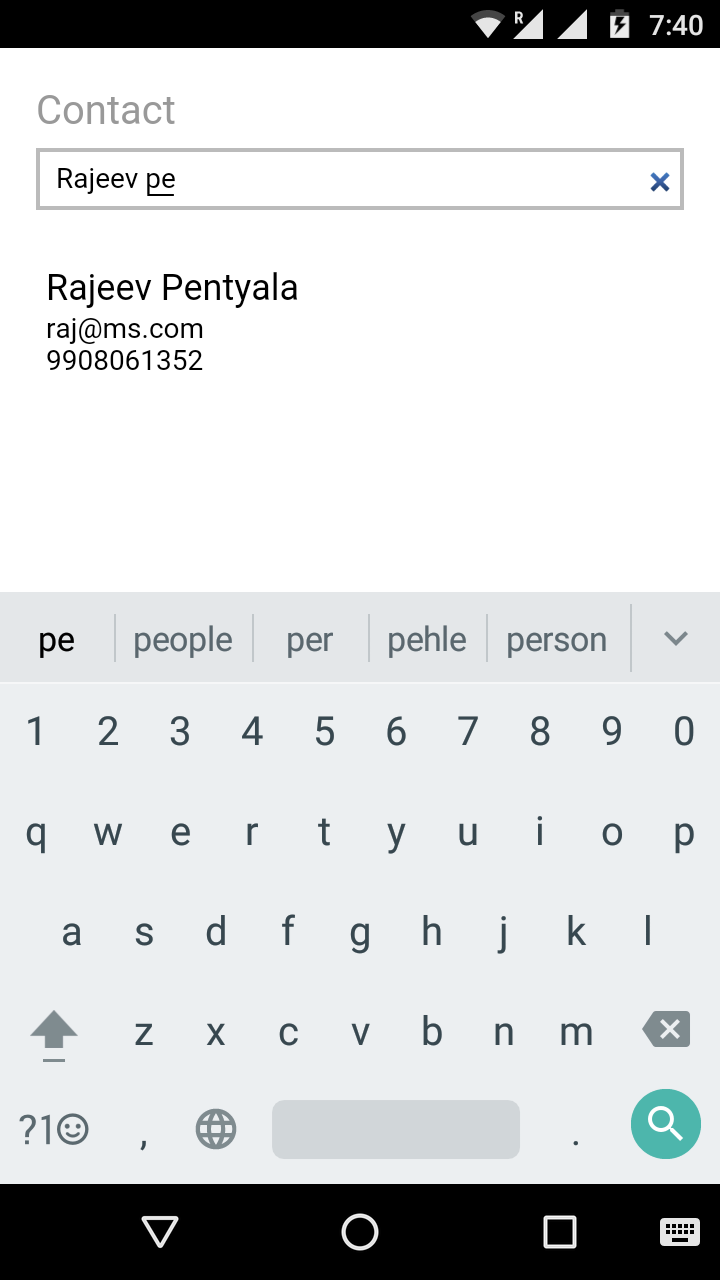
- I picked up the Contact which i want to update the Address details.
- It shows up the fields I configured along with ‘Business Rule’ (‘Phone’ become Required since ‘City’ is blank)
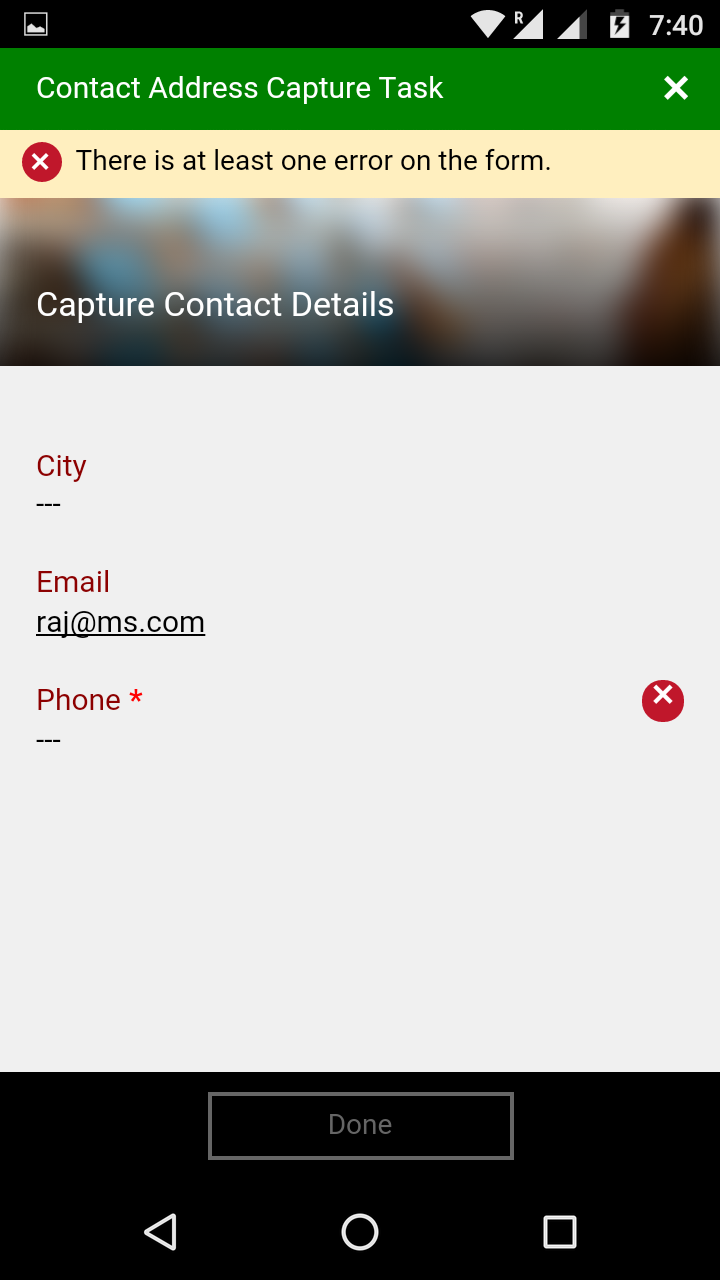
- I provided the details and click ‘Done’ to save the details.

🙂


![[Step by Step] Beginner : Create a PCF control and add it to a custom page](https://rajeevpentyala.com/wp-content/uploads/2024/12/image-49.png)
 Rajeev Pentyala – Technical Blog on Power Platform, Azure and AI
Leave a reply to Business Process Flows in Dynamics 365 (Part 1) – Dynamics CRM Blog Cancel reply