Capturing customer feedback is crucial in any Service industry to serve Customer better. In Dynamics CRM, Survey feature was the ask from many customers across the world. It has been addressed in the latest release of CRM 2016.
- “Voice of the Customer survey” is a new feature which is in preview mode, currently available on CRM Online 2016 Update 0.1.
- We can create and send out surveys to get feedback from your customers about your products or services.
- We can capture and store the responses in CRM.
- Respondents can take the surveys on a phone, tablet, or computer.
Below are steps to configure and use Survey feature.
Set up ‘Voice of customer’ in your CRM online
- ‘Voice of customer’ feature comes as solution and need to be installed in CRM online instance.
- Open ‘CRM Online Administration Center’ and click on ‘Solutions’
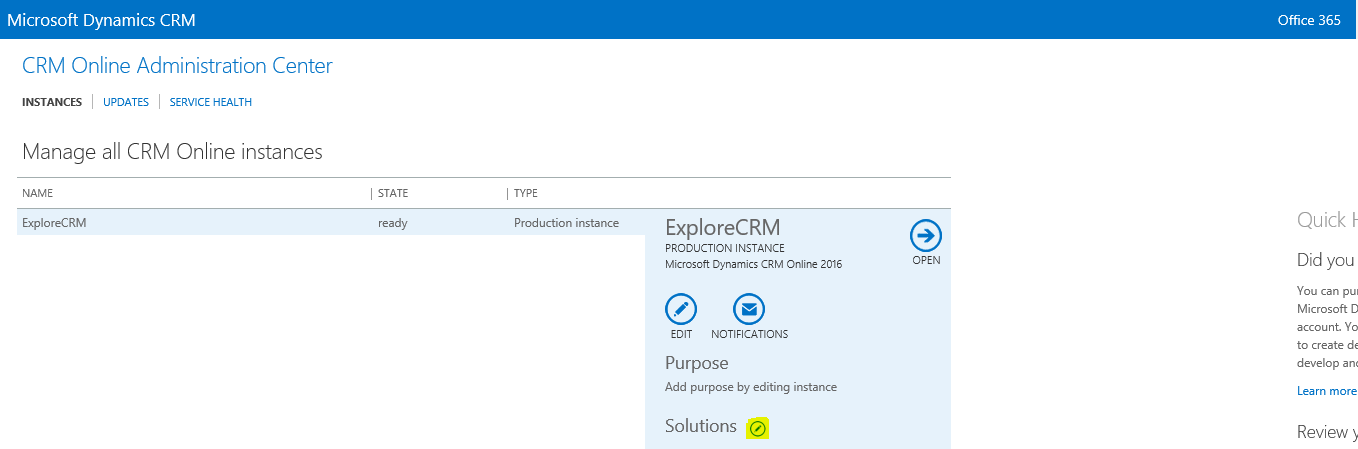
- From the available list choose ‘Voice of the customer’ solution and click ‘INSTALL’.
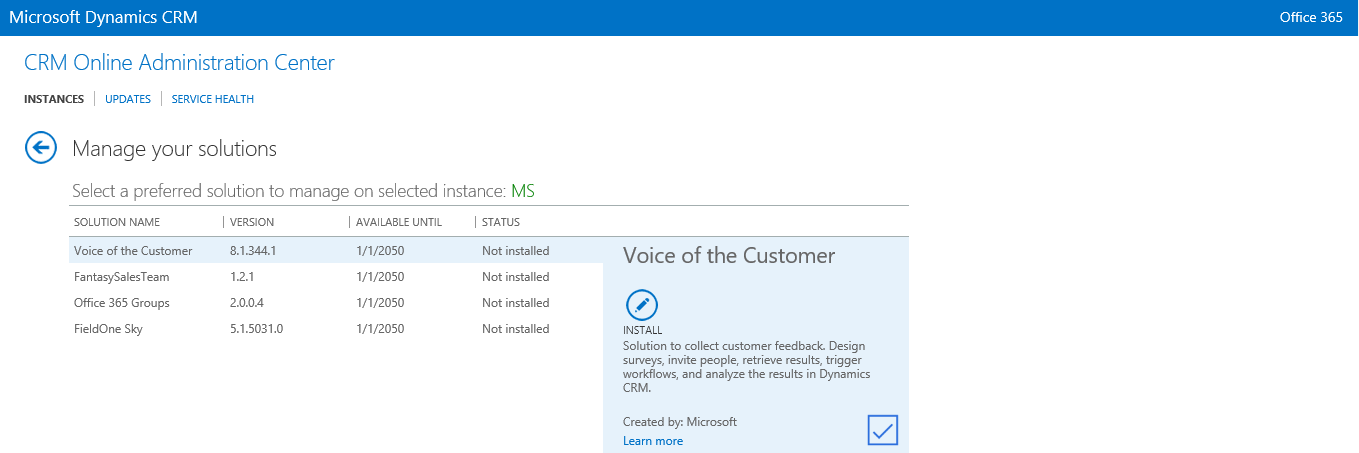
Accept the terms & conditions
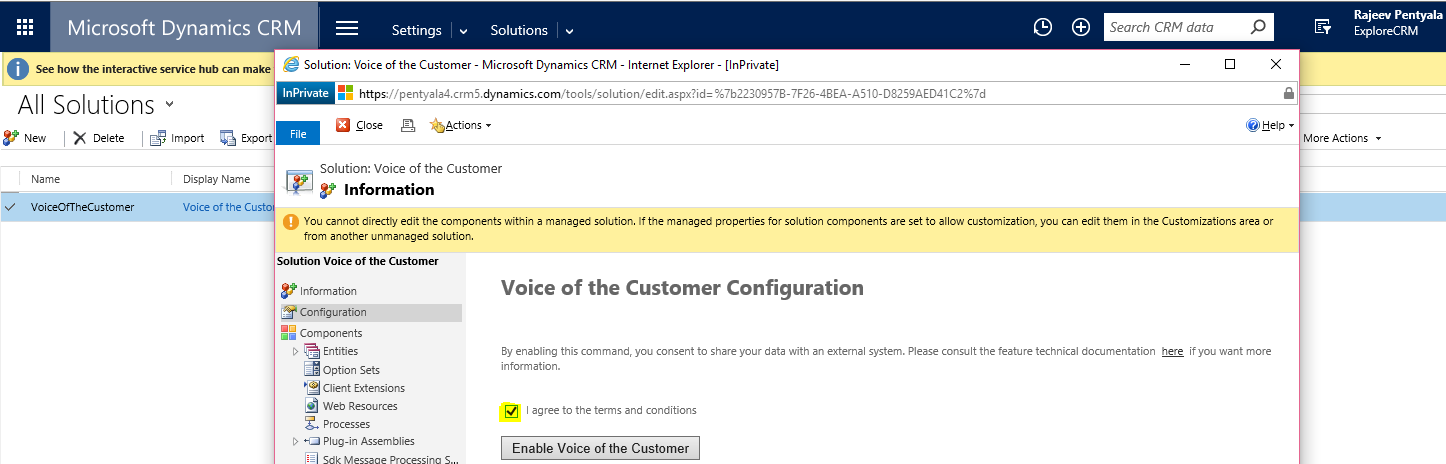
- After the Installation completes, open the CRM instance.
- Open the solution and on configuration page ‘Accept the condition’ to start using Survey feature.
Configure Survey
- After the solution installation, there will be a ‘Voice of the customer’ tab on sitemap.

- To configure a new ‘Survey’ click on ‘Voice of the Customer -> Surveys’
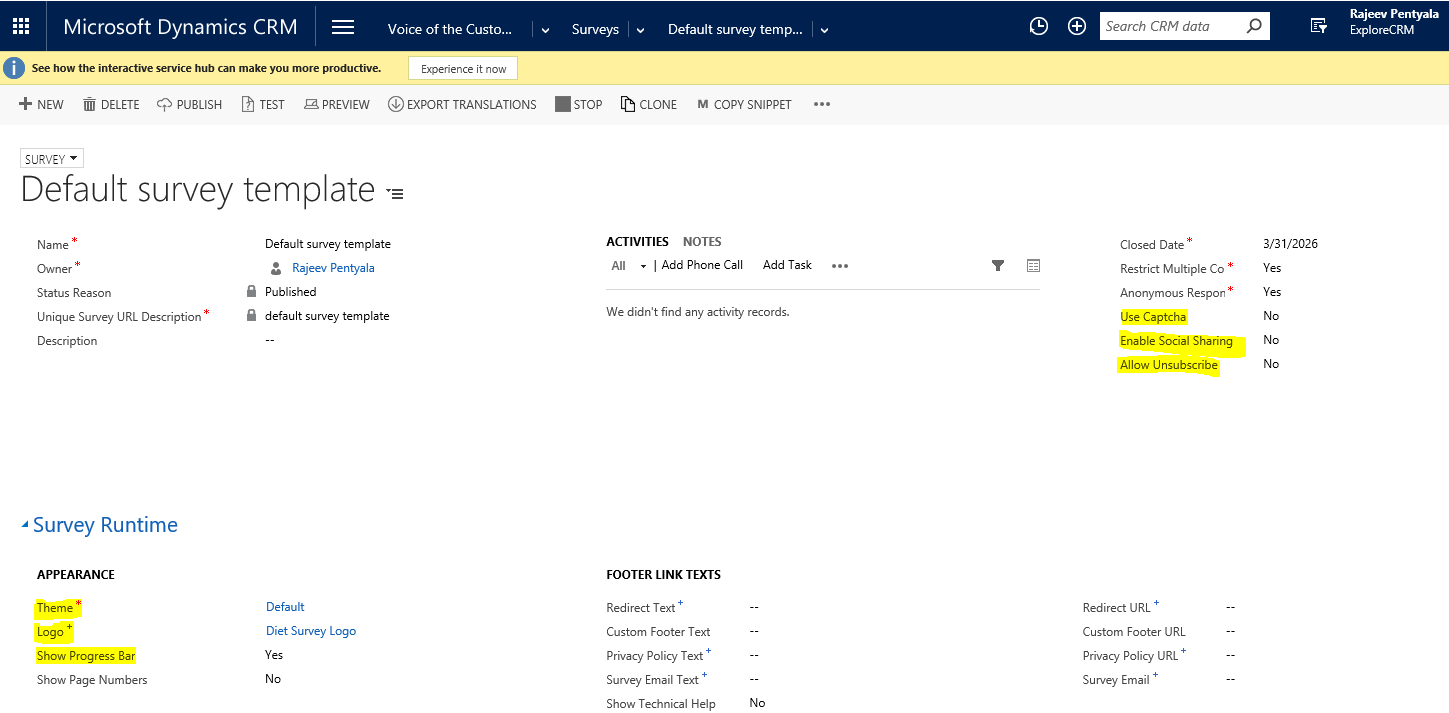
- There is a pre-built ‘Default Survey Template’ available, where you can use or you can create a new Survey.
- “Survey” form has all the details corresponding to the Survey right from Theme,Logo etc…
- Every Survey record has 3 forms
- Survey: Details of the Survey
- Designer: Where we design the survey with question and answers
- Dashboard: Reports

Design Survey
- Open the ‘Default Survey Template’ and select “Designer” form.
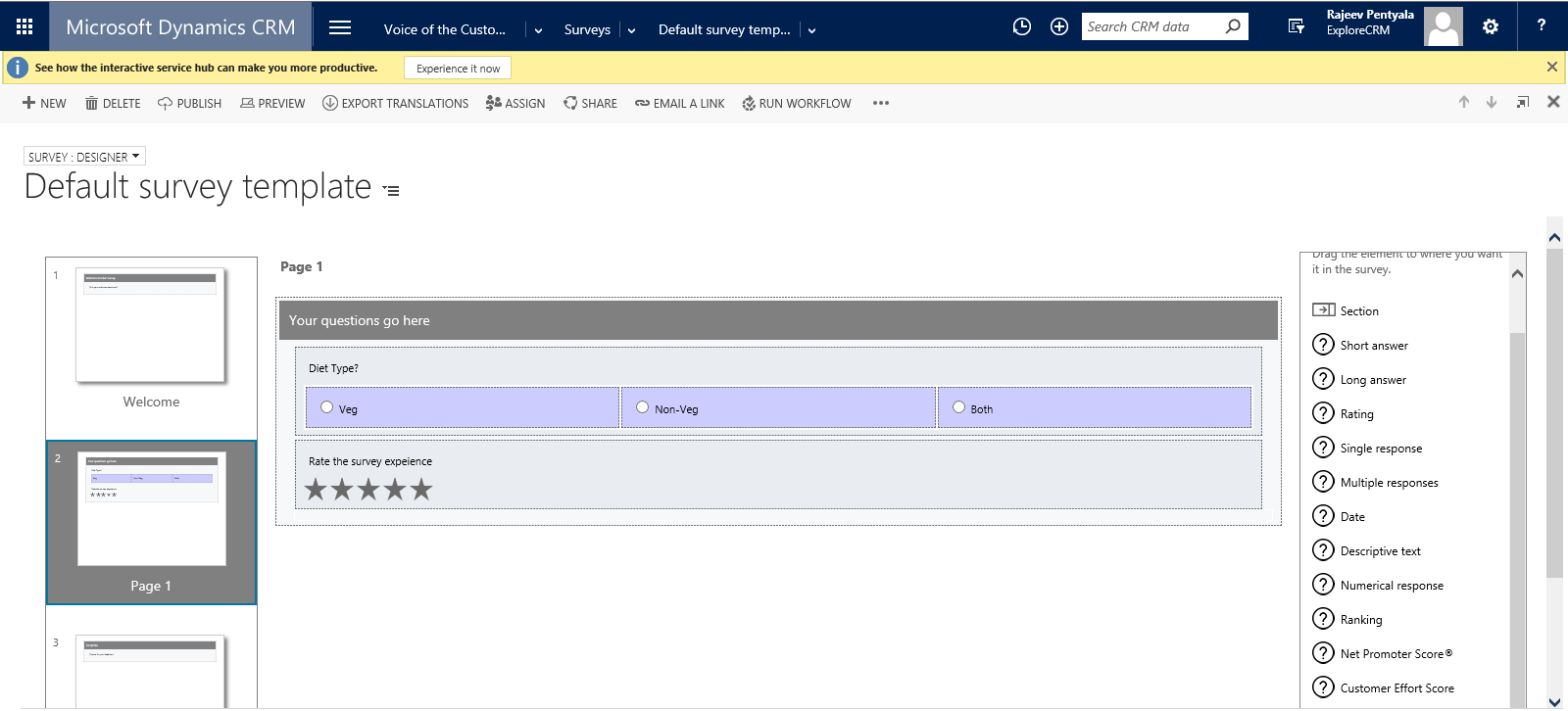
- Drag and drop the available controls to create the Survey.
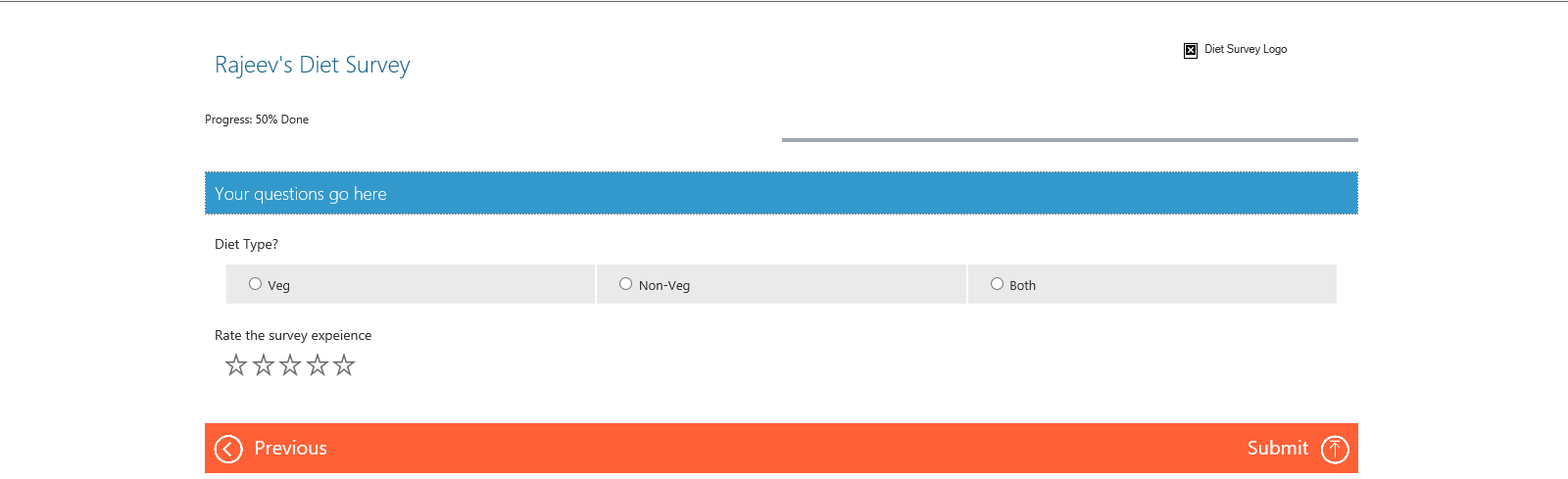
- In my sample, I created a “Diet Survey” with a question of type “Single Response” and “Rating” control.
- Once the design complete, you can preview and Publish the Survey.
Send the Survey
- Once you Publish the survey, CRM gives you a URL (Anonymous Survey), where it can be forwarded to Customers to capture their feedback.
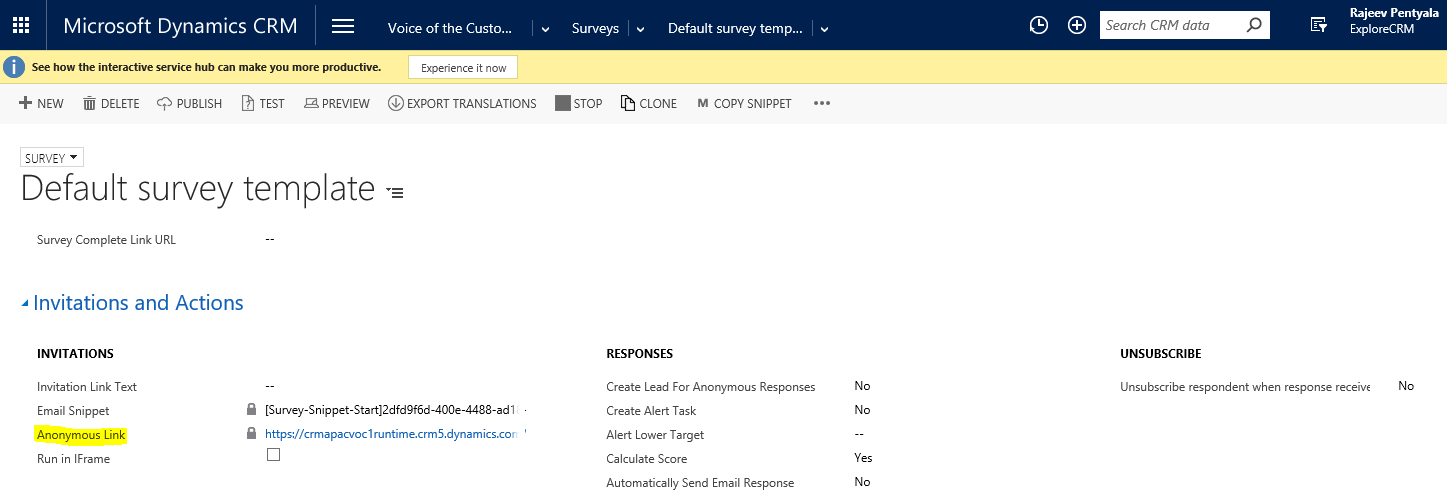
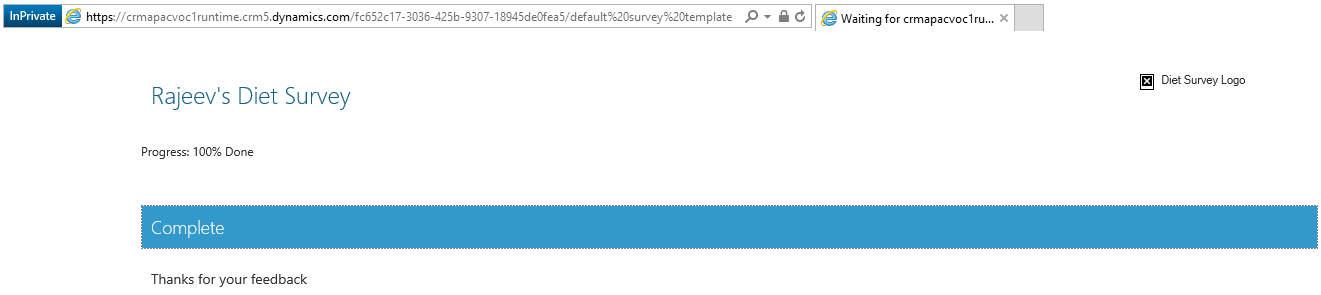
- Copy and open the URL from ‘Anonymous Link’ and complete the survey
Capture the Survey Response
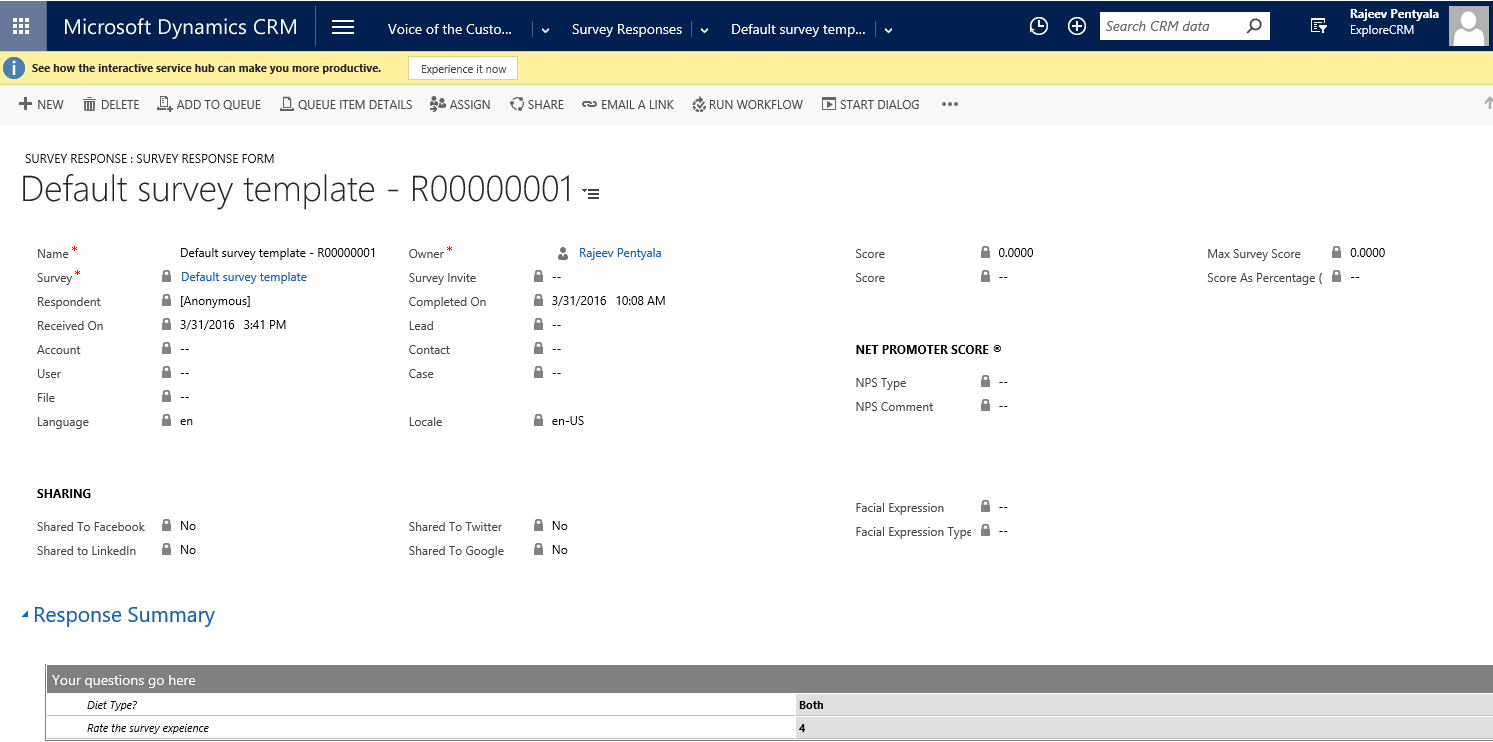
- Once Customer submitted the response, it will be stored as a record in “Survey Response”.

- More details will be captured about survey in the ‘Survey Response ‘ record.
🙂



![[Step by Step] Beginner : Create a PCF control and add it to a custom page](https://rajeevpentyala.com/wp-content/uploads/2024/12/image-49.png)
 Rajeev Pentyala – Technical Blog on Power Platform, Azure and AI
Leave a reply to pradeep Cancel reply