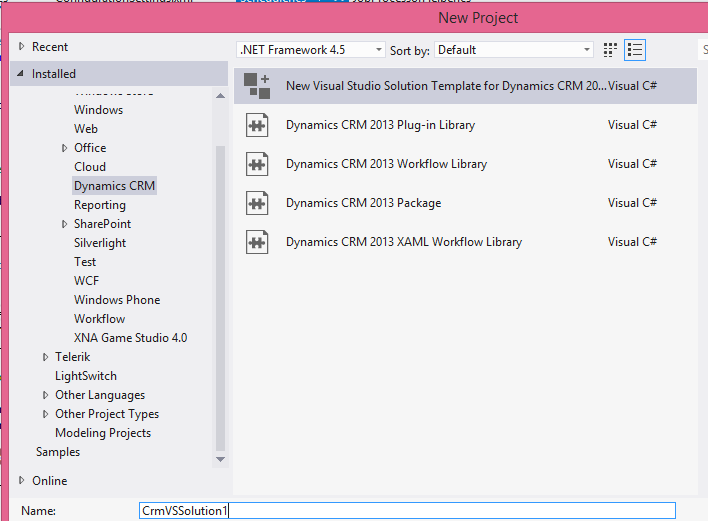
I recently created a new Visual studio solution using Dynamics CRM 2013 Template.
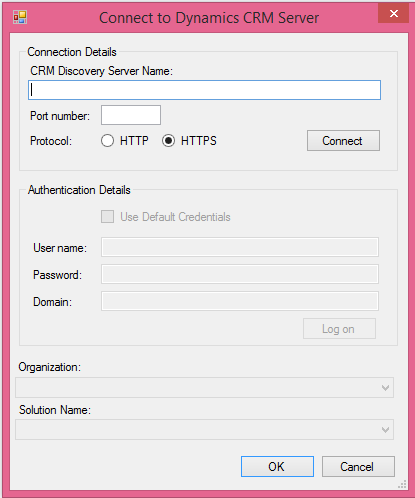
So I get “Connect to Dynamics CRM Server” window whenever I open the solution, which allows me to connect my CRM Organization.
Later I added a new “Class Library” project to my solution.
Now surprisingly when I open the solution, I am not getting “Connect to Dynamics CRM Server” window also from ‘Tools’ Menu.
Reason –
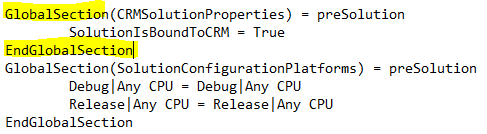
- I opened my solution file (.sln) using notepad and observed below ‘Global Section’ is missing and overridden by newly added Project details.
GlobalSection(CRMSolutionProperties) = preSolution
SolutionIsBoundToCRM = True
EndGlobalSection
Fix –
- Add the ‘Global Section’ back to solution file using Notepad and Save it.
🙂




 Rajeev Pentyala – Technical Blog on Power Platform, Azure and AI
Leave a comment