In this article, let’s explore how to use a Power Apps Code App to connect and chat with a Microsoft Copilot Studio agent — directly from a React-based custom UI, with multi-turn conversation support.
If you haven’t used Code Apps before, check out the official docs Power Apps Code Apps Overview
What This POC Does
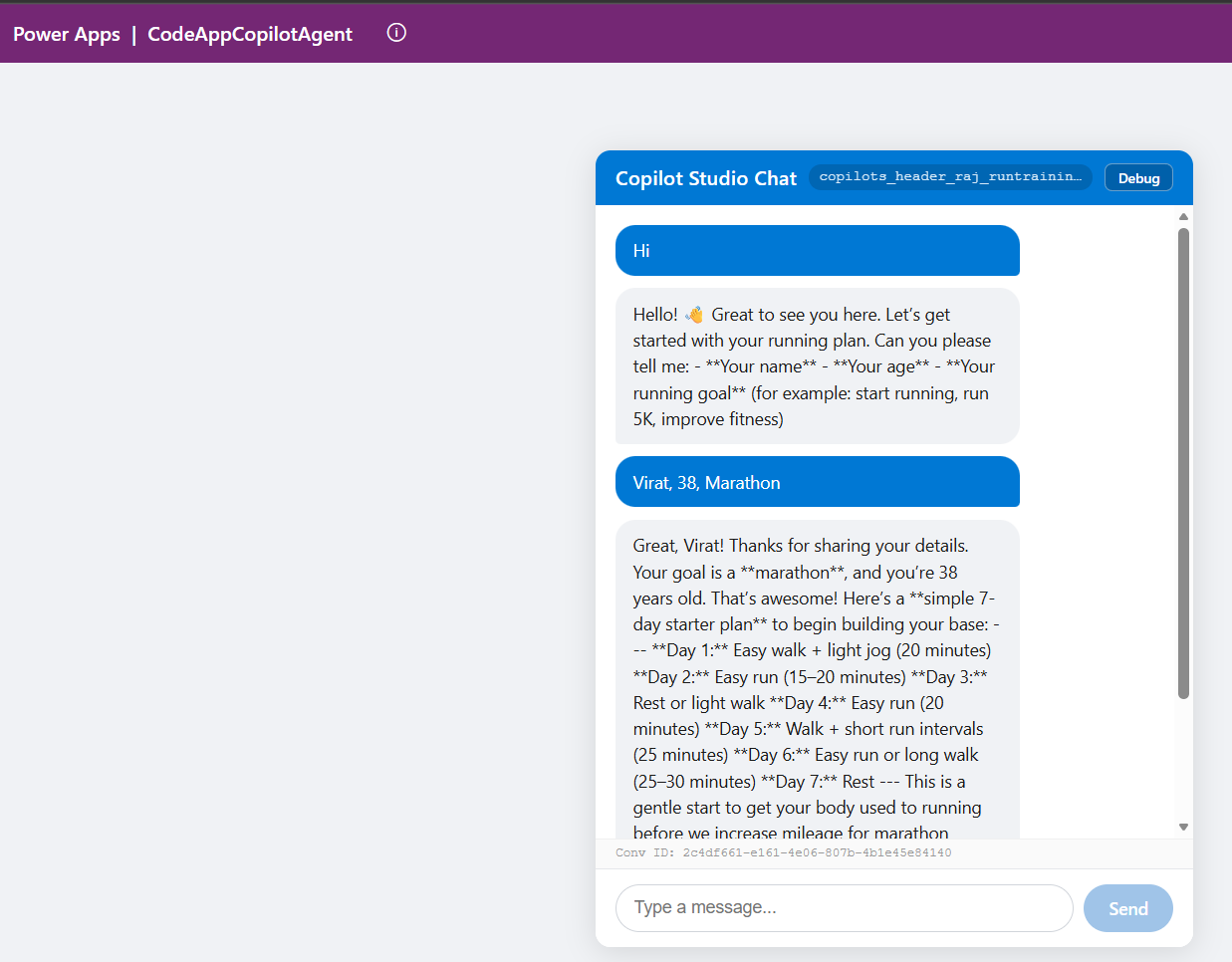
This proof-of-concept demonstrates:
- Connecting a Code App to a published Copilot Studio agent via the
shared_microsoftcopilotstudioconnector - A chat UI built in React (no external UI library) with user and agent message bubbles
- Multi-turn conversations — the agent remembers context across messages using
conversationId - A Debug panel to inspect the raw API response from the agent
- All configuration driven via a
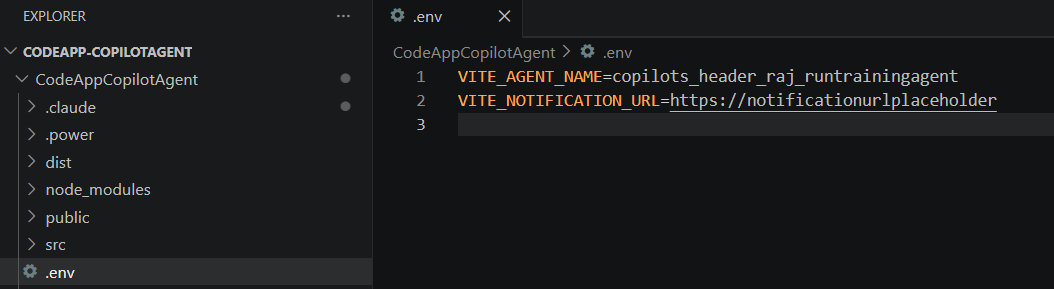
.envfile (agent name, notification URL)
Here is a screenshot of the working POC
Key Setup Steps:
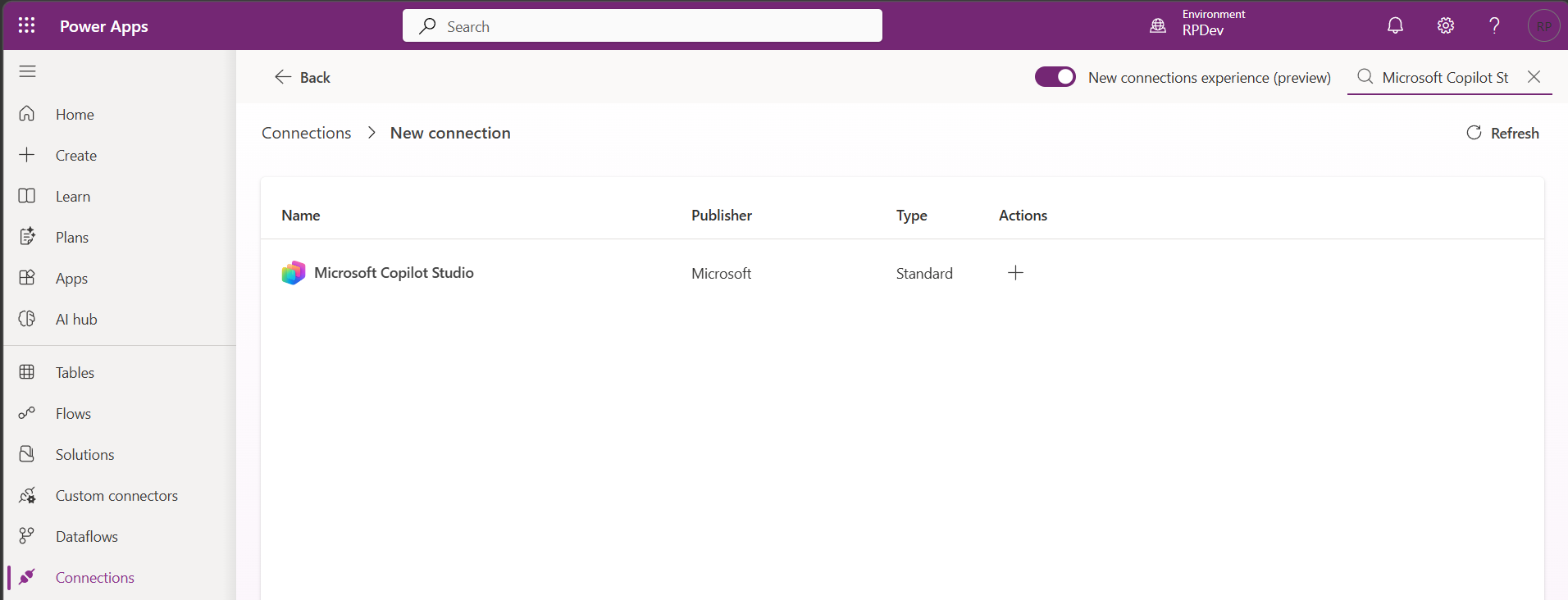
- Create a Microsoft Copilot Studio connection
- Set up a new connection for the Microsoft Copilot Studio connector in your Power Platform environment.
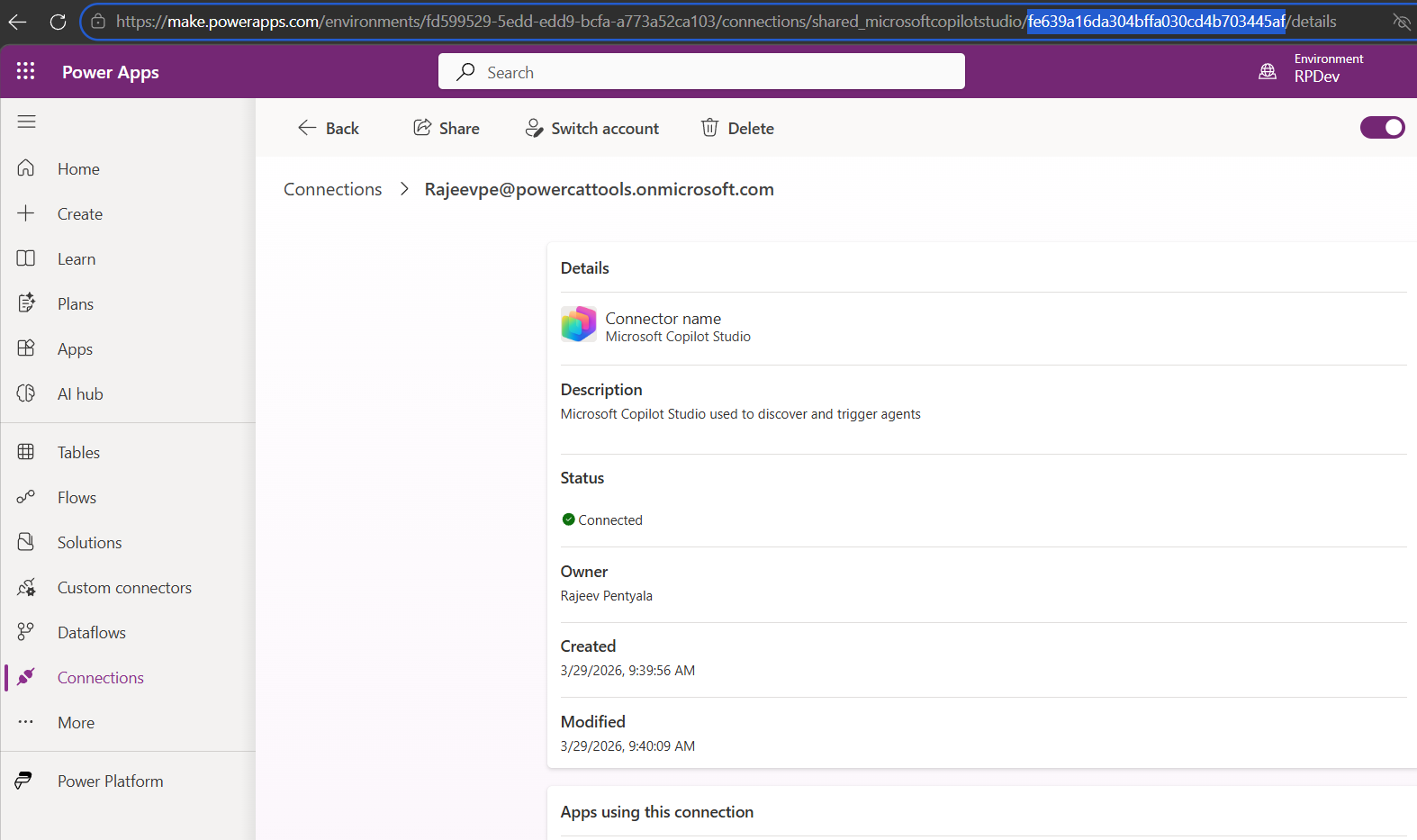
- Open the connection and copy the connection ID from the browser URL.
- Add the Microsoft Copilot Studio connection as a data source
- Run the following command to wire it up to your Code App:
pac code add-data-source -a "shared_microsoftcopilotstudio" -c <connectionId>
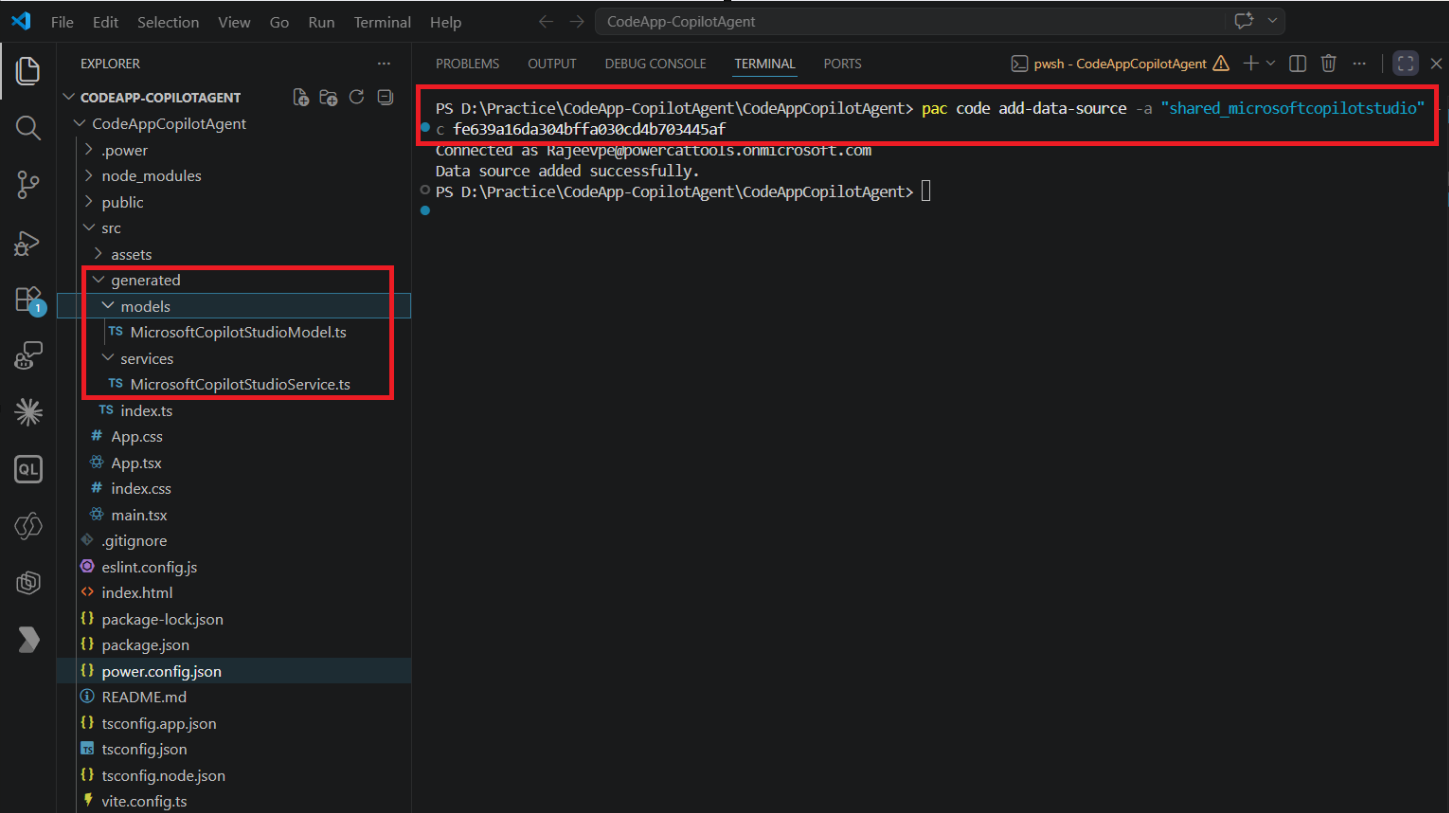
- This auto-generates two important files.
src/generated/services/MicrosoftCopilotStudioService.ts— all connector operations as typed static methodssrc/generated/models/MicrosoftCopilotStudioModel.ts— TypeScript response interfaces
- Publish your Copilot Studio Agent
- Make sure the agent is in Published state before testing.
- Open the agent. Go to Settings > Advanced > Metadata and copy the Schema name
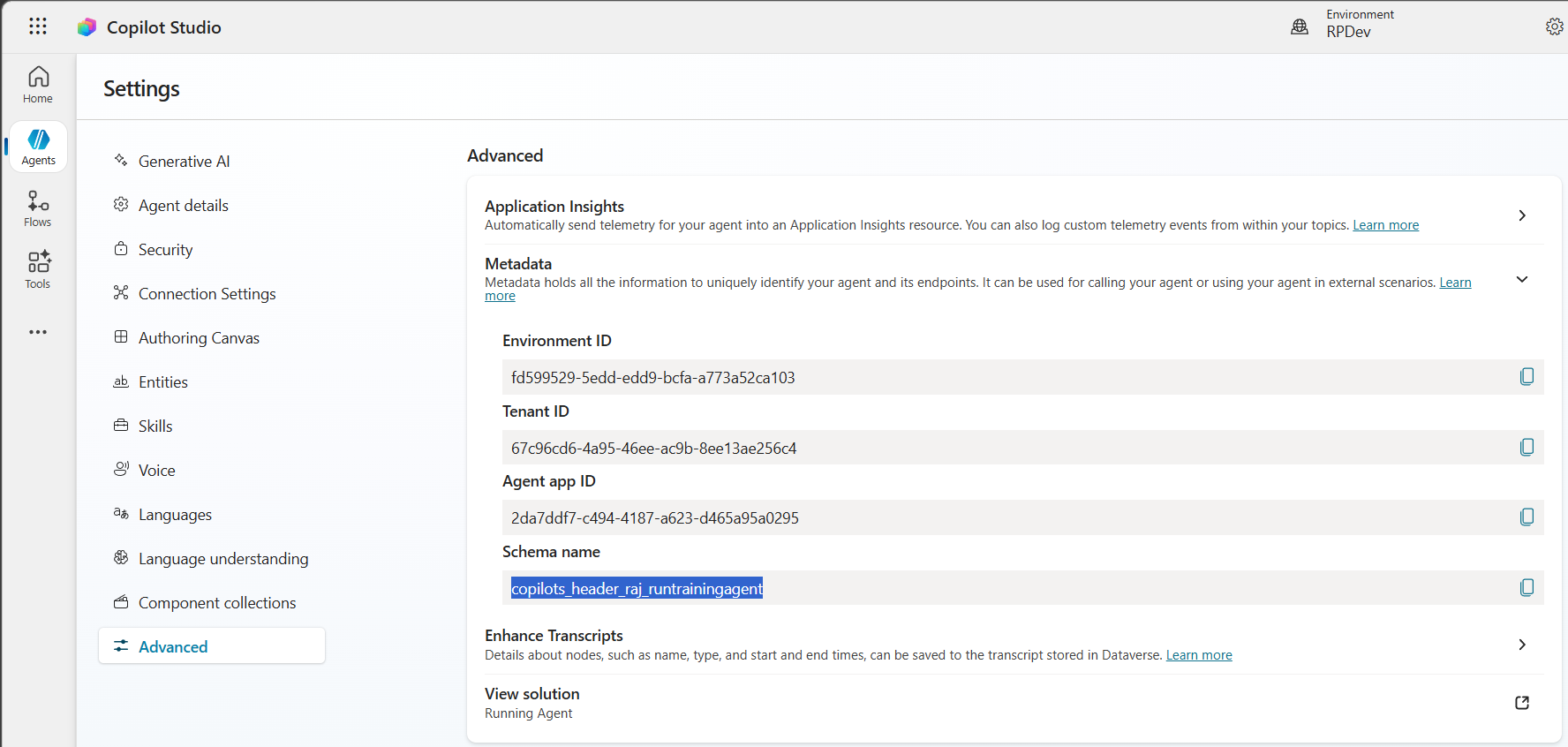
- Paste the copied schema name into your Code App’s
.envfile.
Deploy and Test the Code App:
- Once configured, build and push the Code App to your Power Platform environment:
- npm run build # verify no TypeScript errors first
- pac code push # deploy to Power Apps
- Open the Code App and click Allow to authorize the Microsoft Copilot Studio connector.
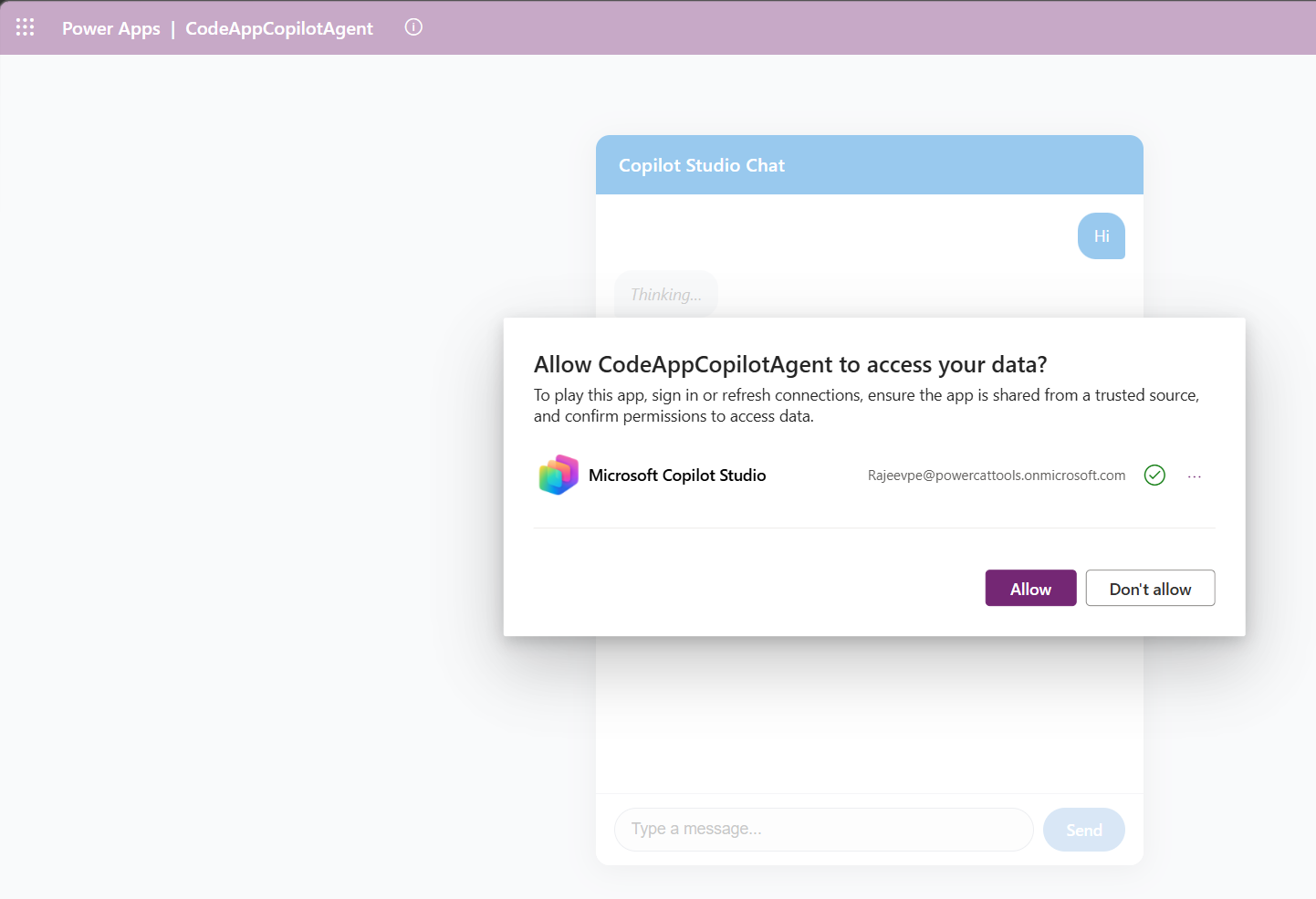
- Then start chatting — you should see responses coming back from your agent.
Give It a Try:
Clone the repo, point it at your own Copilot Studio agent, and deploy : CodeApp-CopilotAgent.
Update your `.env` with your agent schema name, run `pac code push`, and you should have a working chat UI connected to your agent in minutes.
🙂



 Rajeev Pentyala – Technical Blog on Power Platform, Azure and AI
Leave a comment