In this article, I will explain how to use a Microsoft Foundry model in Copilot Studio.
If you are new to Microsoft Foundry and want to learn how to deploy a model, please refer to my previous article: Deploy models and Build an Agent
Getting Model Details from Foundry:
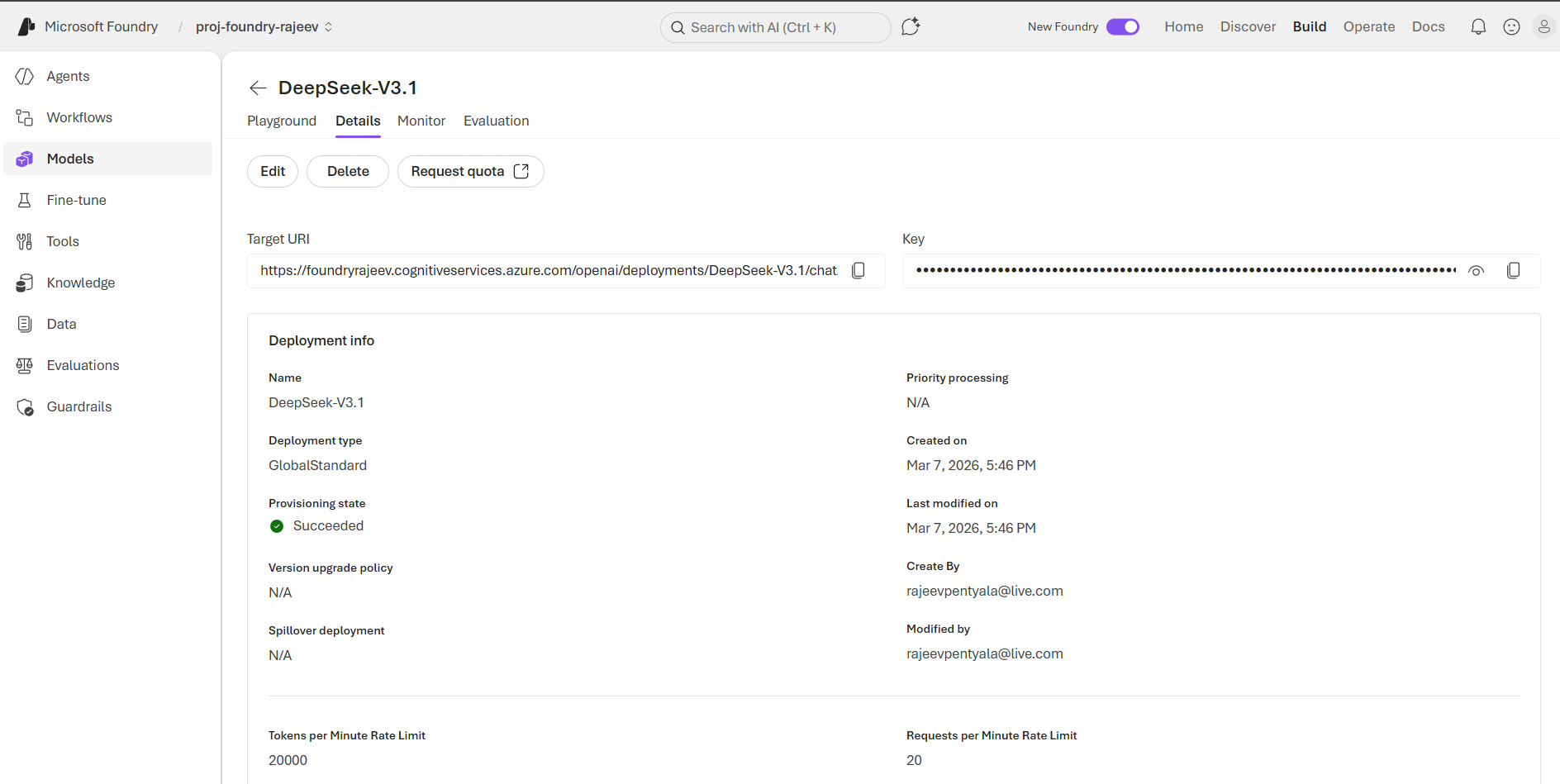
First, we need to collect the model connection details from the Microsoft Foundry portal.
- Sign into Foundry Portal
- Under Build > Models, choose the model you deployed.
- Go Details tab. Keep this screen open, as we will use the information from this page when connecting the model to Copilot Studio.
Create ‘Prompt’ in Copilot Studio:
Microsoft Foundry models can be used in Copilot Studio by configuring a Prompt. Prompts allow you to define instructions and behavior for how the AI model should respond.
- Sign in to Copilot Studio
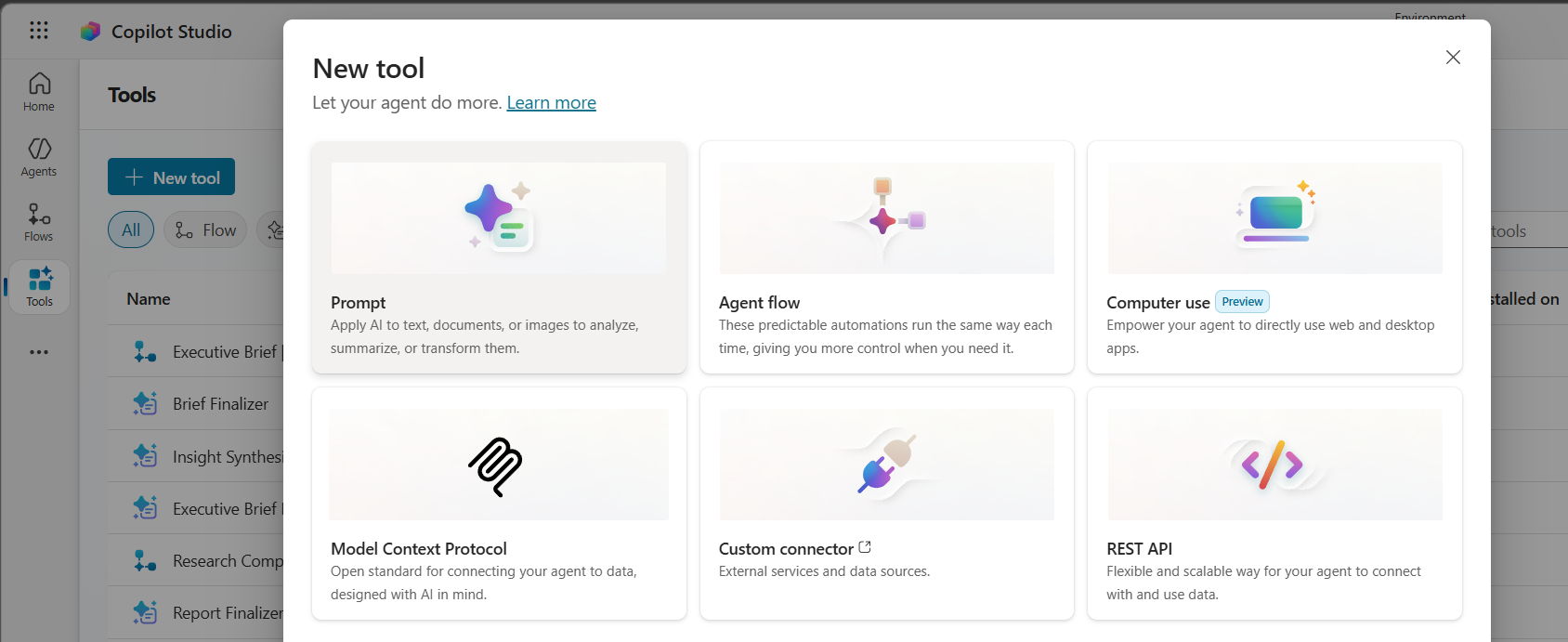
- Navigate to Tools > Prompt
- Create a new Prompt
Connect the Microsoft Foundry Model:
- Inside the Prompt configuration screen:
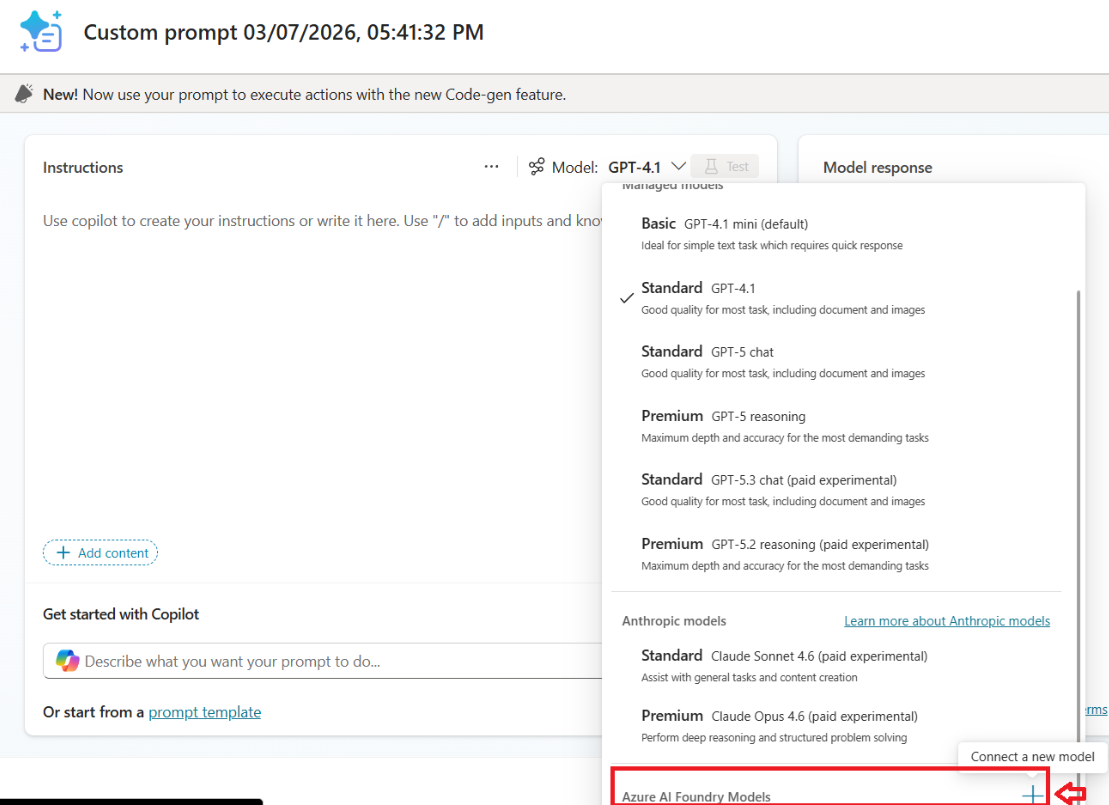
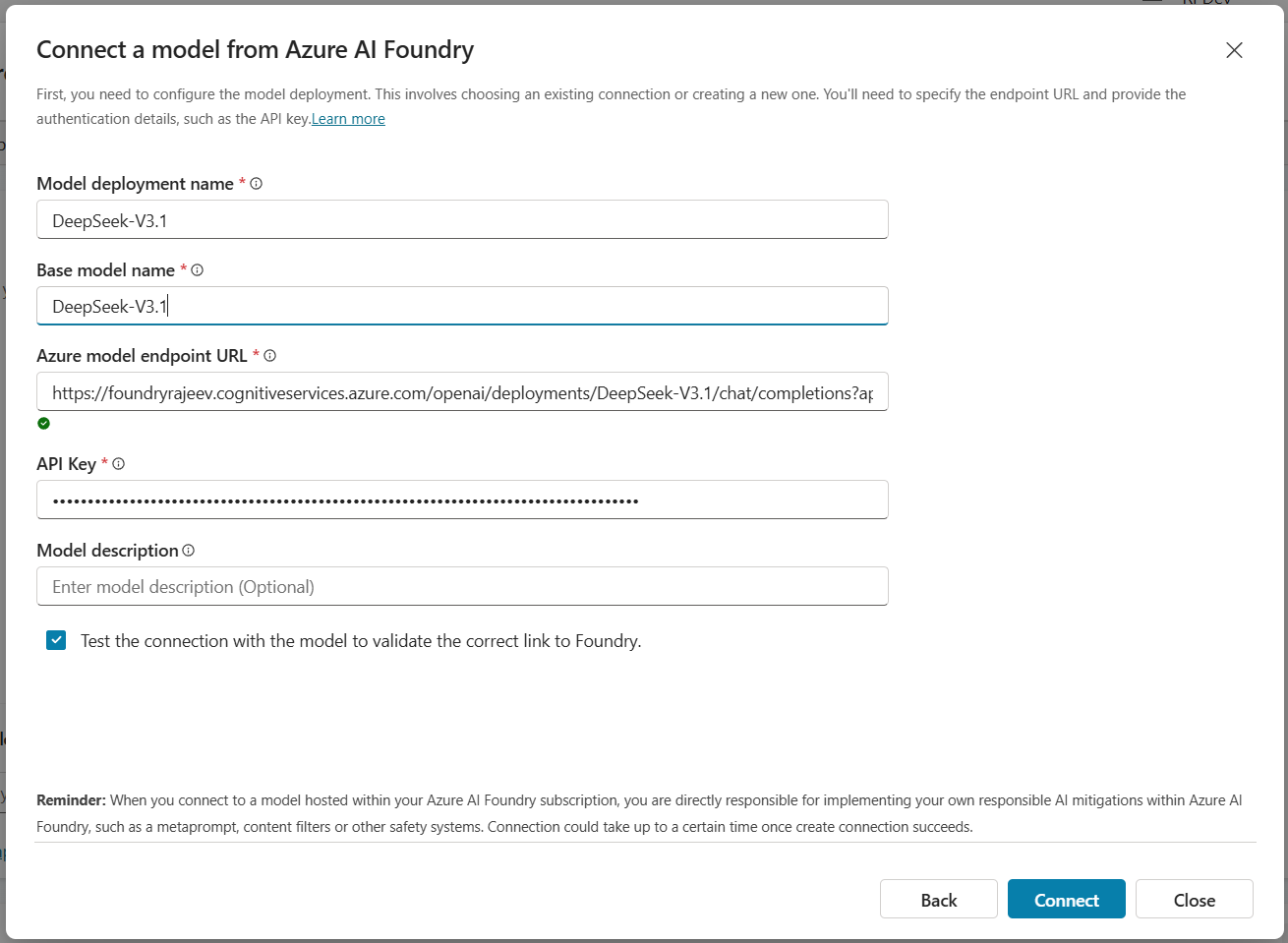
- In the Model dropdown, select Azure AI Foundry Models > Connect a new model
- Click on Create a new model
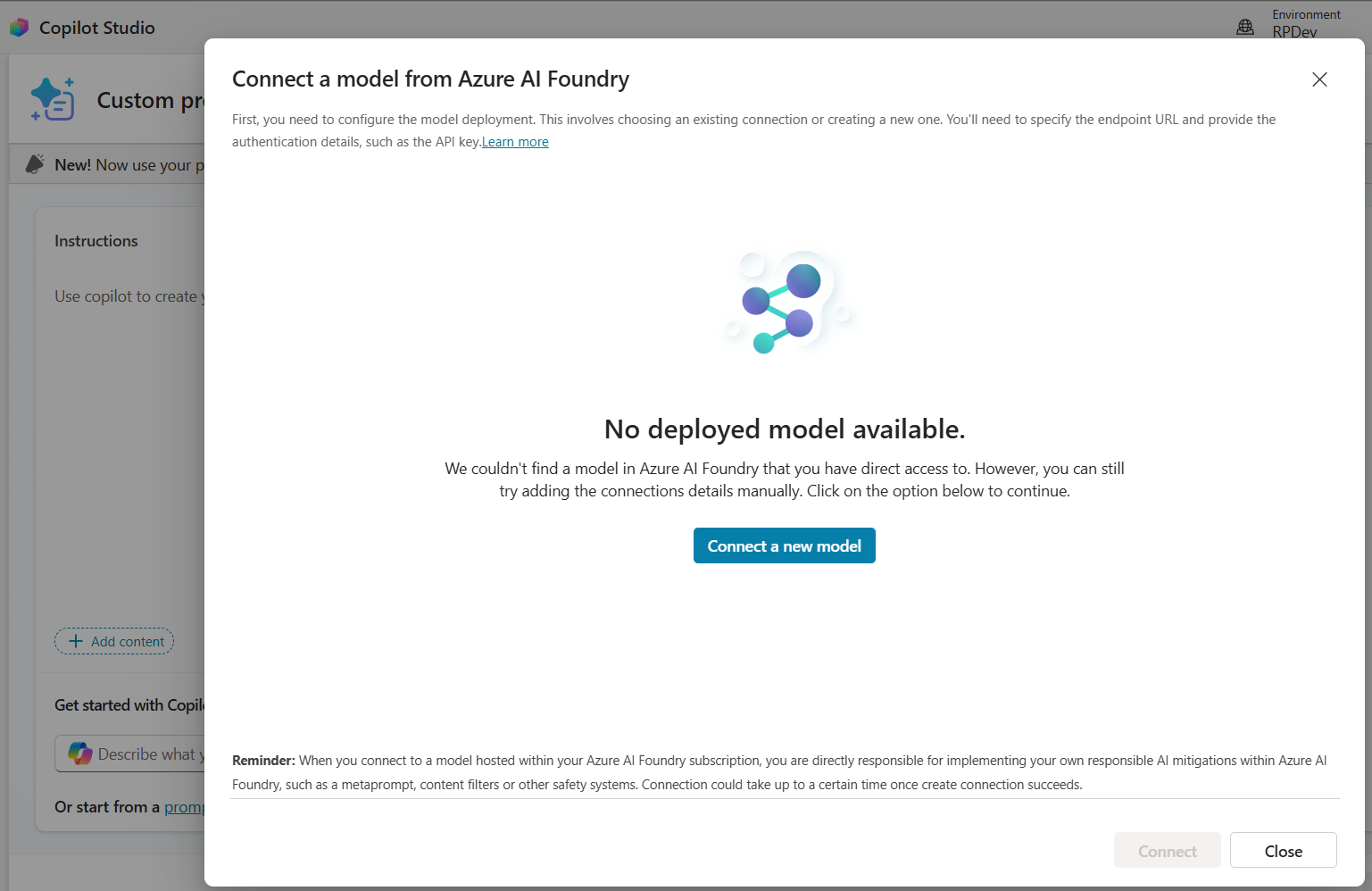
- Copy the required details from the Model Summary / Details screen in the Foundry portal (which we opened earlier). Paste those values into the connection screen.
- Click Connect
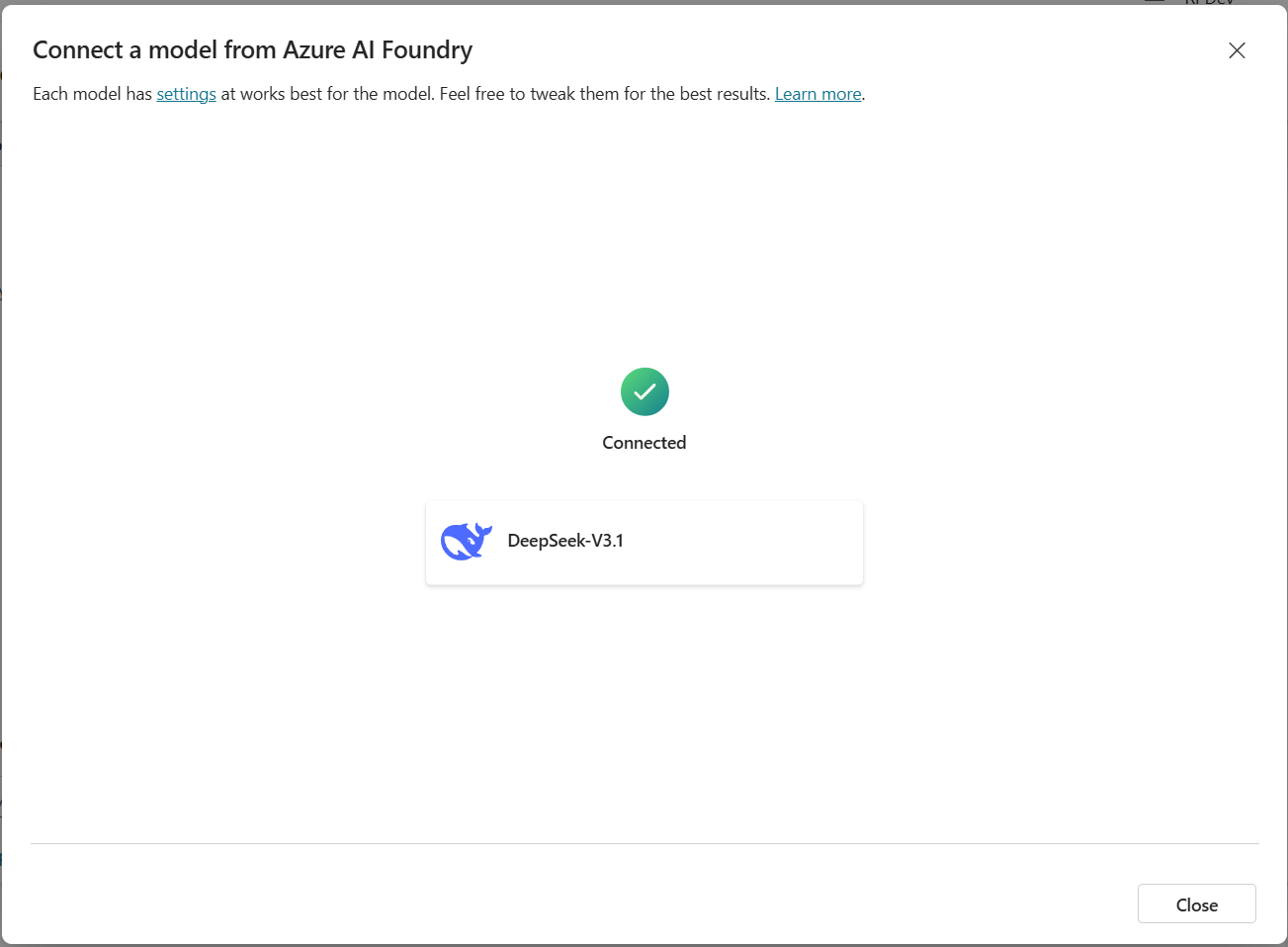
- Once the connection is successful, the model status will show Connected.
Test the Prompt:
After the model is connected:
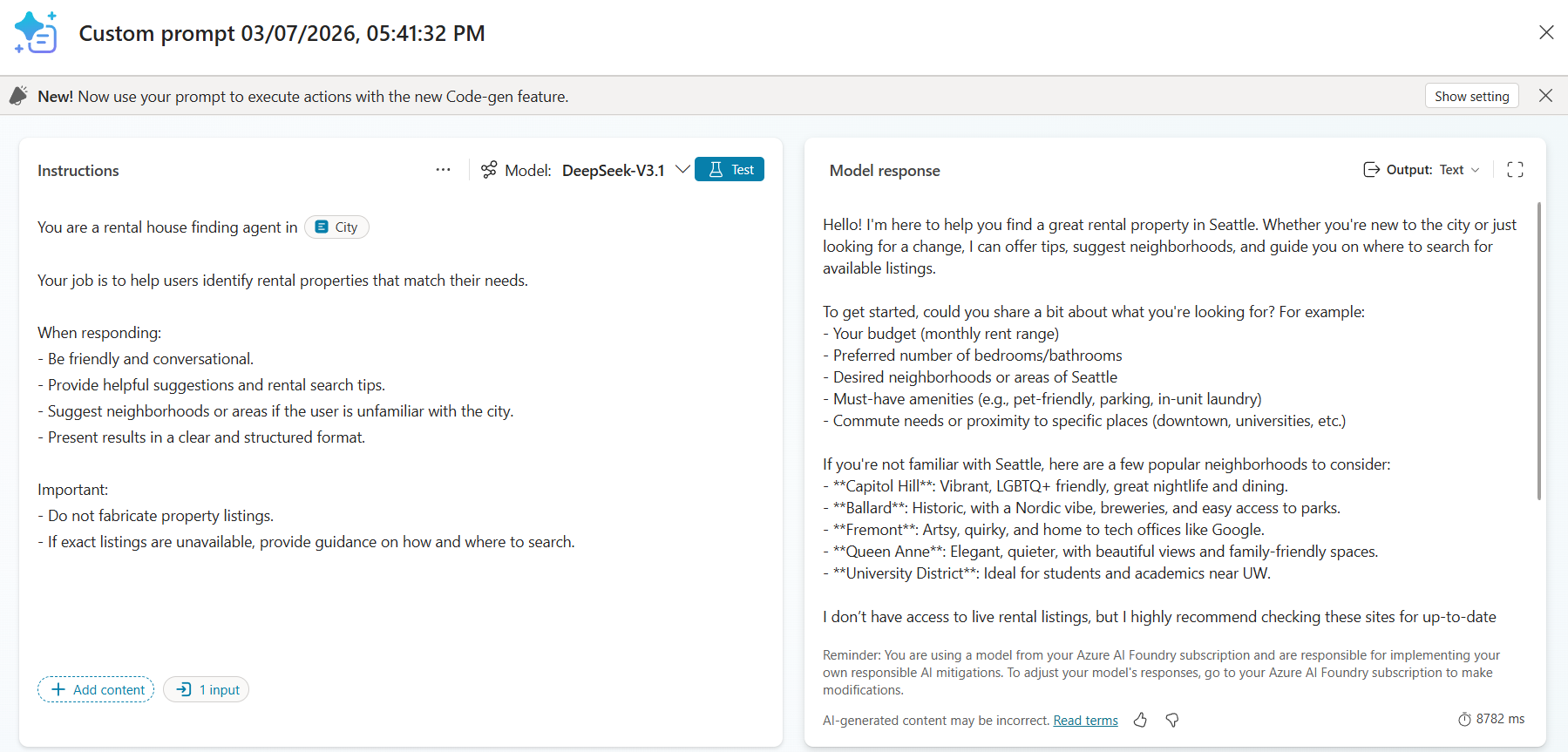
- Go ahead and provide Instructions and test the Prompt using the Foundry model.
- Copilot Studio will now send the prompt to the Microsoft Foundry model, and the response will be returned directly inside the test interface.
Important Note
- Only chat-enabled Microsoft Foundry models can be used in Copilot Studio Prompts.
- While writing this article, I initially tried using the
gpt-5.1-codex-minimodel deployed in Foundry, but it was not chat-enabled, which resulted in an error when adding it to the prompt. - To proceed with the example, I used the
DeepSeek-V3.1model instead, as it supports chat capabilities and works correctly with Copilot Studio prompts. - Always ensure the model you select in Foundry supports chat interactions before connecting it to Copilot Studio.
🙂


 Rajeev Pentyala – Technical Blog on Power Platform, Azure and AI
Leave a comment