Did you know that you can block the Copilot Studio Agents (i.e., MCP Clients) from interacting with the Dataverse MCP server?
By default, you can add Dataverse MCP Server from Tools of a Copilot Studio Agent.

Once added, you can configure the Dataverse MCP Server as shown below.
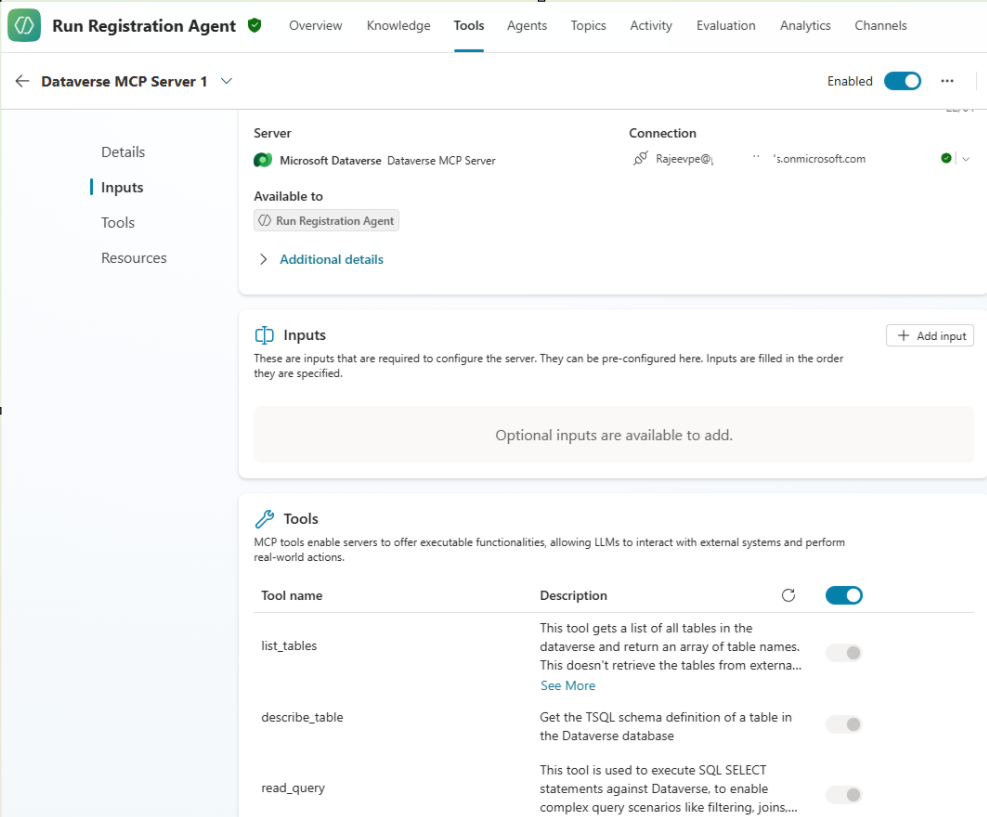
Now that we’ve seen how to add the Dataverse MCP Server to an agent, let’s look at how to block it.
How to block the Dataverse MCP Server:
To block the Dataverse MCP Server tool in a specific environment for the clients (i.e., Copilot Studio Agents)
- Go to Power Platform admin center. Select Manage > Environments.
- Select the Environment Name where you want to turn on the Dataverse MCP server, and then select Settings.
- Under Settings, select Product > Features.
- Scroll down to locate Dataverse Model Context Protocol section.
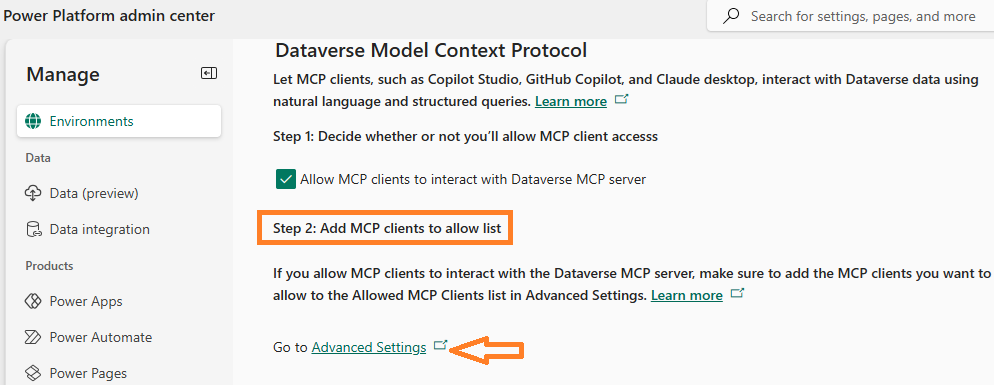
- Under Step 2: Add MCP clients to allow list click on Advanced Settings.
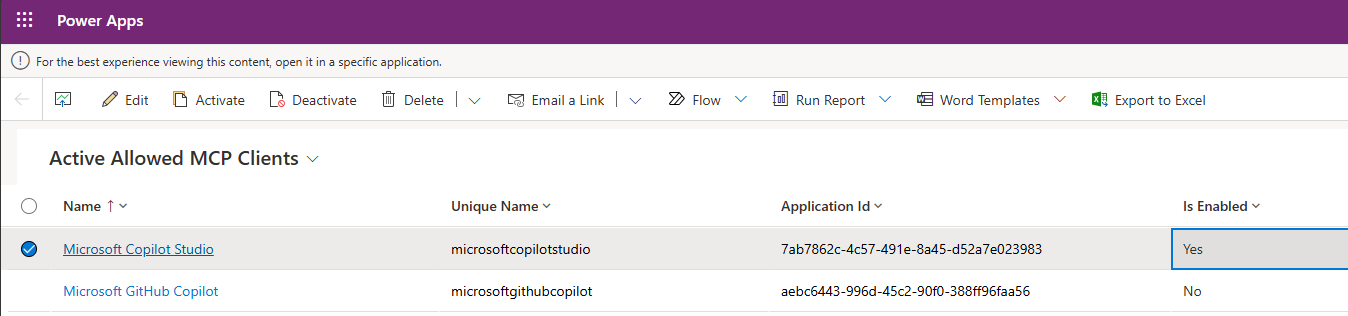
- Select Microsoft Copilot Studio record under the Allowed MCP Client table and set Is Enabled as No.
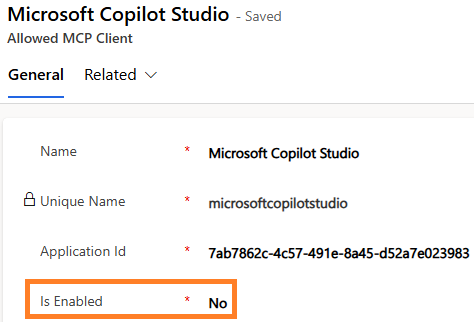
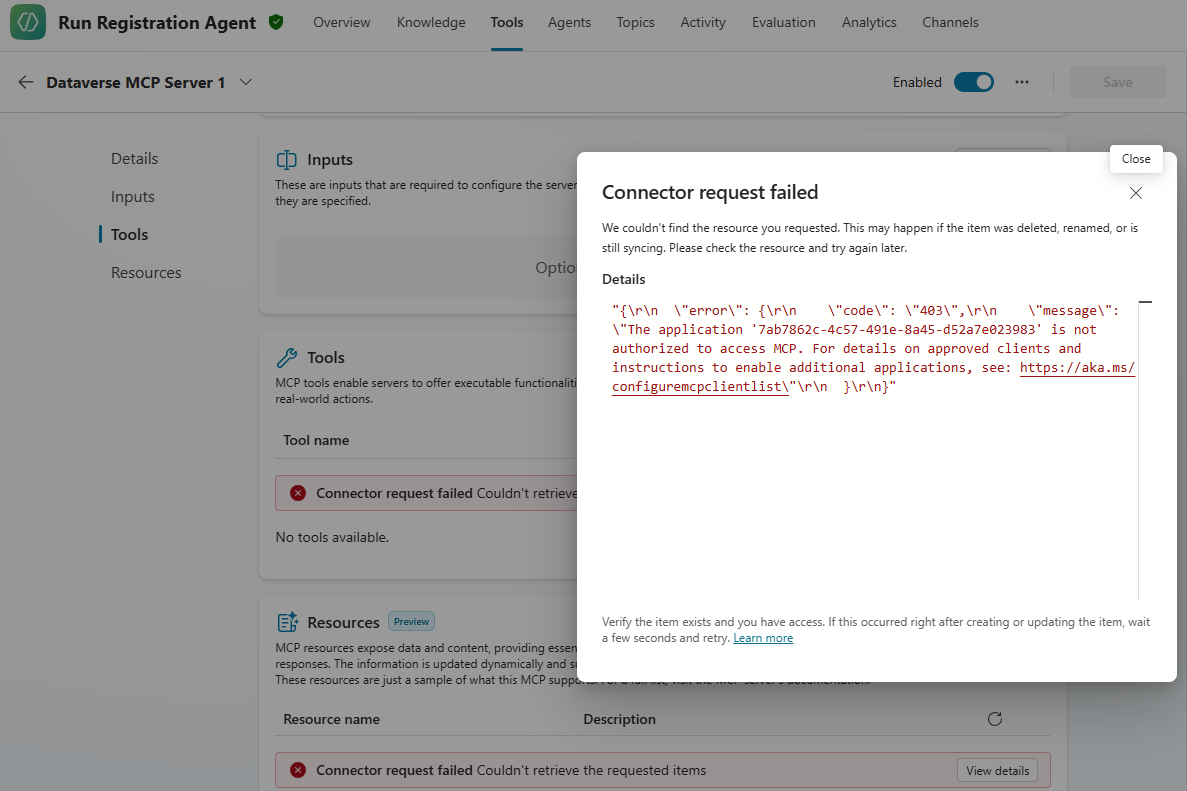
- After this is configured, go to Copilot Studio and try to add the Dataverse MCP Server from the Tools section to an agent. In the configuration page you will notice Connector request failed error is displayed, as shown below.
🙂


 Rajeev Pentyala – Technical Blog on Power Platform, Azure and AI
Leave a comment