At Microsoft Ignite 2025, Microsoft introduced the new Power Apps—a new developer experience at vibe.powerapps.com.
This new experience is AI-native, designed to help you build solutions for real business problems—from gathering requirements and integrating data to generating fully functional apps with production-ready code.
Prerequisites:
- Copilot must be enabled in the tenant and environment. Learn more: Copilot in Power Apps overview
- This capability isn’t available in a default environment.
- This capability is available only in the US region and in English only. Learn more in Explore Copilot features by geography and languages
In this article, let’s build a simple app to explore and understand the new Power Apps experience.
Build an App:
- Sign in to https://vibe.preview.powerapps.com.

- On the bottom left corner click on the Profile icon.
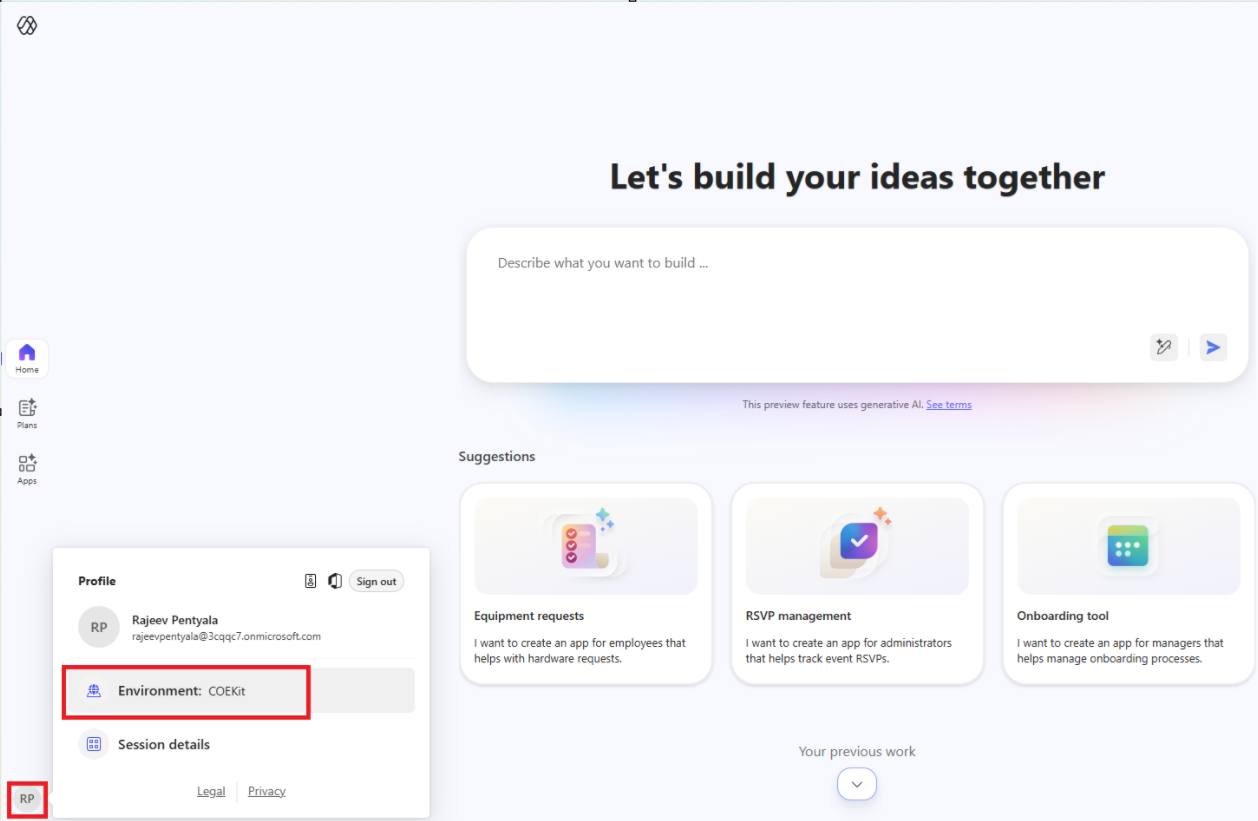
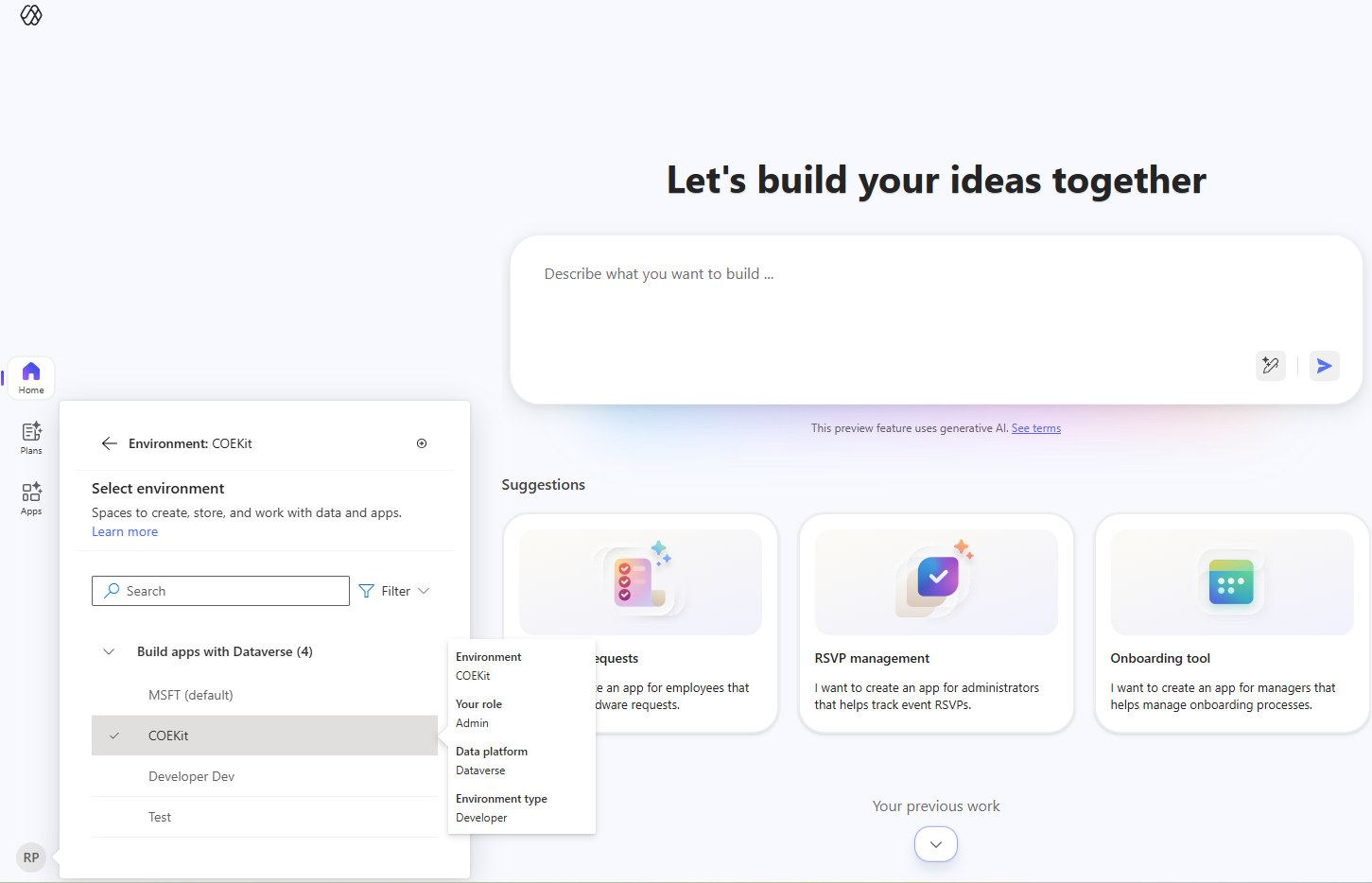
- Pick the Environment using the environment picker as shown below.
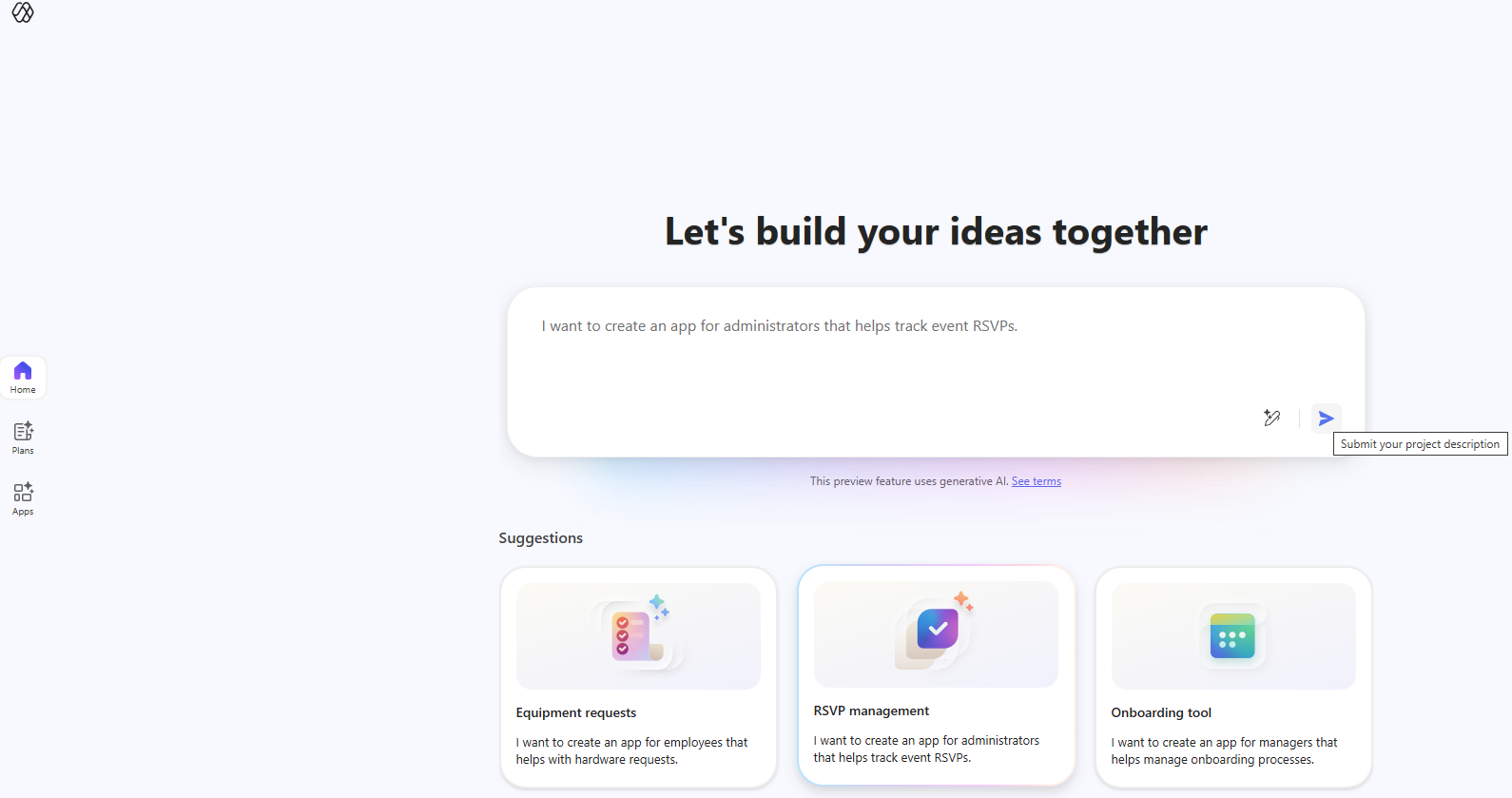
- I selected the RSVP management suggestion and clicked Submit. Immediately, the agents got to work building a React application.
- In the designer, you’ll see four agents—Requirements Agent, Data Agent, Code Agent, and Solution Agent—working together to generate the app.
- As the agents begin, assets start loading. You’ll see the app plan, data model, and a live preview of the app being generated in real time.
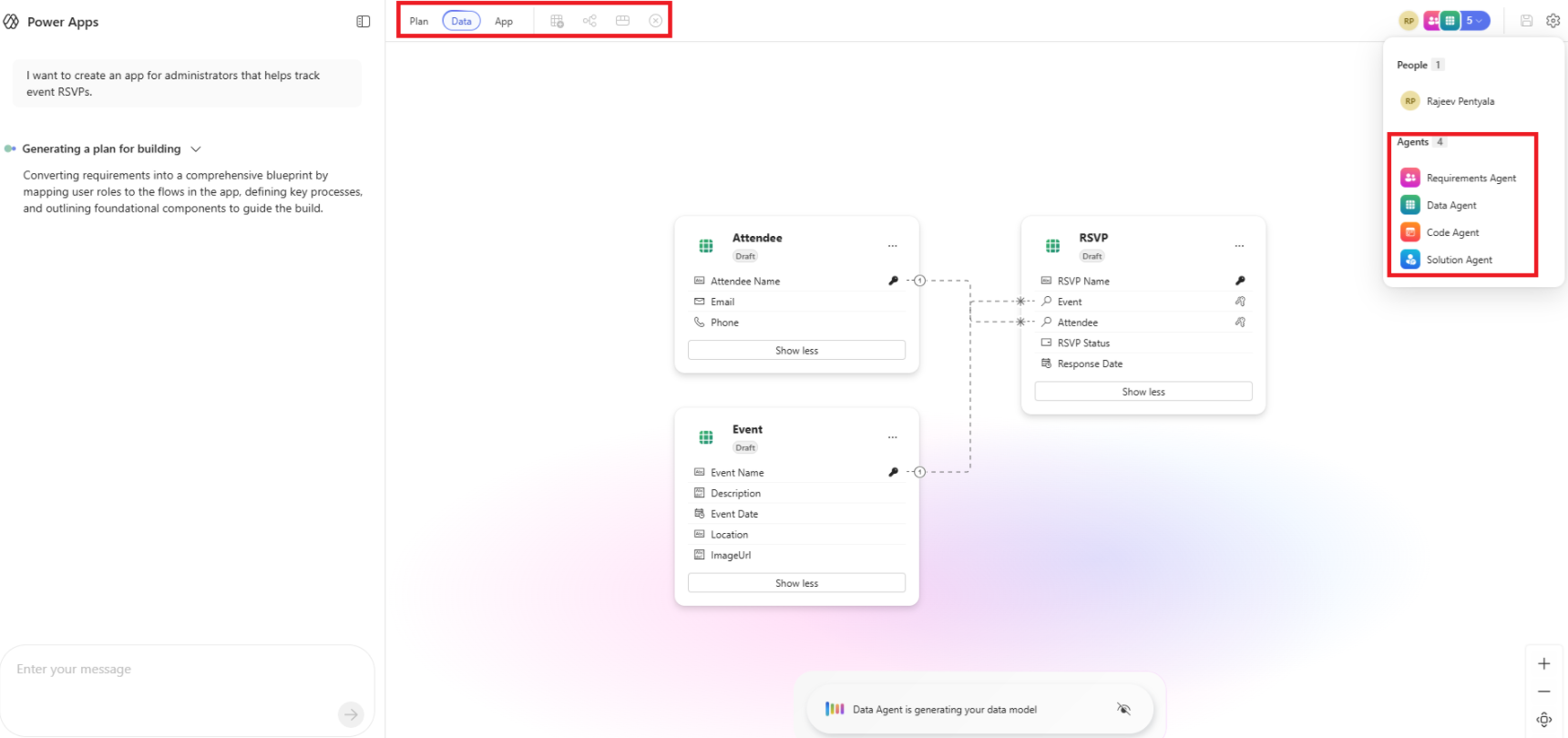
- You can view the generated code files using the options in the highlighted pane.
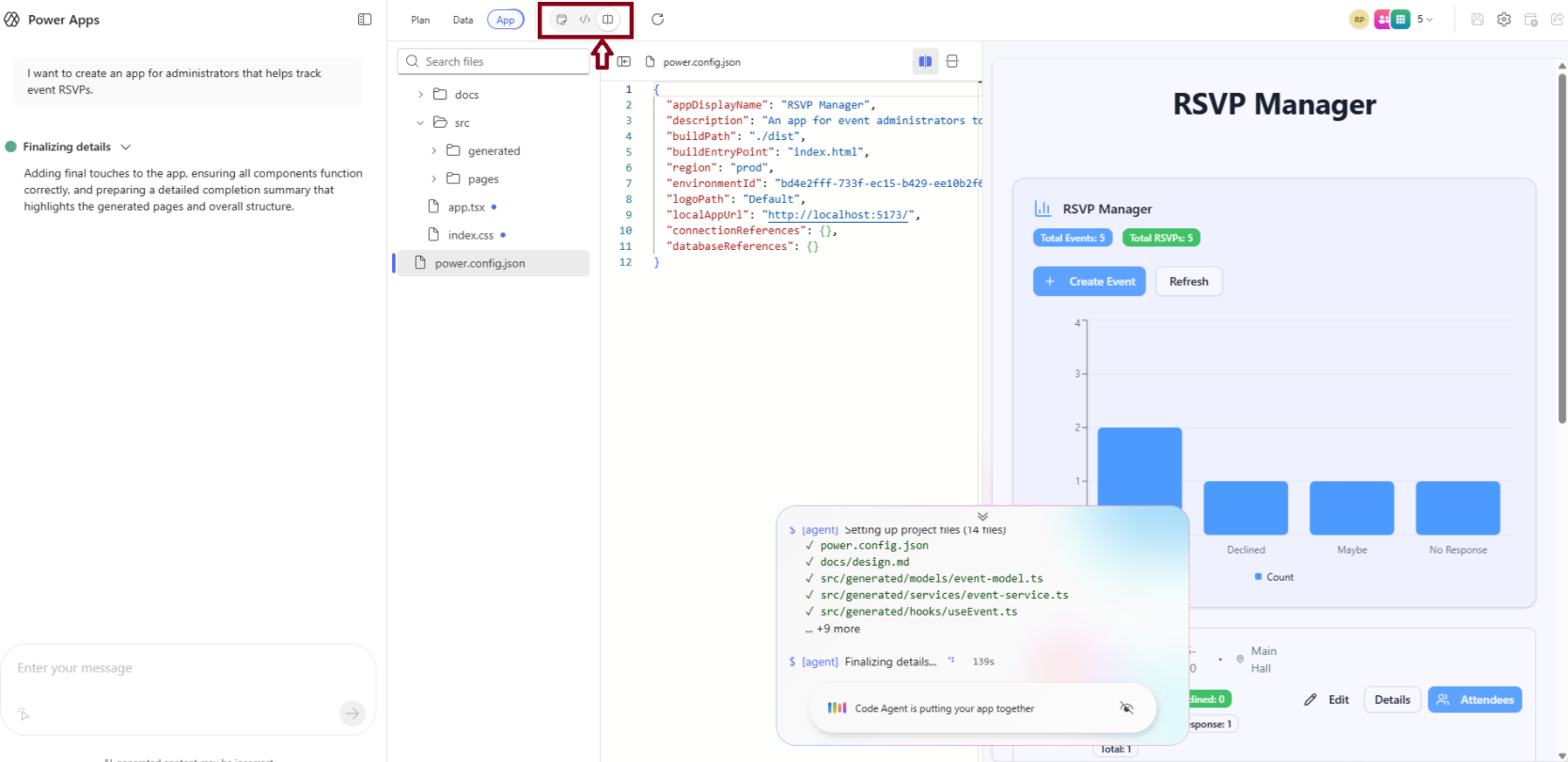
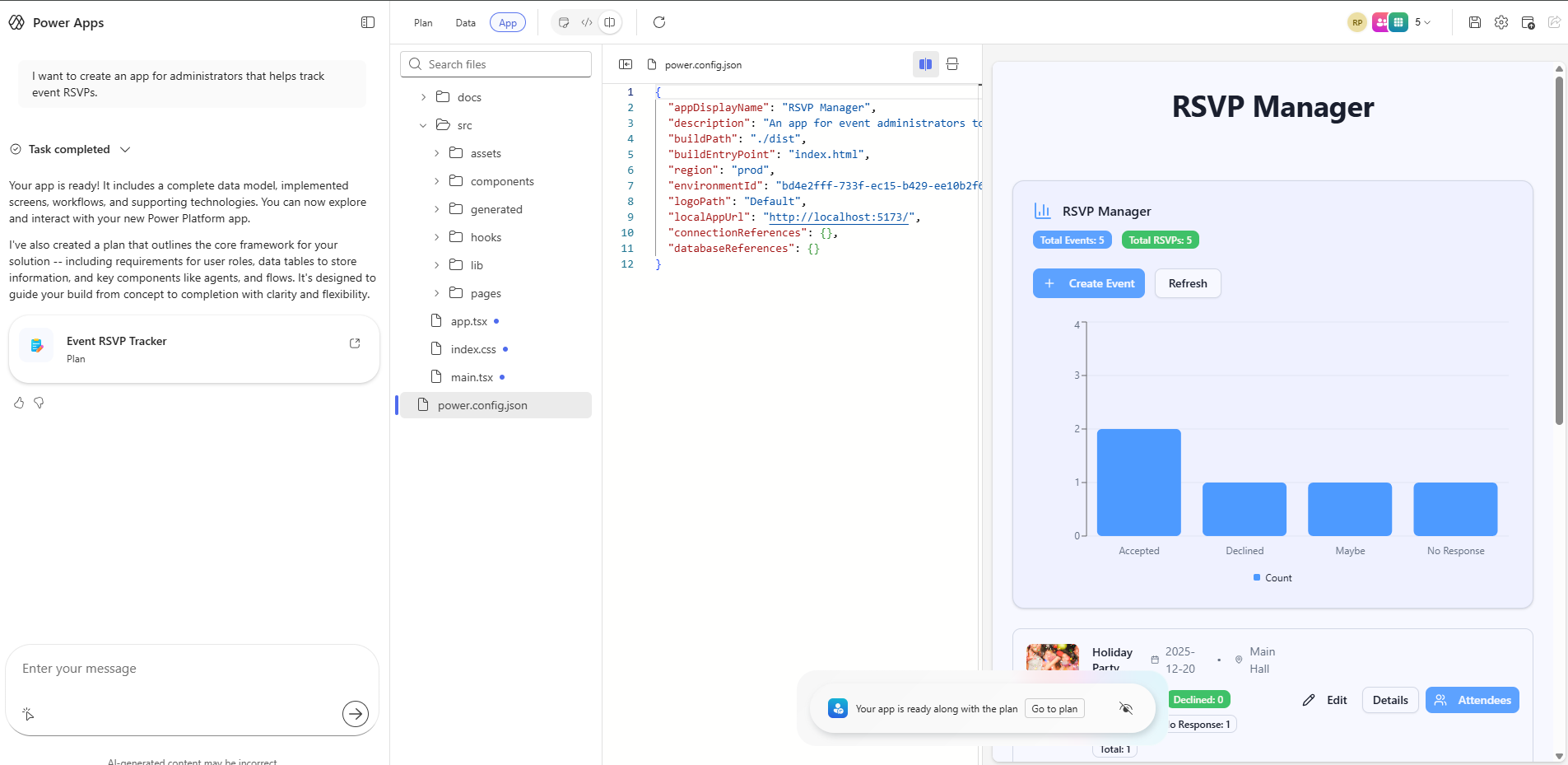
- Once everything is complete, the app is created along with a Plan
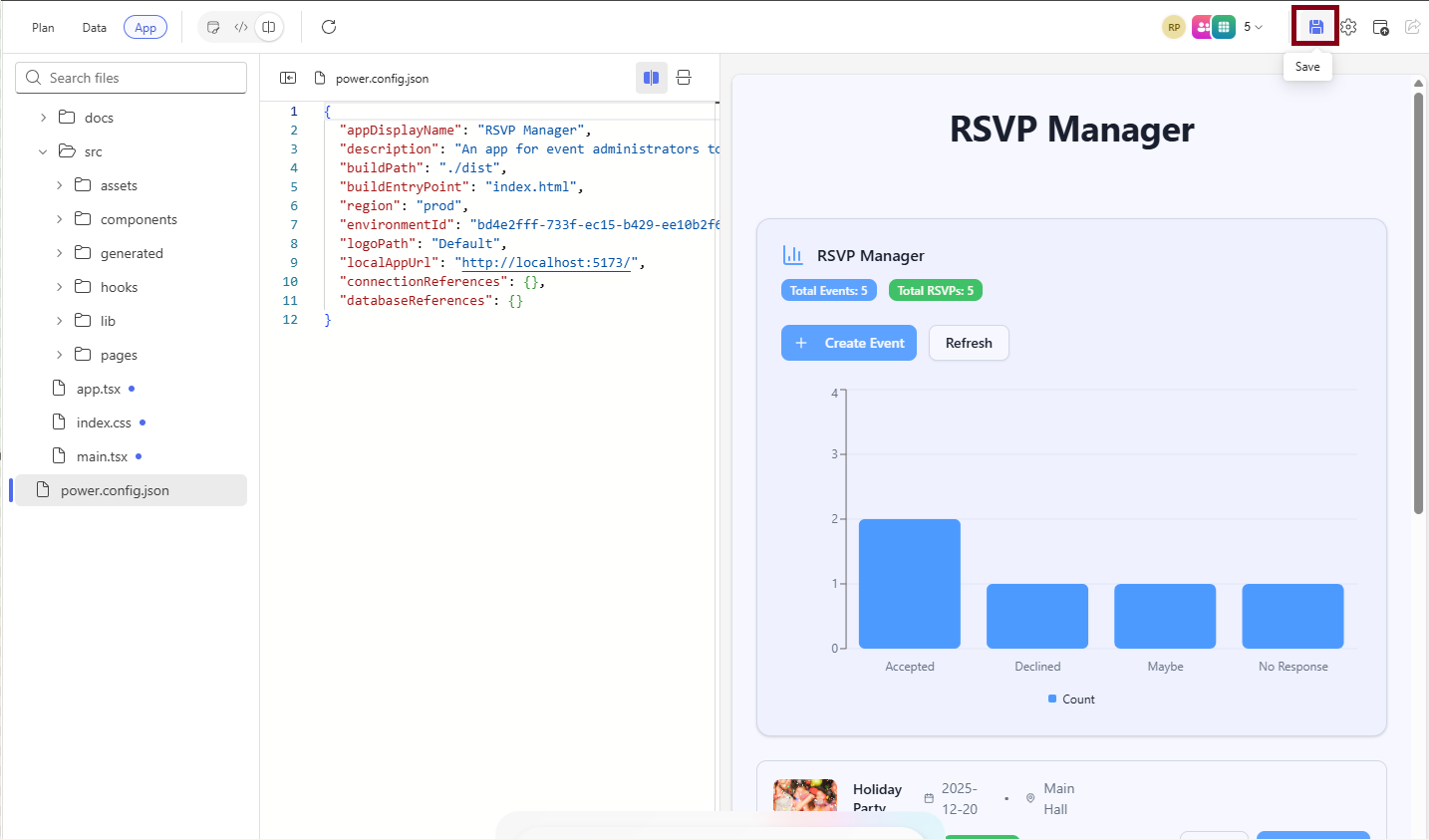
- Click Save in the upper-right corner
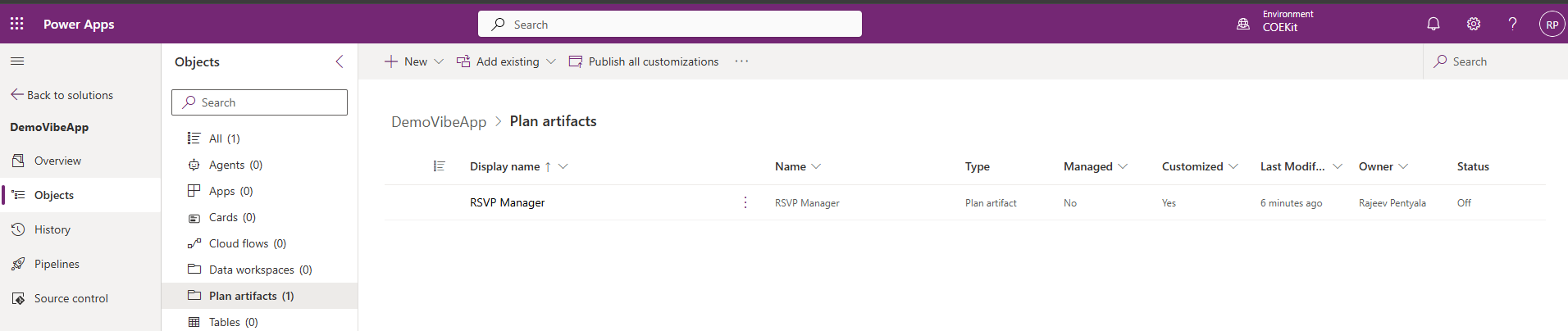
- At this stage, only the Plan artifact component is saved and becomes available in your Dataverse solution.
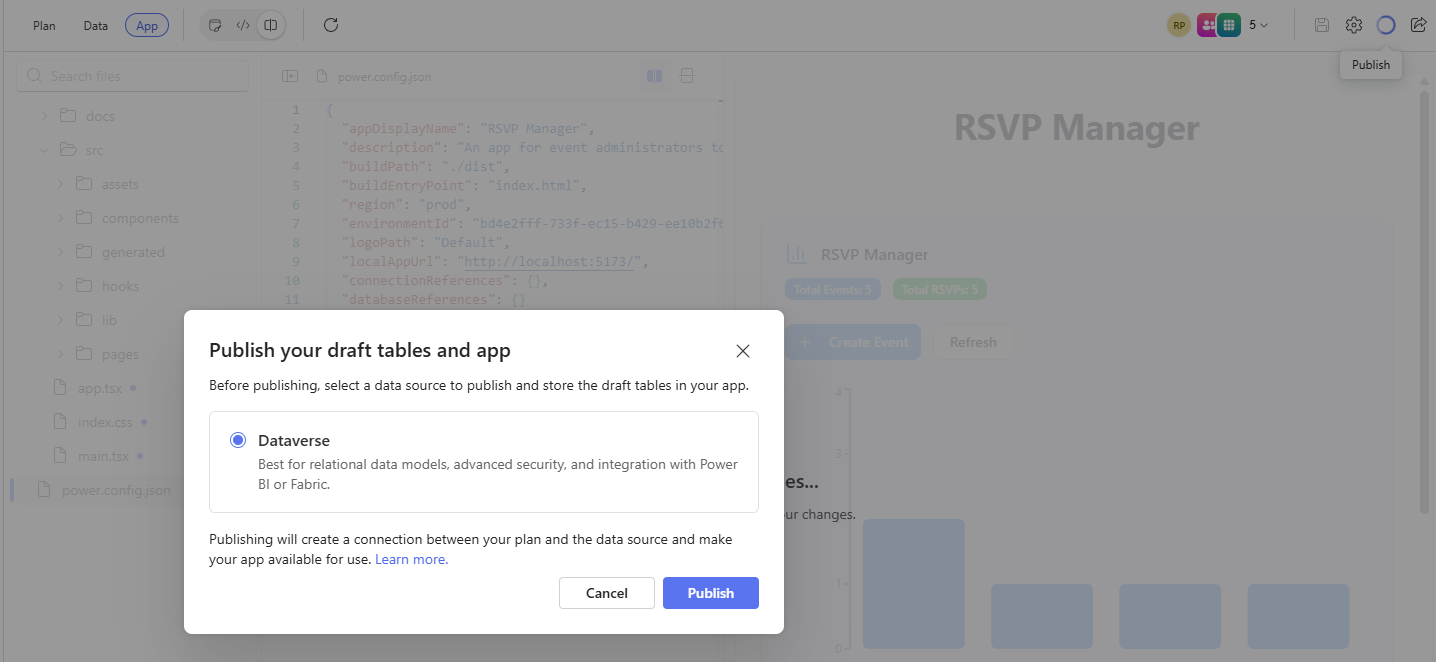
- When you Publish the app, you’ll be prompted to select a data source. As of the time of writing, Dataverse is the only supported option.
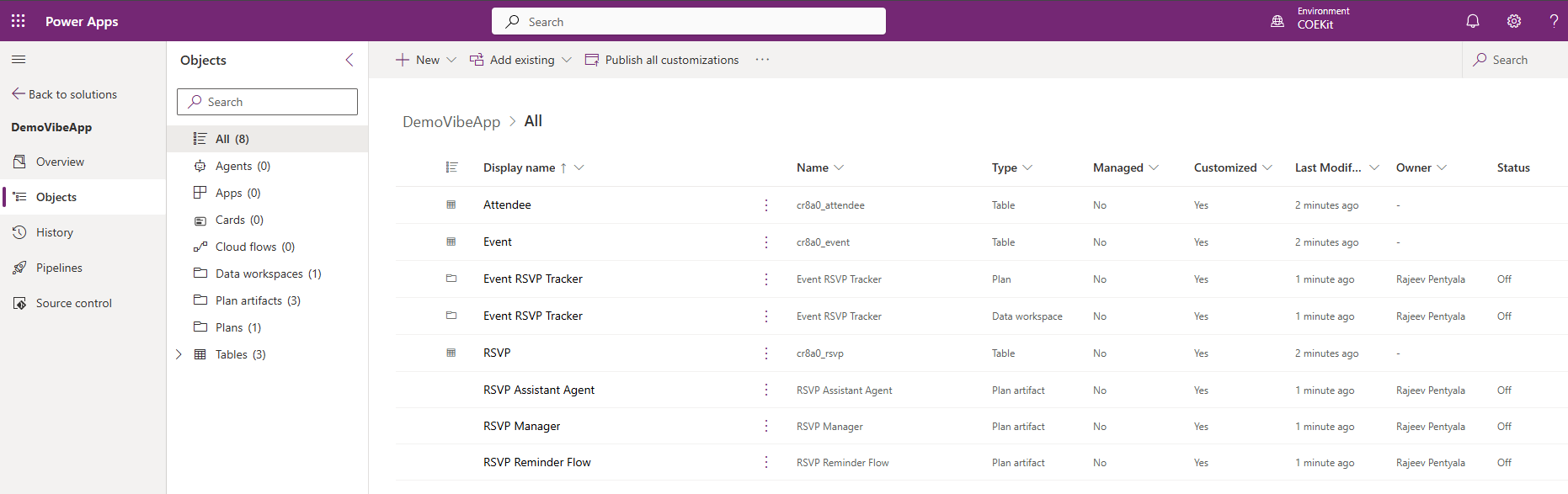
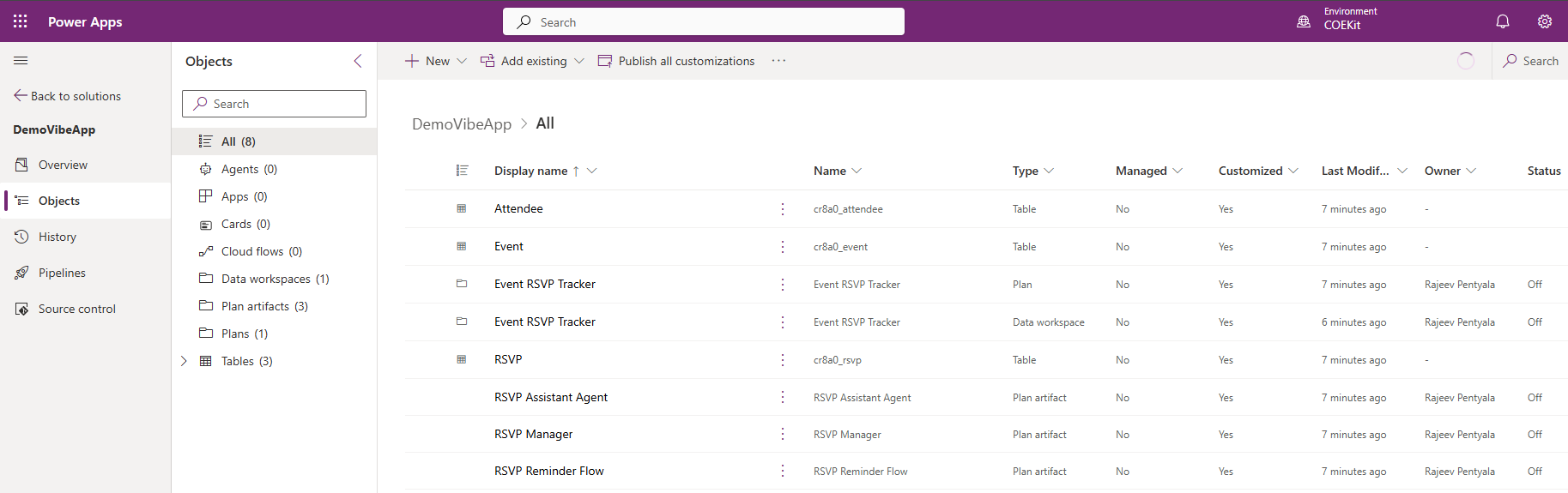
- After publishing, all related tables and components are created and added to your Dataverse solution.
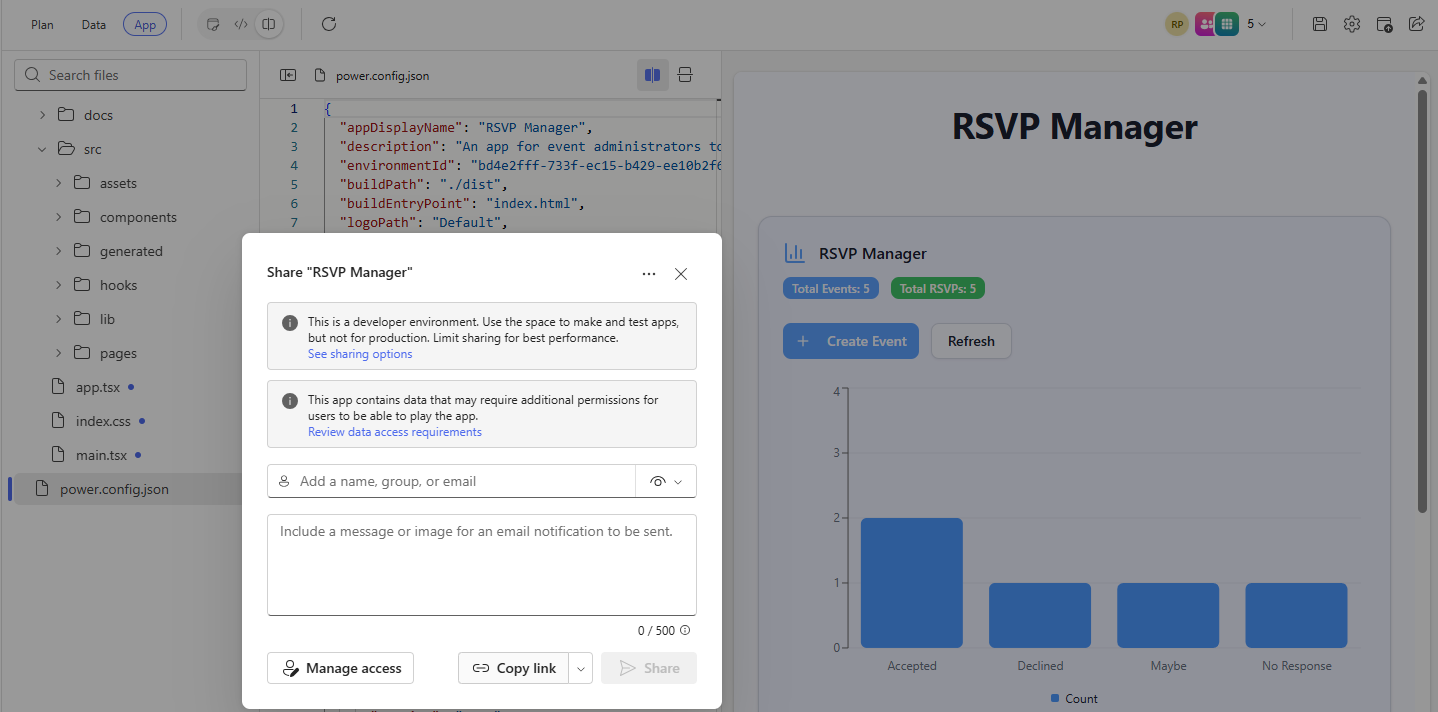
- After publishing, the app is ready to be shared using Share button to top right corner.
- You can copy the app’s URL to launch and test it.
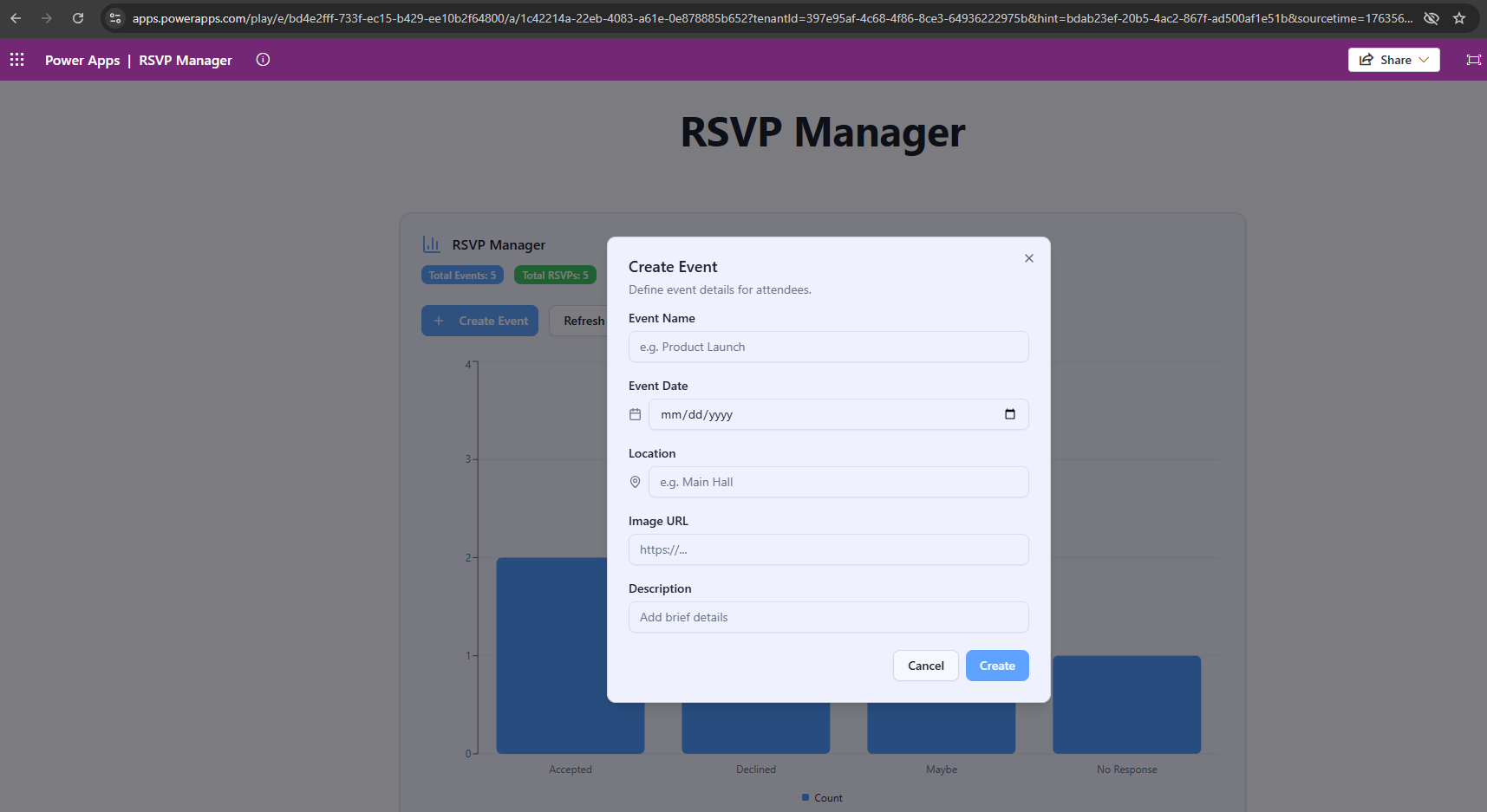
With that, we’ve successfully created an app using the new Power Apps experience.
Few Observations:
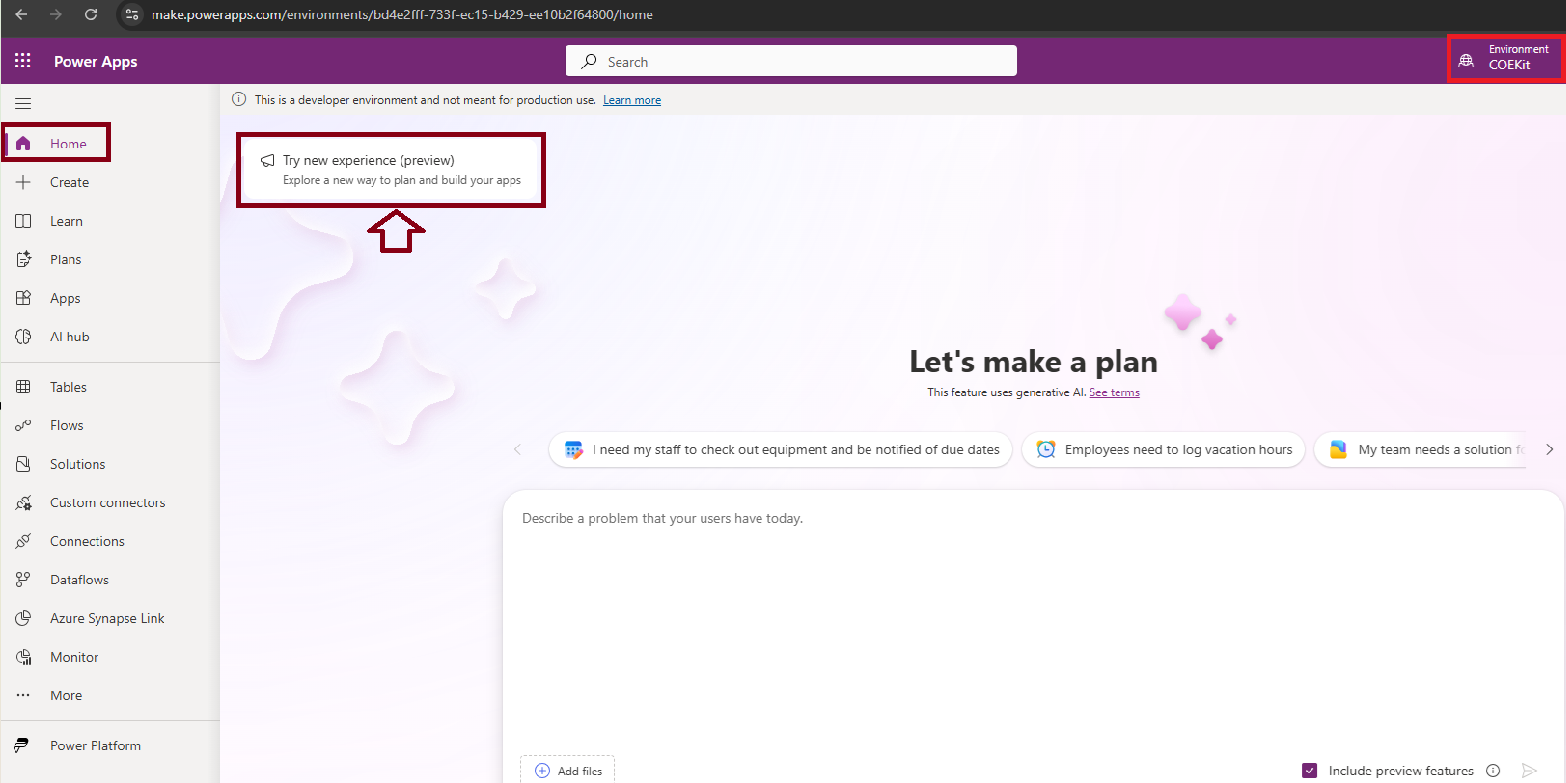
- You can also go to the new Power App experience from Power Apps Maker Portal at make.powerapps.com. From there, go to Home > Try new experience (preview) to access the new app builder.
- Regarding the Dataverse solution, I didn’t find an option to choose a specific solution during app creation. As a result, all components are stored in the in Preferred Solution for the environment.

- It’s important to configure the Preferred Solution before creating the app. Once the app is published, all related components will be available in that solution.
For more details, refer to the official Microsoft documentation: New Power Apps experience
🙂



 Rajeev Pentyala – Technical Blog on Power Platform, Azure and AI
Leave a comment