In one of my previous articles : Build an Agent with ‘Knowledge’ and ‘Agent Flow’ , I created a simple Running Event Registration agent. It could:
- Answer user questions about the event—such as pricing and timing—using a Word document added as a knowledge source.
- Collect user details and create a registration record in a Dataverse table.
The agent worked well for these tasks. However, if I wanted to ask about the registrations—for example, how many people have registered so far or how many participants are under 25—it wouldn’t be able to answer. Instead, it would respond like this:

In this article, we’ll Integrate the Dataverse RunningEventRegistrations table as the agent’s knowledge source. This allows the agent to use and respond based on the data stored in the table.
To add a Dataverse table as a knowledge source and enable search on its columns, follow these basic steps at Dataverse level:
Enable Search Support for a column:
- Login to Power Apps maker portal
- Open the RunningEventRegistrations table.
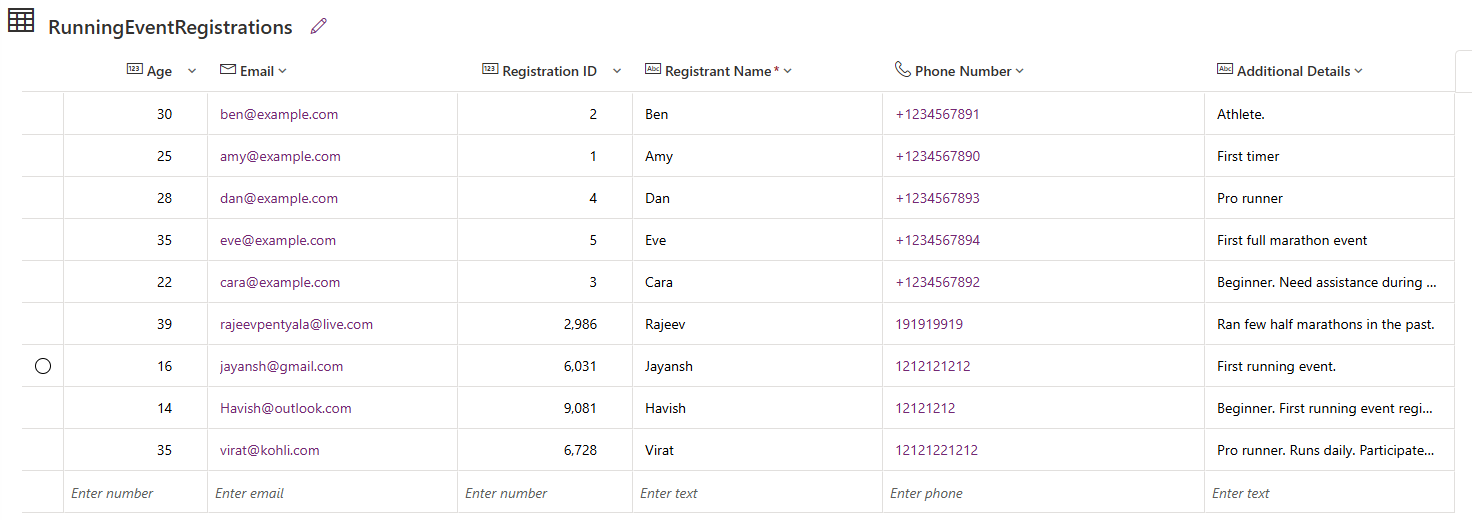
- Let’s say you want your agent to answer questions like “How many participants are under 25 years old?” or “How many are beginner runners?” To make this possible, you need to enable search on the relevant columns in your table.
Here are the steps to enable search on a Multiline Text column:
- Turn on the Searchable setting for the column you want the agent to search.

- Open the Quick Find View
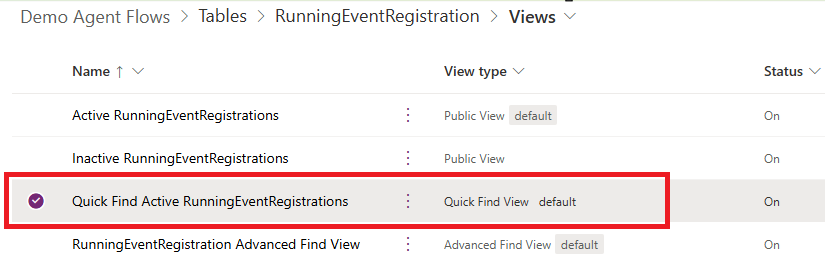
- Click on Edit find table columns…

- Select the columns as shown below.

- Select Save and Publish to publish the changes to the view.
We’ve completed the configuration on the Dataverse table side. Now, let’s head over to Copilot Studio and set up the agent.
Add Dataverse tables as a knowledge source:
- Sign in to Copilot Studio.
- Navigate to Agents → Open agent.
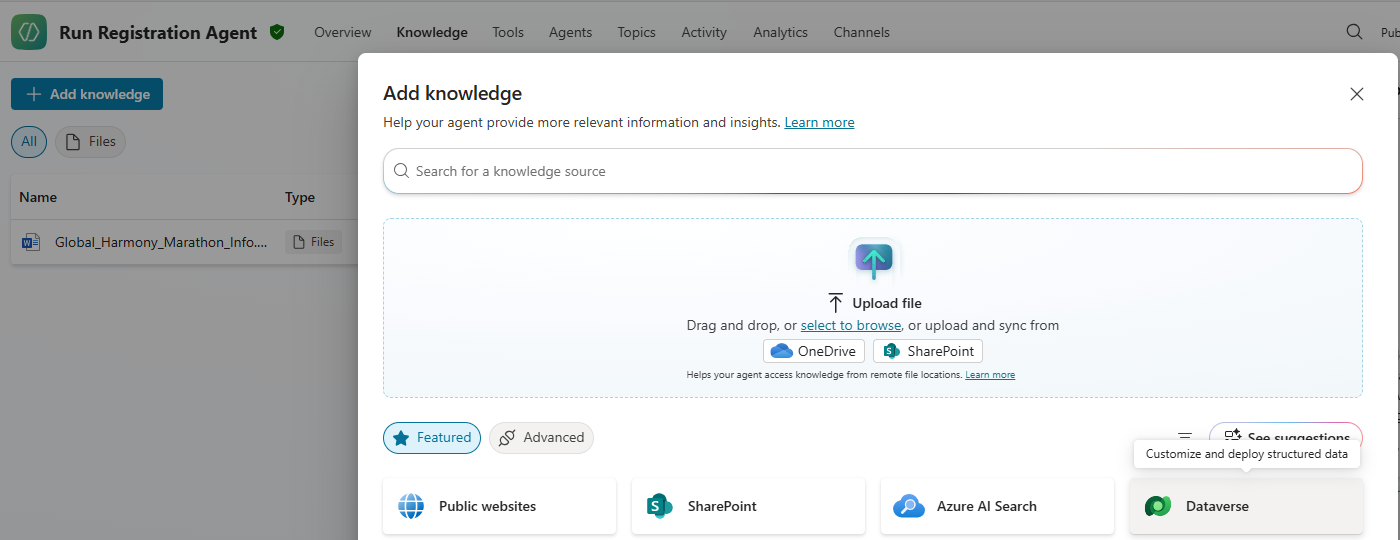
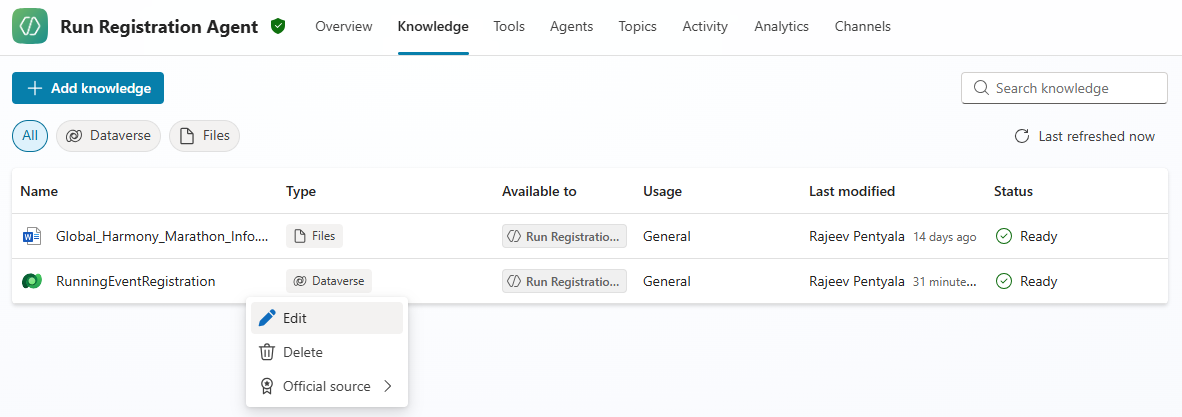
- Go to Knowledge and click on Dataverse
- Select the table and click on Add to agent
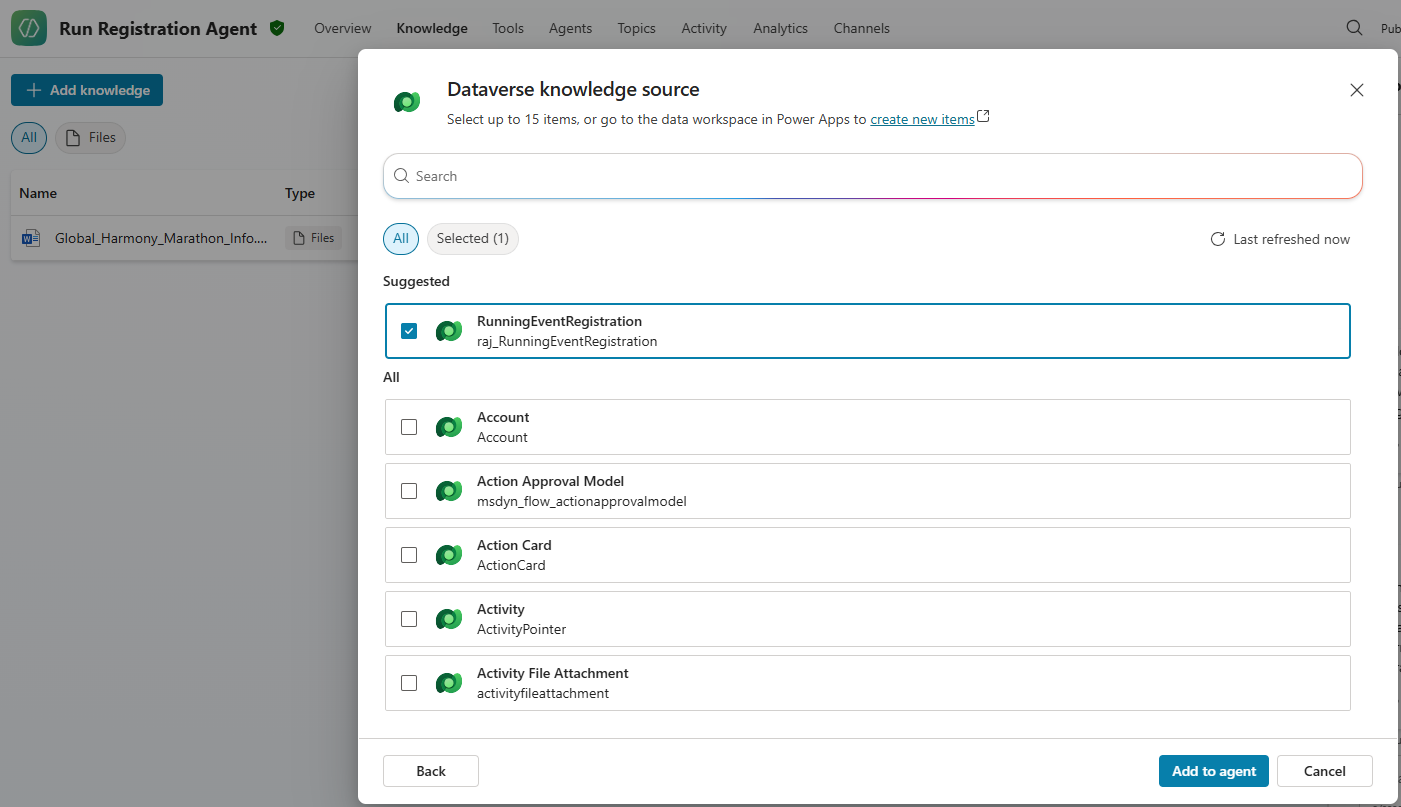
- Wait a few minutes until the Status of the RunningEventRegistration knowledge shows as Ready.
- Next, we need to configure a few settings for the RunningEventRegistration knowledge. Click Edit to continue.
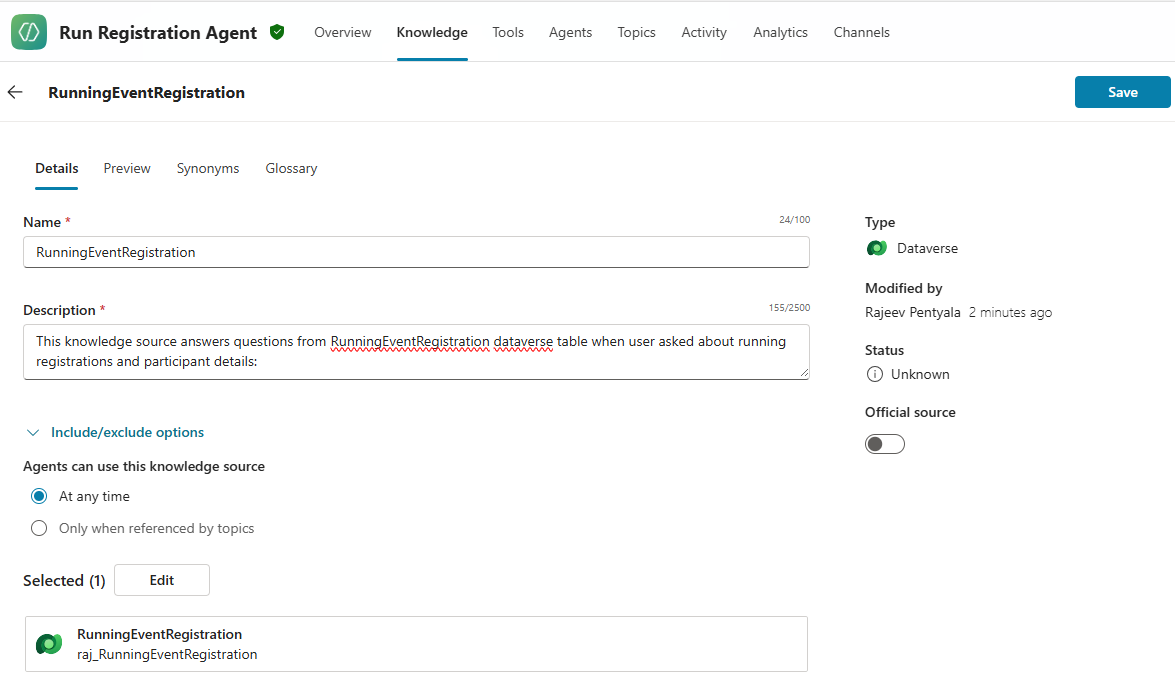
- In the configuration page, provide following description:
This knowledge source answers questions from RunningEventRegistration dataverse table when user asked about running registrations and participant details.
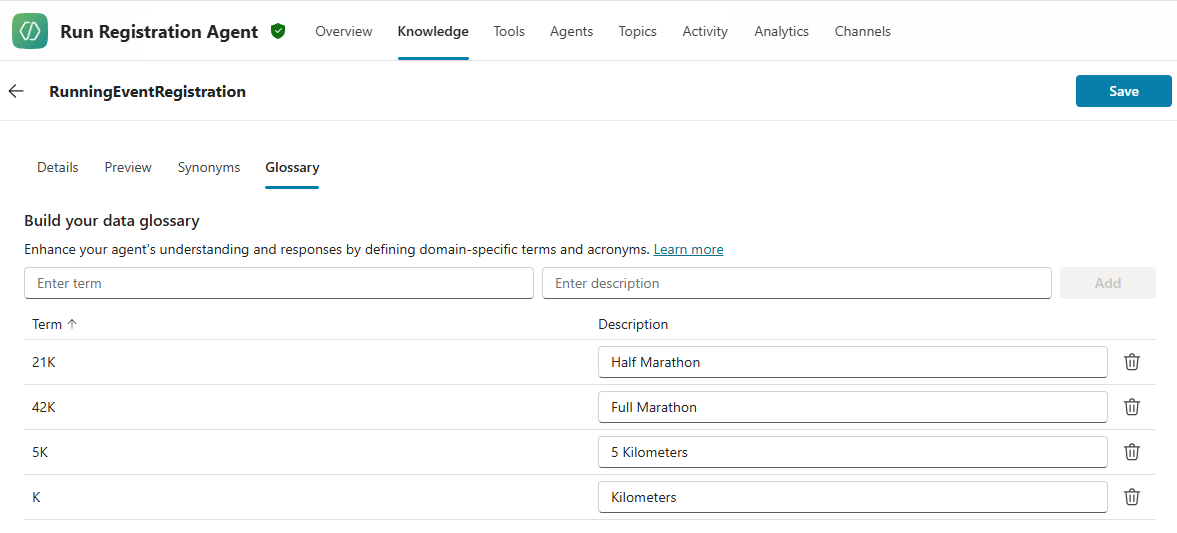
- Configure the Glossary to help the agent understand and paraphrase the terminology used in your Dataverse table. This improves how the agent interprets user questions and delivers more accurate responses.
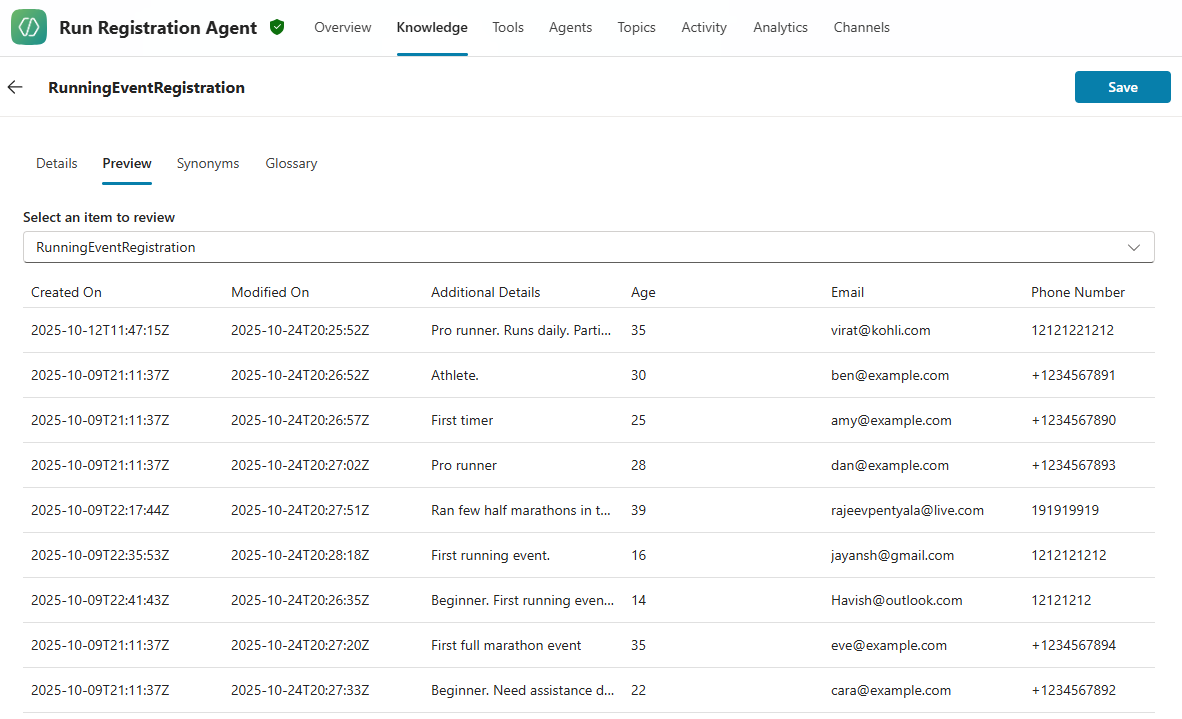
- You can also Preview the table data as shown below.
- Click on Save
We’ve successfully added the RunningEventRegistration table as a knowledge source. Now it’s time to test the agent.
Test the agent:
- Try asking: “How many registrations have been completed so far?”. The agent should respond with the total number of rows in the table.
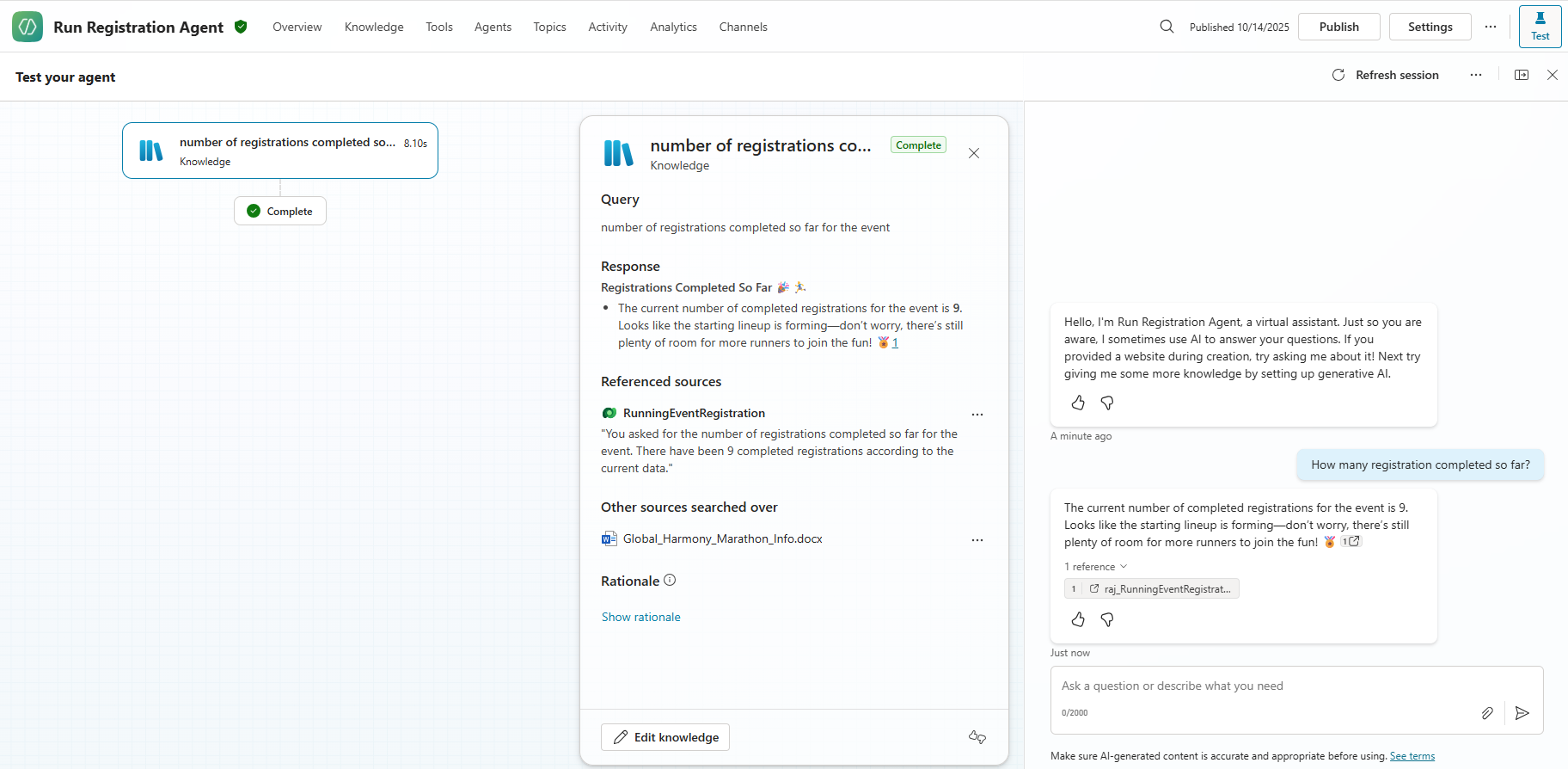
- Next, try asking: “Of the registered participants, how many are under 25 years old?”. The agent will search the Age column and return the correct count.
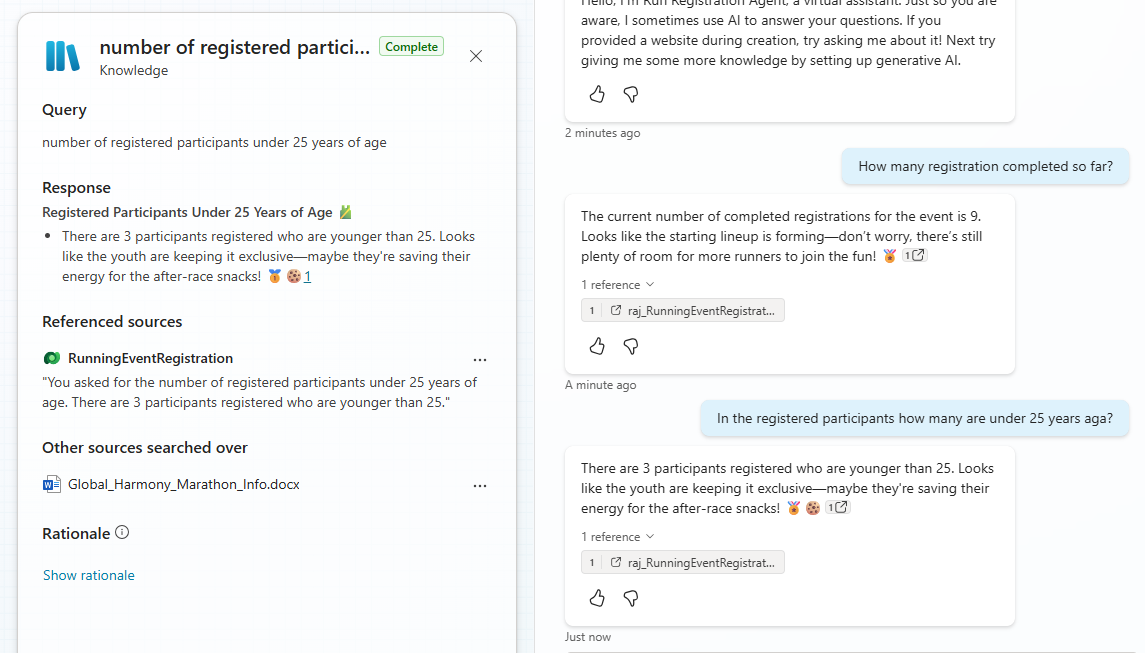
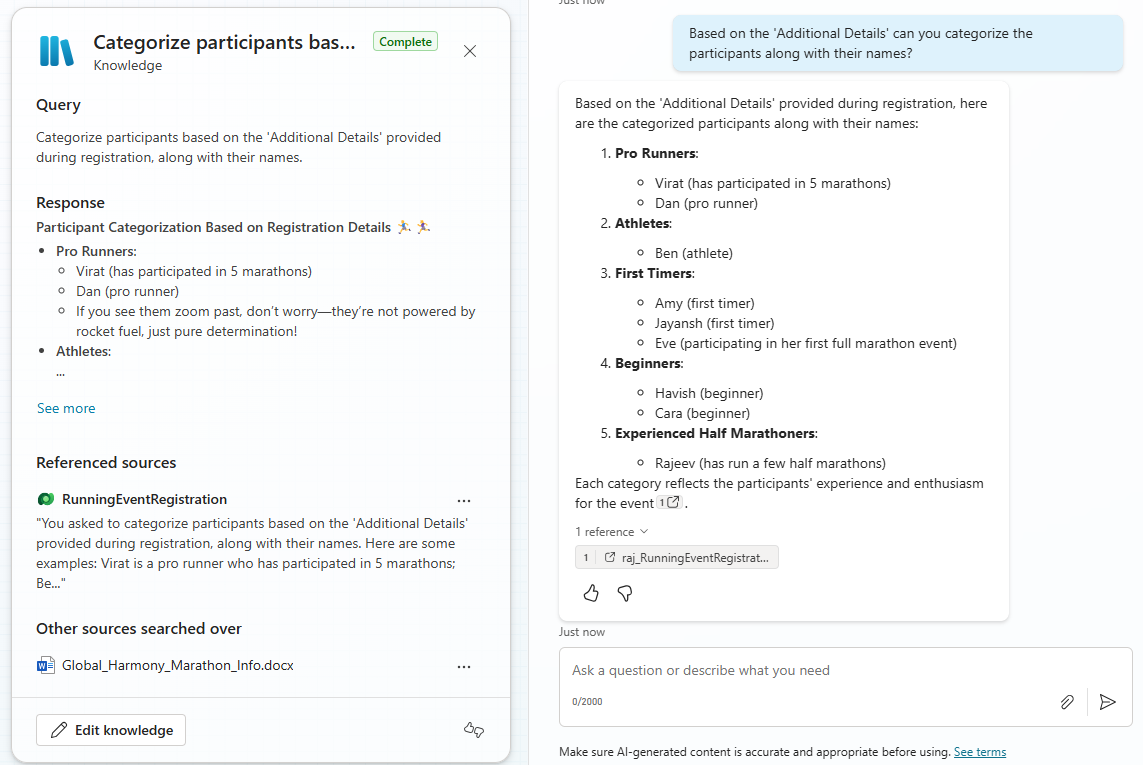
- As a final test, let’s try a prompt that involves unstructured reasoning using a Multiline Text column.
- Ask: “Based on the ‘Additional Details’, can you categorize the participants along with their names?”. The agent will analyze the content in the Additional Details column and respond with categorized participant names.
With that, we’ve successfully configured the agent with the Dataverse knowledge source.
During the setup and testing, I observed the following key behavior:
Key Behavior:
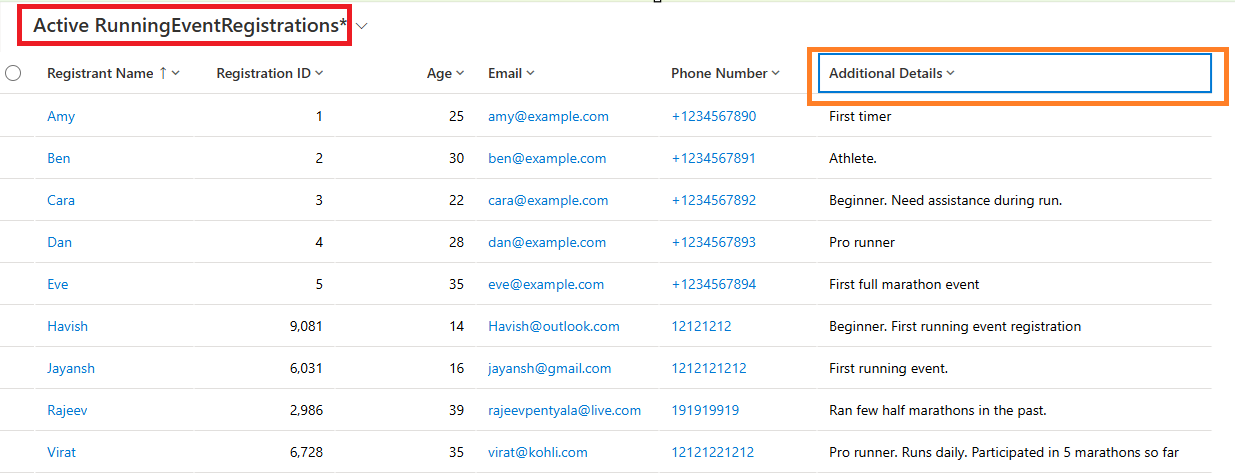
- By default, the agent queries the Active view of the table, as shown below citation.
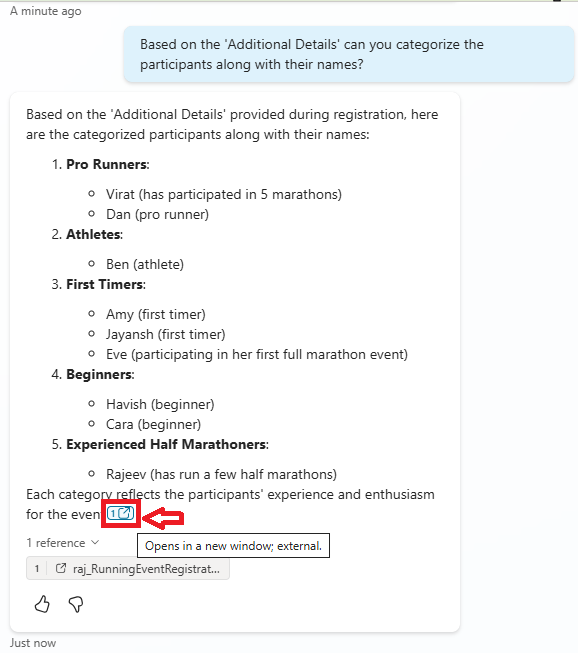
- To ensure accurate responses, make sure the columns you want the agent to query are included in the Active view.
I hope this walkthrough helped you understand how to use a Dataverse table as a knowledge source in Copilot Studio.
🙂



 Rajeev Pentyala – Technical Blog on Power Platform, Azure and AI
Leave a reply to Copilot Studio | Create tests to evaluate Agent – Rajeev Pentyala – Technical Blog on Power Platform, Azure and AI Cancel reply