In this article, I’ll walk you through how to get started with Microsoft Semantic Kernel using Ollama for running AI models locally on your machine.
This blog post is targeted for beginners and I will be covering following topics:
- What is Microsoft Semantic Kernel?
- What is Ollama?
- Why I chose Ollama
- How to install and set up Ollama
- Building a simple C# console app using Semantic Kernel and Ollama
Prerequisites:
- Visual Studio Code or Visual Studio
- A laptop with at least 16 GB of RAM
What is Microsoft Semantic Kernel?
- Semantic Kernel is a open-source development kit that lets you easily build AI agents and integrate the latest AI models into your C#, Python, or Java codebase.
- With Semantic Kernel, you can combine:
- AI-generated answers using an LLM
- Custom functions (e.g., read/write from a database)
- You’re not just chatting with AI — you’re building smart agents that think and act.
What is Ollama:
- Ollama is a tool that lets you run AI models locally on your own computer.
- You can download models like
phi3,mistral, orllama3and use them without an internet connection or cloud billing.
Why I chose Ollama:
I initially tried using the OpenAI API since I already had a ChatGPT Plus subscription. However, I learned that, ChatGPT Plus ≠ OpenAI API access. To use the API, I must purchase API usage credits separately.
I decided to switch to Ollama, which let me run models locally without any additional cost.
- No API costs -Perfect for local development and experimentation
- Works offline — Everything runs on your own machine
- Lightweight — For example, the
phi3model is only ~2.2 GB to download
Setup Ollama and use Ollama models:
Since I’m working on a Windows machine, the following steps are specific to Windows OS users.
Step 1: Download and Install Ollama
- Go to https://ollama.com/download
- Download the Windows installer

- Run the installer and complete the setup

Once installed, you can open the Command Prompt to start using it.
Choose and Run a Model:
To keep things lightweight, I chose the phi3
- To download and run the
phi3model, open Command Prompt and run:
ollama run phi3

- Wait for the success which indicates model is running.
- Once the model is running, you can start chatting with it directly from the Command Prompt. Type your questions, and the model will respond right in the terminal.
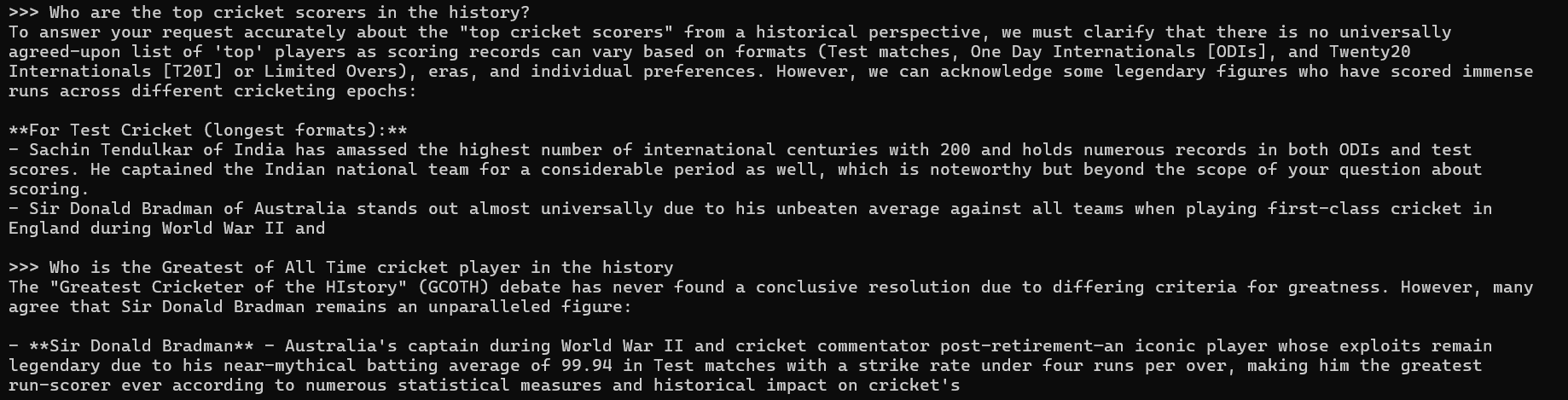
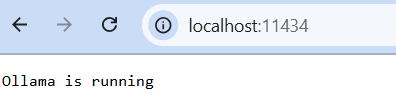
- In addition, Ollama also exposes a local API at:
http://localhost:11434. - You can open this URL in your browser to confirm it’s running — you’ll see a message like:
“Ollama is running”
- Keep the Command Prompt open while running the model. Closing it will stop the model and disconnect any applications using it.
With that, you’ve completed the setup of the Ollama tool and started a local model successfully.
Now let’s see how to use the Semantic Kernel SDK with the locally hosted model.
Simple C# Console App Using Semantic Kernel and Ollama:
- Open Visual Studio Code or Visual Studio.
- I’ve used Visual Studio Code for this example.
- Create a C# Console project. If you are new, refer this Create, build and run a console application
- Install following nuget packages:
- Microsoft.SemanticKernel
- Microsoft.SemanticKernel.ChatCompletion
- In the program.cs file add following code.
using Microsoft.SemanticKernel;
using Microsoft.SemanticKernel.ChatCompletion;

var builder = Kernel.CreateBuilder();

// Connect to local Ollama API
builder.AddOpenAIChatCompletion(
    modelId: "phi3", // matches your ollama model
    apiKey: "ollama", // dummy key, required by SDK but ignored locally
    endpoint: new Uri("http://localhost:11434/v1")
);

var kernel = builder.Build();

var chat = kernel.GetRequiredService<IChatCompletionService>();
var history = new ChatHistory();

Console.WriteLine("Type 'exit' to stop the chat.");
while (true)
{
    Console.Write("You > ");
    var input = Console.ReadLine();
    if (string.IsNullOrWhiteSpace(input) || input.ToLower() == "exit") break;

    history.AddUserMessage(input);

    Console.Write("Bot > Thinking... ⏳");

    var stopwatch = System.Diagnostics.Stopwatch.StartNew();
    var reply = await chat.GetChatMessageContentAsync(history);
    stopwatch.Stop();

    Console.WriteLine($"\rBot > {reply.Content} ({stopwatch.Elapsed.TotalSeconds:F2} seconds)");

    history.AddAssistantMessage(reply.Content ?? "");
}
- Build the project.
- Run the project. You can now start a chat with the model through your console

- The best part? The model remembers the context of your previous messages and responds accordingly. For example, follow-up questions will be understood in context — just like a conversation.
Limitations of of Local Models:
Unlike cloud-based models like GPT-4, not all the local models do not support automatic function calling. This means they can’t natively decide which plugin or function to invoke based on your input.
Refer this blog post on function calling feature.
I hope this walkthrough gave you a clear understanding of how to:
- Install and use Ollama
- Run a lightweight local model (
phi3) - Integrate that model with Microsoft Semantic Kernel using a C# console app
🙂




 Rajeev Pentyala – Technical Blog on Power Platform, Azure and AI
Leave a comment