Power Pages allows you to build a website that supports multiple languages using a single content structure. This helps deliver a consistent experience to users across different regions.
In this article, I’ll explain how to enable multilingual support, with a focus on Arabic. Arabic is a good example because it comes with both content translation and layout adjustment—from left-to-right (LTR) to right-to-left (RTL).
High-Level Steps:
- Enable Languages in your Dataverse Environment
- Enable desired languages so they become available for use in Power Pages.
- Create Portal Language Records
- Use the Power Pages Management app to add language records to your site.
- Refresh Power Pages Website metadata translations
- Sync metadata to generate translation files for pages, forms, and content.
- Test the translations
- Open the website in the selected language and verify the translated content and layout.
Let’s begin by enabling the required languages in your Dataverse environment.
Step 1: Enable Languages in Dataverse Environment:
- Sign in to the Power Platform Admin Center
- Select your environment, then go to Settings > Product > Languages.

- Choose the languages you want to enable and click Apply. In the confirmation popup, click OK.
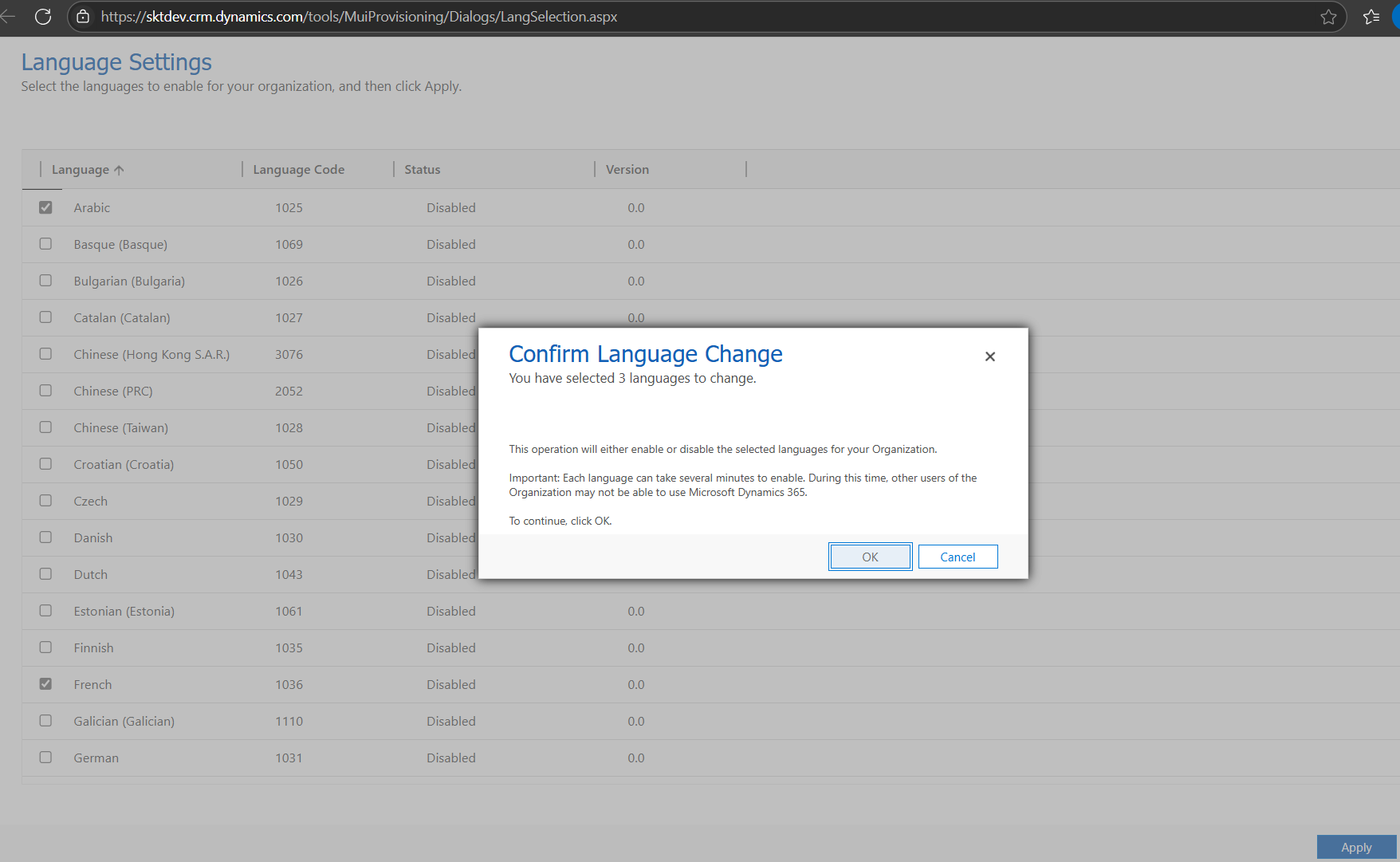
- Language pack installation typically takes 30 minutes to 1 hour. Once completed, the status will show as Enabled.
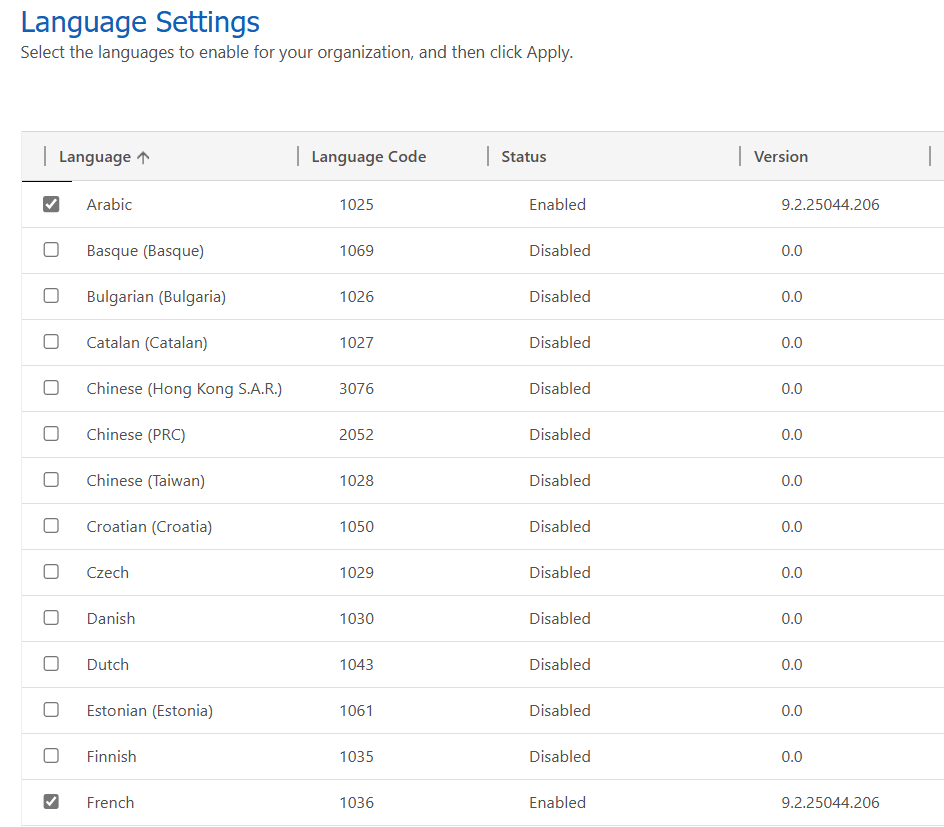
Wait until the language status is fully enabled before moving to the next step. Provisioning may take some time.
Once the languages are enabled in Dataverse, the next step is to create Portal Language records for your website.
Step 2: Create Portal Language Records in Power Pages Management App:
- Open the Power Pages Management Model Driven App.
- Navigate to Website > Websites.
- Select the website to add language support to.
- In the Supported Languages section under the General tab

- Select New Website Language.
- Fill in the form, including Portal Language (a lookup of languages that are activated in the organization and are supported by portals) and Publishing State.

- Form should look as below.
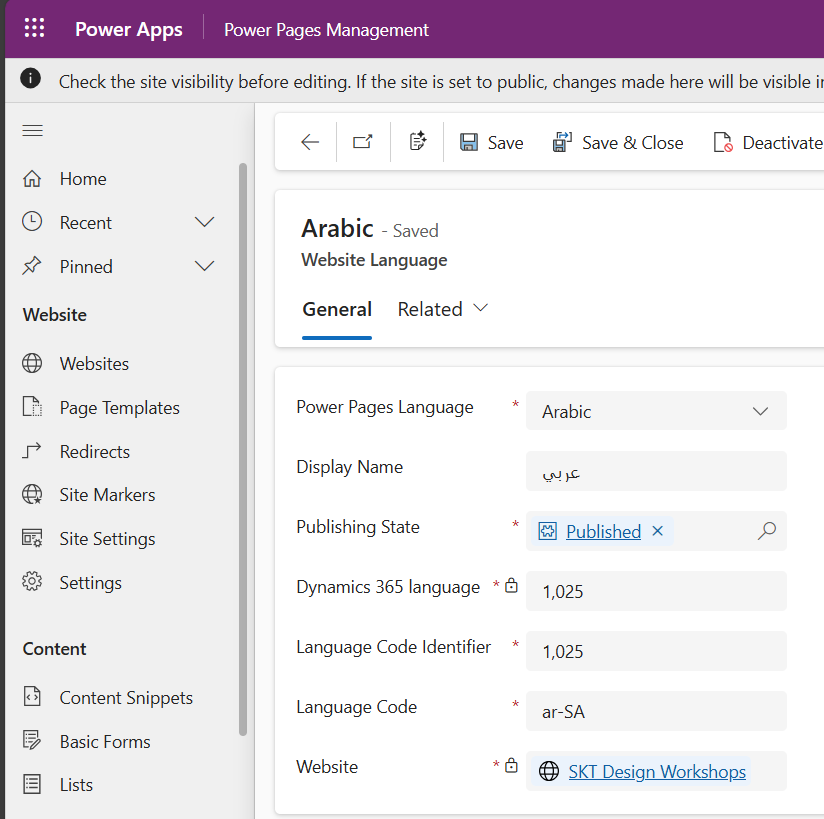
- Repeat this step for each language you want to support.
After adding supported languages to your website, you need to refresh the metadata translations.
Step 3: Refresh Power Pages Website metadata translations:
After adding supported languages to your website, you need to refresh the metadata translations.
When a new language is activated, to get the metadata translation for the newly activated language, you must import the metadata translations.
- Open the Power Platform admin center.
- Select Manage tab, select Power Pages.
- Select the site, and choose Manage from the menu.

- On the website details page, from the main menu, select the ellipse (…) and then choose Metadata translations.
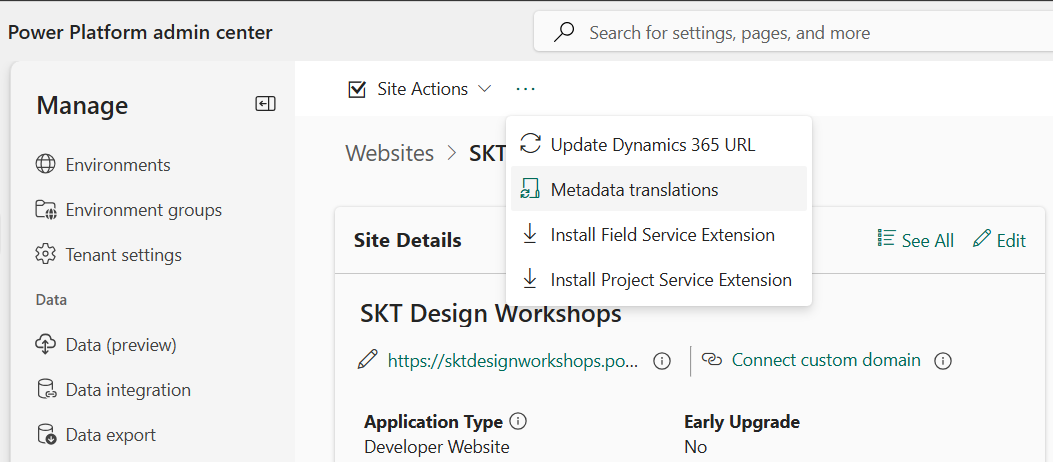
- Select Update. The solutions will be updated with the latest metadata translation.

By default, enabling a language in Dataverse only updates field labels on entity forms. To translate site navigation links (Refer below), you need to update the Web Link Set

Step 4: Update Web Link Translations
- Open the Power Pages Management Model Driven App.
- Go to Content > Web Link Sets.
- You’ll see a separate Web Link Set for each enabled language.

- Since we’re focusing on Arabic, open the Web Link Set labeled as Default for Arabic.
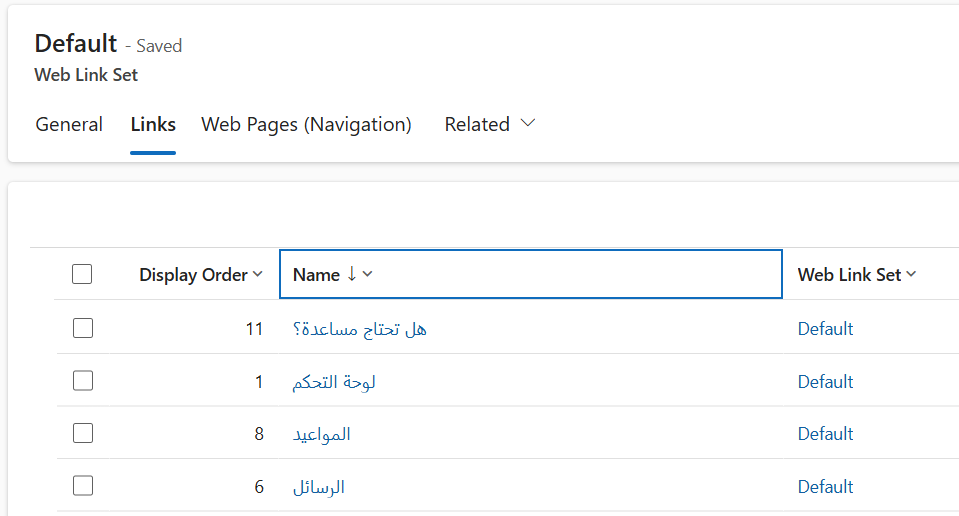
- Update the Link Titles with the translated text. You can use tools like Google Translate for basic translation.
Now that we’ve completed the main configuration steps, it’s time to test the multilingual setup.
Note: In my example, not all Web Link Set items are fully translated. So you may notice a mix of English and Arabic in the screenshots. The purpose of this article is to demonstrate the setup process, not a fully translated site.
Test the translations:
- Login to the portal and change the Preferred Language in Profile screen.
- Go to your Profile page and change the Preferred Language to Arabic.
- Sign out and sign back in — the portal should now load in Arabic by default.
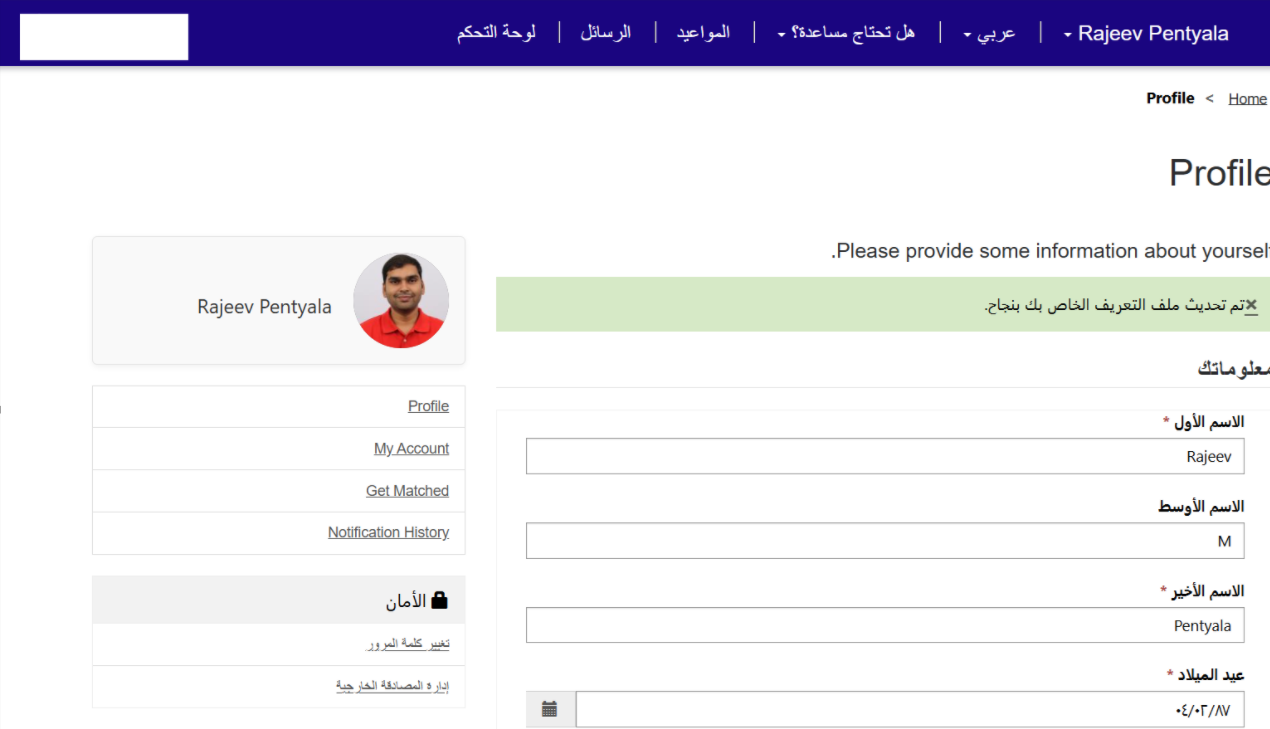
- You can also switch languages using the language dropdown on the website.

- As shown in the screenshot, when you switch to Arabic, the text alignment also changes from left-to-right (LTR) to right-to-left (RTL)
Why Some Text Remains in English After Language Switch
You might notice that certain parts of your Profile page show English text even after switching to Arabic.
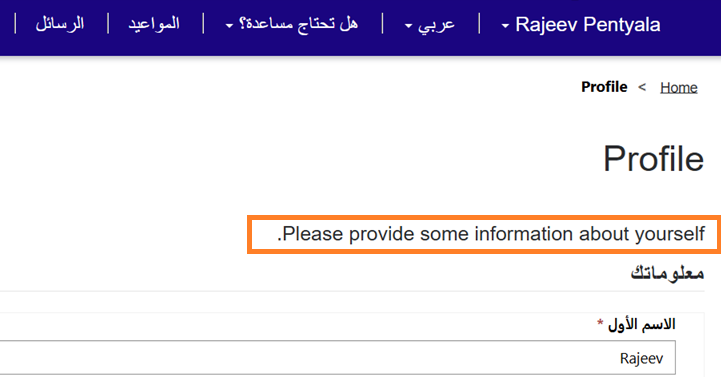
This usually happens when static content is hardcoded directly into the Web Page.
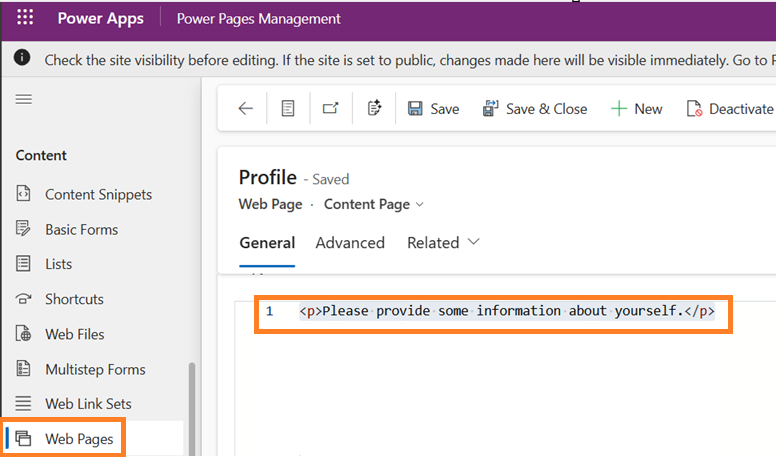
In the next article, I will explain how this can be handled using Content Snippets
🙂



 Rajeev Pentyala – Technical Blog on Power Platform, Azure and AI
Leave a comment