In one of my previous articles : Graph API: Teams Meeting Creation with ‘Lobby Bypass’ I explained how to configure lobbyBypassSettings using Microsoft Graph API.
In this article, we’ll look at how to configure Record and transcribe automatically setting for a Teams meeting using Graph API in Power Automate Cloud Flow.

Scenario Overview:
- Create a Teams Meeting using Microsoft Teams connector
- Retrieve the Meeting properties like Join Web URL
- Create Entra app registration to connect to the Graph API:
- Use Graph API to find the Meeting and configure settings
The completed flow looks as below:

Let’s break down each step.
Step 1: Create a Teams Meeting using Microsoft Teams connector
- Create a new Power Automate Cloud Flow.
- Add Create a Teams meeting action under the Microsoft Teams connector.
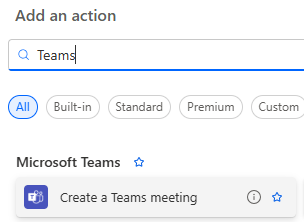
- Configure the properties, such as, Subject, Participants, etc..

Step 2: Retrieve the Meeting ID and Join URL
- After creating the Teams meeting, capture the Meeting ID using the following expression and store it in a variable varMeetingId
outputs('Teams_meeting')?['body/id']

- We need the created meeting event details. So add Office 365 Outlook > Send an HTTP request action.

- In the URI, set https://graph.microsoft.com/v1.0/me/events/varMeetingId
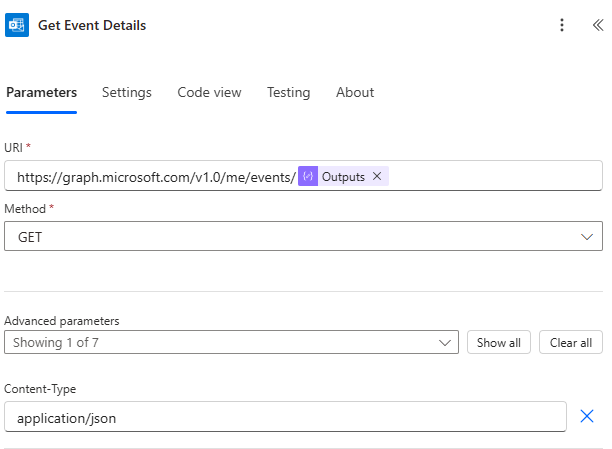
- Next, extract the Join URL from the response and store it in another variable
**varMeetingURL**using this expression:
body('Get_Event_Details')?['onlineMeeting']?['joinUrl']

Once we have the Join URL, we can use Microsoft Graph API to identify the meeting and update its settings, such as enabling auto-recording and transcription.
Let’s walk through those steps next.
Step 3: Create Entra app registration to connect to the Graph API:
- We need to set up a Entra app registration to connect to the Graph API from cloud flow.
- Follow the steps mentioned here : Create a Microsoft Entra app registration to connect to Microsoft Graph
Once the app is registered, note down the following values:
- Client ID
- Client Secret
These will be used for authentication in upcoming steps.
Step 4: Use Graph API to find the Meeting and configure settings:
Now that we have the Join URL and app credentials, let’s locate the Teams meeting and update its properties.
- Add a HTTP action and name it as Find online meeting by join URL
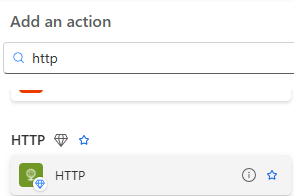
- Choose Authentication type as Active Directory OAuth and configure as shown below:

- To retrieve the meeting details from Graph API, we need to construct a
GETrequest using two inputs:- The GUID of a Dataverse Environment Admin user who has a Microsoft Teams license
- Teams Meeting Join URL, stored in the variable
varMeetingURL
- Here is how the URI looks:
https://graph.microsoft.com/v1.0/users/{GUID of Admin User Id}/onlineMeetings?$filter=JoinWebUrl eq '{outputs('varMeetingURL')}'
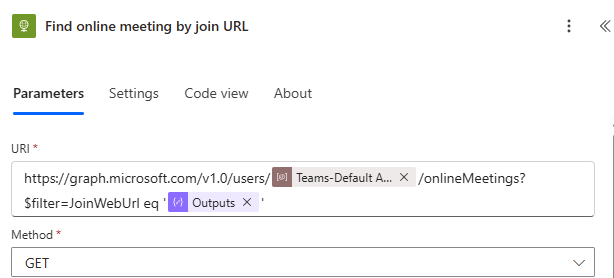
- Once the Find online meeting by join URL HTTP action executes, it returns an id. We need to capture the id for next step. You can use this expression to capture the id : outputs(‘Find_online_meeting_by_join_URL’)?[‘body/value’][0]?[‘id’]
Step 6: Update Meeting Settings (Enable Auto-Record and Transcription)
Now that you’ve captured the id from the Find online meeting by Join URL step, you can use it to update the meeting settings.
- Add a new HTTP action, just like the previous one.
- Use the same authentication method (Client ID, Secret, and token setup).
Configure the action as follows:
- Method : Patch
- Body : { “allowRecording”: true, “allowTranscription”: true, “recordAutomatically”: true }
- URI : https://graph.microsoft.com/v1.0/users/{GUID of Admin User Id}/onlineMeetings/{id from Find online meeting by join URL action}

That’s all needed!
Run the flow, and it will:
- Create a Teams meeting,
- Retrieve its Join URL,
- Locate the meeting via Graph API, and
- Automatically enable recording and transcription.
🙂



 Rajeev Pentyala – Technical Blog on Power Platform, Azure and AI
Leave a comment