Let’s say you need to create a Power BI report that pulls basic contact details — like First Name and Last Name — from the Dataverse Contact table and share it with business users across different environments.
The requirement:
Users should be able to open the report, enter their Dataverse environment URL, and fetch data without editing any queries.
To achieve this, we’ll use a Power BI Template file (.PBIT) file.
What This Article Covers
In this article, you’ll learn how to:
- Build a Power BI report that connects to Dataverse
- Add a parameterized environment URL
- Export it as a PBIT template that can be reused across environments
This makes it easy for any user to open the file, enter their URL, and view live data — all without touching the underlying queries.
What is PBIT file:
- A PBIT file (Power BI Template) includes everything needed to recreate the report.
- Unlike
.PBIXfiles (which include data),.PBITfiles are lightweight and designed for reuse.
What You’ll Build:
In this article, you’ll create a Power BI template that:
- Connects to the Contact table in Dataverse
- Prompts the user to enter their Dataverse environment URL
- Loads
First NameandLast Namedynamically
Prerequisites:
Before getting started, make sure you have:
- Power BI Desktop : Download
- A Power Platform environment
Once you’ve met the prerequisites, follow the steps below to create the Power BI Template file:
Create a PBIT File That Connects to Dataverse:
- Launch Power BI Desktop > Blank report.

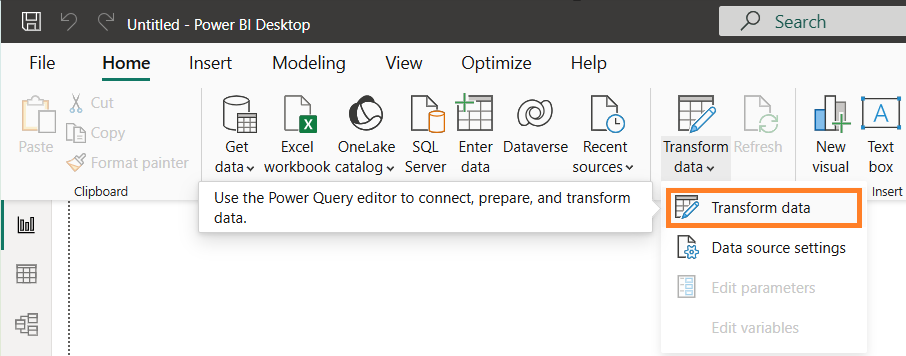
- Go to Home > Transform data to open Power Query Editor.
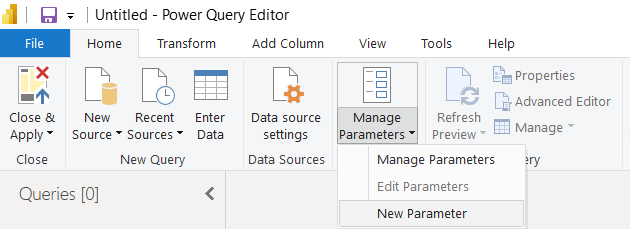
- Create a new parameter, go to Manage Parameters > New Parameter.
- Enter the following Parameter details:
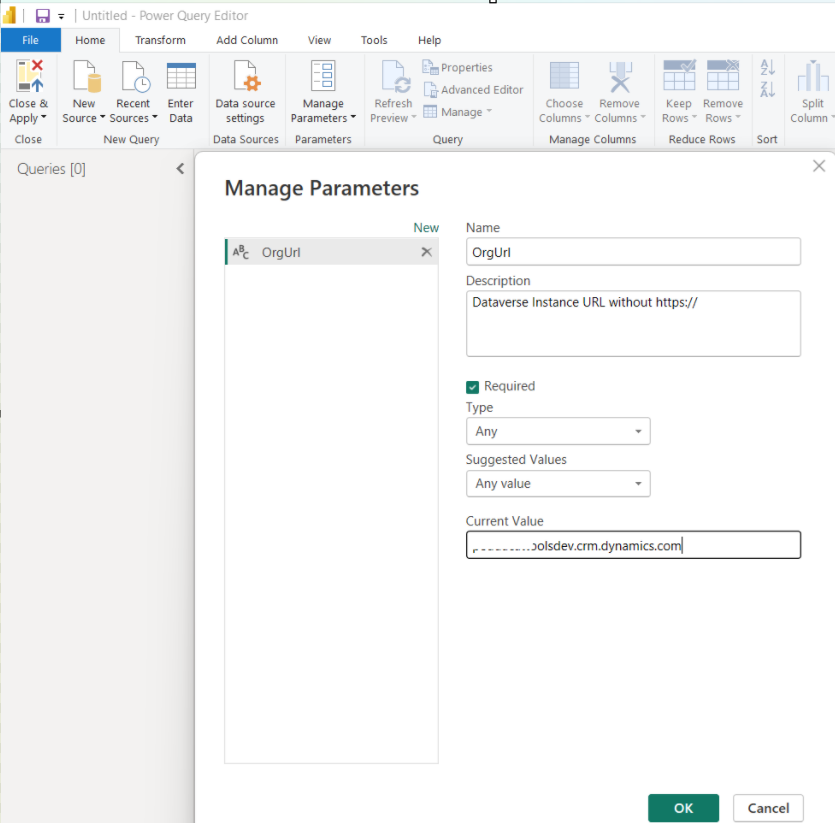
- Click OK to create the parameter.
Create the Contact Query:
- In Power Query, go to Home > New Source > Blank Query

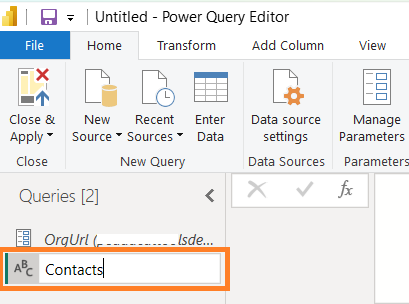
- Right-click the new query on the left pane and rename it to
Contacts.
- Select
Contacts, go to Home > Advanced Editor. - Replace the default code with the following M expression:
let
    OrgUrlWithHttps = "https://" & OrgUrl,
    Source = OData.Feed(OrgUrlWithHttps & "/api/data/v9.2/contacts?$select=firstname,lastname", null, [Implementation="2.0"])
in
    Source

- Click Done
- Complete the authentication and check that the query loads
firstnameandlastnamecolumns of Contacts table.

- Click Close & Apply to load data into the report.
- You will be redirected to main report canvas.

Build a Simple Table Visual:
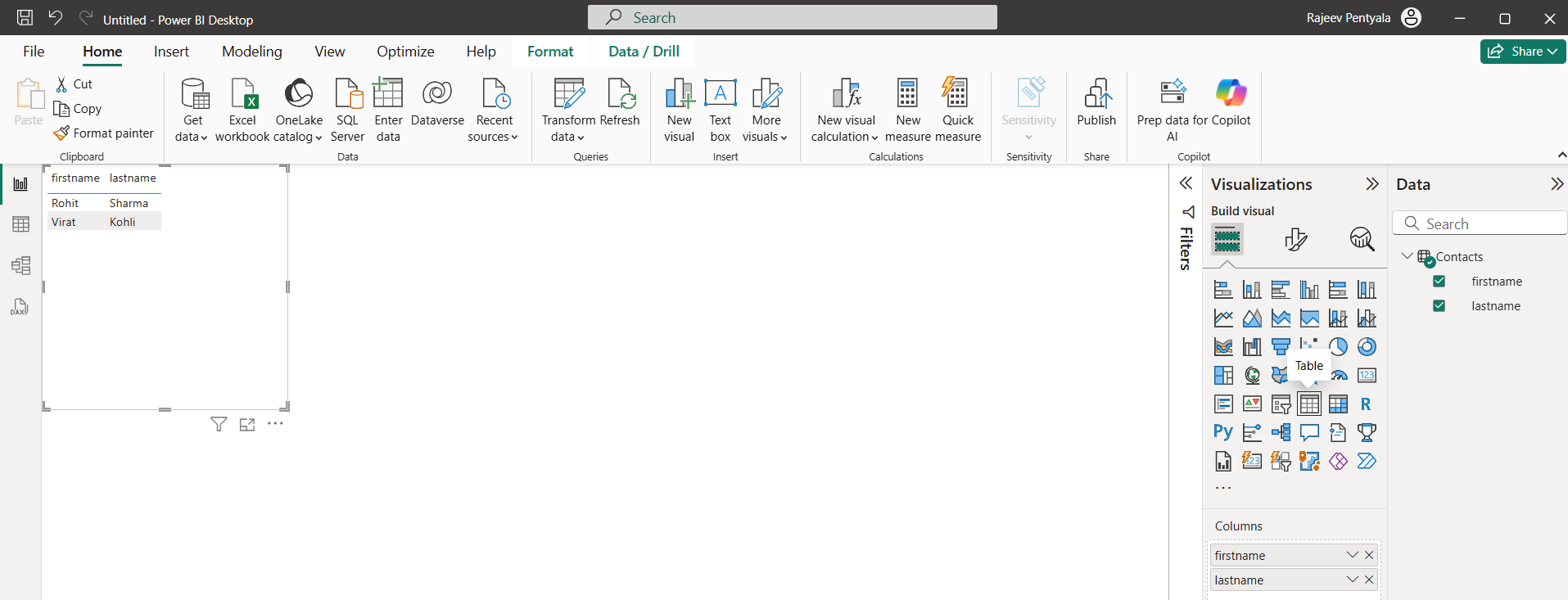
- On the report canvas, click the Table visual.
- From the Fields pane, check
firstnameandlastnamefrom theContactstable.
- Save as Template File (PBIT)
- Go to File > Export > Power BI template.
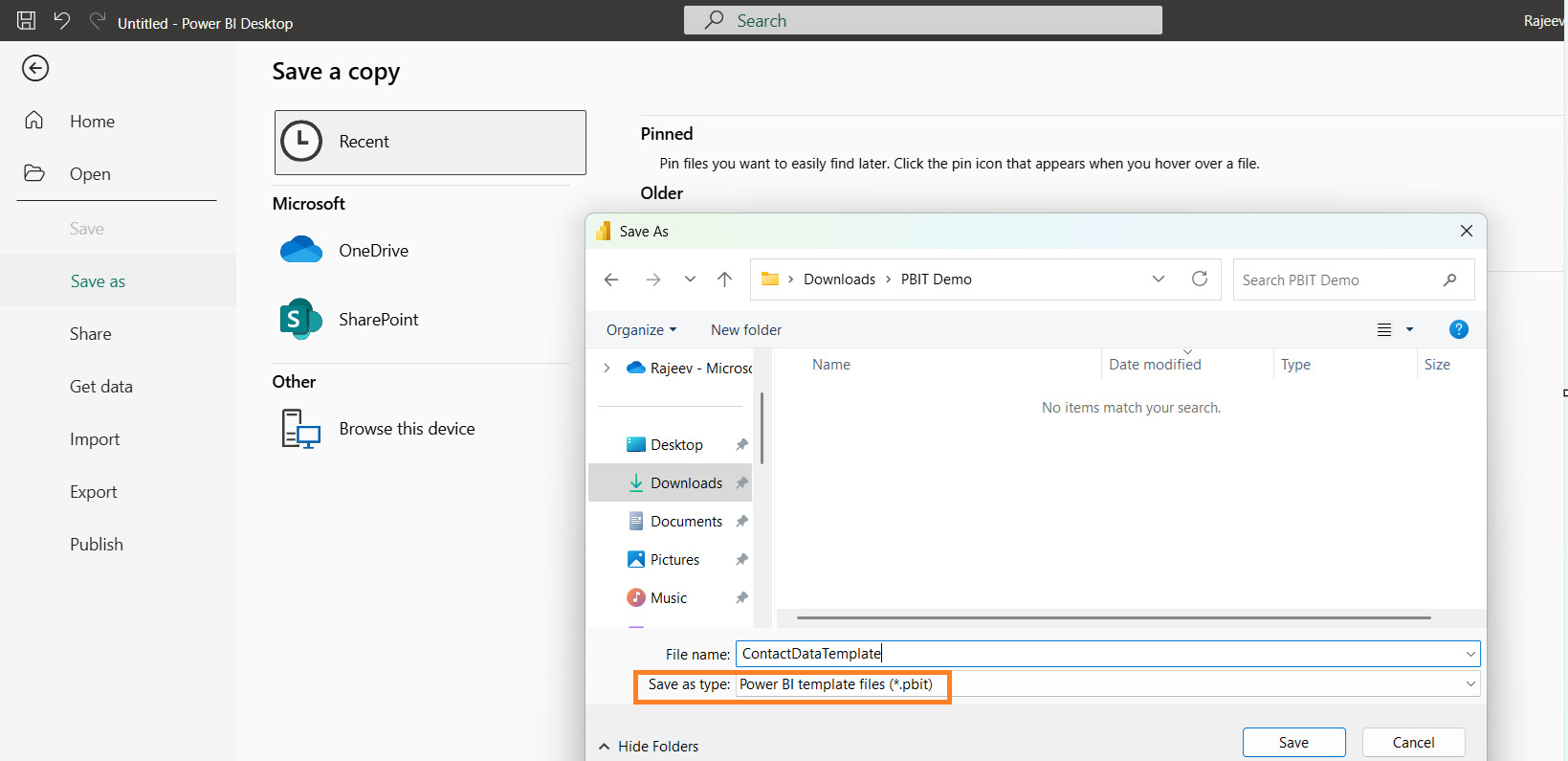
- This file can now be shared with others. When opened, users will be prompted to enter their Dataverse URL and load data dynamically.
Once the .PBIT file is shared, business users can open it and connect it to their own Dataverse environment — without needing to modify any queries or data sources.
How End Users Can Use the PBIT File
- Open the
.PBITfile in Power BI Desktop. - User get prompted to provide the OrgUrl
- If you’re not prompted, go to Power Query Editor, and set OrgUrl parameter without the
https://prefix.

- Click Close & Apply
- Power BI will prompt you to sign in.
- Choose Organizational account and sign in when prompted.

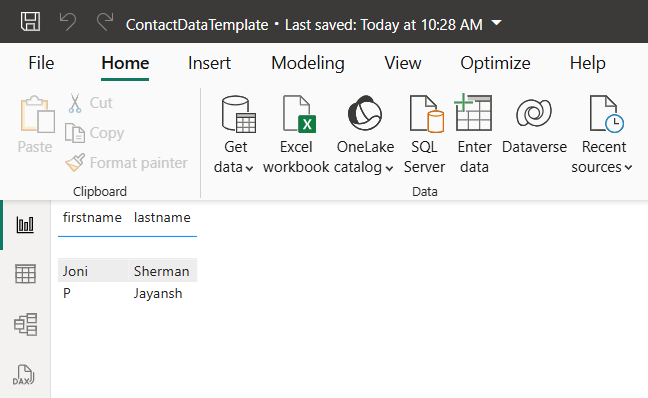
- The report will automatically:
- Connect to Dataverse environment
- Retrieve
First NameandLast Namefrom theContacttable - Display the data in the prebuilt table visual
Hope this article helped you understand how PBIT files can simplify dynamic, environment-specific reporting in Power BI.
🙂


 Rajeev Pentyala – Technical Blog on Power Platform, Azure and AI
Leave a comment