In my previous articles, I explained how to use SVG icons in Canvas Apps by manually modifying the SVG content to make it compatible with Canvas Apps. I also mentioned about a simplified SVG usage approach using https://powerappstools.com/#/svg-to-fx.
In this article, I’ll walk you through PowerIcons, a tool that makes SVG customization much easier.
Steps to Use PowerIcons in Canvas Apps:
- Go to the PowerIcons website.

- Browse and select the SVG icon you like.
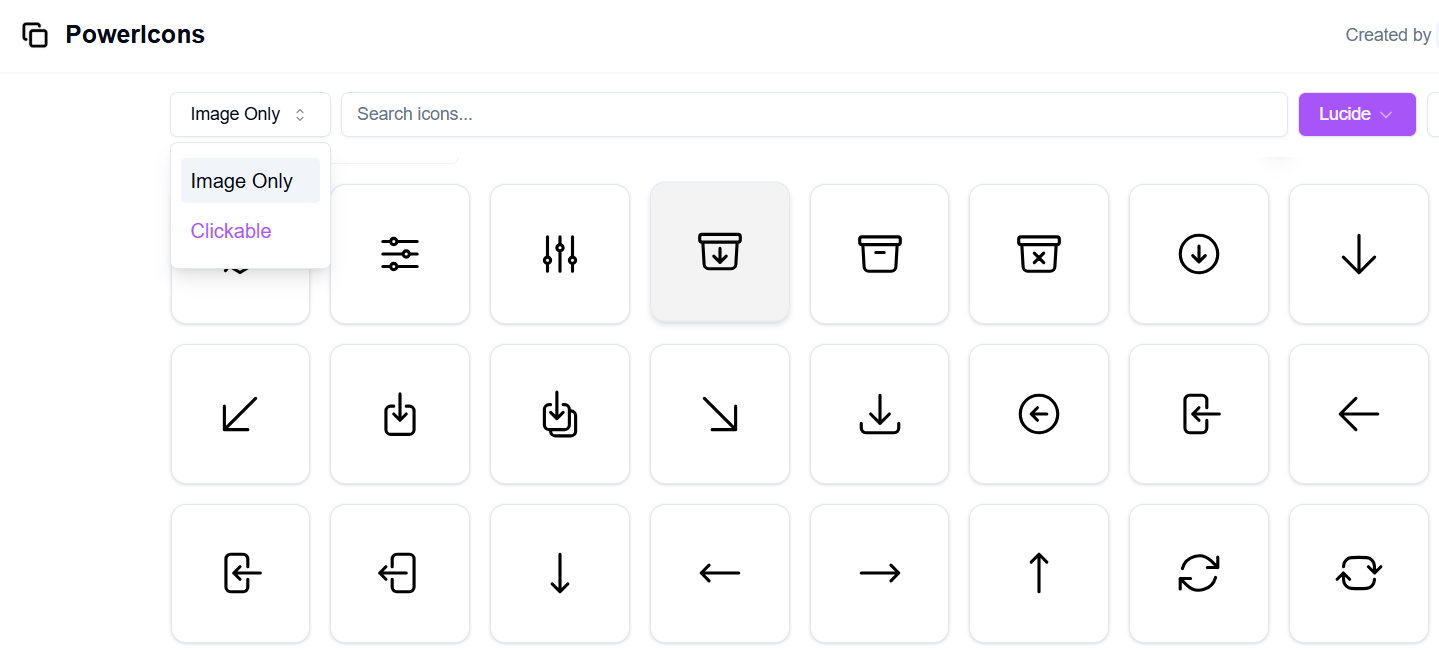
- Click on the icon to copy.

- Go to Canvas App studio > Choose Screen > Right Click > Choose Paste

- That’s it. The SVG will appear on the screen.
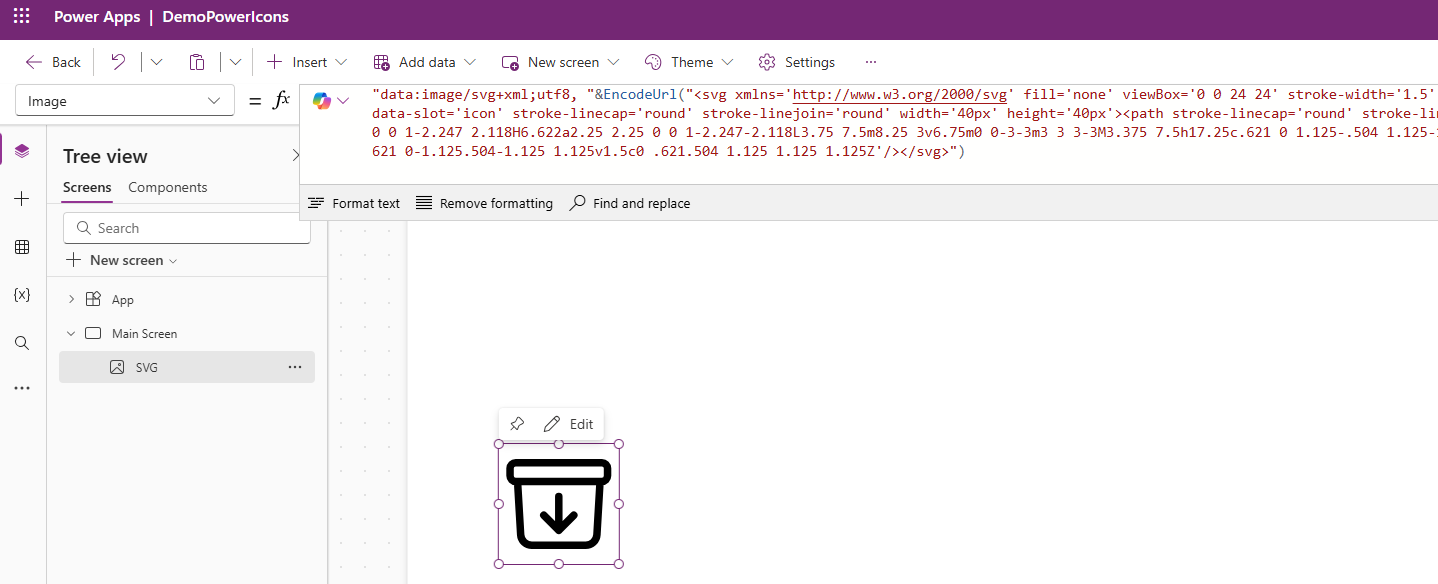
- You can customize the icon’s color, rotation, and even make it clickable.
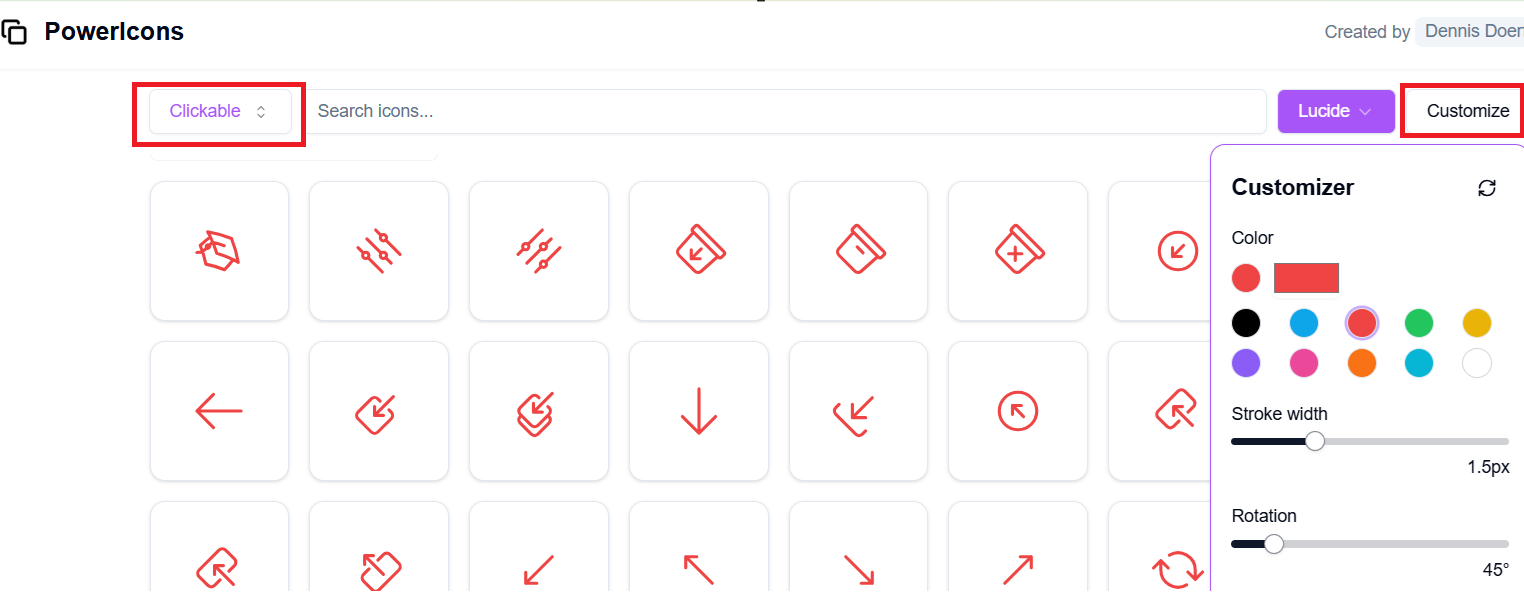
- Once you’re done customizing, simply select and paste it into your Canvas App screen.
- Because I’ve chosen as Clickable, the SVG will be added as a Button when pasted into the app.
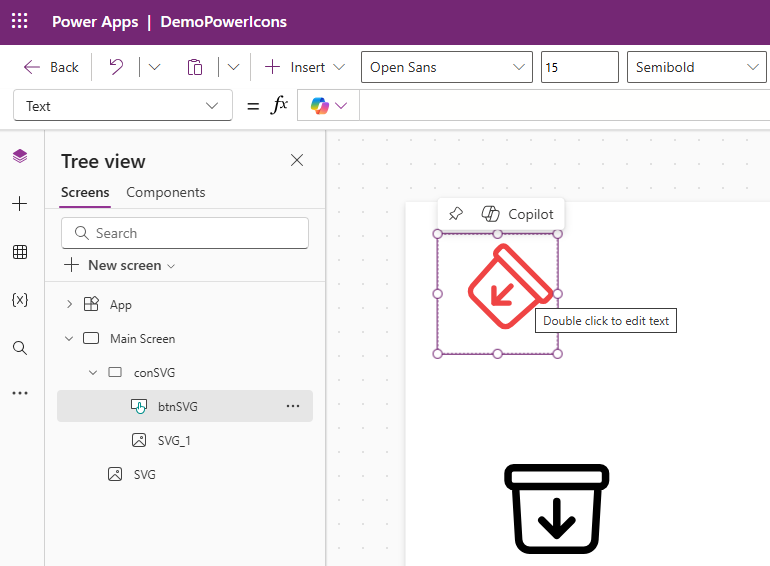
- You can also import SVGs from other websites and customize them using PowerIcons website.

🙂


 Rajeev Pentyala – Technical Blog on Power Platform, Azure and AI
Leave a comment