If you are new to Power Apps component framework , please refer to the PCF Beginner Guide and PCF React Control blog posts.
I integrated Prettier into my PCF project, and during the build process (i.e., npm run build), I encountered the following errors.
In this article, I will explain the basics of Prettier and and provide a step-by-step guide on how to resolve these errors.

I will be covering following topics:
- Basics of Prettier.
- Integrate Prettier in PCF Project
- Using Prettier Extension in VS Code
What is Prettier?:
- Prettier is for formatting
- Prettier enforces consistent code style by automatically adjusting spacing, indentation, semicolon placement, and other stylistic elements.
Let me explain how to integrate Prettier into PCF projects.
Create a PCF project and integrate Prettier:
I will explain step-by-step how to integrate Prettier from scratch, using a new PCF project.
- Open VSCode and create a new PCF Project using pac pcf init command.
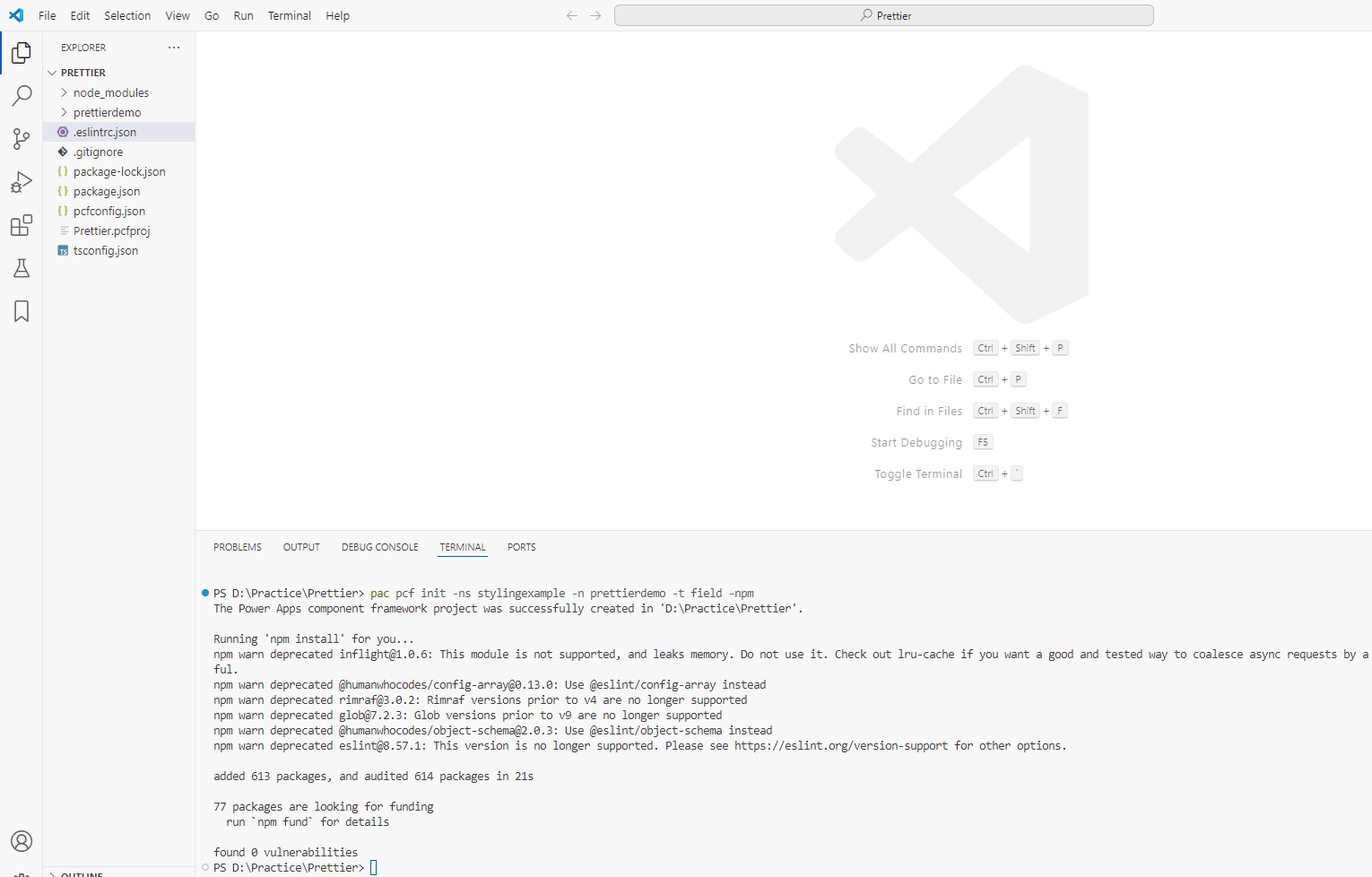
- Install Prettier package using npm install –save-dev prettier command

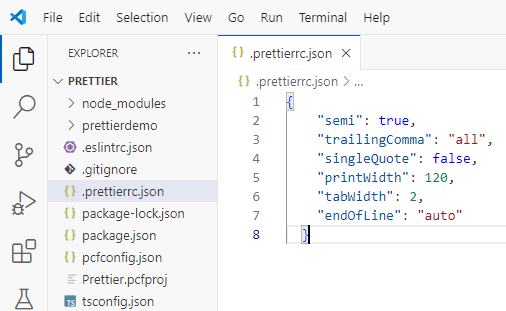
- In the root directory, create a new
.prettierrc.jsonfile and define formatting preferences as shown below:
{
    "semi": true,
    "trailingComma": "all",
    "singleQuote": false,
    "printWidth": 120,
    "tabWidth": 2,
    "endOfLine": "auto"
  }
- Next, integrate Prettier with ESLint using the following command:
npm install --save-dev eslint-config-prettier eslint-plugin-prettier

- Open and update the
.eslintrc.jsonfile, which comes by default with the PCF project, and update it to include the following Prettier configurations:

- Go ahead and build the project using npm run build command.

- There were two Prettier violation errors. One was in the
index.tsfile, which needs to be fixed, and the other was in thegenerated\ManifestTypes.d.tsfile. Since theManifestTypes.d.tsfile is auto-generated, we don’t need to fix its errors. - To ignore violations in files under the
generatedfolder, include the following configuration in the.eslintrc.jsonfile:
    "ignorePatterns": [
      "**/generated/**"
  ]

- Build the project again, and you will be left with one error in the
index.tsfile.

The issues in the index.ts file might be due to spacing. You can either fix them manually or follow the steps in the section below to use the Prettier extension in VS Code, which automatically formats the files.
Install Prettier extension on VSCode:
- Install the Prettier – Code formatter extension

- Once installed, scroll down and copy the line from Default Formatter, as highlighted below.

- Select Show and Run Commands > and then Open User Settings (JSON)

- Paste the line which we copied earlier, as shown below

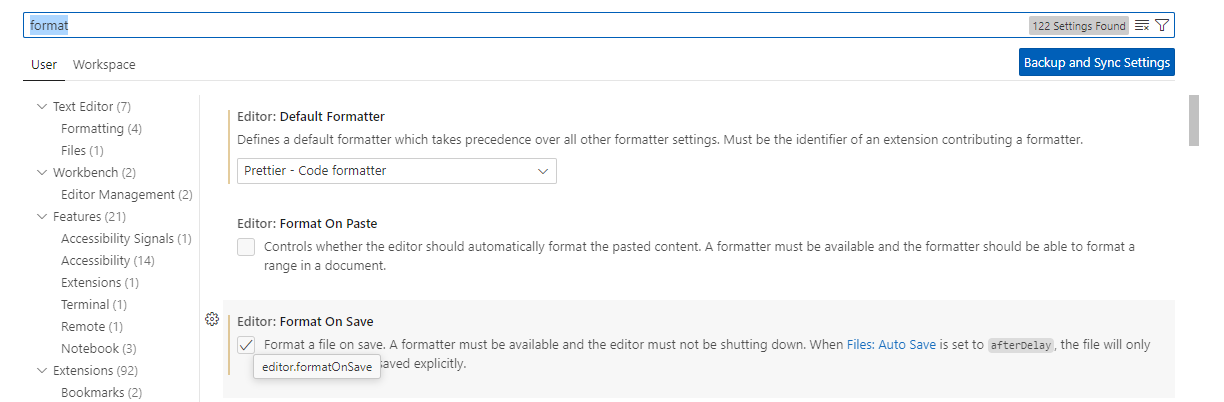
- To automatically format files every time you save, enable the setting by navigating to Settings, as shown below:

- Search for Format On Save property and select.
Test the auto formatting file using Prettier Extension:
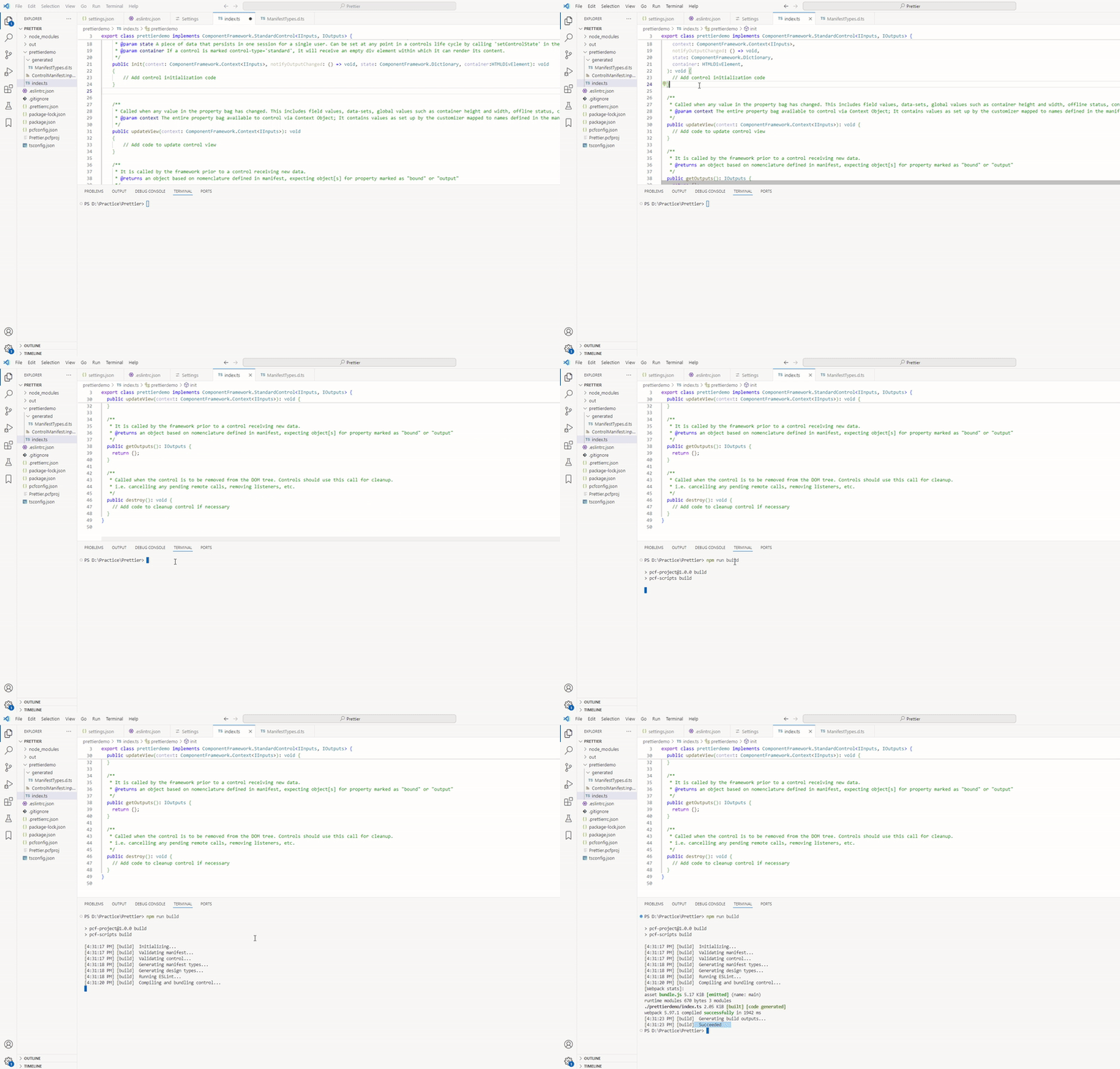
Now that the Prettier extension is installed and the auto-format setting is enabled on file save, go to the index.ts file and simply save it. The Prettier extension will automatically format the index.ts file and fix the issues.
That’s it! I hope you now understand what Prettier is, how to integrate it with ESLint, and how to use it in PCF projects. I’ve also explained how to auto-format files using the Prettier extension in VS Code.
Bonus tip:
If you are wondering what is difference between Prettier and ESLint.
- Prettier for formatting and ESLint for catching bugs
- Use
npm run lint:fixcommand to run a linting process on your code and automatically fix any potential issues that the linter can automatically resolve. npm run lint:fix command fixes many of the Prettier issues automatically.
Refer this article : Prettier vs Linters
🙂



 Rajeev Pentyala – Technical Blog on Power Platform, Azure and AI
Leave a comment