In this article, let’s learn how to configure and run pipelines in Power Platform, along with prerequisites and other useful details.
What are pipelines in Power Platform:
- Pipelines deploy Dataverse solutions as well as configuration for the target environment such as connections, connection references, and environment variables.
- Any Power Platform customization contained in your solution can be deployed using pipelines.
- Power BI Dashboards (preview) and Power BI Datasets (preview) are not currently supported in pipelines.
Prerequisites to use pipelines:
- All environments used in pipelines must have a Microsoft Dataverse database.
- All target environments used in a pipeline must be enabled as Managed Environments.
- Managed Environments isn’t required for the pipelines host or developer environments.
- Be sure to choose the same region that your development, test environments are created in.
Environment topology for using pipelines:
To understand the Power Platform environment structure, let’s explore a scenario where we move a simple solution from the Dev to the Test environment.
- To deploy a Dataverse solution from a Dev to Test environment, we need a Host environment to setup the Pipelines.
- Please keep in mind that, Host environment is just like any Dataverse enabled Environment. You can also use your Dev environment as Host which is not recommended.
- In our scenario, I have the following environments in my tenant and will be using the following structure.
- Host Environment : COEKit
- Dev Environment : Developer Dev
- Test Environment : Test
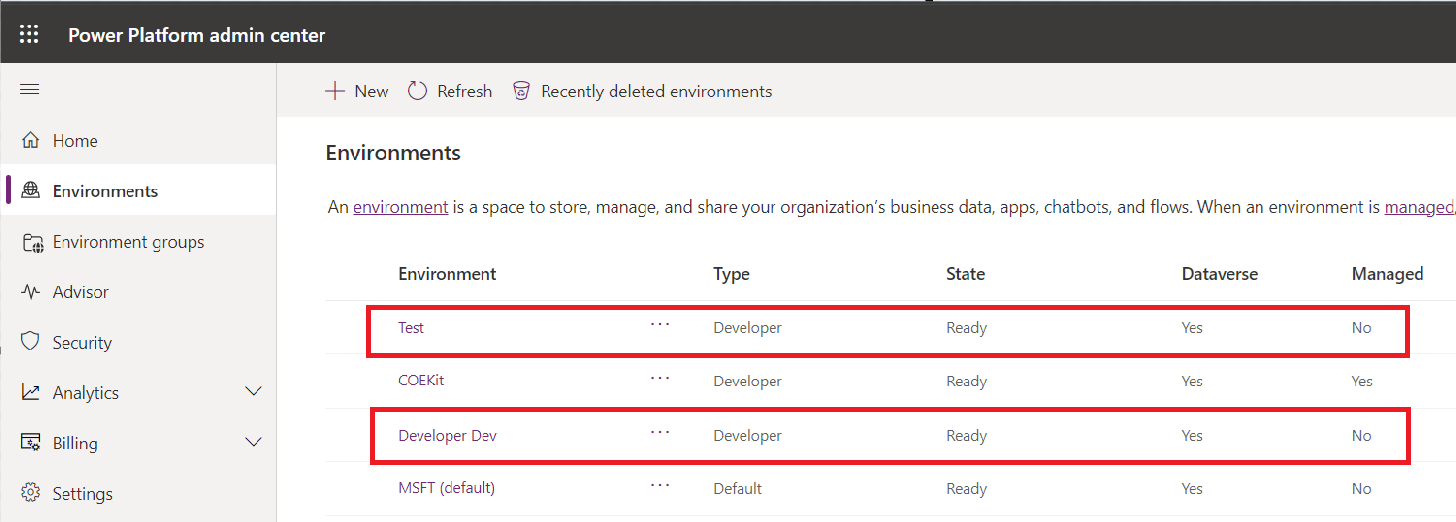
- An important note is that all target environments (i.e., Developer Dev and Test environments in our scenario) used in a pipeline must be enabled as Managed Environments.
- However, since both my Developer Dev and Test environments are of the Developer type, I don’t need to make them Managed.
Setup pipelines in Host environment:
As mentioned above, COEKit will be my Host environment. Let’s set up the pipelines. This step is only required for the initial host setup.
- Sign in to the Power Platform admin center, go to Environments > COEKit
- Install the Power Platform Pipelines application in your host environment by selecting the host environment, then select Resources > Dynamics 365 apps.
- Select Install app and scroll down within the right-side panel until you find Power Platform Pipelines.
- Select Next, if you agree, accept the terms, and then select Install.

- Once installed, the deployment pipelines configuration application appears in the list of installed apps.

- Go to maker portal and connect to Host (i.e., COEKit) environment. You will see a new Deployment Pipeline Configuration model driven app.
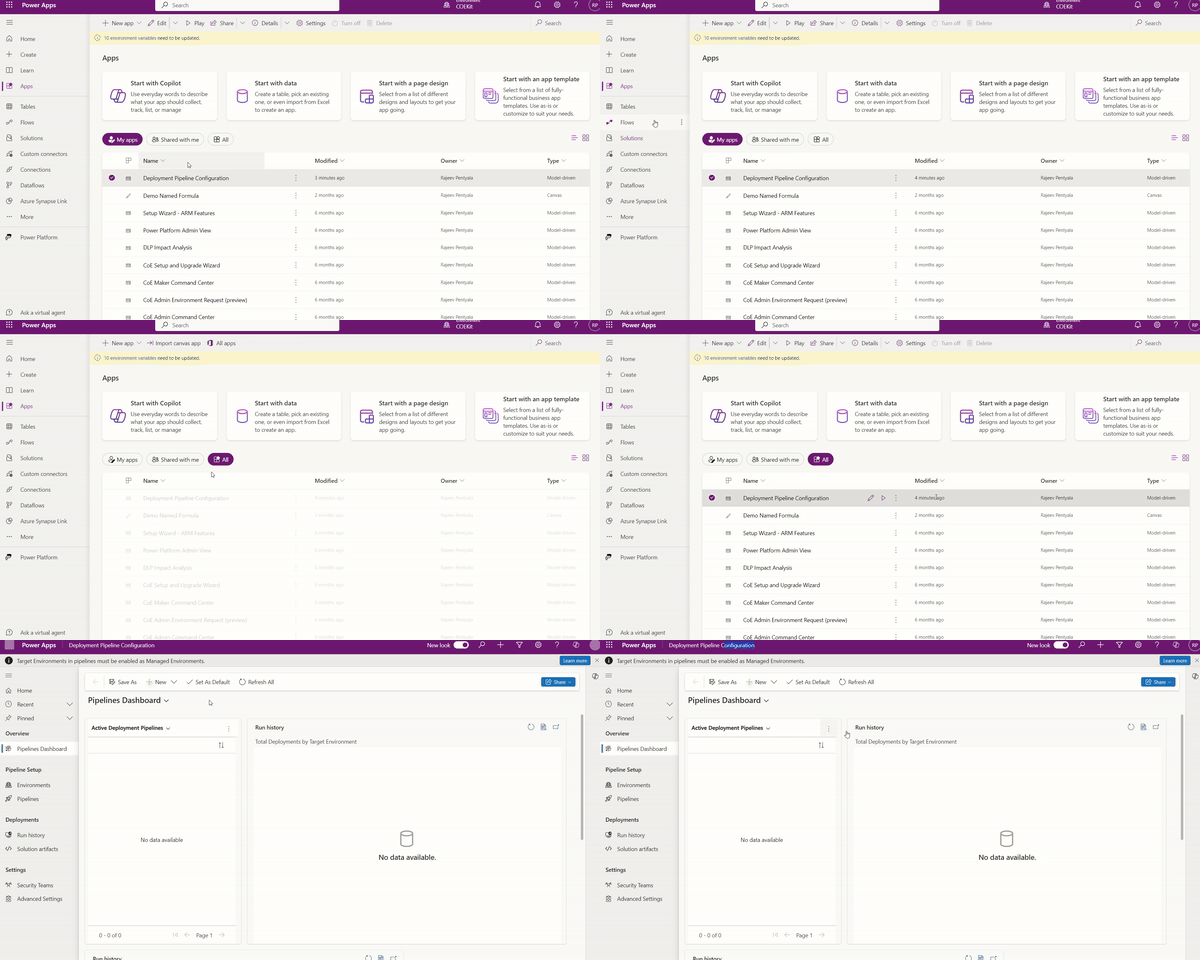
Now that we’ve completed the Host setup, let’s proceed with pipeline creation.
Configure Pipelines:
In the pipeline, we primarily configure the Development and Target (i.e., Test) environments. We’ll begin by capturing the environment IDs for both the Dev and Test environments.
Copy the Environment IDs:
Copy the environment IDs of Developer Dev and Test environments.
- Open the Developer Dev environment in Maker portal.
- Go to Settings > Session details
- Copy the Environment ID as highlighted below.
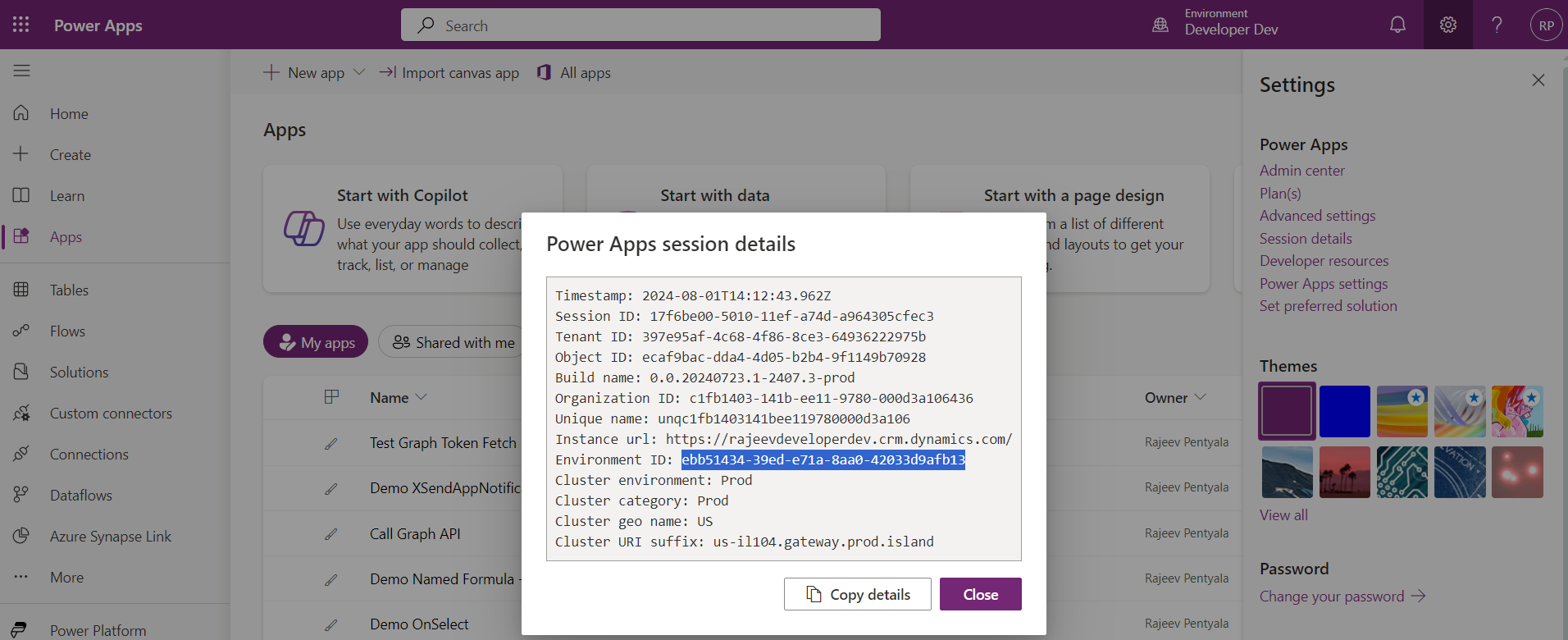
- Repeat this step for Test environment and copy the Environment ID
Once we have the environment IDs, we’ll need to create Environment records. These records are essential for setting up the Pipeline.
Create Environments:
Play the Deployment Pipeline Configuration Model Driven app on the Host environment (i.e., COEKit)
- Lets first create the Environment record for our development environment (i.e., Developer Dev)
- In the Deployment Pipeline Configuration app, select Environments on the left pane, and then select New:
- Name: Enter the name for the environment record.
- Environment Type: Select Development Environment.
- Environment Id: Be sure to provide the correct ID of Developer Dev which we copied in the above step.
- Select Save.
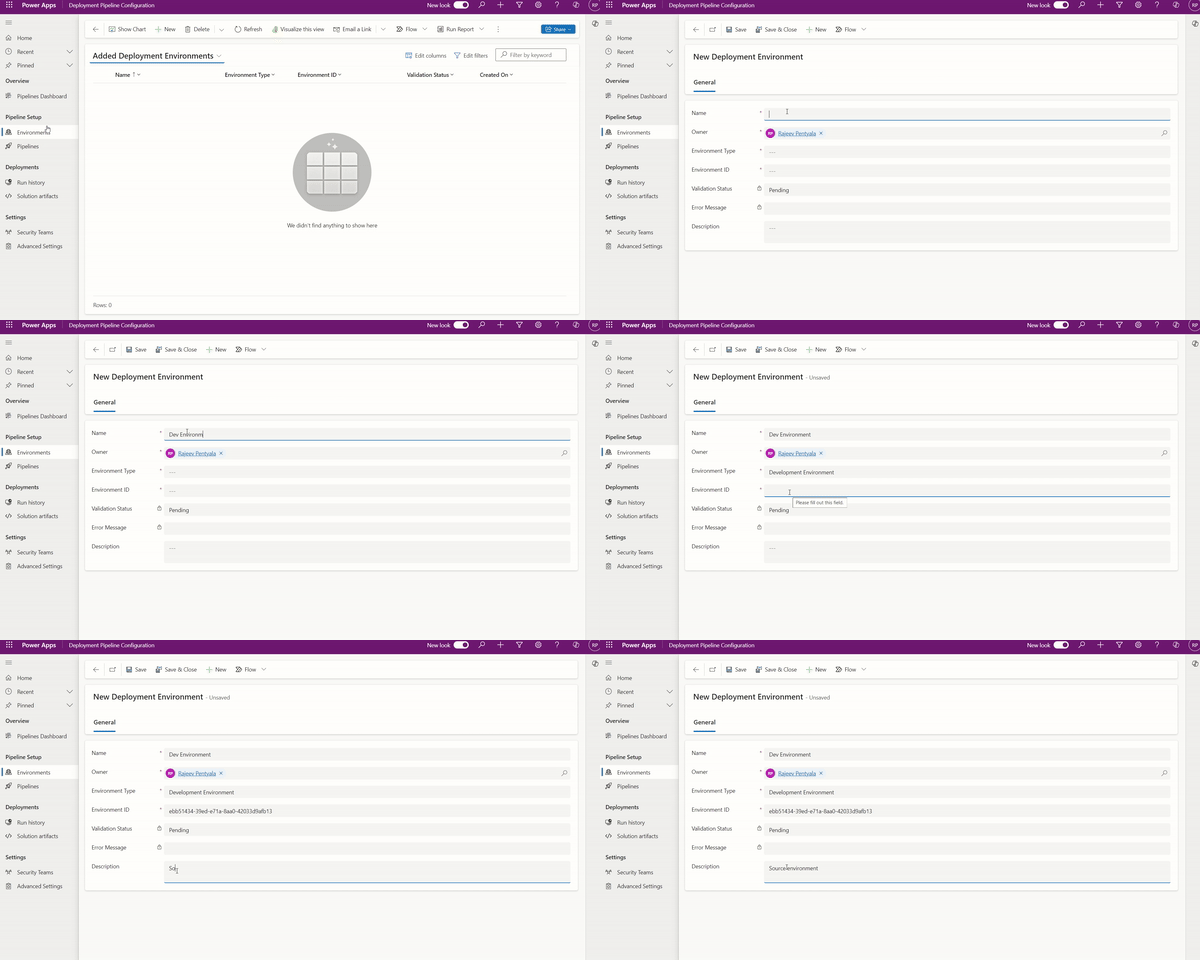
- Next create the Environment record for our Test environment (i.e., Test) by repeating the steps above.

- Refresh the form, then verify Validation Status equals Success for both environments.

Now that we have Environment records, we are good to create Pipeline.
Create Pipeline:
Now that we have Environment records created, lets proceed with Pipeline creation.
- In the Deployment Pipeline Configuration app, select Pipelines on the left navigation pane, and then select New to create a new deployment pipeline:
- Name: Enter a name for the pipeline
- Description: Optionally, enter a meaningful description for the pipeline
- Save the Pipeline record.
- In the Linked Development Environments grid, select Add Existing Development Environment, then associate development environments (i.e., Dev Environment). A pipeline must have at least one development environment and one stage before it can be run.
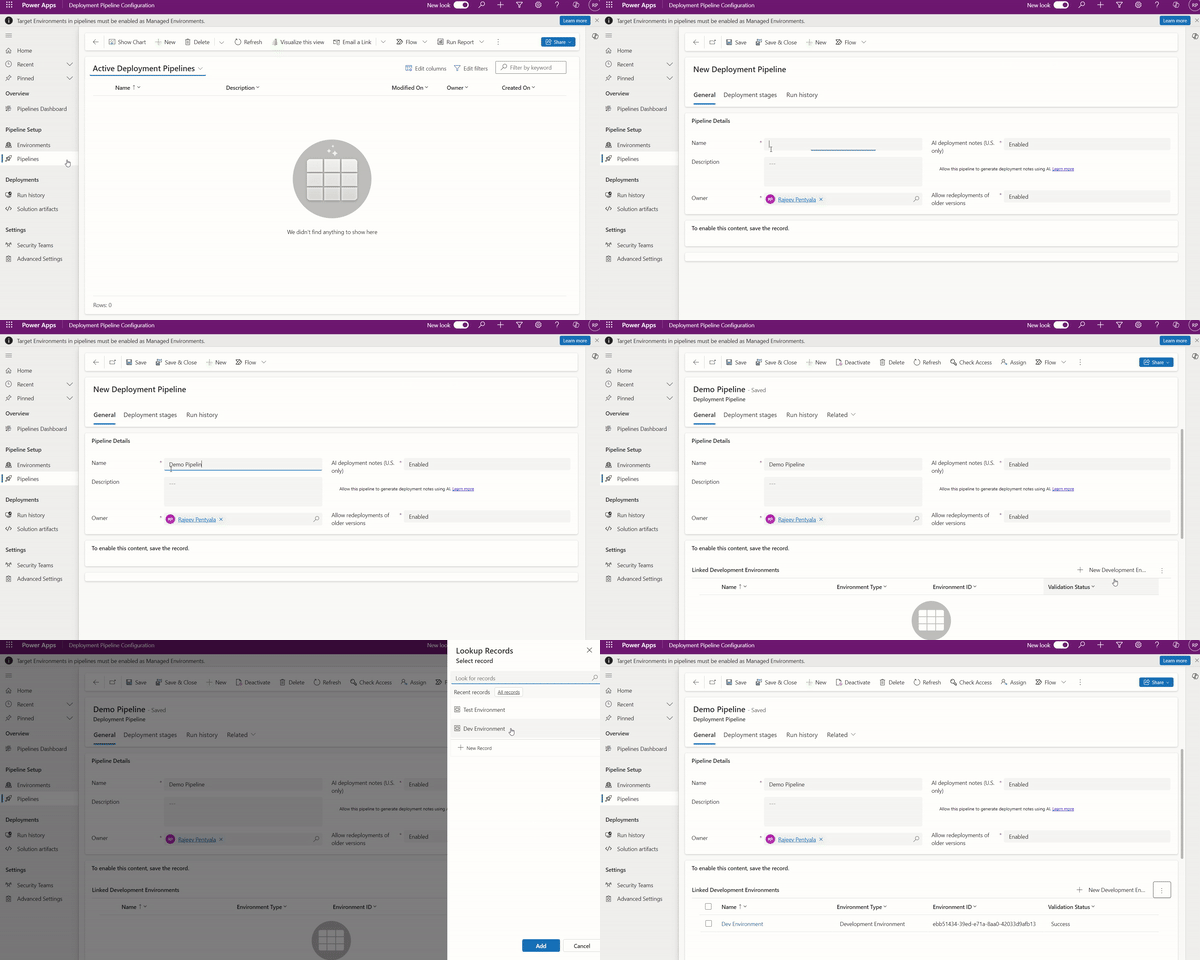
- Next, we need to add the target Test environment to the Pipeline.
- In the Deployment Stages (Deployment Pipeline) grid, select New Deployment Stage.
- Enter the details for each stage, and then select Save and Close:
- Name: The name of the stage.
- Description (optional): Optional description for the stage.
- Previous Deployment Stage (optional): Specifies a deployment stage that must be deployed to before deploying to the current stage.
- Target Deployment Environment: This is the target environment where this stage deploys to.
- PreDeployment Step Required (optional): Deployment requests are pending until approved via custom business logic.

- That’s it! Since we’re using a single target environment, we create a single stage so the pipeline configuration is complete.
- In case of multiple target environment, Repeat the previous steps for each stage.
- In the pipeline, you must have at least one stage. You can add up to seven stages.
Run Pipeline:
To run the pipeline connect to the Dev environment (i.e., Developer Dev).
- Sign in to a Power Apps (make.powerapps.com) or Power Automate (make.powerautomate.com) and select your development (i.e., Developer Dev) environment.
- To deploy a solution using a pipeline, go to Solutions and create or select an unmanaged solution to deploy.
- From the Solutions area, choose between two options to include the solution in the pipeline:
- Select Pipelines from the left navigation pane.
- Select Overview from the left navigation pane, and then select Deploy on the command bar.
- Select the stage to deploy to, select Deploy here, and the deployment pane appears on the right.
- Choose to deploy Now or schedule for Later, and then select Next on the right pane.
- If connection references or environment variables are present, you’re prompted to provide these (just as you would when manually importing solutions).
- Review the summary of the deployment and optionally add deployment notes.
- Select Deploy. This initiates an automated deployment to the target environment.
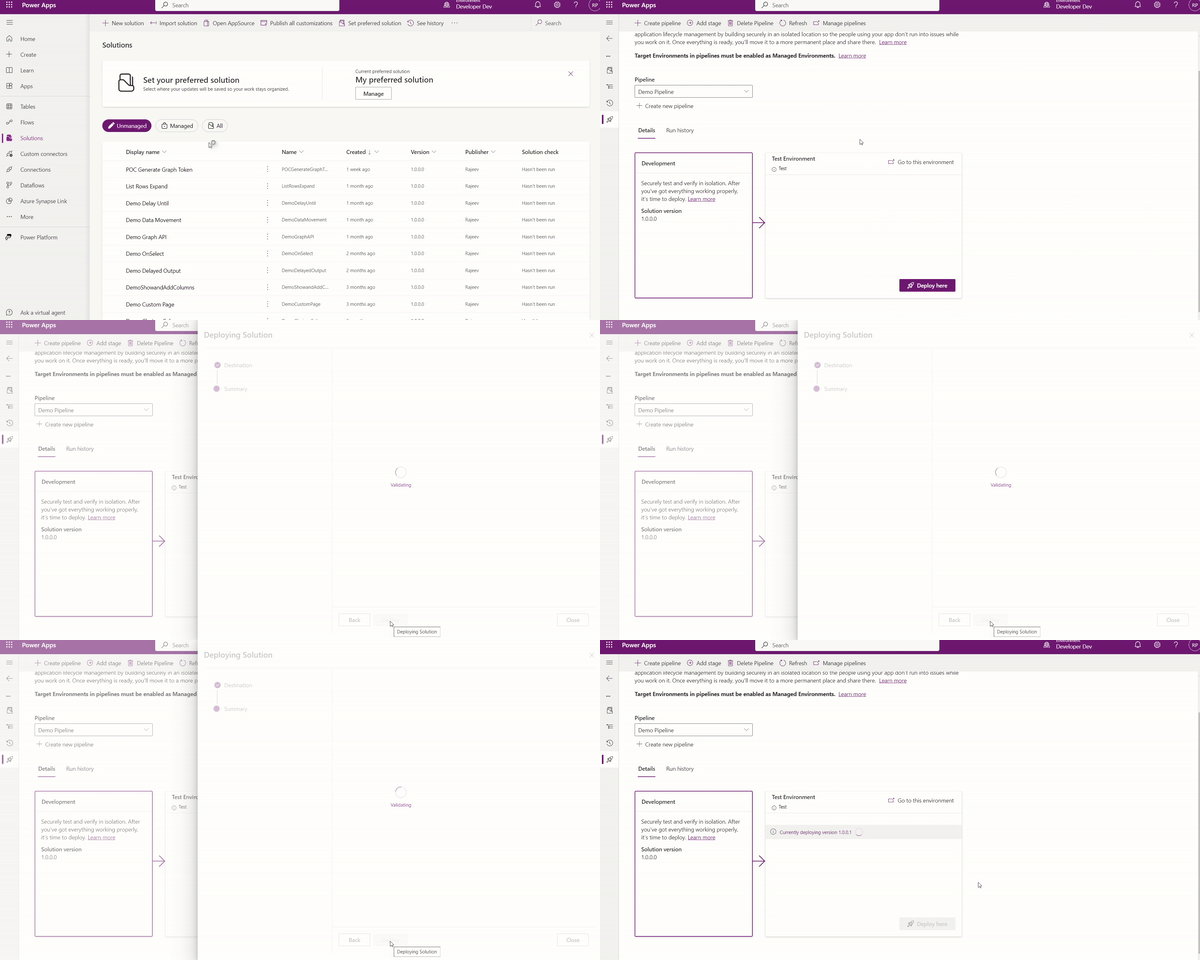
- Solution import may take some time. Once deployed, you will receive a notification as shown below.

- You can access the Run History records from the Deployment Pipeline Configuration app, which provides details about pipeline runs
- The exported and deployed solution’s Unmanaged and Managed versions will be available under Solution artifacts.

I hope this gives you a good understanding of the basics of pipelines in Power Platform. I will cover Security and Sharing pipelines to makers in upcoming articles.
🙂




 Rajeev Pentyala – Technical Blog on Power Platform, Azure and AI
Leave a reply to Pipelines in Power Platform | Enable cross-geo solution deployments | Rajeev Pentyala – Microsoft Power Platform Cancel reply