In this article, let’s see how to achieve complex multi-combo box filters on collections. Here is what the app with filters looks like:

Let’s first understand our scenario and then proceed with building the app.
Scenario:
- I have the ‘Customers’ collection as defined below.
- Collection has ‘Status’ and ‘Fav Sports’ attributes
- ‘Status’ holds a single value (i.e., Active or Inactive)
- ‘Fav Sports’ holds comma-separated values.
- Collection has ‘Status’ and ‘Fav Sports’ attributes
ClearCollect(
    Customers,
    {
        Name: "Rajeev",
        Status: "Active",
        'Fav Sports': "Cricket"
    },
    {
        Name: "Jayansh",
        Status: "Inactive",
        'Fav Sports': "Cricket,TT"
    },
    {
        Name: "Mahesh",
        Status: "Active",
        'Fav Sports': "TT,Chess"
    },
    {
        Name: "Havish",
        Status: "Inactive",
        'Fav Sports': "TT"
    }
);- Build an App with two combo boxes for both ‘Status’ and ‘Fav Sports’.
- Add a Gallery and load the ‘Customers’ collection.
- Filter the Gallery records using the selected values from the ‘Status’ and ‘Fav Sports’ combo boxes.
As we know the scenario now, let’s build the App.
Building the App:
- Create a new Canvas App and on App > Start define the ‘Customers’ collection.

- Add a Gallery and set Items as ‘Customers’ collection.

- Add two combo box controls for ‘Status’ and ‘Fav Sports’, as shown below. We’ll primarily set the Items and NoSelectionText properties.
- NoSelectionText property sets ‘All’ as the text when no item is selected in the combo box.

Now that we’ve added the required controls to the screen, let’s proceed with the filter logic.
Build ‘Status’ combo box filter:
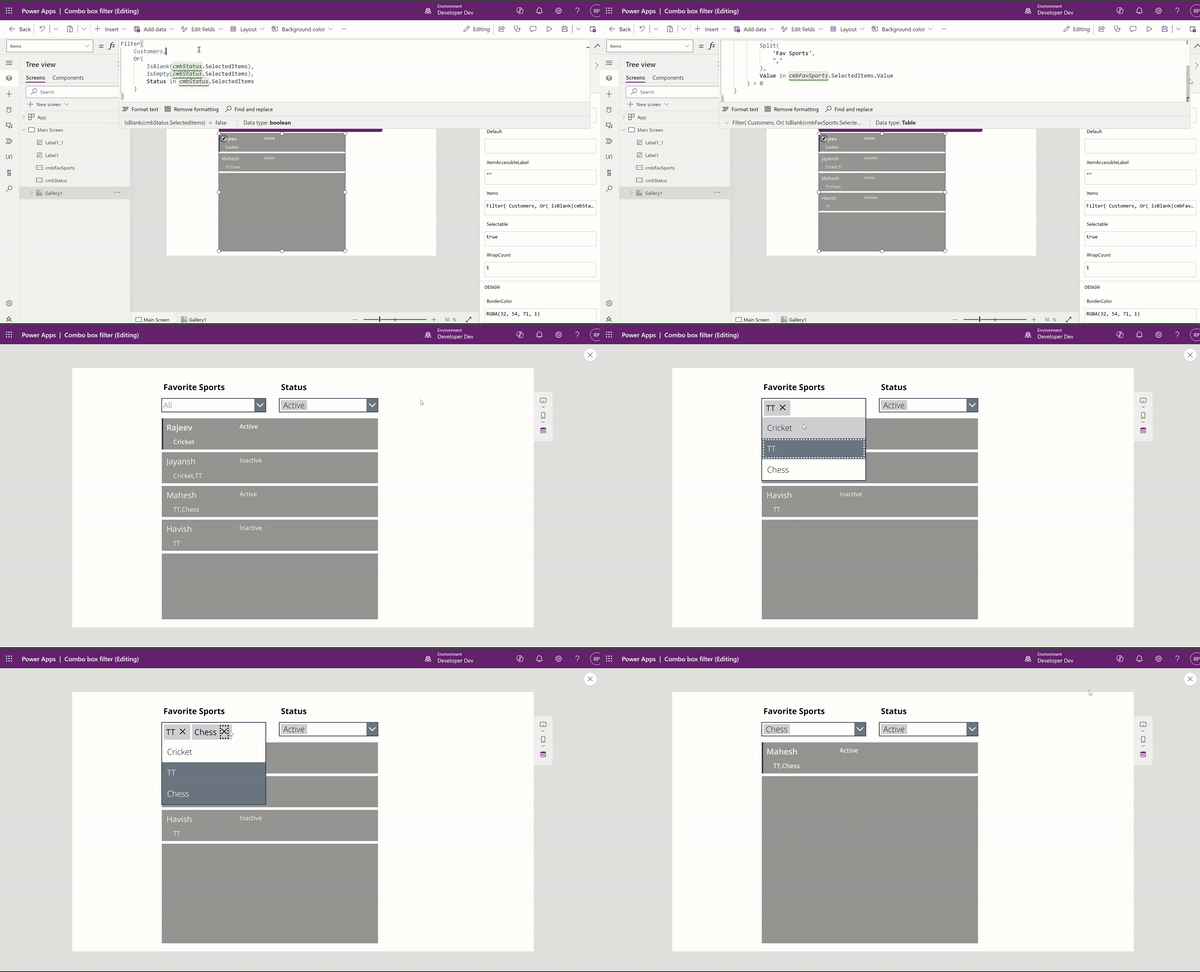
- To build the filter logic for the ‘Status’ combo box, place the following formula in the Items property of the Gallery, and then play the app.
- Following is the formula explanation:
- If no items are selected, the cmbStatus ‘SelectedItems’ property will be blank, and IsBlank() or IsEmpty() will return true, hence all records will be shown.
- If items are selected in cmbStatus, we use the ‘in’ operator to fetch only the matched records by the ‘Status’ field.
Filter(
    Customers,
    Or(
        IsBlank(cmbStatus.SelectedItems),
        IsEmpty(cmbStatus.SelectedItems),
        Status in cmbStatus.SelectedItems
    )
)
Build ‘Fav Sports’ combo box filter:
- Now, this is the tricky part of the filter, as we have to match the cmbFavSports combo box values to the comma-separated ‘Fav Sports’ text field.
- To build the filter logic for the cmbFavSports combo box, place this formula in the Items property of the Gallery, and then play the app.
- Note : We are removing the cmbStatus filter for now to explain the cmbFavSports filter. Towards the end, we will combine both combo box filters into one filter formula.
- Following is the formula explanation:
- If no items are selected, the cmbFavSports ‘SelectedItems’ property will be blank, and IsBlank() or IsEmpty() will return true, hence all records will be shown.
- If items are selected, we split and count how many favorite sports of each customer match the selected items in the cmbFavSports , ensuring that only customers with at least one matching sport are included in the filter.
Filter(
    Customers,
    Or(
        IsBlank(cmbFavSports.SelectedItems),
        IsEmpty(cmbFavSports.SelectedItems),
        CountIf(
            Split(
                'Fav Sports',
                ","
            ),
            Value in cmbFavSports.SelectedItems.Value
        ) > 0
    )
)
Build ‘Status’ and ‘Fav Sports’ combo box filters together:
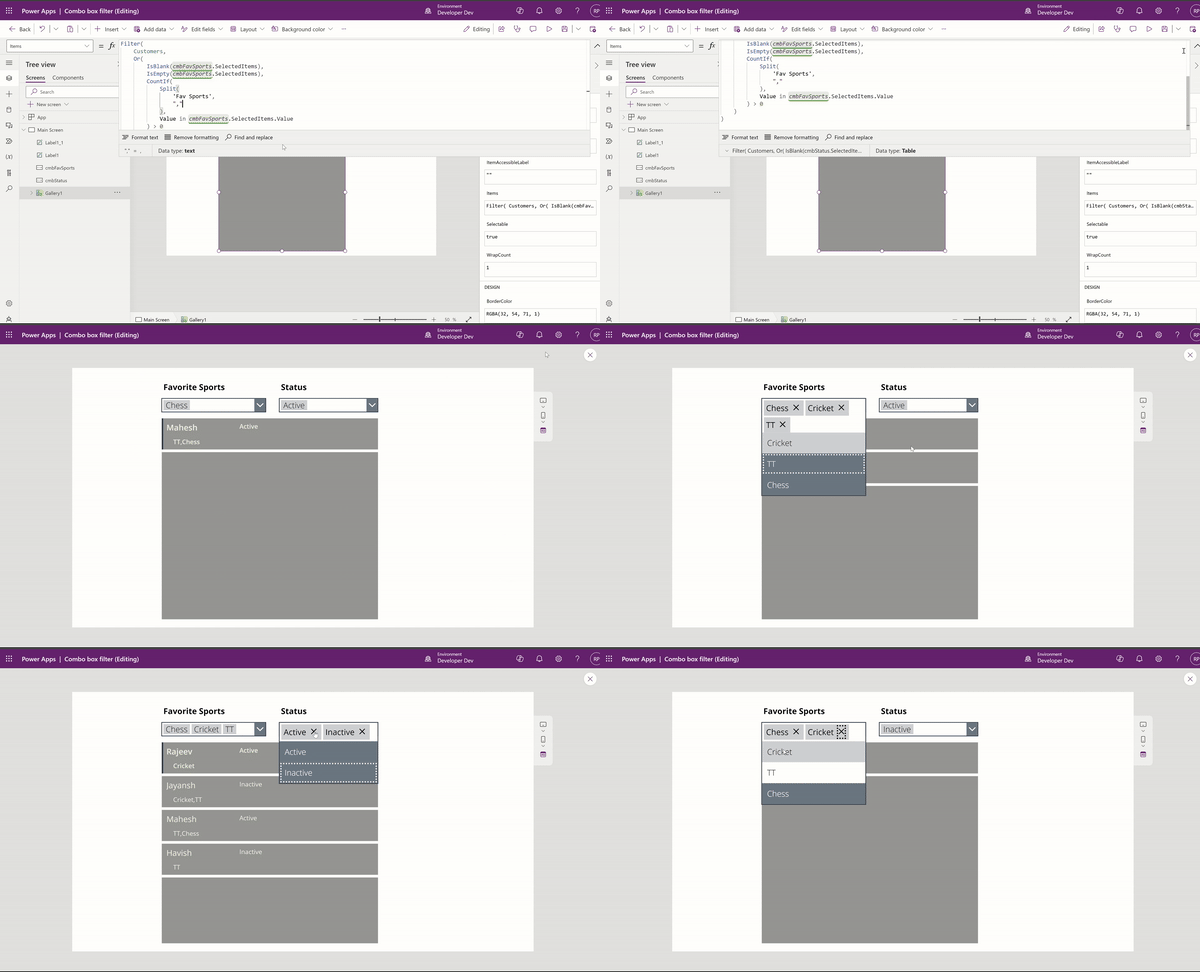
Lets get both filters get working in one formula.
- To build the combined filter logic for cmbStatus and cmbFavSports combo boxes, place the following combined filter formula in the Items property of the Gallery, and then play the app..
Filter(
    Customers,
    Or(
        IsBlank(cmbStatus.SelectedItems),
        IsEmpty(cmbStatus.SelectedItems),
        Status in cmbStatus.SelectedItems
    ) &&
    Or(
        IsBlank(cmbFavSports.SelectedItems),
        IsEmpty(cmbFavSports.SelectedItems),
        CountIf(
            Split(
                'Fav Sports',
                ","
            ),
            Value in cmbFavSports.SelectedItems.Value
        ) > 0
    )
)
That’s it! We have achieved multi-combo box filter logic. I hope you learned how to apply multi-combo box filters on a collection.
🙂


 Rajeev Pentyala – Technical Blog on Power Platform, Azure and AI
Leave a comment