In this blog post, lets learn how to validate the user inputs using the IsMatch Power Fx function with Regular Expressions.

Let’s start with basics.
IsMatch function:
- The IsMatch function tests whether a text string matches a pattern that can comprise ordinary characters, predefined patterns, or a regular expression.
- Use IsMatch to validate what a user has typed in a Text input control. For example, you can confirm whether the user has entered a valid email address before the result is saved to your data source. If the entry doesn’t match your criteria, add other controls that prompt the user to correct the entry.
Regular Expressions:
- Regular expressions are very powerful, available in many programming languages, and used for a wide variety of purposes.
- They consist of characters representing rules to match specific patterns within strings.
- Examples include
^\d{3}-\d{2}-\d{4}$for a social security number and^[A-Za-z]+@\w+\.\w+$for an email address.
In our blog post example, I am going to validate whether the user has provided a strong password or not. The criteria for a strong password are: ‘Password must be 8-10 characters long, include at least one letter, one digit, and one special character from @$!%*?&.‘
Let’s get started with building the App.
Build the Canvas App:
- Create a new Canvas App and add controls as shown below. When the user inputs the password in the ‘txtPassword’ control and clicks on the ‘Validate’ button, we will validate whether the password matches the criteria.

- To implement the validation, add the following formula to the ‘OnSelect’ event of the button.
UpdateContext(
    {
        IsStrongPassword: IsMatch(
            txtPassword.Text,
            "^(?=.*[A-Za-z])(?=.*\d)(?=.*[@$!%*?&])[A-Za-z\d@$!%*?&]{8,10}$"
        )
    }
);
- So, the IsMatch function validates the user input against the regular expression and returns a ‘Boolean’ (true/false) value.
- Save and play the app. We will receive either true or false based on the provided password.

- You can utilize the same approach to validate user inputs with various regular expressions.
- Utilize ChatGpt or any other tool of your choice to easily prepare the regular expressions.

Well, the above steps would achieve the desired validations. However, if we need to use the validation on multiple screens, the IsMatch function with Regular Expression needs to be repeated at multiple places.
Let’s see how this can be optimized by defining our own function using “User Defined Functions (UDF)” which is still a preview feature at the time of writing this article.
Validate user inputs using User Defined Functions (UDF):
Since the ‘User Defined Functions (UDF)’ feature is still in preview, we need to enable the following settings to use it in our app.
- Enable Settings > New analysis engine
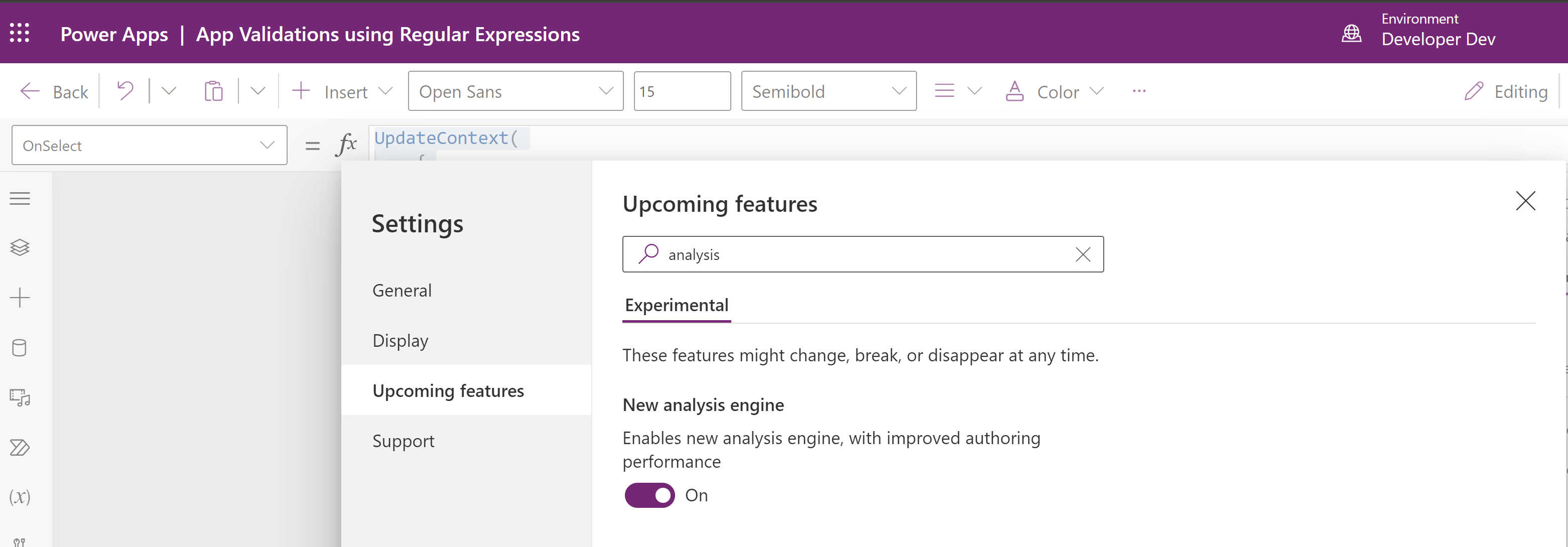
- Enable Settings > User-defined functions

- As you can see from the description in the above screenshot, “User-defined functions (UDFs) are named formulas with parameters for logic reuse“.
- To understand the Named Formulas, please refer my previous article.
- Returning to the topic, once you have enabled the ‘New analysis engine’ and ‘User-defined functions’ properties from Settings, make sure to save the app.
- The ‘User Defined Functions (UDF)’ needs to be placed in the ‘App > Formulas’
- Go to the App > Formulas and paste the following formula:
fnIsstrongPassword(paramUserInput:Text):Boolean=IsMatch(
            paramUserInput,
            "^(?=.*[A-Za-z])(?=.*\d)(?=.*[@$!%*?&])[A-Za-z\d@$!%*?&]{8,10}$"
        );
- Lets trye to understand the function. In the above ‘User Defined Functions (UDF)’ formula,
- fnIsstrongPassword is the name of our function.
- paramUserInput is the input parameter.
- Since the function returns “boolean” type, add “:Boolean” next as the function return type.
- Next, place ‘=’ and define the formula. In our example, our formula is the ‘IsMatch‘ function with regular expression, place it after the ‘=’.
- Now either create a new form or copy the existing form and arrange the controls.

- We will be calling the function fnIsstrongPassword, which we defined above, on click of the button.
- So, on the ‘OnSelect’ event of the button control, place the following formula with the function fnIsstrongPassword. We are passing the password (i.e., txtUserPassword.Text) as the function input parameter.
UpdateContext({IsStrongUserPassword: fnIsstrongPassword(txtUserPassword.Text)});
- Save and play the app. Enter the password ‘Abc123@def’ and click the button. This action triggers the ‘fnIsstrongPassword‘ function, which returns ‘true’ as output since the passed password matches the pattern.

I hope you learned how to perform input validations using the IsMatch function with Regular Expressions, as well as the ‘User Defined Functions’.
🙂


 Rajeev Pentyala – Technical Blog on Power Platform, Azure and AI
Leave a comment