If you need to communicate with services not available as prebuilt connectors from the Power Platform, you can create Custom connectors. These connectors address this scenario by enabling you to create and even share a connector with its own triggers and actions..
Please refer to my article on Build a canvas app with OpenAI’s Chat endpoint (ChatGpt),where I cover the creation of a Custom Connector.
In this article, I will cover the following topics:
- Basics of Custom Connector Policies
- Use environment variables in a policy template (preview)
Basics of Custom Connector Policies:
Policies can be used to modify the behavior of connectors at runtime. Use the Policy Templates which are available only for custom connectors to modify the behavior of connector.

For example, use the Set HTTP Header template which assigns a value to an existing response and/or request header or adds a new response and/or request header. This template is available in Power Apps and Power Automate.
Now that you know the basics of policies, let’s look at an example of setting one.
Example of using ‘Set HTTP Header’ policy template:
Suppose you need to include an access token in your response header to consume it after the service call. Follow the steps below:
- Go to Connector > Definition > Policies > New policy
- Select the Set HTTP Header template, as shown below, and configure the ‘Header name’ and ‘Header value’.

- Next, select the ‘Operations’ on which you want this policy to be applied.
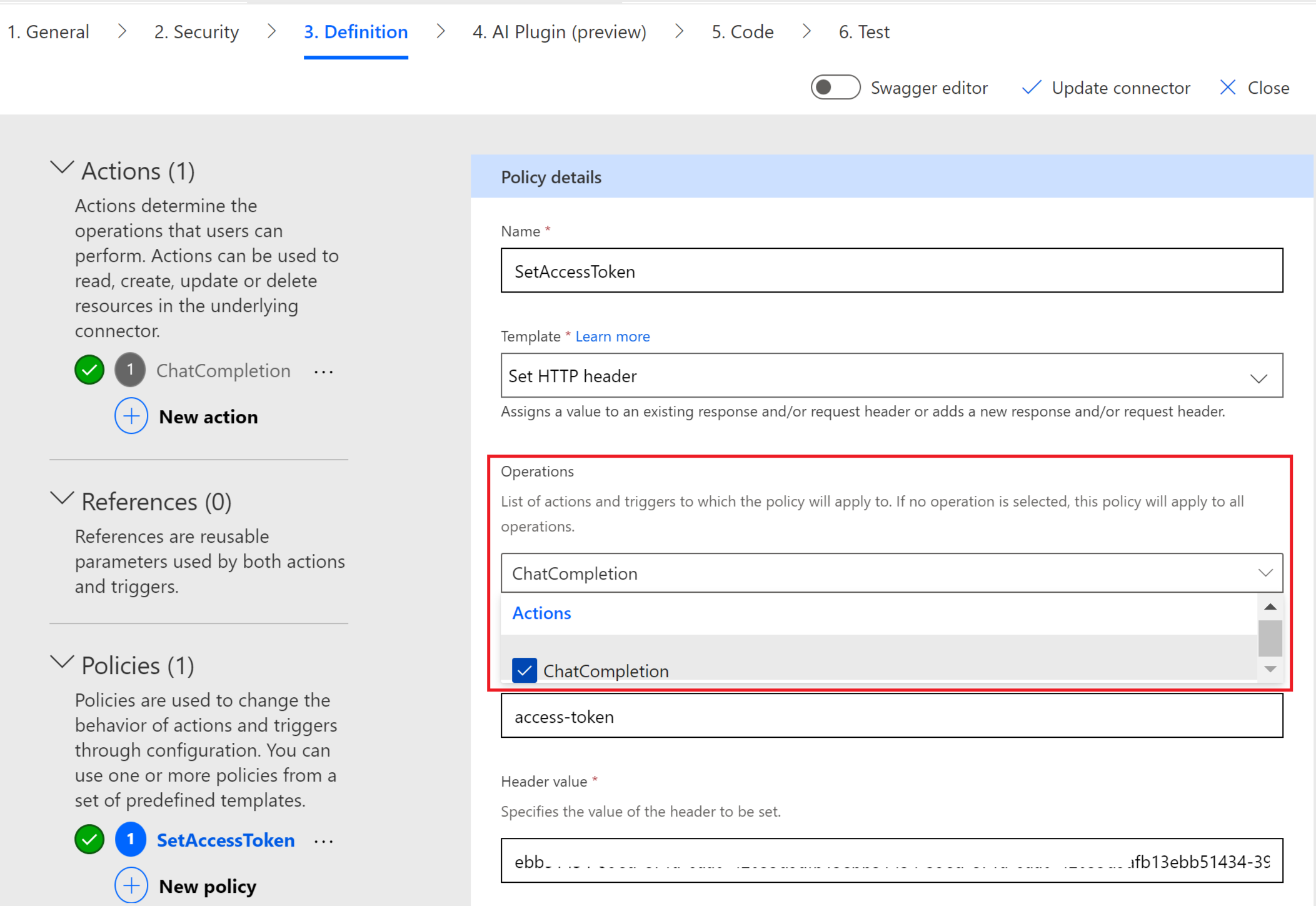
- Click on ‘Update Connector’ to save the Policy.
- Now, test the operation, and you should observe the ‘access-token’ being passed to the ‘Response,’ as configured in our ‘Set HTTP Header’ policy template.

Use environment variables in a policy template (preview):
Previously, Environment Variable support in custom connectors was limited to certain fields like Host, Base URL, and security properties. Environment variables can now be used in custom connector policies as well.
Lets explore how the above ‘Set HTTP Header’ policy template above can be reconfigured using the Environment Variable support.
- Create new environment variable ‘HeaderKeyName (raj_HeaderKeyname)’ and set the header key name.

- Create another environment variable ‘AccessKeyValue (raj_AccessKeyValue)’ and set the access key value.
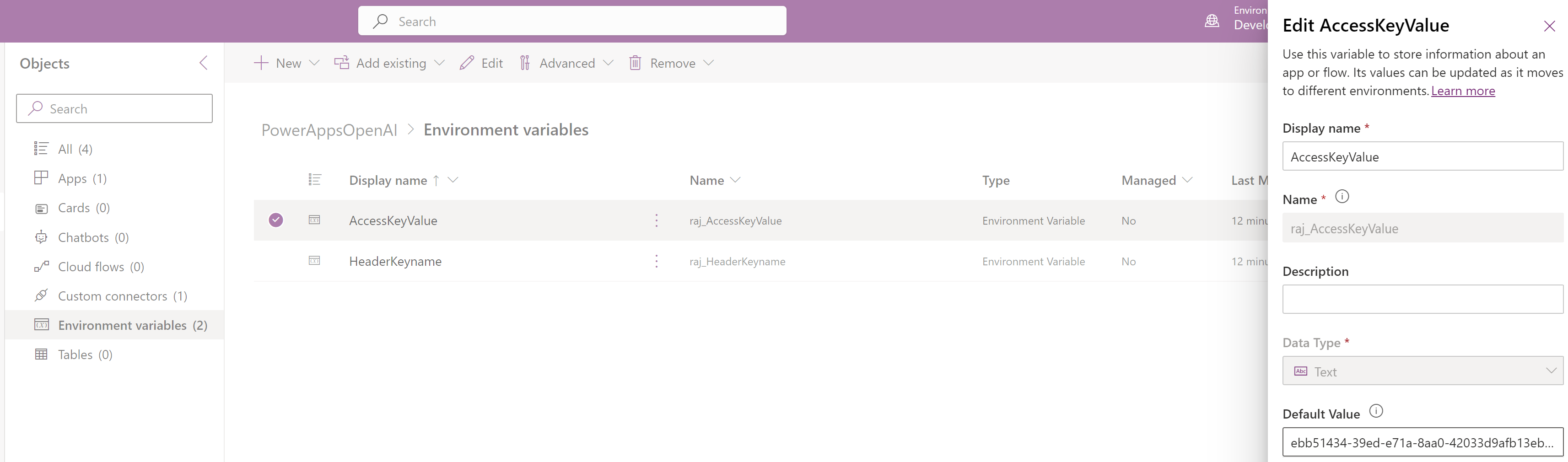
- We are ready with environment variables and now it’s time to incorporate them into our policy template.
- Go to the Connector > Definition > Policies > policy
- Set the ‘Header name’ as @environmentVariables(“raj_HeaderKeyname”) and ‘Header value’ as @environmentVariables(“raj_AccessKeyValue”)
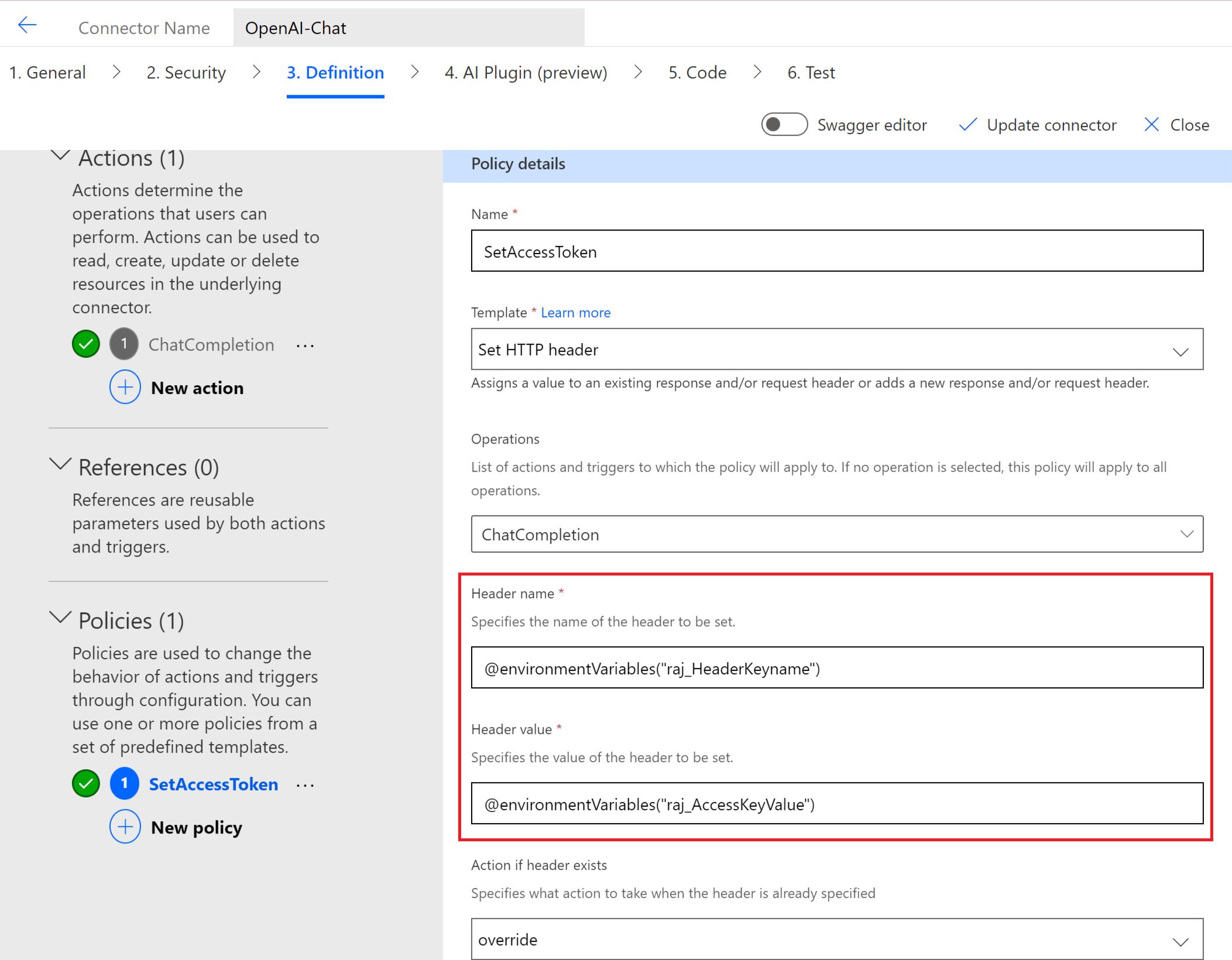
- Click on ‘Update Connector’ to save the Policy.
- Now, retest the operation, and you should observe the ‘Response’ with the environment variable values substituted, as configured in the ‘Set HTTP Header’ policy.

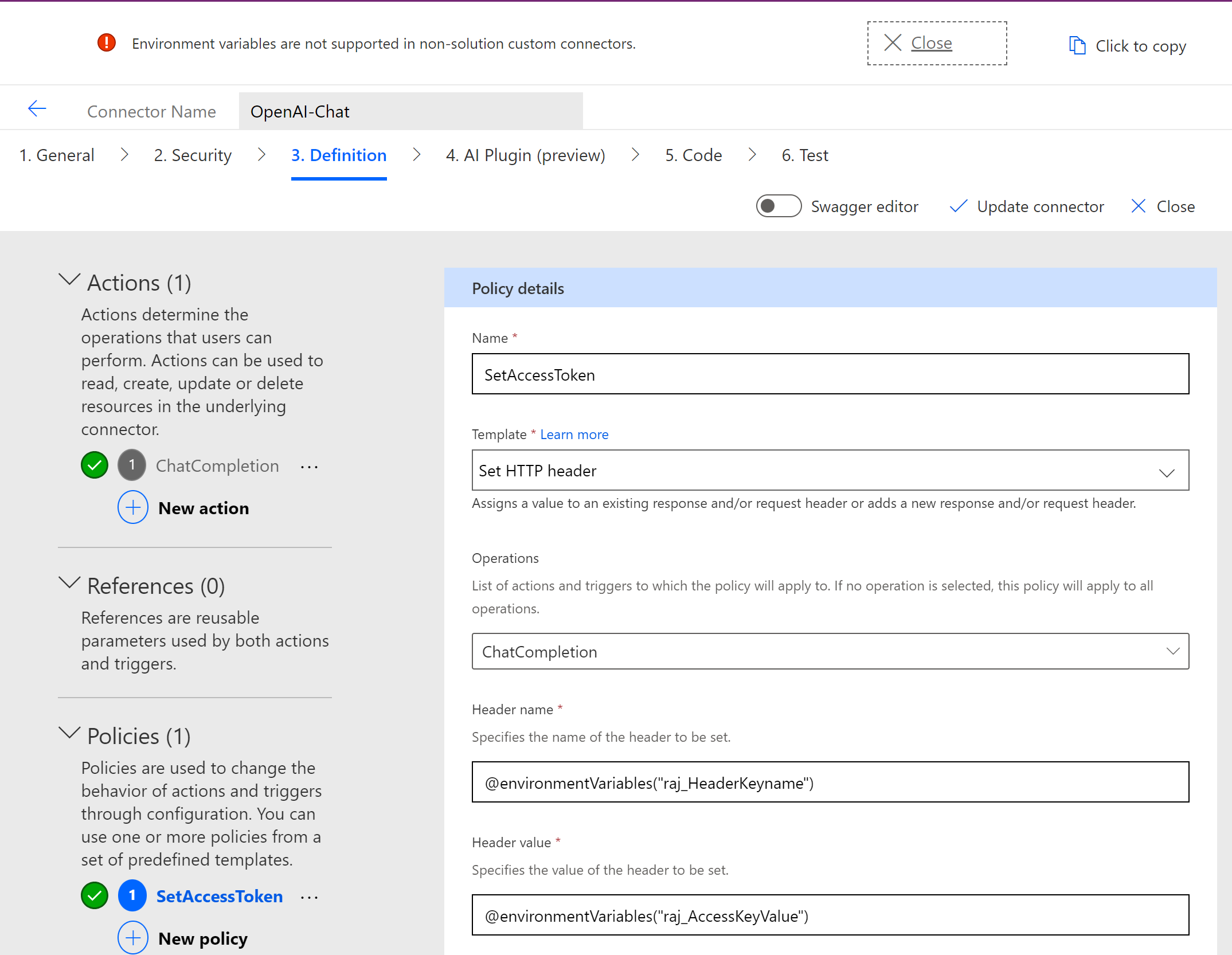
Note : To utilize environment variables in a policy, ensure your ‘Custom Connector’ is added to the Dataverse solution. You will encounter the following error if your ‘Custom Connector’ is outside the Dataverse solution.
🙂


![[Step by Step] Configure and run 'Pipelines in Power Platform'](https://rajeevpentyala.com/wp-content/uploads/2024/08/image.png)
![[Step by Step] Beginner : Create a PCF control and add it to a custom page](https://rajeevpentyala.com/wp-content/uploads/2024/12/image-49.png)
 Rajeev Pentyala – Technical Blog on Power Platform, Azure and AI
Leave a reply to Custom Connector | ‘API Key’ Authentication Using Policies | Rajeev Pentyala – Microsoft Power Platform Cancel reply