This blog post is intended for beginners in Power Automate Cloud Flow . I will cover the following ‘Array’ scenarios in this post:
- Declare ‘Array’ of objects.
- Filter the Array by object property
- Filter the Array by matching object properties
Declare ‘Array’ of objects:
- Create a new Instant cloud flow with manual trigger.
- Add an ‘Initialize a variable‘ action of Type ‘Array’. Rename the action to ‘arrPerson‘.
- Paste the following JSON array of objects in to ‘Value’ field of ‘Initialize a variable‘ action.
[
  {
    "Name": "Rajeev Pentyala",
    "Country": "India"
  },
  {
    "Name": "Jon",
    "Country": "USA"
  },
  {
    "Name": "Jayansh",
    "Country": "India"
  },
  {
    "Name": "Veekash",
    "Country": "Mauritius"
  }
]
Filter Array object by ‘Country’:
To understand the filter operation, let’s filter the ‘arrPerson‘ array where ‘Country’ is ‘USA’.
- Add a Filter Array action and rename it to ‘filterPersons’.

- To filter the ‘arrPerson‘ array where ‘Country’ name is ‘USA’, set the ‘From’ of the Filter Array action as ‘variables(‘arrPerson‘)‘, as highlighted below.
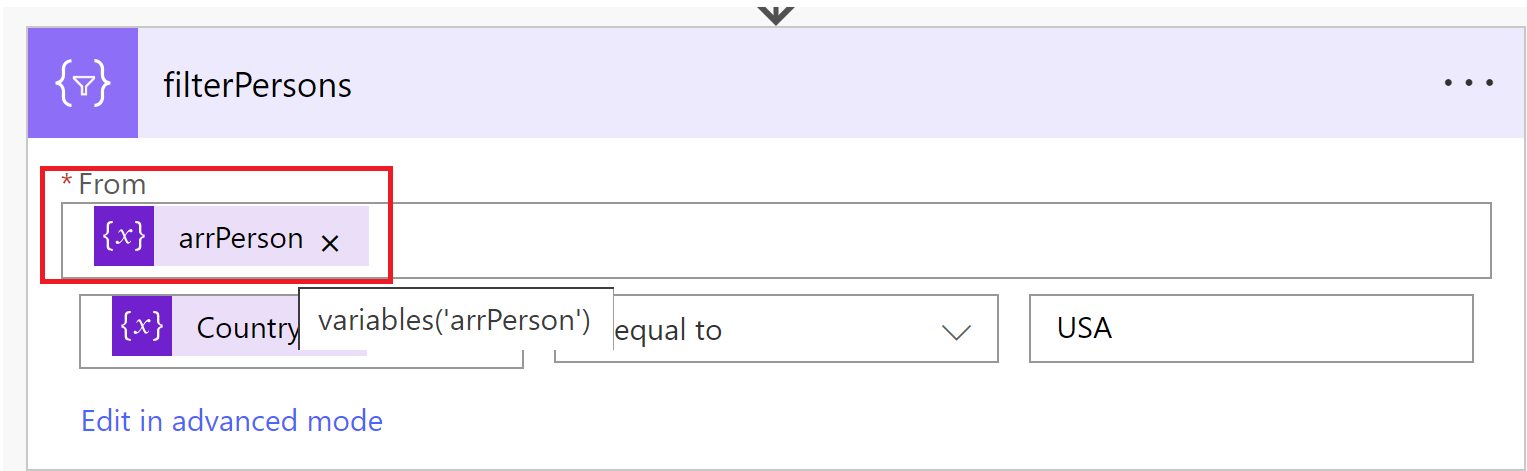
- In the condition, set the left operand as ‘item()?[‘Country]‘, as highlighted below and right operand as USA.

- Save and test the flow. The ‘filterPersons’ action’s outputs must consist of 1 record where the Country is ‘USA,’ as highlighted below.

Filter the Array by matching object properties:
In the above example, we learned how to filter arrPerson by Country name ‘USA’. by the country name ‘USA.’ Now, let’s explore how to filter arrPerson where countries match ‘India, USA.’
- Add a Compose action and rename it to ‘varCountries’. Set the ‘Inputs’ ad ‘India,USA’ as shown below.

- To filter the arrPerson where Country matches with varCountries, add a Filter Array action and rename it to ‘filterPersonsbycountrynames’.

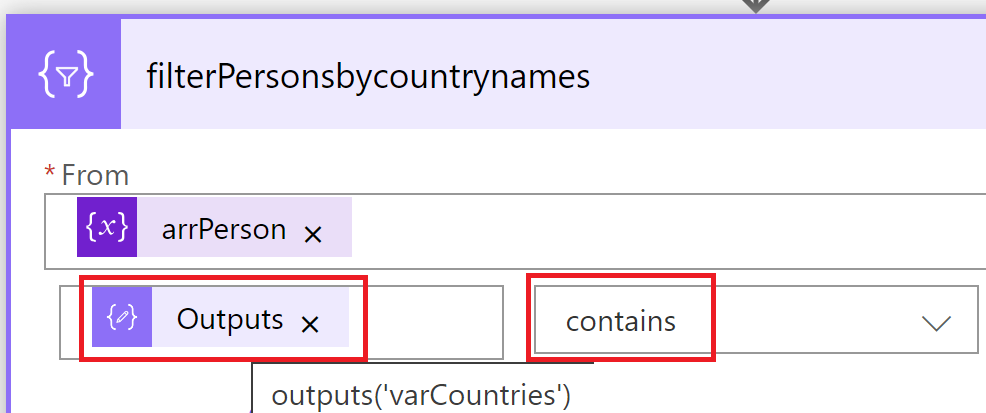
- Set the ‘From’ of the Filter Array action as ‘variables(‘arrPerson’)‘, as highlighted below.

- In the condition, set the left operand as ‘outputs(‘varCountries’)‘ and operator as ‘contains‘ as highlighted below.
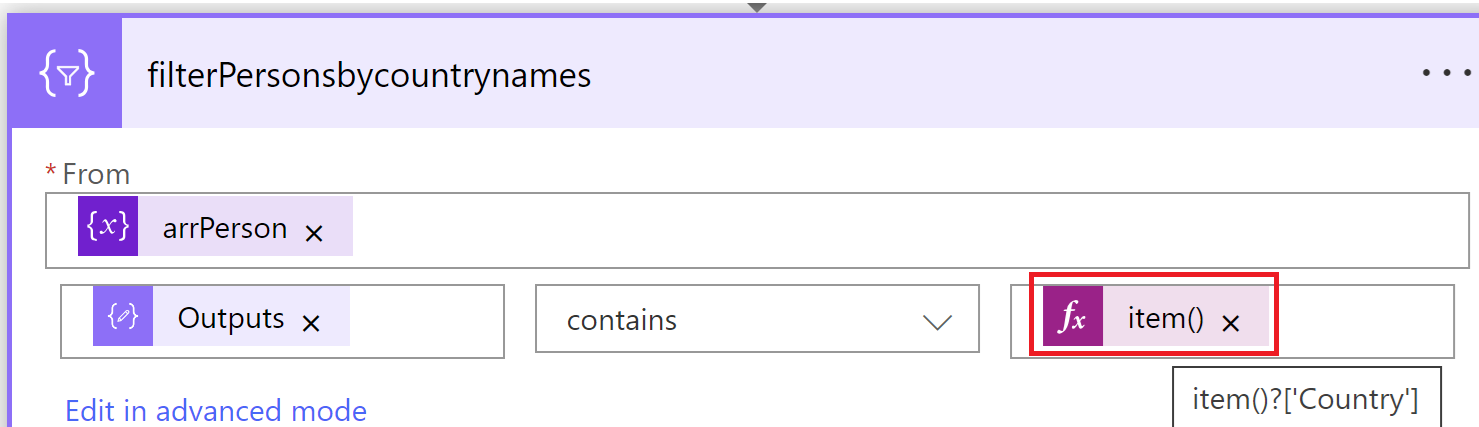
- Set the right operand as ‘item()?[‘Country’]‘ as highlighted below.
- Save and test the flow. The ‘filterPersonsbycountrynames’ action’s outputs must consist of 3 records where the Country is either ‘India’ or ‘USA,’ as highlighted below.

Hope you now understand how to declare and filter arrays in Power Automate Cloud Flows.
🙂


![[Step by Step] Beginner : Create a PCF control and add it to a custom page](https://rajeevpentyala.com/wp-content/uploads/2024/12/image-49.png)
 Rajeev Pentyala – Technical Blog on Power Platform, Azure and AI
Leave a comment