In this article, I will explain how to use Power Fx Named Formulas , which are more efficient than initializing global variables using the Set function.
What are ‘Named formulas’:
- Named formulas provide an alternative. Just as we commonly write control-property = expression, we can instead write name = expression and then reuse name throughout our app to replace expression.
- The definitions of these formulas are done in the Formulas property.
- Let me clarify the above two statements by comparing them with Set function.
Using Set function:
- To capture User’s Email and User’s Manager and current quarter of the year we can use Set function as shown below, by defining in either
App.OnStartorScreen.OnVisibleevents.
Set(UserEmail, User().Email);
Set(UserManager, Office365Users.ManagerV2(UserEmail));
Set(CurrentQuarter, RoundUp(Month(Today())/3,0));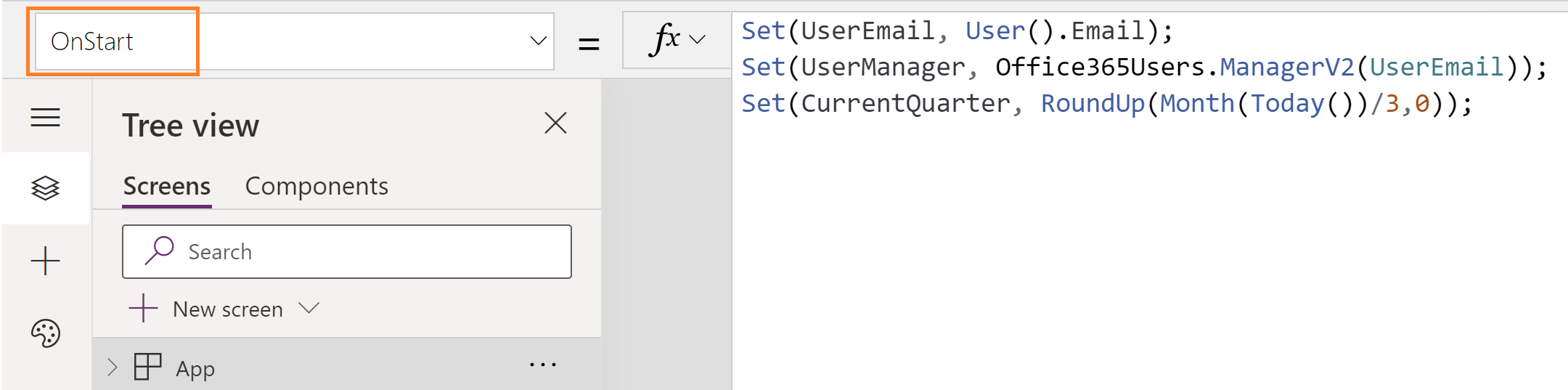
- Now trigger ‘Run OnStart’ to apply the effects of the Set function.

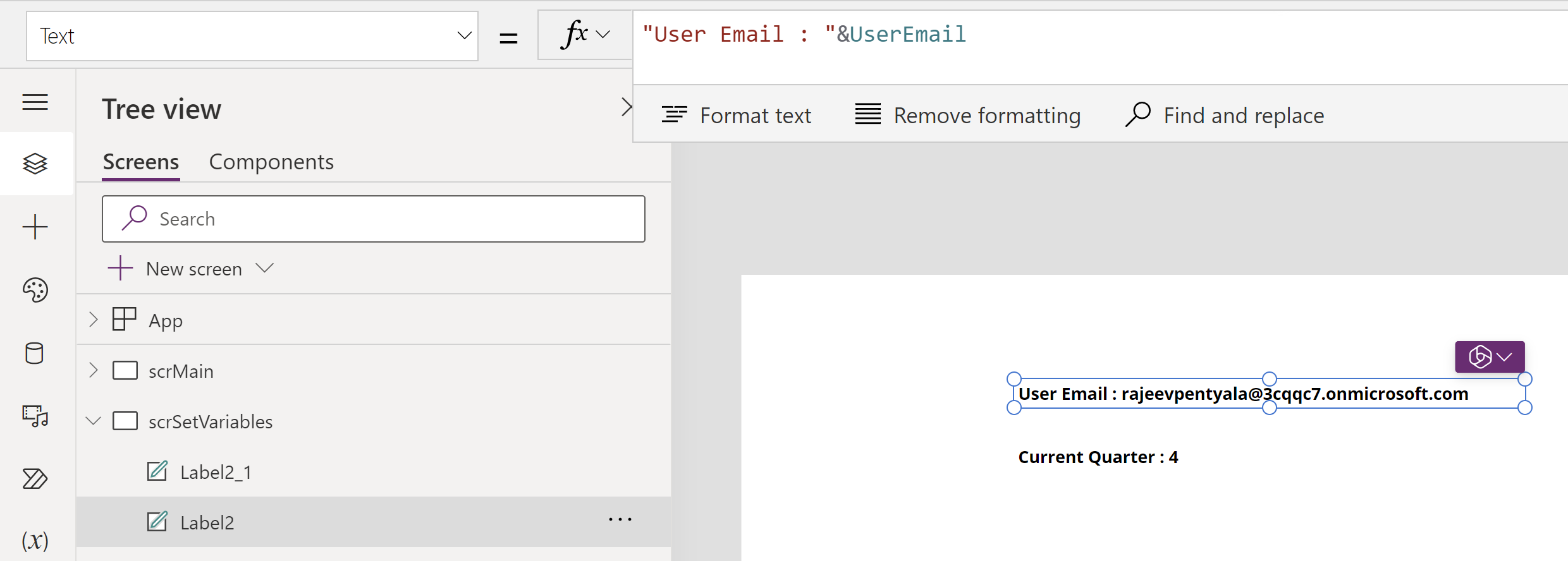
- You can display/print the values on a form as shown below.
Using Named Formulas:
Let’s explore how to fulfill the above requirement, which was accomplished with the Set function using the Named Formulas.
Formula follow a different syntax, Instead of writing Set(UserEmail, User().Email); you’ll be able to write UserEmail= ;. Ensure a semicolon (;) is added at the end of the formula.User().Email
Here is how you can write the Formulas.
- To define a formula, use Formulas property of the App.
formUserEmail = User().Email;
formUserManager = Office365Users.ManagerV2(UserEmail);
formCurrentQuarter = RoundUp(Month(Today())/3,0);
At this point, you might be wondering what the big deal is with formulas beyond a syntax change. Let’s delve into that.
How Named formulas ease development and improve performance:
To understand this, lets proceed with an example, where we display the Dataverse ‘Account’ records in the App.
- The ‘Account’ table currently contains 5 records.

- In my Canvas app, I have defined the Set function formula, written in the ‘OnVisible’ event of the Form, fetching the first 5 ‘Account’ records.
Set(
    setFirst5Accounts,
    FirstN(
        Accounts,
        5
    )
);
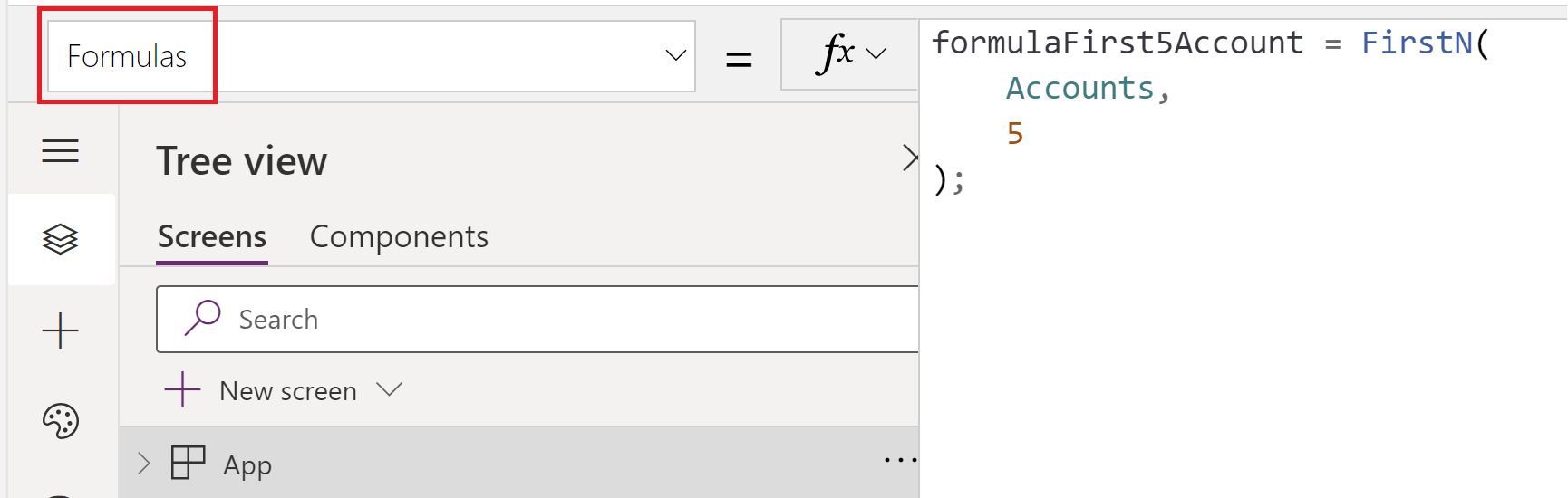
- I have also created a named formula that fetches the first 5 ‘Account’ records, similar to the Set function above.
formulaFirst5Account = FirstN(
    Accounts,
    5
);
- Added 2 gallery controls and mapping them to setFirst5Accounts and formulaFirst5Account as their ‘Items’ property. Additionally, I display the record count of each gallery using labels.

- If you observe the screen above, both galleries show 5 records.
- Now, let’s proceed to delete one of the ‘Account’ records, reducing the count from 5 to 4.
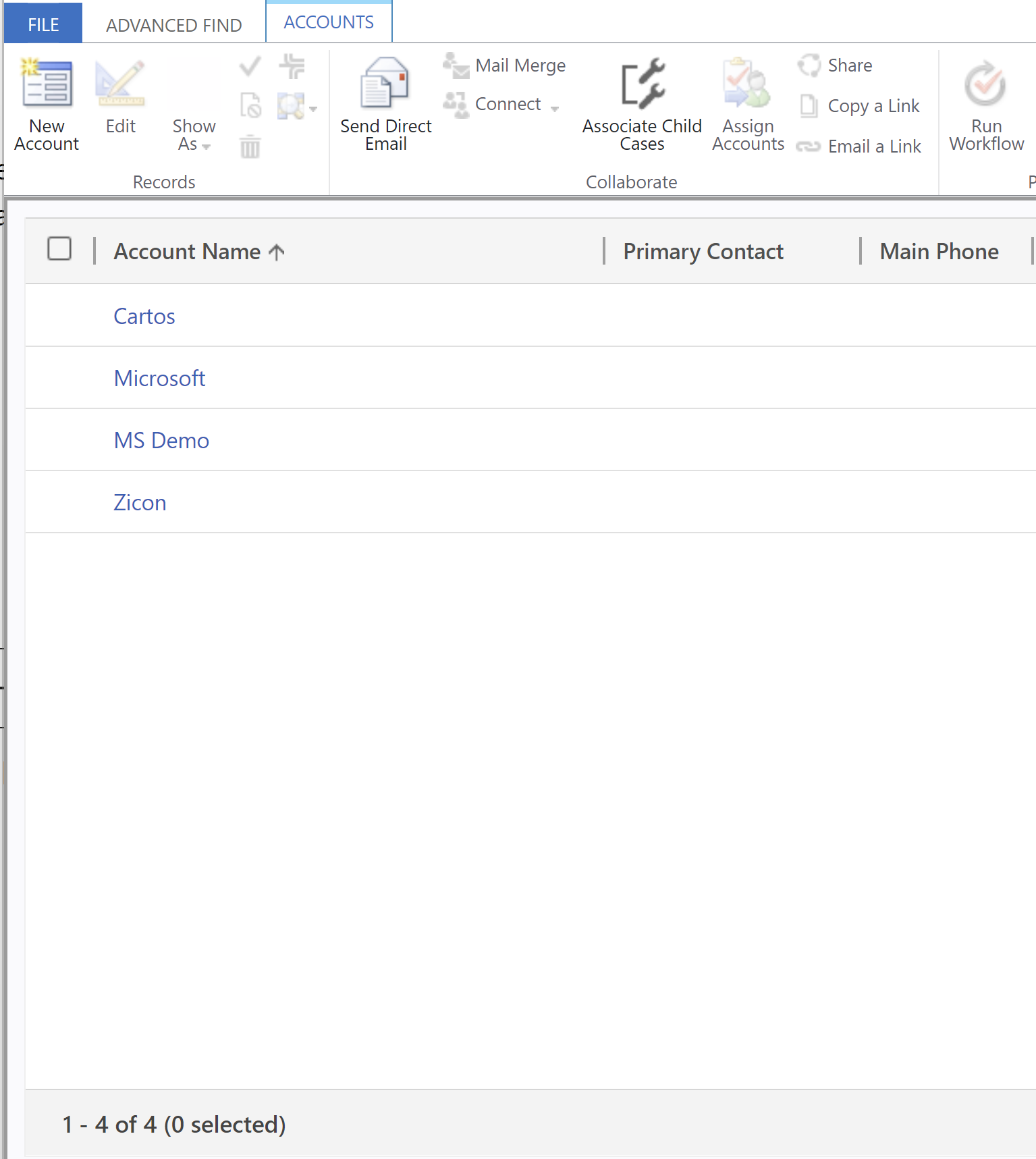
- Return to the Canvas App, refresh the ‘Account’ data source, and you will immediately notice that ‘Gallery 2’ which is mapped to formulaFirst5Account, displays the actual result (i.e., 4 records) unlike ‘Gallery 1’ mapped to setFirst5Accounts.

Why ‘Named Formula’ Stays Up-to-Date:
- In the named formula approach, results in
formulaFirst5Accountalways being set and always being up to date with changes in ‘Accounts‘ table. - The named formula sets up a dependency relationship between formulaFirst5Account and ‘
Accounts‘. - The formula’s value is always available. There’s no timing dependency, no OnStart that must run first before the value is set, no time in which the formula’s value is incorrect.
- The formula’s definition is immutable. The definition in Formulas is the single source of truth and the value can’t be changed somewhere else in the app
Limitations of Set function:
- Since we use the Set function in App.OnStart or Screen.OnVisible events, retriggering either of them is necessary to reflect the results..
That concludes the blog post. I hope you’ve gained insights into ‘Named Formulas’ and their efficiency compared to global variables defined using the Set function.
🙂
![[Beginner] Canvas Apps | Data validations using Regular Expressions | Rajeev Pentyala - Microsoft Power Platform Avatar](https://rajeevpentyala.com/wp-content/uploads/2018/08/cropped-rajeev_pentyala.jpg?w=40)



 Rajeev Pentyala – Technical Blog on Power Platform, Azure and AI
Leave a comment