Before we go in to ‘Preferred solution‘, lets understand the ‘Common Data Services Default Solution’ solution.

What is ‘Common Data Services Default Solution’:
- By default, if you create any App outside of a solution, they get stored in the solution named ‘Common Data Services Default Solution’.
- However, ‘Common Data Services Default Solution’ can’t be exported for import to other environments.
- So its difficult to move all the maker components across the solutions to a different environment.
What is ‘Preferred solution’:
- Using preferred solutions, any component which created outside of a solution will automatically be added in that solution.
- Then, you can export your preferred solution and import the solution to other Dataverse environments.
- You can’t set or view the preferred solution in the classic solution explorer.
Enable ‘Preferred solution’ setting:
- Set the Preferred solution to On for the environment settings in the Power Platform admin center.
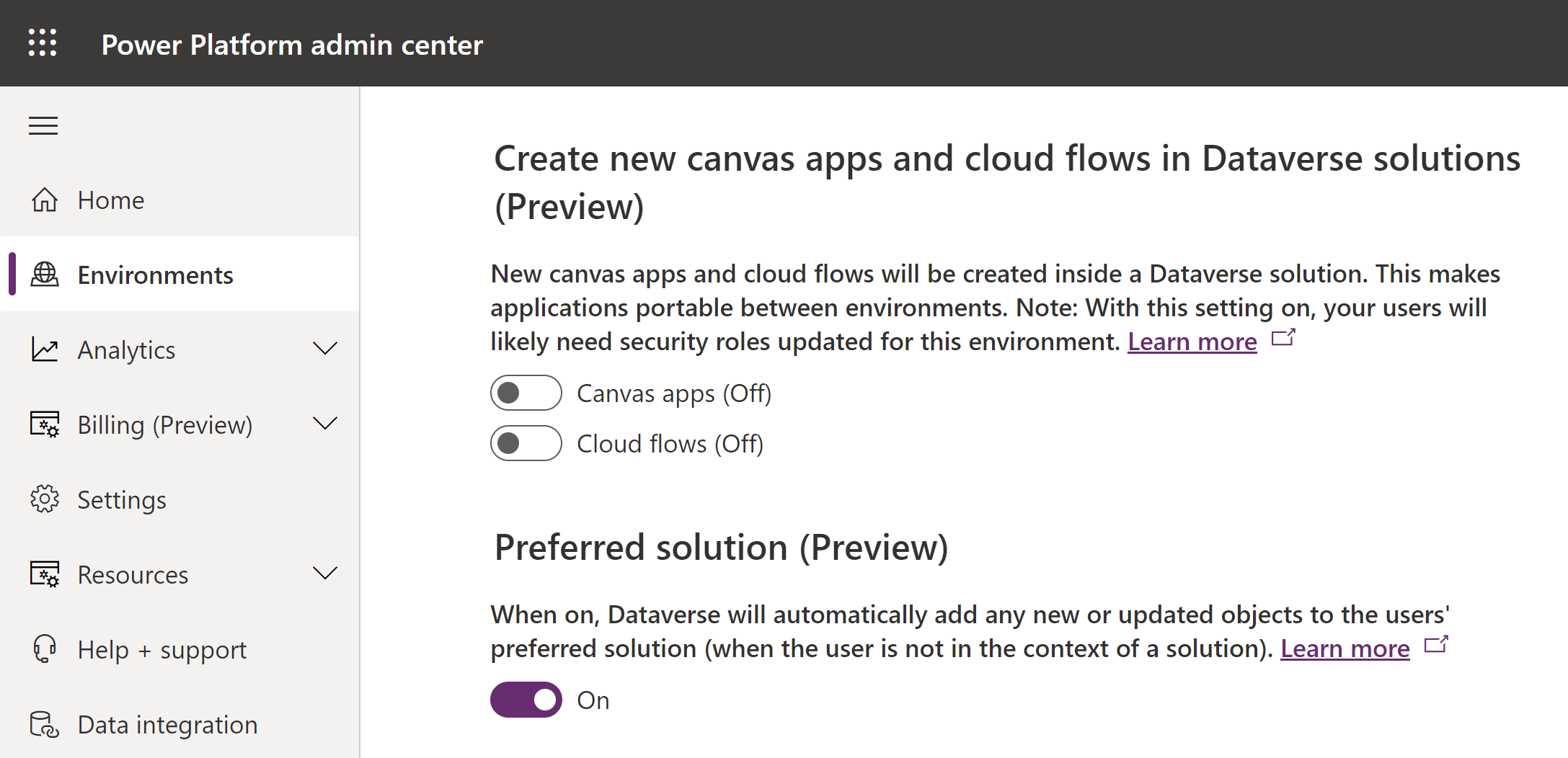
Set your preferred solution:
- Sign into Power Apps, and then select Solutions from the left navigation pane.
- Select the unmanaged solution that you want to make your preferred solution.
- I created a new solution by name ‘My preferred solution’.
- Select Set preferred solution on the command bar.

- Click on ‘Apply’.

- Once your preferred solution is set, notice the preferred solution indicator next to the solution name. You can also notice the ‘Current preferred solution’ changes to the selected solution (i.e., My preferred solution).
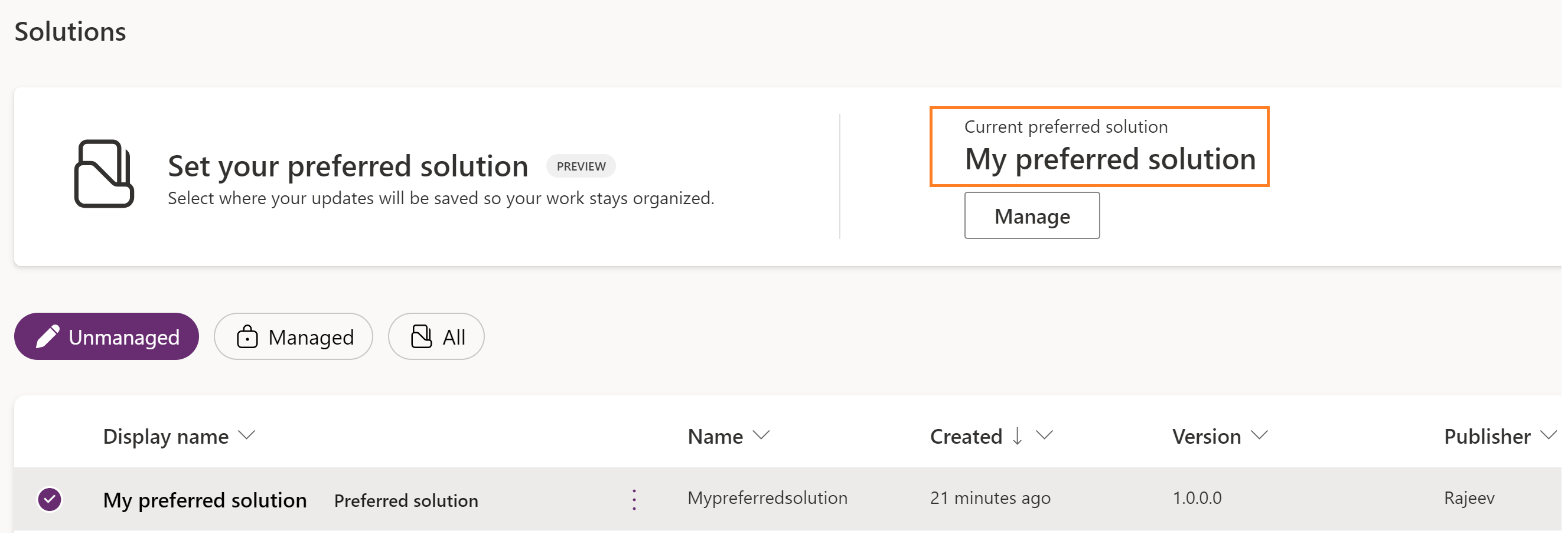
Test the Preferred Solution:
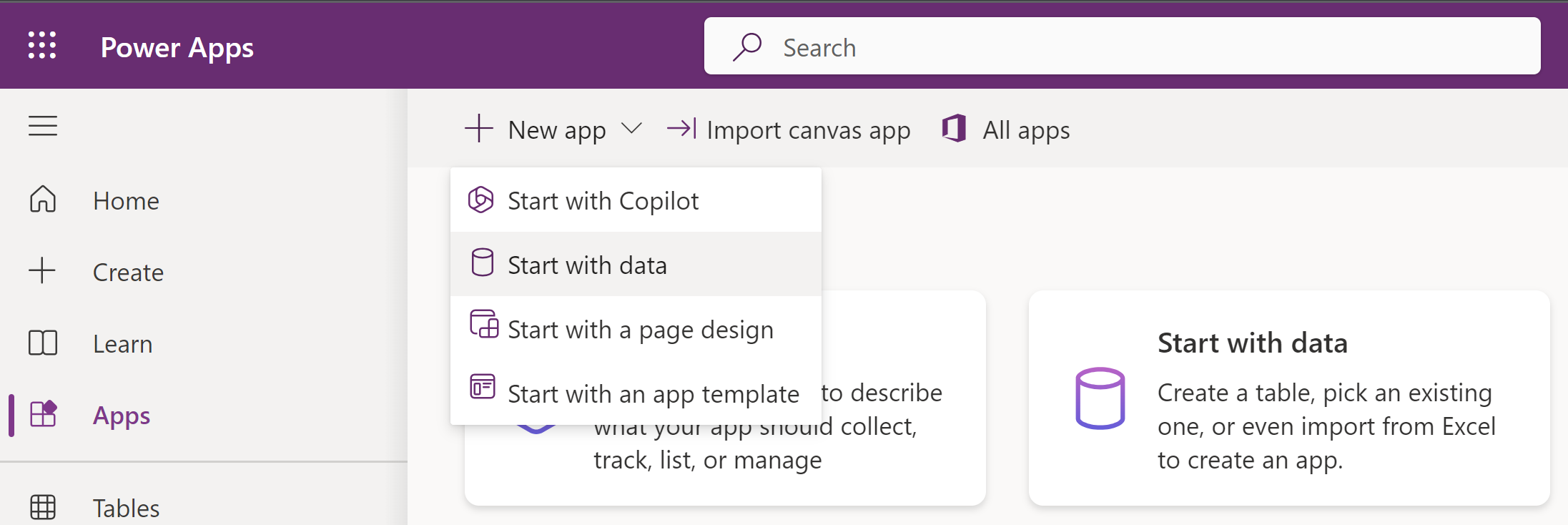
- Lets go and create a new ‘Canvas’ App, outside of solution.
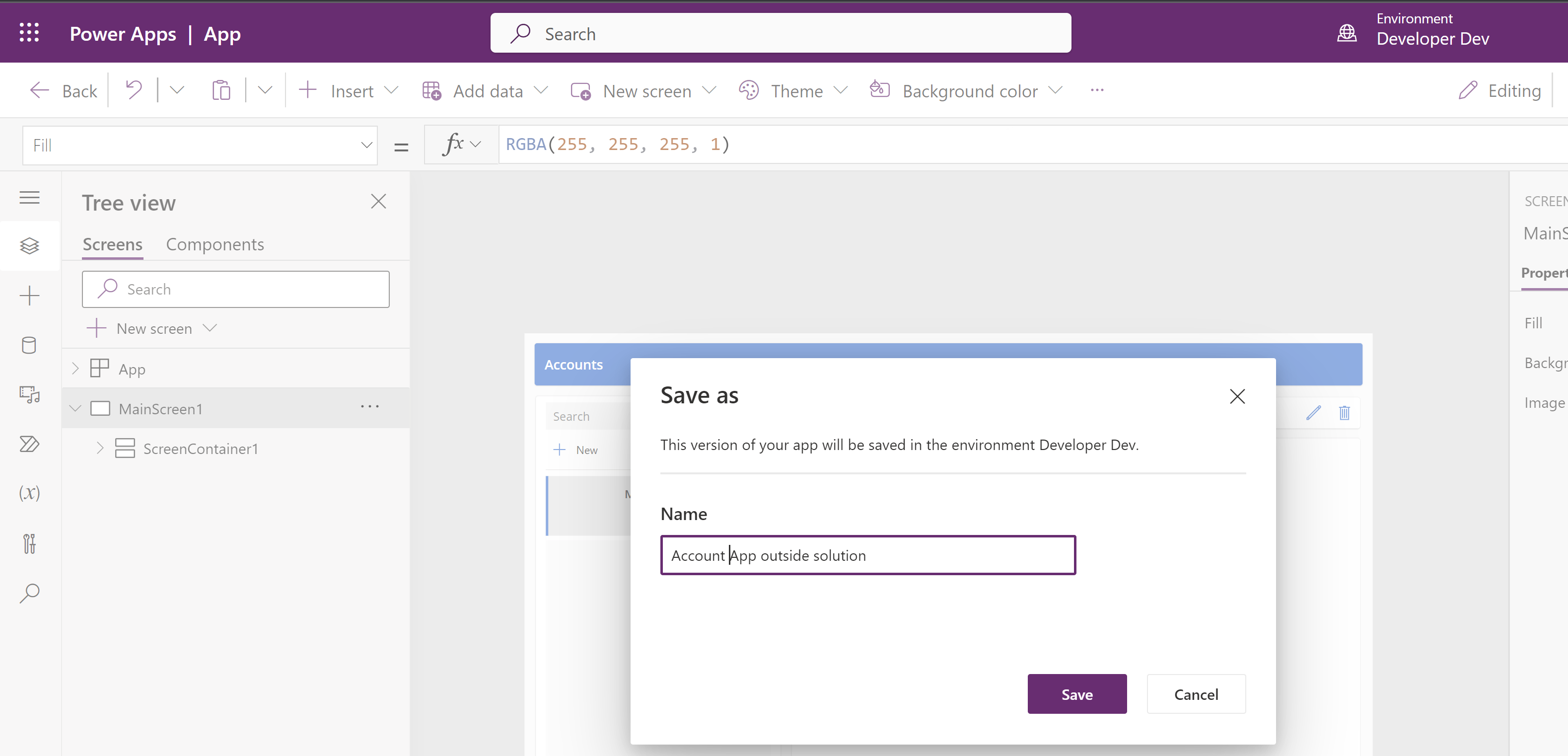
- Save the App.
- Now go back and open the preferred solution and you should see the App added automatically.
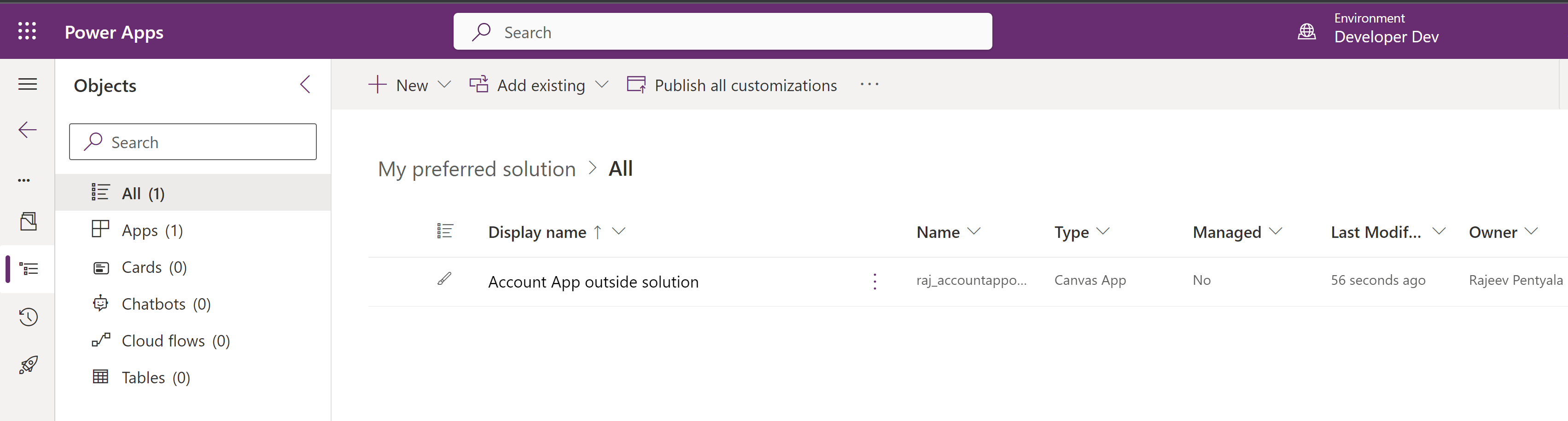
- So you can seamlessly export the solution to other environments.
Deleting a preferred solution:
- You can delete your preferred solution or a preferred solution that other makers have also set as their preferred solution
- When you delete a preferred solution you receive a warning that includes the fallback default solution and the number of other makers who are using the same solution.
- Delete an active solution only when you’re sure it won’t impact your work or the work of other makers.

🙂




 Rajeev Pentyala – Technical Blog on Power Platform, Azure and AI
Leave a reply to Copilot Studio | Manage Agent solutions – Rajeev Pentyala – Technical Blog on Power Platform, Azure and AI Cancel reply