With Azure AD groups, you can grant access and permissions to a group of users instead of for each individual user, to manage access to resources, applications, and tasks.
Group Types:
Azure Active Directory(AD) contain two group types
Security: Used to manage user and computer access to shared resources.
Microsoft 365: Provides collaboration opportunities by giving group members access to a shared mailbox, calendar, files, SharePoint sites, and more.
Scenario:
Coming to my scenario, I’ve 2 groups Raj-M365-Group which is a Microsoft 365 group and Raj-Security-Group which is a Security group.
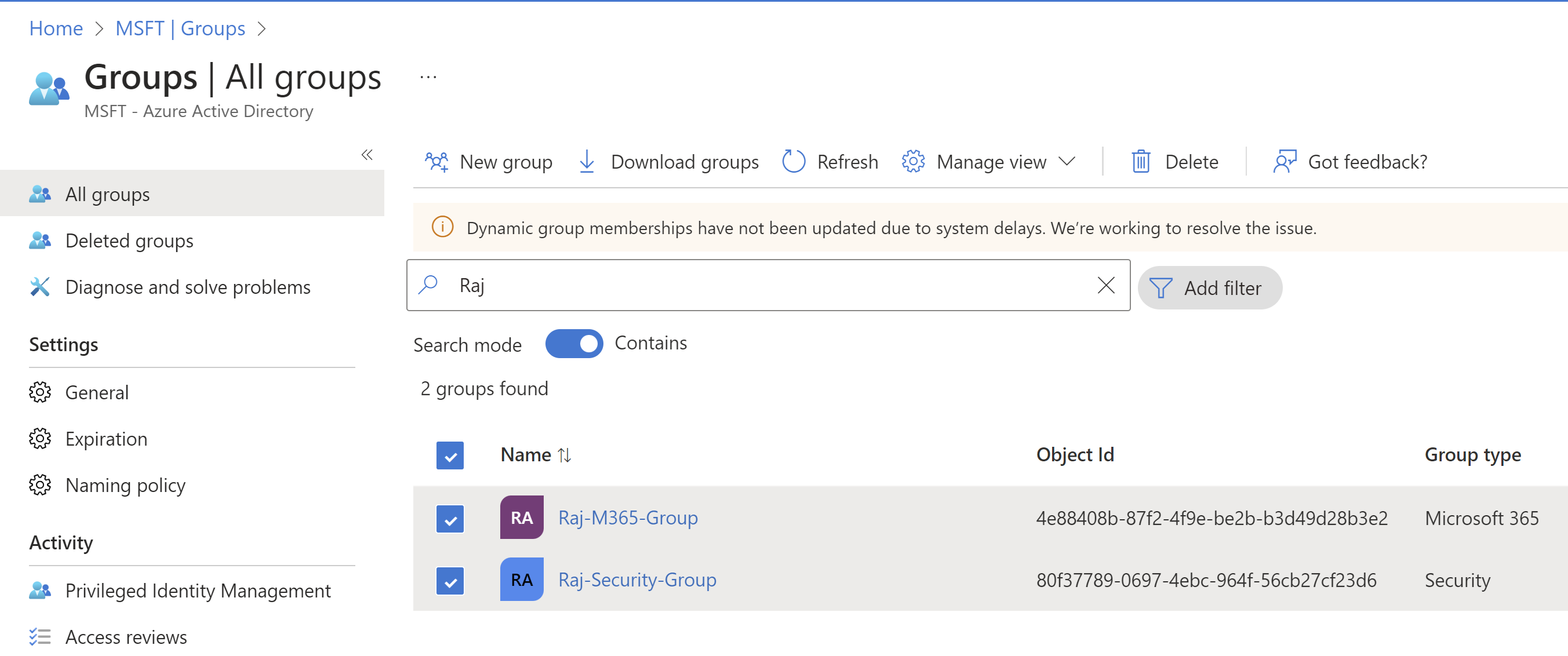
When I tried to share one of my Canvas app to those 2 groups, I could not find Raj-M365-Group in the list.

Reason:
Technically, we can share a Power App with Microsoft 365 groups. However, the group must have security enabled.
So when I checked the Raj-M365-Group information using the Graph Explorer, I could see the ‘securityEnabled’ flag was ‘false’.
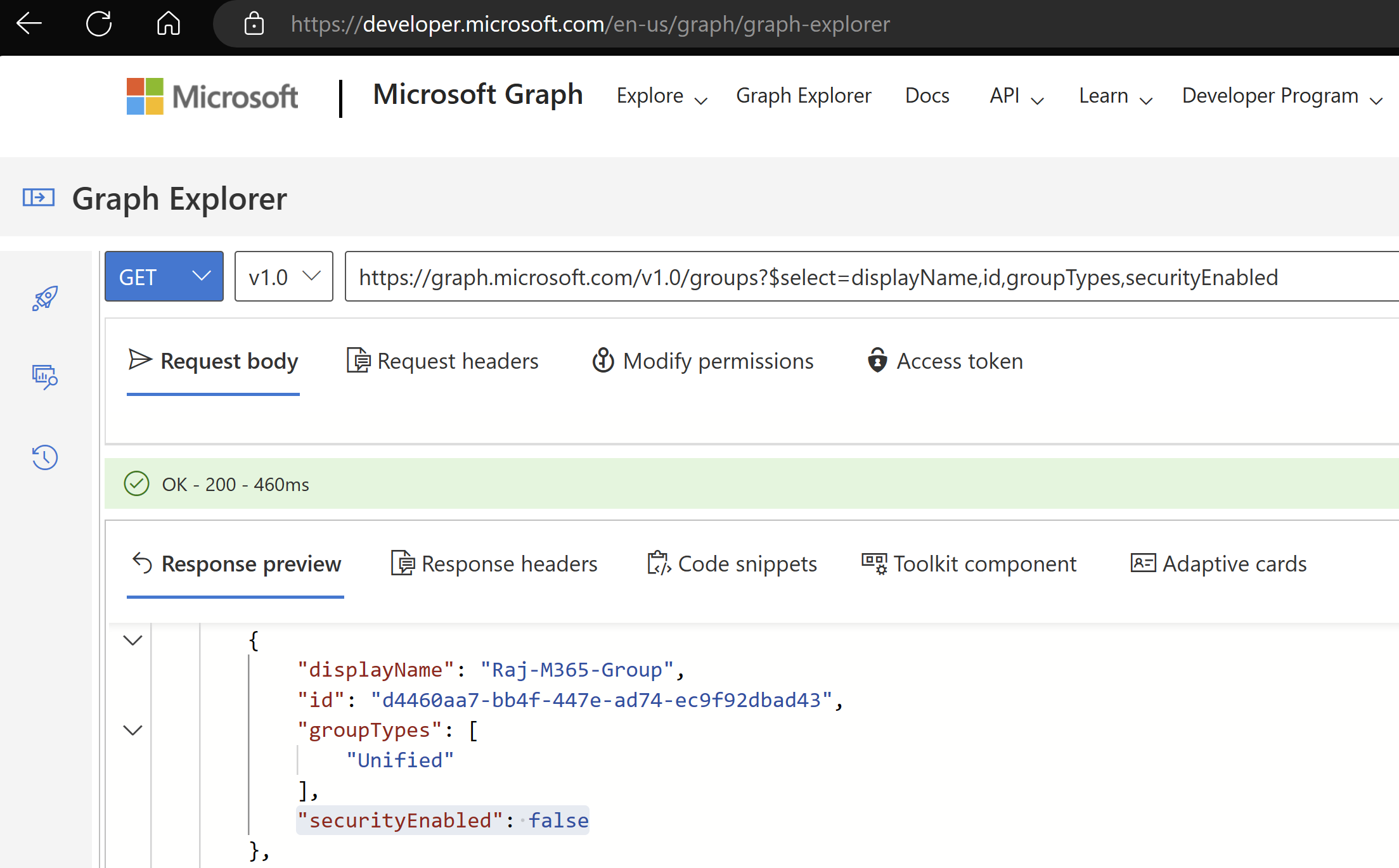
This explains why the Raj-M365-Group did not shown up in the Canvas App’s ‘Share’ pane.
Fix:
We need to leverage PowerShell to set the ‘securityEnabled’ flag. Follow the steps as mentioned below.
- Open the Windows PowerShell console in Administrator mode.
- First install the Azure AD PowerShell module by running commands specified here.

- Connect to Azure AD by using the
Connect-AzureADPowerShell cmdlet.
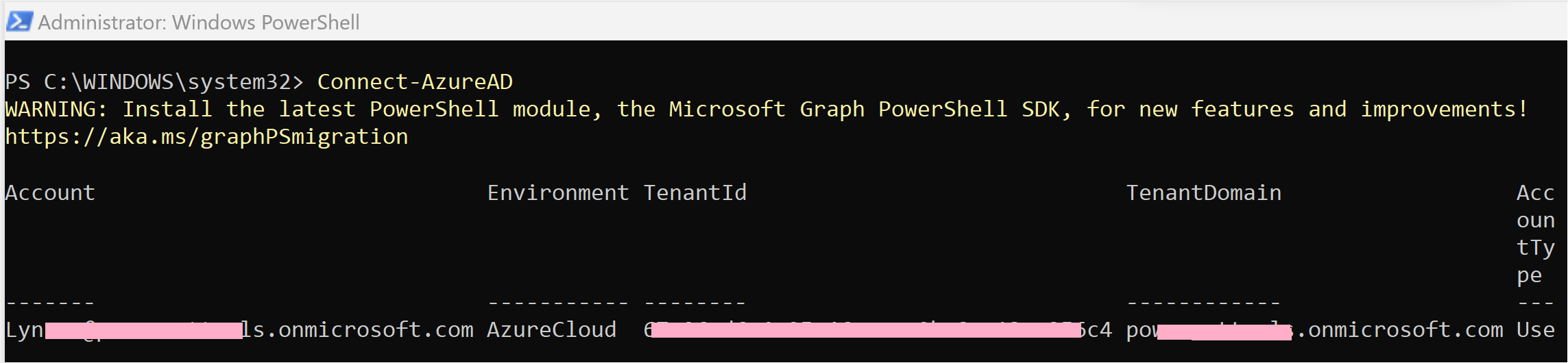
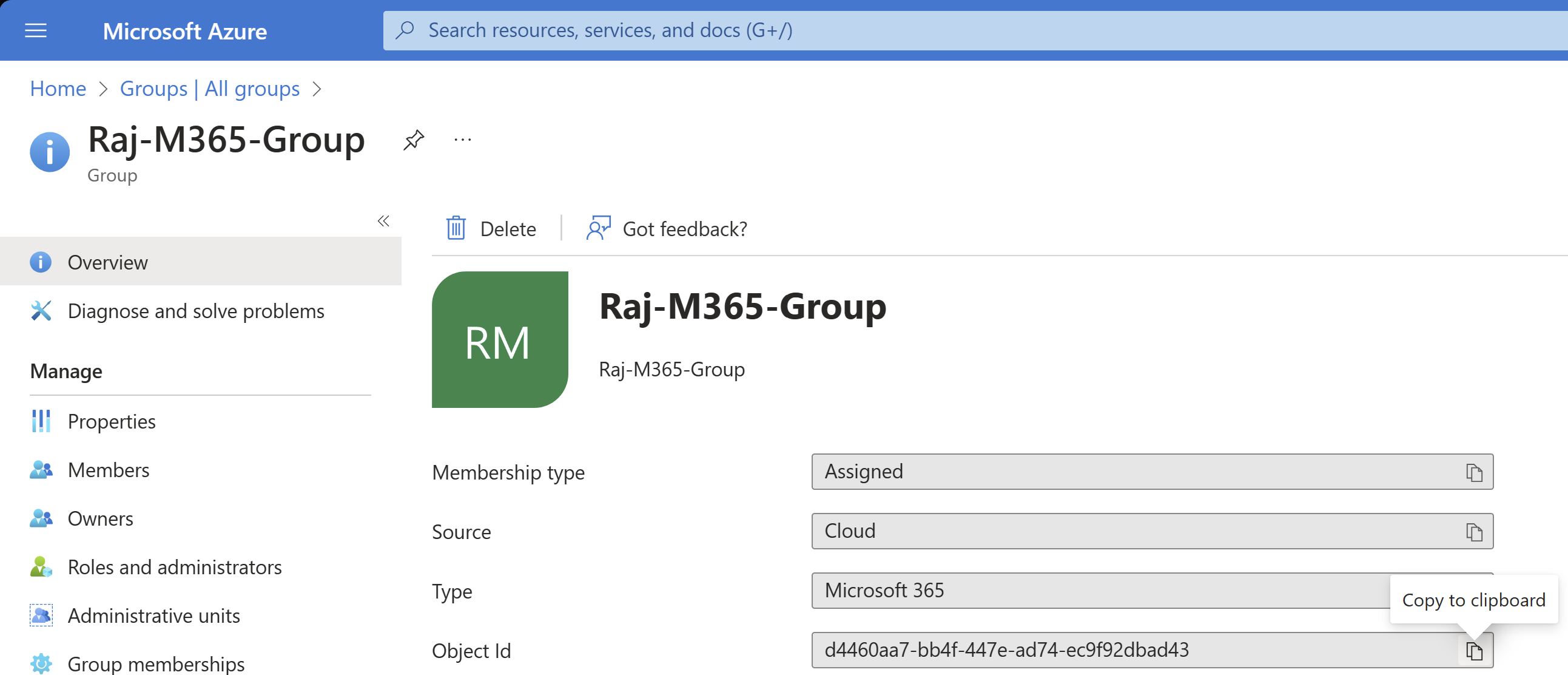
- We need the Raj-M365-Group object id, so, go to Azure portal > Azure Active Directory > Groups, select the Raj-M365-Group, and then copy the Object Id.
- Use the cmdlet Set-AzureADGroup to set the SecurityEnabled property to True:
Set-AzureADGroup -ObjectId <ObjectID> -SecurityEnabled $True

- You can check whether the SecurityEnabled has been set to True by using
Get-AzureADGroup -ObjectId <ObjectID\> | select *

- That’s all you need to do. Go to the Canvas App share pane, search for the Raj-M365-Group, and you should be able to find it now.

🙂




![[Step by Step] Beginner : Create a PCF control and add it to a custom page](https://rajeevpentyala.com/wp-content/uploads/2024/12/image-49.png)
 Rajeev Pentyala – Technical Blog on Power Platform, Azure and AI
Leave a reply to Surrey Microsoft 365 Cancel reply