I’ve written an introductory article on Command Bar when the feature was in preview state. Now that the Command Bar evolved with Power Fx, lets learn few scenarios using Command Bar with Power Fx.
I am taking a scenario of Cloning a record with following design:
- Add new Command button on Command Bar
- On ‘OnSelect’, write Power Fx Patch formula to create a new record from existing record.
- Write a Visibility rule, to display the Command button only on ‘Edit’ form.
Lets get started.
Add a new Command button and implement Clone functionality:
- Open the Model Driven App in editor and select a table which you would want to place the Clone button. click on ‘Edit command bar’.

- Selected ‘Main form’ as we are going to add ‘Clone’ button on form.

- Add a new ‘Command’ button and provide details like Label, Icon, etc…

- We need to write ‘Power Fx’ formula on ‘OnSelect’ event of the command button.
- We can write the formula in the formula text box at the top but its not intuitive. One option is to write the formula by clicking on ‘Open component library’, which opens up Canvas app editor.
- Click on ‘Open component library’.

- Point to be noted is every time you add a new Command button, it creates a component in the background.
- Once the ‘Command Library’ window opens up, under ‘Tree View’, you can see a separate component for each command button you have in your MDA.

- Coming back to our Clone scenario, select the ‘Clone Customer_1’ component and on ‘OnSelect’ event, write the PowerFx formula to clone the current record.
- I am using Patch function with Defaults(Customers) which creates a new record.
Notify("Cloning the Customer...");

Patch(

    Customers,

    Defaults(Customers),

    {

        Name: "Clone - " & Self.Selected.Item.Name,

        Gender: [@Gender].Male,

        'Date of Birth': Self.Selected.Item.'Date of Birth',

        'Mobile Number': Self.Selected.Item.'Mobile Number'

    }

);

Notify("Cloning completed successfully !!!");- Click on ‘Publish’ icon and close the window.

- Come back to the MDA editor and you would see the clone Power Fx formula prepared in Components library screen.

- Click on ‘Play’ to test the ‘Clone Customer’ button in your MDA.
- Open a Customer record and click on ‘Clone Customer’ button.
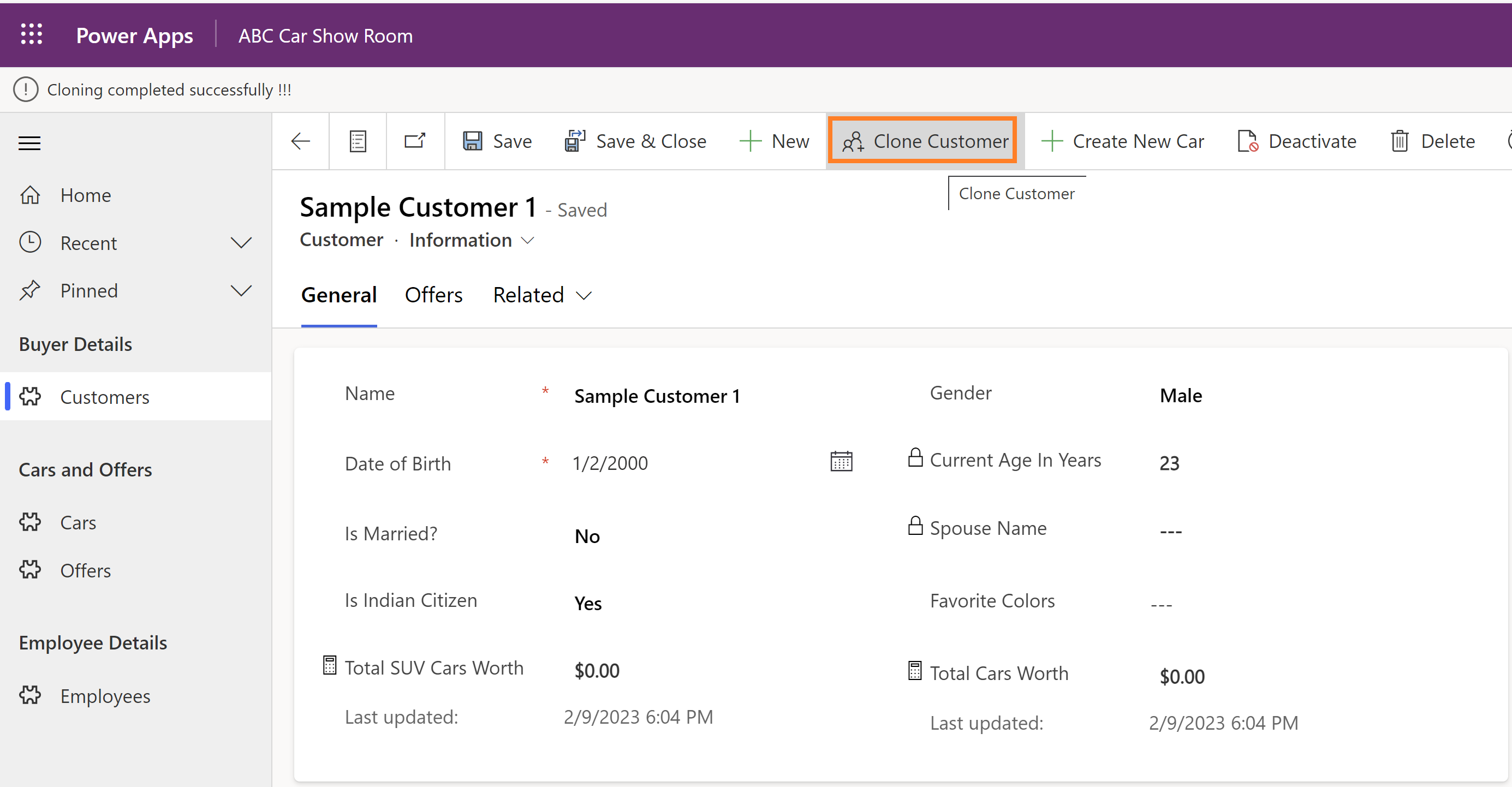
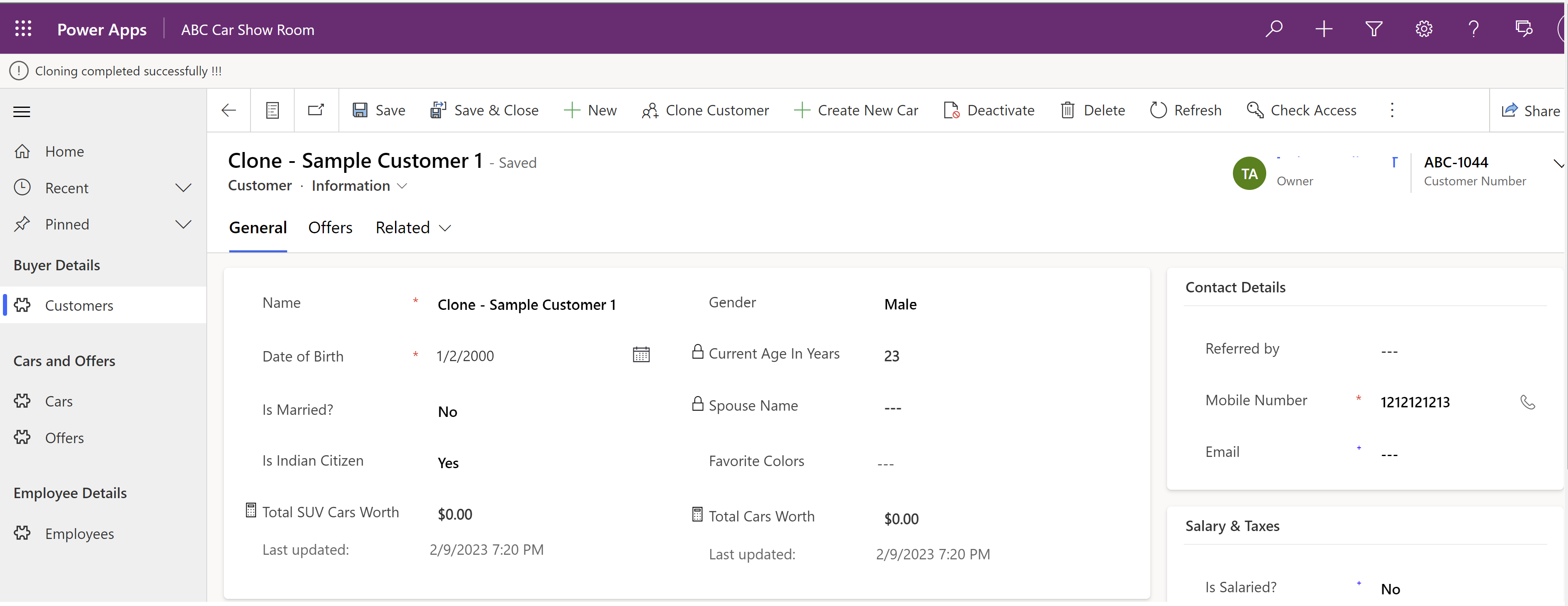
- Up on successful clone, you would get the ‘Cloning completed successfully’ notification and you can even open the new cloned record.
Command Visibility Formula:
- Now that we achieved the clone functionality, lets add a validation by showing the ‘Clone Customer’ command only on Edit form.
- Go back to MDA editor and select the ‘Clone Customer’ command and set Visibility as ‘Show on condition from formula’.
- In the formula, specify formula as
Self.Selected.State = FormMode.Edit
- Publish and Play the App and you would see the ‘Clone Customer’ button only on edit form but not on create form.
🙂



 Rajeev Pentyala – Technical Blog on Power Platform, Azure and AI
Leave a comment