In one of my previous articles, I detailed the steps to embed a Canvas app with upload image to Azure Blob feature.
In this article lets see, how to work with large data sets and achieve following:
- Displaying blob images in Gallery.
- Ability to Download the image.
Pre-requisites:
- Azure Storage Account and Container. Get free Azure subscription here
- Dynamics 365 account. Get 30 days trail here
Set up Azure Storage Account and Container
- Connect to your Azure portal.
- Create a new Storage Account and capture the Storage Account ‘Name’ and ‘Access Key’.
- I’ve named Storage Account name as ‘expmar’

- Create a new Container and copy the Name.
- I named my Container as ’employee’.

- Upload few images, which will be used to display in Canvas App.

Steps to create Canvas App and Connect to Azure Blob
Create Azure Blob Storage Connection:
- Connect to Power Apps Portal using your Dynamics 365 account.
- To connect to Azure Storage Account from Canvas App, we need a new ‘Azure Blob Storage’ Connection.
- Click on ‘Data -> Connections -> Azure Blob Storage’ and provide Azure Storage Account ‘Name’ and ‘Access Key’ captured in previous section and click ‘Create’.
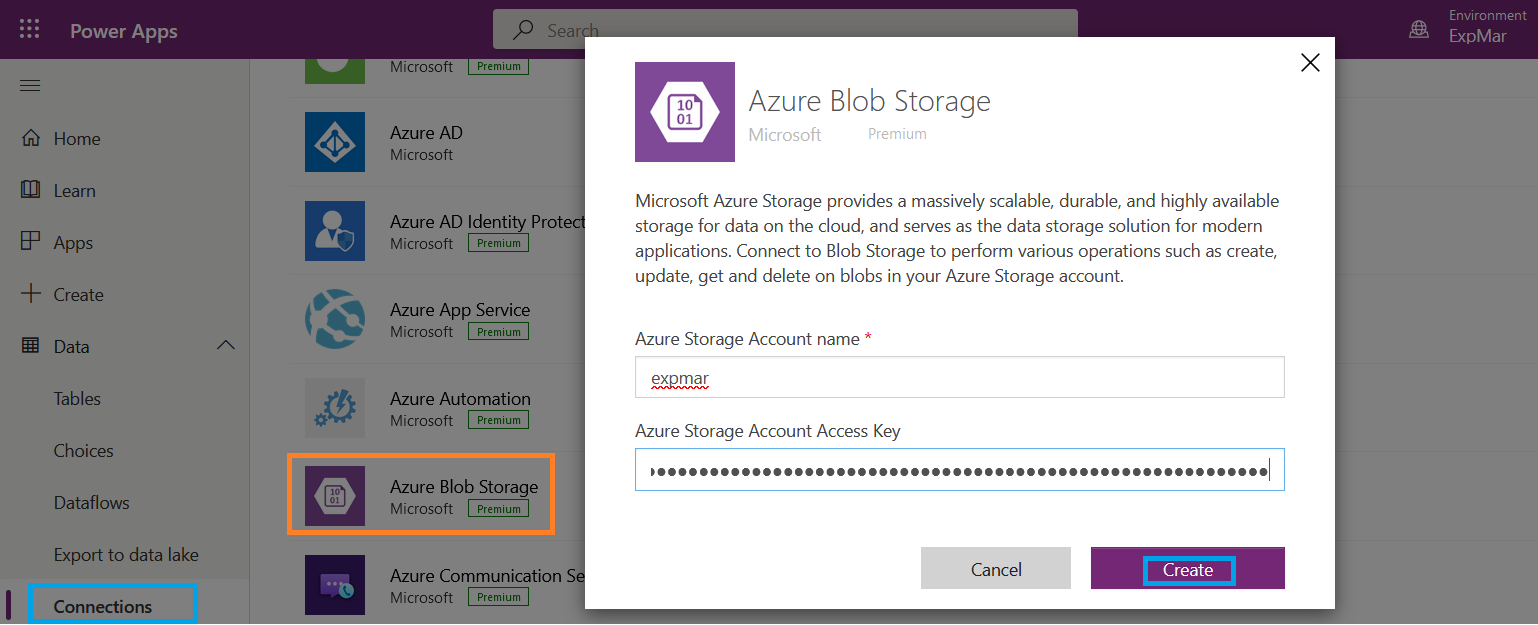
- Up on successful creation, you should see the ‘Azure Blob Storage’ under ‘Connections’.

Steps to Create Canvas App and display blob images
- Create a new Canvas App.
- Add the ‘Azure Blob Storage’ connection created in previous step to the Canvas App from ‘Data -> Add a connection’.

- As we established connection to Azure Storage Account, next, connect to ‘Container’ (i.e., Employee) and read the images to a List.
- Use following formula on App’s ‘On Start’ event.

- This formula, reads the images from ’employee’ Container and store the images in ’employeePhotos’ Collection.
- Now we have the images in ’employeePhotos’ Collection, add a Gallery control and bind to ’employeePhotos’ Collection.
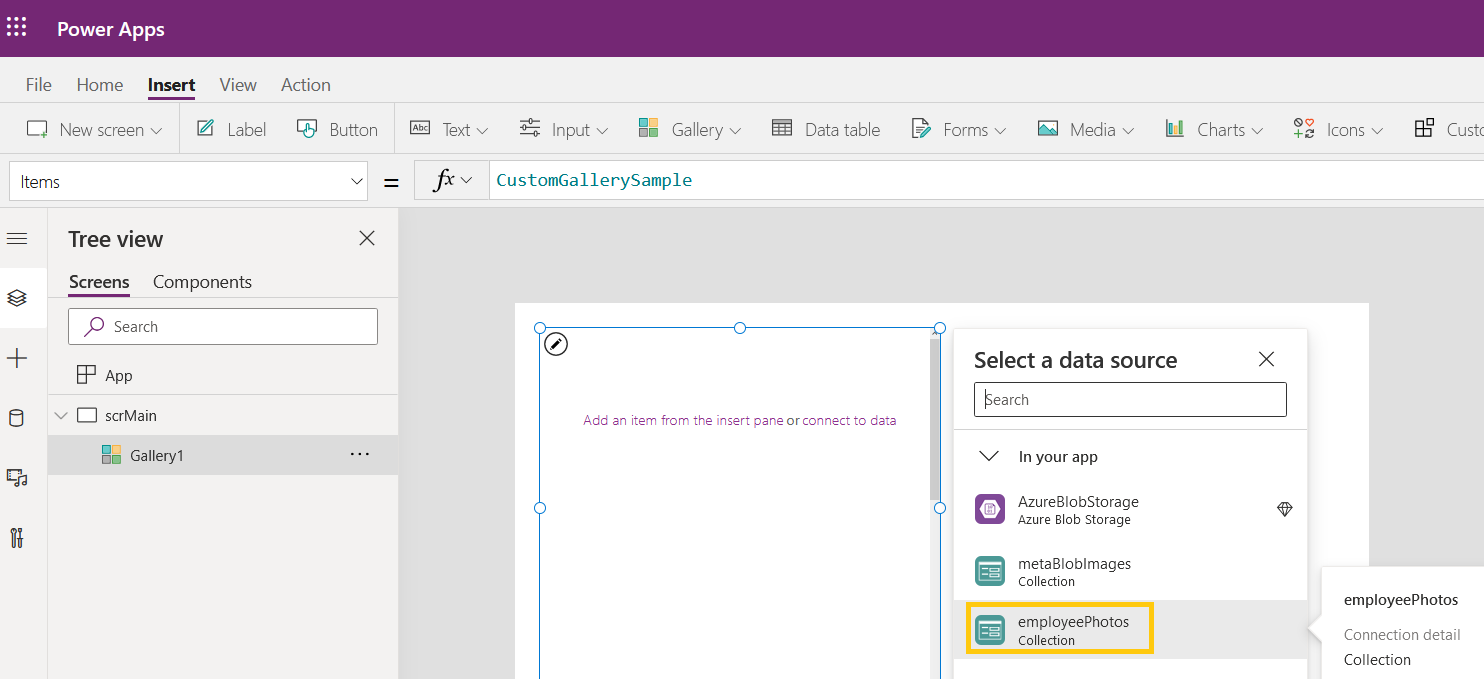
- To display images, In the Gallery, add an ‘Image’ control and in the ‘Image’ property add following formula.

- To display image name, add a ‘Label’ control and set Text as ‘ThisItem.DisplayName’.

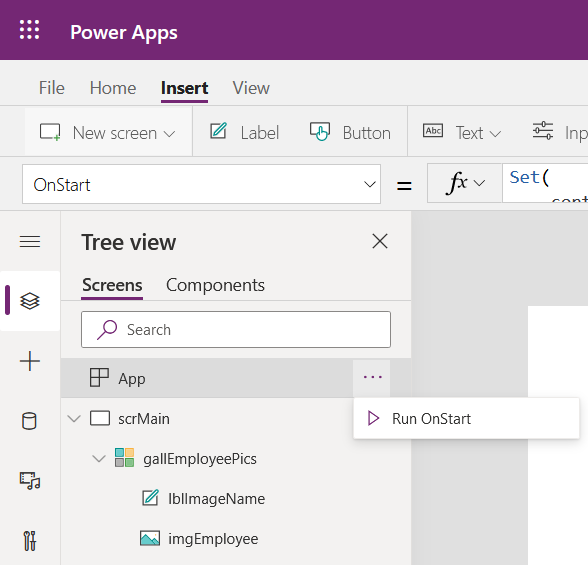
- To check whether images are rendering click on ‘App -> Run OnStart’ and you should see the images upload to Azure Blob Container in the Gallery.
Steps to Build Download feature
- To download an image from Azure Container, we would need following 2 values:
- URL : Azure Storage Account URL.
- URL format would be “https://{Storage Account Name}.blob.core.windows.net“
- In my case, its “https://expmar.blob.core.windows.net”
- SasToken (Shared access signature Token):
- Generate the ‘Shared access signature’ as below from Azure portal.
- URL : Azure Storage Account URL.

- Set ‘URL’ to ‘bloburl’ and ‘Token’ to ‘sastoken’ variables ‘OnStart’ of the App.
- Complete ‘OnStart’ formula looks as below.

- Add a ‘Download’ icon to the Gallery.

- On ‘OnSelect’, use ‘Download(bloburl & ThisItem.Path & sastoken)’ formula.

Test the App
- Run the App and you should see Images and ‘Download’ icon as below.

- Click on ‘Download’ icon and image should get downloaded.

🙂



 Rajeev Pentyala – Technical Blog on Power Platform, Azure and AI
Leave a reply to Vikash Kumar Cancel reply